Where to Find Symbols in the New Outlook: A Practical Guide Today
Discover where symbols live in the new Outlook interface, how to insert special characters and emojis, and best practices for symbol meanings in emails and documents. An educational, brand-aligned guide by All Symbols.


With the new Outlook, symbols and emojis are accessible via the Insert tab's Symbol option or the Windows emoji panel. This quick guide explains where to find symbols, the difference between symbols and emoji, and how to insert them into emails and documents for clear, professional communication.
What counts as a symbol in Outlook?
In digital communication, a symbol can be a typographic character, a mathematical sign, or an emoji. In the context of Outlook, symbols appear as special characters from the Symbol menu, as well as compact emoji glyphs that convey tone. Distinguishing between a formal symbol such as a check mark or degree symbol and a casual emoji is important for readability and professionalism. The All Symbols team notes that selecting the right symbol supports clear information flow in emails, presentations, and notes.
Locating symbols in the new Outlook interface
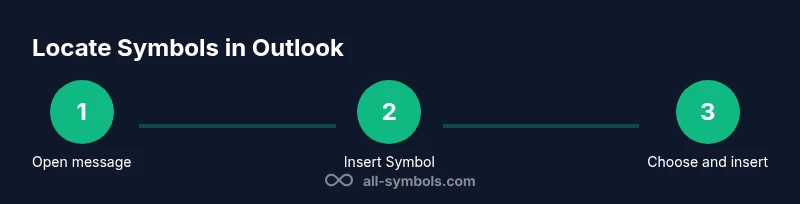
Open a new message. In the Ribbon, click the Insert tab to reveal options for adding text elements. Choose Symbol to open the Symbol dialog where you can browse character sets and insert single characters or combinations. For emojis, many platforms support a dedicated emoji panel accessible via a keyboard shortcut (for Windows, the emoji panel is typically opened with Win + .; macOS users can use Command + Control + Space). The exact placement of these controls may vary slightly by platform and update level. If you don’t see Symbol, customize the Ribbon to add it for quicker access.
Symbols vs emoji: when to use which
Symbols and emoji serve different purposes in professional writing. Use formal symbols like check marks, degrees, or minus signs to indicate status, measurements, or lists. Emoji can clarify tone but risk misinterpretation across cultures or devices. Before inserting, consider your audience, the document type, and whether the symbol will render consistently on other devices. All Symbols emphasizes choosing symbols that enhance clarity rather than decoration, ensuring accessibility and legibility across platforms.
Inserting symbols: practical walkthrough
- Place the cursor where you want the symbol to appear in your Outlook message or document.
- Go to Insert and select Symbol to open the Character Map or Symbol dialog.
- Browse categories (such as Arrows, Mathematical Symbols, or Punctuation) and pick the symbol you need. Click Insert, then Close.
- If you don’t find the symbol you need, you can copy and paste from another source or use its Unicode entry if supported by your font. Always test the symbol in the final recipient's environment.
Inserting emojis: quick expressions without clutter
Emojis can add tone to short messages or create quick visual cues. Use the Windows emoji panel or macOS emoji viewer to insert a glyph, then adjust its size using font controls or the recipient's display. Remember that not all devices render the same emoji identically, so avoid relying on a single emoji for critical meaning. Prefer text clarity and supplement with symbols when possible.
Rendering and cross-platform considerations
Symbol rendering depends on fonts and platform rendering engines. A symbol that looks perfect on your screen may appear differently to recipients using other devices or email clients. To improve consistency, use widely supported symbol sets, test by sending to multiple devices, and keep font choices simple. All Symbols advises validating symbol appearance in common environments before finalizing important communications.
Styling symbols for professional documents
When preparing reports or emails, consider font compatibility, size, and color. Symbols should align with the surrounding typography and not overpower the text. Use a consistent size, and avoid mixing symbols from very different families in the same line. If a symbol is central to your meaning, provide a textual equivalent or caption to ensure comprehension.
All Symbols: interpreting symbol meanings in digital communication
Symbols function as concise visual cues that carry information beyond text. A check mark can denote completion, an arrow indicates direction, and a power symbol conveys state. The All Symbols approach emphasizes clarity, consistency, and accessibility. In Outlook, pairing symbols with clear wording helps ensure your message is understood across languages, cultures, and devices.
Tools & Materials
- Outlook app (new UI)(Latest version on Windows, macOS, or web)
- Font-friendly symbol set(Choose fonts that render the symbols reliably across platforms)
- Windows emoji panel(Win + . provides quick access to emojis on Windows)
- Mac emoji viewer(Control + Command + Space opens the emoji picker on macOS)
- Test recipients(Send test emails to verify symbol appearance)
Steps
Estimated time: 15-20 minutes
- 1
Open a new message
Launch Outlook and compose a new email or open the document you want to edit. Position the cursor where the symbol should appear.
Tip: Starting with a clear insertion point reduces layout shifts and improves readability. - 2
Insert a symbol
Click the Insert tab, then choose Symbol to open the Character Map or Symbol dialog. Browse categories and select a symbol to insert.
Tip: If you don’t see Symbol, customize the Ribbon to add it for quick access. - 3
Insert an emoji
For emojis, use the Windows emoji panel or Mac emoji viewer and paste the glyph into your message.
Tip: Keep emoji usage minimal in professional emails to avoid misinterpretation. - 4
Check font and size
Ensure the symbol uses a font that supports it and adjust the size to align with surrounding text.
Tip: Some symbols render best in sans-serif fonts for clarity. - 5
Preview and adjust
Preview the message on different devices if possible and tweak spacing as needed.
Tip: A symbol that looks fine on your screen may appear misaligned on small screens. - 6
Test send
Send a test email to yourself or a colleague to verify rendering across platforms.
Tip: If rendering differs widely, substitute with a more universal symbol or provide a textual alternative.
Questions & Answers
Where is the Symbol option in the new Outlook?
In the Outlook Ribbon, open Insert and select Symbol to access the Symbol dialog. If you don’t see it, customize the Ribbon to add the command. For emojis, use the platform emoji panel when available.
Open Insert, choose Symbol to access characters. If needed, customize the Ribbon. For emojis, use your device's emoji panel.
Can I insert emojis in Outlook emails?
Yes. Use the Windows emoji panel or macOS emoji viewer to insert an emoji, then paste or insert into your message. Be mindful of audience and platform rendering.
Yes, you can insert emojis using your device's emoji panel and paste them into Outlook.
Will symbols render the same for all recipients?
Not always. Font availability and device rendering vary. Test by sending to multiple devices to confirm appearance before finalizing communications.
Not always. Different devices render symbols differently, so testing is important.
Is there a shortcut to insert symbols quickly?
Outlook uses the standard Insert Symbol route, and emoji access depends on the OS. You can customize the Ribbon for quicker access, but there is no universal one-key symbol shortcut in Outlook itself.
There isn't a universal one-key shortcut; use Insert Symbol or your OS emoji panel, and customize Ribbon for speed.
Are symbols accessible to people using assistive technologies?
Yes, but you should provide textual descriptions or alt text when symbols carry crucial meaning. This helps screen readers interpret the content accurately.
Symbols should have text descriptions or alt text for accessibility.
What is the best practice for symbol usage in professional documents?
Use symbols to support clarity, not to replace words. Keep usage consistent, test rendering on multiple devices, and prefer widely supported symbols.
Use symbols to clarify, not clutter, and test their appearance across devices.
Watch Video
The Essentials
- Learn where symbols live in the new Outlook interface
- Differentiate between symbols and emoji for context-appropriate use
- Test rendering across devices to preserve meaning
- Apply symbol use with accessibility in mind