How to Remove Symbols in Outlook: A Step-by-Step Guide
Learn practical, step-by-step methods to remove symbols from Outlook emails and signatures, with prevention tips and expert guidance from All Symbols today.


This guide shows how to remove unwanted symbols from Outlook emails and signatures by checking encoding, disabling auto-symbol substitutions, and cleaning formatting. Start with auto-correct rules and paste-as-plain-text, then inspect your signature and templates, and verify fonts in both Outlook desktop and Outlook on the web. By following these steps you’ll restore symbol-free messages.
Understanding the symbol problem in Outlook
If you’re wondering how to get rid of symbols in outlook, this section explains what symbols are likely showing up and why they appear. According to All Symbols, symbols in email clients often result from encoding glitches, font substitutions, or characters copied from rich text sources. In practice, the problem most often looks like stray arrows, checkmarks, or decorative bullets appearing where plain text was expected. Some symbols are harmless glyphs; others can indicate misrendered characters or encoding mismatches between the sender and recipient. The first step is to observe exactly where the symbols appear: in the subject line, body text, signatures, or calendar invites. Note whether they occur in emails you compose, receive, or forward, and check whether they show up in Outlook for Windows, Outlook on the Web, or mobile apps. By focusing on the scope of the issue—email body vs signature vs template—you can simplify diagnosis and avoid unnecessary fixes. The goal is not to erase all personality from text but to ensure readability and consistent rendering across platforms. This All Symbols-backed approach emphasizes a methodical path: identify, isolate, apply a fix, and validate across devices for long-term prevention.
Common sources of symbols in Outlook
Symbols in Outlook typically arise from a few predictable sources. Copying content from websites, Word, or other rich-text editors can carry hidden formatting or Unicode characters that Outlook renders as symbols when pasted. Encoding mismatches between sender and recipient can convert normal characters into decorative glyphs, especially when content travels through different mail servers or devices. AutoCorrect substitutions, font substitutions, and even calendar or meeting invites can insert symbols automatically if the wrong font or language pack is active. Signatures are another frequent culprit: if your signature contains special characters or non-standard fonts, those same glyphs may appear on other machines. Finally, add-ins and rules that transform message content can introduce symbols unintentionally. Understanding where these glyphs come from helps you choose targeted fixes rather than sweeping changes across Outlook.
Quick wins to remove symbols in minutes
When symbols appear, you often don’t need a deep dive into settings—start with fast, reversible fixes. First, clear formatting on the problematic text: select the text and use Clear All Formatting (Ctrl+Space in many editors, or Word’s Clear Formatting). Then paste as plain text (Ctrl+Shift+V or Paste Special > Unformatted Text) to strip hidden formatting. Next, review your signature and replace it with a plain-text version, ensuring no special characters are embedded. Check AutoCorrect rules and disable replacements that insert symbols by going to File > Options > Proofing > AutoCorrect Options (or equivalent in your Outlook version). If the issue persists, verify the email format: use HTML for consistent rendering, or switch to Plain Text temporarily to test. Finally, test by sending a message to yourself and a colleague to confirm consistent rendering across platforms (desktop and web).
Advanced troubleshooting: signatures, templates, and add-ins
For stubborn symbols, move beyond basic edits. Open the Signature editor and recreate signatures using a standard font that supports basic Latin characters; avoid symbols or decorative bullets. Review email templates and Quick Parts to ensure they don’t include hidden glyphs. Examine add-ins that alter formatting or text, such as language tools or clipboard utilities; disable or remove any add-ins that may affect rendering. On Outlook on the Web, clear browser extensions that could affect page rendering, and ensure the browser itself is up to date. If you work with multilingual content, verify the chosen encoding (UTF-8 is generally safe for most users) and adjust language settings accordingly. By isolating the source (signature, template, add-ins, or pasted text), you can apply a precise fix without broader disruption.
Best practices to prevent symbol recurrence
Preventing symbols is easier than removing them after the fact. Adopt a plain-text-first workflow: draft messages in plain text or clean HTML, then add minimal formatting only if necessary. Use fonts that render reliably across platforms (avoid obscure or symbol-heavy fonts). When copying content, paste as plain text and reapply formatting in Outlook rather than carrying over from other apps. Maintain consistent signatures across devices by storing a single version online (or within your organization’s signature management policy). Periodically review templates and Quick Parts for hidden characters, and train teammates to copy text as plain text to minimize future issues. Establish a routine to check across devices after major updates to Outlook or your operating system.
Testing and verification across devices
After applying fixes, verify results on all platforms you use. Test on Outlook desktop (Windows and/or macOS), Outlook on the Web, and any mobile clients. Create a few test messages with different content types: plain text, rich text, and HTML. Include a short signature, a quoted block, and a simple bullet list to confirm symbols do not reappear. If symbols persist on one device but not another, focus troubleshooting on the device-specific settings: font installations, browser extensions (for web), or mail client version differences. Document the exact steps and results of each test so you can reproduce or revert changes if needed. Regular cross-device checks help catch regressions after updates.
The symbol-meaning perspective and All Symbols
From a symbol-meanings standpoint, symbols are not inherently bad; they are glyphs that convey nuance or decoration. The All Symbols team emphasizes readability and clear communication as the ultimate goal when cleaning up symbols from Outlook. By removing glyphs that do not contribute to meaning, you improve legibility and ensure messages render consistently for diverse recipients. In professional contexts, a symbol-free email trail often communicates a more straightforward, accessible tone, especially in research notes, technical findings, or academic discussions where clarity is paramount. Embracing a symbol-aware approach aligns with broader symbol-meaning studies, which underline how visual cues influence interpretation. In practice, remove extraneous symbols judiciously and preserve essential meaning.
Final checklist and next steps
Before you finish, run a final pass: ensure your signature is clean, confirm encoding is consistent, verify that all changes apply on both desktop and web, and re-test with multiple recipients. Document any changes you made and note which devices required adjustments. Consider creating an internal guideline for your team: draft messages in plain text when possible, limit the use of decorative characters, and review signatures regularly. If new issues arise after major software updates, consult vendor support and relevant documentation from trusted sources. The goal is sustainable readability and reliable rendering across environments.
Where to go next with All Symbols
If you’re curious about the broader world of symbols and their meanings, the All Symbols editorial team provides ongoing insights into iconography, typography, and how symbols shape communication. This article has focused on Outlook, but the same principles apply to other email clients and productivity tools. Understanding where symbols come from helps you prevent them, fix them quickly, and preserve the integrity of your messages across platforms. For students, researchers, and designers, carving out a symbol-clean workflow can reduce friction in documentation, collaboration, and presentation materials.
Tools & Materials
- Outlook desktop app(Office 365 / Microsoft 365 version recommended)
- Outlook on the Web (OWA)(Accessible via a modern browser)
- Plain text editor or note-taking app(Useful for prepping text before sending)
- Microsoft Support resources(Official docs for encoding and formatting)
- A test recipient (self)(Verify symbol rendering across devices)
Steps
Estimated time: 25-40 minutes
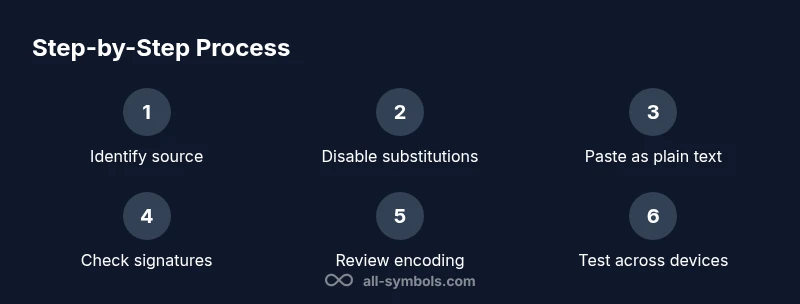
- 1
Identify the source of symbols
Review a problem email to determine where the glyphs appear: body, subject, signature, or templates. Note whether symbols show on desktop, web, or mobile. This helps target the fix and prevents unnecessary changes.
Tip: Take a screenshot of the offending text for future reference. - 2
Disable auto-correct substitutions
Open Outlook settings and locate AutoCorrect options. Disable substitutions that insert symbols or trigger glyph additions in your language pack. Save changes and restart Outlook to apply.
Tip: Test after disabling to confirm symbols no longer auto-insert. - 3
Paste as plain text
When inserting content from external sources, use Paste as Plain Text or Paste Special. This strips hidden formatting and Unicode characters that can render as symbols in Outlook.
Tip: After pasting, reapply minimal formatting within Outlook. - 4
Check signatures and templates
Edit signatures and templates to ensure no special characters or fonts are embedded. Replace with a clean, font-safe version and re-save.
Tip: Keep signatures in a shared, plain-text version when possible. - 5
Review fonts and encoding
Ensure the default font is widely supported and encoding is set to a universal standard (UTF-8). Check both HTML and Plain Text formats in your settings.
Tip: If issues persist, test with a different font family. - 6
Inspect add-ins and rules
Disable add-ins that alter text or formatting and review mail rules that may insert symbols automatically. Re-enable one by one to isolate the culprit.
Tip: Document which add-ins are active to streamline troubleshooting. - 7
Test across devices
Send test emails from desktop and web clients to ensure consistent rendering. Include plain text and a short signature in each test.
Tip: Note device-specific deviations and adjust accordingly. - 8
Standardize and educate
Create a simple workflow: draft in plain text, format minimally, verify on two devices, and share the process with teammates to prevent regression.
Tip: Regular training reduces symbol-related issues over time.
Questions & Answers
What counts as a symbol in Outlook?
Symbols include non-letter glyphs, arrows, checkmarks, and decorative characters that appear unexpectedly. They can be caused by encoding, font substitutions, or copying from formatted sources.
Symbols are non-letter glyphs that show up unexpectedly, often from encoding or font substitutions.
Why do symbols appear after pasting text?
Pasted content can carry formatting and Unicode characters that Outlook renders as symbols. Use Paste as plain text to strip formatting.
Pasted text may carry hidden formatting that Outlook renders as symbols.
How do I disable automatic symbol insertion in Outlook?
In Outlook, go to File > Options > Proofing > AutoCorrect Options, and disable or customize replacements that insert symbols.
Go to AutoCorrect options and turn off or edit substitutions.
Is symbol removal different between Outlook desktop and web?
Yes. Desktop and web render text differently; check both platforms and apply the same plain-text paste and encoding tweaks on each.
Outlook on the web and desktop can behave differently; test both.
What should I do about symbols in my signature?
Edit the signature to remove symbols, ensure you paste content as plain text, and save changes. Re-test across devices.
Edit signatures to remove symbols and test.
Where can I find official guidance on encoding in Outlook?
Consult Microsoft Support pages for encoding, paste options, and formatting guidelines. Verify with current docs.
Check Microsoft Support for encoding and formatting guidance.
Watch Video
The Essentials
- Identify where symbols originate before fixes.
- Use plain-text pasting and disable problematic substitutions.
- Check signatures, templates, and add-ins for glyphs.
- Test across Outlook desktop and web after changes.
- Adopt a symbol-conscious workflow to prevent recurrence.