How to Make Symbols in Word: A Practical Guide
Learn practical methods to insert and format symbols in Microsoft Word. This guide covers the Symbol dialog, Alt codes, Unicode input, fonts, and equations to help students, researchers, and designers quickly add glyphs to any document.


In Word, you can add symbols by using the Insert > Symbol tool, or by typing Alt codes on Windows and Unicode on Mac. You can also copy symbols from font resources or from the Character Map, and reuse symbols via the Equation editor for mathematical glyphs. This approach works across desktop and web Word.
Why Symbols Matter in Word
Symbols are small but powerful tools for clarity, emphasis, and accurate communication. Whether you’re marking a checklist, denoting units, or including math glyphs, the ability to add symbols quickly makes your documents more readable and professional. For students, symbols help illustrate concepts in notes and reports; for researchers, they convey precise meaning in charts and captions; for designers, symbols support accessibility and universal design. When you learn how to make symbols in word, you unlock consistent typography across headings, tables, and figures. This guide walks you through reliable methods, so you can choose the approach that fits your workflow and font choices.
Key takeaway: symbol usage should be deliberate, legible, and font-consistent across your document.
Methods to Insert Symbols in Word
Microsoft Word supports several routes to bring symbols into your text. The most straightforward is the Insert > Symbol menu, which opens a searchable library of glyphs across various fonts. If you’re aiming for speed, you can rely on keyboard shortcuts, Unicode input, or Alt codes on Windows. For complex mathematical glyphs, Word’s Equation editor offers a native, precise way to place symbols with correct spacing and formatting. Finally, when you need a symbol quickly, copying from a reliable source like the macOS Character Viewer or Windows Character Map can save time. Each method has its own best-use scenario depending on the symbol, font, and document requirements.
Tools & Materials
- Microsoft Word (desktop or web)(Any modern version supports the Symbol tool and Unicode input.)
- A symbol-friendly font (e.g., Segoe UI Symbol, Arial Unicode MS, Calibri)(Some glyphs exist only in certain fonts; test font support for your target symbols.)
- Windows Character Map or macOS Character Viewer(Useful for exploring glyphs and copying them when the keyboard route is slow.)
Steps
Estimated time: 30-40 minutes
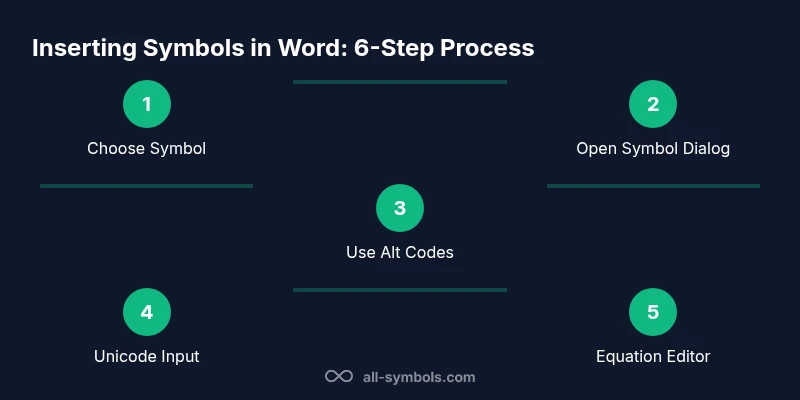
- 1
Identify the symbol you need
Before inserting, decide which symbol fits your context (check mark, arrow, degree, etc.). Consider font compatibility and the document’s audience. If you can’t find it in your current font, switch to a symbol-friendly font like Segoe UI Symbol.
Tip: Use a short list of go-to symbols to speed up future editing. - 2
Open the Symbol dialog in Word
Go to the Insert tab, click Symbol, then More Symbols to browse categories such as General Punctuation, Mathematical Operators, or Currency Symbols. Your selection will insert at the cursor position.
Tip: Use the Subset dropdown to narrow down choices quickly. - 3
Insert a symbol with a keyboard shortcut (Windows)
If you know a specific symbol’s Alt code, hold the Alt key and type the numeric code on the numeric keypad, then release. This adds the symbol without leaving the keyboard.
Tip: Common codes include Alt+0176 for degree (°), Alt+0169 for ©, and Alt+0153 for ™. - 4
Insert a symbol by Unicode input (Mac)
Mac users can type the Unicode value and then press Option+X to convert to the glyph, or use the Character Viewer for a visual selection.
Tip: Unicode input varies by font; check a reliable reference for values. - 5
Copy-paste from a reliable source
If a symbol isn’t readily available in Word, copy it from a font resource or the Character Map/Viewer and paste it at the cursor. This preserves the glyph in most fonts.
Tip: Ensure the document uses a font that supports the symbol to avoid missing glyphs. - 6
Insert mathematical symbols with Equation
For formulas and math symbols, use Insert > Equation and then select from the symbol gallery or type a Unicode value. Equation mode ensures proper spacing and readability.
Tip: Use consistent math fonts to improve legibility in technical documents.
Questions & Answers
What is the easiest way to insert a symbol in Word?
Open Word, go to Insert > Symbol, and choose a glyph. This method works for most common symbols across fonts.
Open Word, click Insert, then Symbol to pick a glyph and insert it.
How can I insert a symbol using an Alt code?
On Windows, hold Alt and type the numeric code on the keypad, then release to insert the symbol. Codes vary by font.
Hold Alt, type the code, and release to insert the glyph.
Can I insert symbols without Windows Alt codes on a Mac?
Yes. Use the Unicode input (Option+X) or the macOS Character Viewer to insert symbols, then paste into Word.
Mac users can use Unicode input or the Character Viewer to insert symbols.
Why do symbols sometimes look different in Word?
Symbol appearance depends on the font. Choose a font with the desired glyphs and maintain font consistency.
Different fonts render symbols differently; pick one font for consistency.
How do I insert math symbols quickly?
Use the Equation editor (Insert > Equation) or insert Unicode values within Equation mode for proper formatting.
For math, the Equation tool is the fastest reliable method.
What should I do if a symbol is missing from my document?
Try a different font that contains the glyph, or insert the symbol via the Symbol dialog or Unicode.
If missing, switch to another font or use a different insertion method.
Watch Video
The Essentials
- Learn multiple insertion methods to fit your workflow
- Font choice determines which symbols you can use
- Alt codes and Unicode speed up symbol insertion
- Equation editor is ideal for math symbols
- Test symbols in your final layout for readability