How to Put Symbol in Word: A Step-by-Step Guide
Learn practical methods to insert symbols in Word using the Symbol dialog, Unicode codes, and keyboard shortcuts. A clear, step-by-step guide for students and professionals.


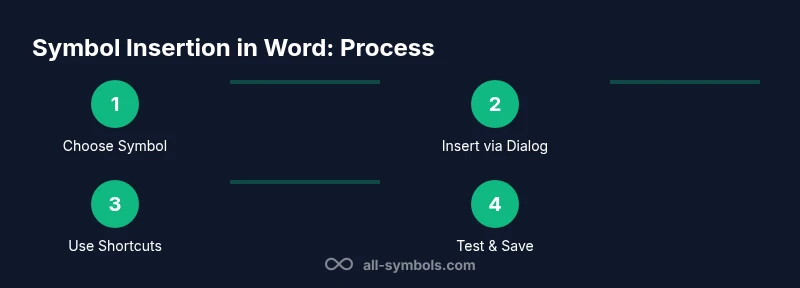
You can insert symbols into Word using the built-in Symbol dialog, Unicode codes, or keyboard shortcuts. Start by selecting Insert > Symbol, choose the symbol you need, and click Insert. For quick access, learn Windows Alt codes (e.g., Alt+0153) or Mac Option shortcuts, then reuse commonly used symbols in future documents. This quick answer outlines the essential steps.
Understanding Why You Might Need Symbols in Word
Symbols help convey ideas quickly, save space, and improve readability. In academic writing, business reports, or design docs, a symbol such as a check mark or degree sign communicates meaning without extra words. This is a practical guide on how to put symbol in word for various needs. The goal is to identify a reliable method for your workflow and ensure symbols render correctly on all devices. All Symbols notes that symbol insertion benefits clarity across disciplines. The remainder of this article expands on methods, fonts, and best practices so you can work efficiently across Windows and Mac environments.
Font, Encoding, and Compatibility Fundamentals
Fonts determine how a symbol actually looks in your document. Some fonts include special glyphs, while others do not. Unicode provides a universal way to reference characters, but font support and document sharing shape how symbols appear on different systems. All Symbols emphasizes testing a symbol in your target font before including it in long sections where readability matters. When choosing a symbol, consider whether the meaning is universal and whether your audience will interpret it the same way on every platform.
Inserting Symbols via the Symbol Dialog
The Symbol dialog is your first stop for inserting a wide range of characters. In Word, go to Insert, then Symbol, and select More Symbols to browse. Once you pick a glyph, click Insert and Close. This method works reliably across fonts and languages and is ideal for symbols not easily typed on a keyboard. Pro tip: Add frequently used symbols to your Quick Access Toolbar for faster access.
Unicode, Alt Codes on Windows, and Mac Shortcuts
If you prefer keyboard-based entry, Unicode codes with Alt+X (Windows) or Mac shortcuts are powerful. Type the hex code for the symbol, then press Alt+X to convert it to the glyph. Windows Alt codes use the numeric keypad; ensure Num Lock is on and hold Alt while typing the code. On Mac, open the Character Viewer with Control+Command+Space, search for the symbol, and double-click to insert.
Automating with AutoCorrect and Shortcuts
Create AutoCorrect entries to replace simple text with symbols. For example, typing (check) could automatically become ✓. This trick speeds up repetitive usage and helps maintain consistency. You can also map symbols to the Quick Access Toolbar or assign custom keyboard shortcuts for immediate insertion.
Troubleshooting and Accessibility Best Practices
If a symbol appears incorrectly, check the font, encoding, and recipient font compatibility. Use common, widely supported fonts to maximize readability. Ensure symbols are meaningful and accessible to readers relying on assistive technologies by providing text equivalents when appropriate.
Tools & Materials
- Computer with Microsoft Word (Windows or macOS)(Ensure you are using Word 2016+ or Word 365 for best compatibility)
- Symbol resources (frequently used symbols)(List of symbols you want to insert regularly)
- Unicode reference sheet(Useful for Alt codes and Unicode input)
- Windows Num Lock and numeric keypad(Needed for Alt codes)
- Mac Character Viewer access(Use to insert symbols not on keyboard)
- Internet connection(To copy symbols from online charts if needed)
Steps
Estimated time: 25-40 minutes
- 1
Decide which symbol you need
Clarify the symbol you want and confirm that the glyph aligns with the document font and tone. If you’re unsure, choose a universally recognized symbol to avoid confusion. A quick reference list helps you stay consistent.
Tip: Keep a running list of your most-used symbols for fast reuse. - 2
Open Word's Symbol dialog
Navigate to Insert > Symbol > More Symbols. Browse the catalog and select a glyph; you can switch fonts to view alternate versions of the same symbol. Click Insert to add it to your document, then Close.
Tip: Pin the Symbol dialog to the ribbon or Quick Access Toolbar for speed. - 3
Insert from the current font
Choose a symbol from your active font; some fonts include branded glyphs or language-specific marks. If the symbol isn’t present, switch to a font that supports it and reinsert.
Tip: Always test the glyph at the document’s actual font size. - 4
Use Windows Alt codes
Enable Num Lock, hold Alt, and type the numeric code on the keypad. Release to insert the symbol. This method works best for common glyphs that have well-established codes.
Tip: If Alt codes don’t work, try Unicode input or another method. - 5
Use Unicode with Alt+X
Type the hex code for the symbol, then press Alt+X to convert it into the character. This is font-friendly and frequently used for academic symbols.
Tip: Keep a small hex code cheat sheet handy. - 6
Mac method: Character Viewer
Press Control+Command+Space to open the Character Viewer. Find the symbol, double-click it, or click Insert. You can browse by category or search by name.
Tip: Enable the viewer on the dock for quick access. - 7
Create custom shortcuts
Use Word AutoCorrect or a language/keyboard shortcut to insert symbols quickly. For example, entering (check) can become a check mark automatically in future documents.
Tip: Choose text triggers that won’t appear accidentally in normal text. - 8
Test and reuse across documents
Insert symbols in a sample document and verify their appearance on different machines. Save your settings, fonts, and AutoCorrect rules for future work.
Tip: Share your symbol set with collaborators to ensure consistency.
Questions & Answers
What is the quickest way to insert a symbol in Word?
The fastest method is Insert > Symbol > More Symbols to browse; for repeated uses, add frequently used glyphs to the Quick Access Toolbar. Keyboard shortcuts like Alt codes or Unicode input expedite the process.
Use the Symbol dialog or common keyboard shortcuts for fast insertion.
Can I use Alt codes on Windows for symbols?
Yes. Enable Num Lock, hold Alt, and type the code on the numeric keypad. Release to insert. If the code doesn’t work, try Unicode input.
Yes. Hold Alt and type the numeric code.
What about Mac users?
Mac users can use the Character Viewer via Control+Command+Space to insert symbols or use Unicode input with Option. This method covers symbols not on the keyboard.
On Mac, use the Character Viewer to insert symbols.
Will symbols look the same in all Word documents?
Symbol appearance depends on the font. Use widely supported fonts and consider embedding fonts or sending the glyph as an image for cross-platform consistency.
Font choice matters for consistency.
How do I create a shortcut for a symbol?
Create AutoCorrect replacements or map a keyboard shortcut to the symbol. This speeds insertion and keeps your documents consistent.
AutoCorrect makes it fast to insert symbols.
Can I insert symbols in Word Online?
Symbol insertion is more limited in Word Online; you can copy-paste or use browser-based glyphs. On Mac, use the system Character Viewer for additional options.
Word Online has fewer options; copy-paste or system tools help.
Watch Video
The Essentials
- Decide symbol intent first
- Use Symbol dialog for reliability
- Memorize key shortcuts
- Test glyphs across fonts