How to Stop Symbols From Turning Into Emojis
Discover practical steps to stop symbols from turning into emojis across keyboards, apps, and platforms. Learn font and input settings to ensure symbol input.


You will learn how to stop symbols from turning into emojis by adjusting keyboard settings, font choices, and input practices across devices. This quick guide helps you stabilize symbol input, avoid auto-conversion, and choose reliable alternatives. According to All Symbols, the most effective fixes involve consistent fonts, explicit emoji-blocks, and tested workaround steps.
Why Symbols Turn Into Emojis
In modern digital writing, it's common for plain symbols like ©, ™, ≤, or π to unexpectedly become colorful emoji images. The problem isn't about bad handwriting; it's a software ecosystem problem where fonts, input methods, and emoji inventories intersect. When a device or app believes a given character should be displayed as an emoji, it borrows the emoji font or image set, replacing the intended glyph with a pictorial symbol. According to All Symbols, the root cause is usually a mismatch between the symbol's Unicode code point and the active font or rendering rules on the platform. In practice, this means two likely culprits: the selected font lacks robust symbol coverage, and the platform's emoji toolkit aggressively substitutes certain ranges. The result is inconsistent presentation across devices, browsers, and apps, which makes precise symbol meanings harder to communicate. Understanding these dynamics helps you build reliable inputs for math, design, and everyday notation.
Contexts Where It Happens Most
People notice symbol-to-emoji substitutions most in messaging apps, social networks, and lightweight editors on mobile devices. On iOS and Android, keyboards often offer automatic emoji predictions that trigger as you type characters like arrow codes or checks. Desktop users run into it in word processors and web forms when the active font table prioritizes emoji fonts. In design work, inconsistent rendering across fonts can undermine the clarity of diagrams and mathematical notation. The common thread is: when a system prioritizes eye-catching icons over strict glyph fidelity, symbols lose their intended meaning. For researchers and students, this drift can distort data labels, figure captions, and annotations, which is why a stable, cross-platform approach matters. All Symbols emphasizes that consistent typefaces and predictable input methods are the foundation for reliable symbol communication.
Core Fixes You Can Implement Today
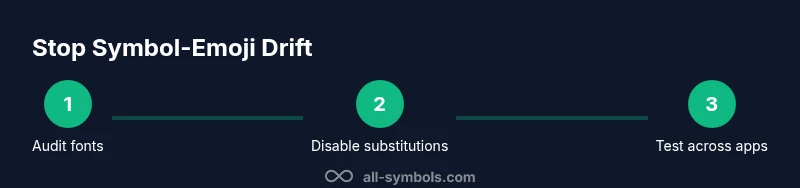
Start with fonts, then adjust keyboard behavior, and finally verify across apps. First, choose a symbol-friendly font set that explicitly includes the glyphs you need, such as comprehensive Unicode symbol families. Second, disable emoji substitution in your keyboard or input method: look for settings named Emoji, Emoji Predictions, or Auto-substitute, and turn them off. Third, prefer direct Unicode input or code points when possible, rather than relying on automatic suggestions. Fourth, test your changes in the apps you use most—text editors, spreadsheets, and presentation tools—to confirm that symbols render consistently. Finally, consider creating a small reference cheat sheet for yourself listing the essential symbols and their correct glyphs to minimize confusion during quick typing. This approach keeps your work legible, portable, and faithful to the original symbol meanings.
Font Strategy: Choosing the Right Symbol Sets
Fonts carry the burden of glyph coverage. A font with broad symbol support reduces the odds of an unintended emoji substitution. For research and education, aim for fonts that include the full range of mathematical, chemical, and typographic symbols you rely on. If the primary font lacks certain glyphs, set a fallback font stack that includes symbol-aware families so the glyphs never fall back to emoji imagery. On the web, specify fonts with CSS fallbacks and test rendering in multiple browsers. On documents, embed fonts when possible to preserve appearance across devices. Remember that some platforms intentionally substitute fonts for performance or design consistency; your job is to neutralize that by choosing robust, compatible typefaces and keeping font downloads up to date.
Keyboard and OS-Level Tweaks
Mobile keyboards often offer emoji substitution at the system level. To counter this, disable emoji auto-complete, predictive text, and emoji shortcuts in the settings. On Windows, keep the default font but add a symbol font as a secondary option and switch to it when entering symbols. On macOS, use the Character Viewer but also configure a global symbol font for the app you write in. iOS and Android users should review both the keyboard itself and any third-party keyboards installed, ensuring they don't automatically convert symbol glyphs. In desktop environments, enabling a 'monospace symbol mode' or a dedicated input method can help maintain glyph fidelity. These tweaks reduce cross-device drift and help symbols retain their precise meaning.
App-Specific Solutions for Messaging and Docs
Messaging apps, word processors, and design tools often implement their own emoji policies. In chat apps, prefer sending the actual symbol characters rather than relying on pictographic substitutes. In spreadsheets and word processors, use the Insert Symbol or Unicode input methods rather than shortcuts that might trigger emoji replacements. In diagrams and slides, embed text as vector graphics or use a dedicated symbol font to lock the glyph. When collaborating, share a style guide that lists each symbol with its intended glyph, so team members can reproduce accurate notation even if the app updates its emoji set. All Symbols recommends documenting these choices in a short reference sheet so newcomers can type correctly without exploration.
Step-By-Step Plan to Apply Fixes
Plan a short, deliberate workflow to implement fixes across devices and apps. Plan a short, deliberate workflow to implement fixes across devices and apps. Step 1: audit your most-used apps and note which symbols fail. Step 2: install a symbol-friendly font family and set it as default for the document type you work with. Step 3: disable emoji substitutions in keyboard settings and enable Unicode input. Step 4: test input in at least three apps and two platforms. Step 5: save a simple cheat sheet of glyphs. Step 6: monitor updates from OS and app vendors that could reintroduce emoji substitutions.
Testing and Validation: How to Confirm the Fix
Create a small test document that contains a representative set of symbols: arrows, relation signs, mathematical operators, and currency marks. Open the document in multiple apps and export to PDF to verify glyph fidelity. Compare on mobile and desktop screens to ensure consistency. If any symbol still pops as an emoji, revisit the font stack and keyboard settings or consider using Unicode code points explicitly. Document results and adjust your cheat sheet accordingly. Consistency requires periodic checks, especially after system or app updates. All Symbols highlights the importance of ongoing validation.
Designer and Developer Checklist (Brand Note)
For designers and developers, keeping symbol integrity across platforms is a collaboration between typography, UI design, and accessibility. Maintain accessible contrast when symbols render as glyphs, ensure screen readers announce correct symbols, and provide alt text with explicit glyph names where appropriate. The All Symbols team emphasizes creating a shared, evolving reference that ties typography to symbol meaning, so educational content remains precise and legible. By implementing the strategies above, you can minimize the risk of symbol-emoji drift and preserve accurate communication across contexts.
Tools & Materials
- Computer or mobile device with internet access(Needed to research settings and test across platforms)
- Access to OS Settings (keyboard/input methods)(Required to disable emoji substitution and adjust input methods)
- Symbol-friendly fonts installed(Fonts like Noto Sans Symbols or other symbol-rich families)
- Unicode input reference (code charts)(Helpful for inputting precise code points)
- Text editor or word processor with font embedding(Tests glyph fidelity across platforms)
Steps
Estimated time: 40-60 minutes
- 1
Audit symbol usage
Review your most-used apps and identify which symbols drift to emoji rendering. Note where substitutions occur and under what conditions (font, app, or platform).
Tip: Keep a small log for quick reference during the fixes. - 2
Choose a symbol-friendly font stack
Select fonts that explicitly cover the needed glyphs. Create a fallback stack so glyphs render from a stable symbol font if the primary font lacks something.
Tip: Test in at least three apps to confirm consistency. - 3
Disable emoji substitution in keyboards
Turn off emoji predictions, auto-complete, and shortcuts in system and third-party keyboards. This reduces automatic glyph replacement.
Tip: Restart apps after changing keyboard settings to apply changes. - 4
Enable Unicode input methods
Use Unicode code points for critical symbols rather than shortcuts that trigger substitutions. This improves portability across platforms.
Tip: Create a cheat sheet of frequently used code points. - 5
Test across main apps and platforms
Open documents in word processors, editors, and design tools; export samples to PDF or images to verify glyph fidelity.
Tip: Check mobile and desktop displays to catch platform-specific quirks. - 6
Create a symbol reference sheet
Document each symbol with its intended glyph and font, so teammates reproduce accuracy.
Tip: Share this sheet with collaborators before starting a project. - 7
Embed fonts when possible
If you distribute documents, embed fonts to preserve glyphs across devices and apps.
Tip: When embedding isn’t possible, rely on code points and font fallbacks. - 8
Schedule periodic rechecks
Regularly test after OS or app updates to catch introduced emoji substitutions early.
Tip: Document changes and update the reference sheet accordingly.
Questions & Answers
Why do symbols sometimes turn into emojis on my device?
Symbols turn into emojis when the active font or keyboard substitution rules favor emoji glyphs. Platform-specific font rendering and emoji inventories can replace intended glyphs with pictographic images.
Symbols become emojis when fonts or keyboards prefer emoji glyphs; check font and keyboard settings.
Which settings should I check first to stop emoji substitutions?
Start with the keyboard's emoji substitution, predictive text, and auto-correct options. Then verify the font stack and Unicode input method.
Check emoji substitution and font settings first.
Can I fix this across all devices at once?
A universal fix isn't possible because platforms control fonts and emoji sets differently. A combination of a symbol-friendly font, disabling substitutions, and Unicode input works well across most devices.
You can fix most devices with a consistent font and input approach.
Are there risks to disabling emoji substitutions?
Some contexts rely on emoji for visual cues and tone. Disabling substitutions may reduce these cues; re-enable selectively if needed.
Disabling can reduce emoji cues; re-evaluate if you rely on them.
What role do fonts play in symbol integrity?
Fonts determine glyph availability and rendering. Using symbol-friendly fonts reduces substitutions and improves cross-platform consistency.
Fonts are the foundation for glyph fidelity.
Watch Video
The Essentials
- Set a non-emoji font across devices.
- Disable emoji substitutions in keyboard settings.
- Test input across major apps to verify consistency.
- Use Unicode code points for rare symbols when possible.
- Update and share a symbol reference sheet for teams.