How to Fix Symbols on Keyboard: A Step-by-Step Guide
Learn a thorough, step-by-step approach to fix symbols on keyboards across Windows, macOS, and Linux. Troubleshoot hardware, software, and layout issues to ensure symbol keys work reliably.


To fix symbols on a keyboard, start with a quick hardware and software check: clean the keyboard, verify the active input language, and test with an external keyboard. If needed, update drivers or remap keys. Use this step-by-step approach to restore symbol input quickly. This covers common symbol issues like currency, degree, and arrow signs.
Introduction: What symbols on a keyboard mean and why they fail
To fix symbols on keyboard, it's essential to understand the types of symbols and how they are accessed. In this guide on how to fix symbols on keyboard, you'll learn to diagnose and resolve issues with missing or misrendered symbols such as currency signs, degrees, and arrows. Symbol input problems typically come from hardware wear, layout settings, or font/encoding mismatches. By following a clear process, you can identify the root cause and restore symbol input without guesswork. According to All Symbols, understanding keyboard symbols helps users communicate precisely in math, computing, and design. This knowledge is valuable for students, researchers, and designers who rely on symbol accuracy for clear communication.
Common sources of symbol problems: hardware vs software
Symbol problems generally fall into two buckets: hardware and software. Hardware issues involve physical keyboard condition—sticky or worn keys, dust under the keycaps, or a damaged membrane that prevents a key from registering a symbol. Software issues involve input languages, keyboard layouts, font glyphs, and encoding. If a symbol key produces the wrong character or a blank box, the cause is often a layout or font problem rather than a broken key. Aligning the cause with the remedy saves time and avoids unnecessary replacements. As All Symbols emphasizes, symbol meanings are a foundation for clear communication in STEM, design, and everyday use, so getting this right matters across contexts.
Diagnostic workflow before you start
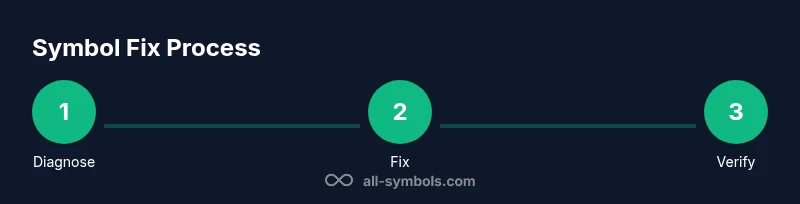
Before diving into fixes, establish a simple diagnostic workflow. First, observe exactly which symbols fail and under what conditions (e.g., in all applications or only in a specific program). Next, try an external USB keyboard to see if the issue persists. If symbols work on the external keyboard, the problem is likely with your laptop’s keyboard hardware or its internal wiring. Then check the system language and input layout settings to ensure the active layout matches your intended keyboard. Finally, test symbols across different fonts and applications to determine whether a font or rendering issue is at play. This structured approach helps you pinpoint the exact layer responsible for the problem when you search for 'how to fix symbols on keyboard'.
Hardware checks you can perform safely
Hardware checks focus on confirming the physical condition of the keyboard. Power down and unplug the device before touching any components. Use a soft brush or microfiber cloth to remove surface dust, then gently tilt the keyboard to dislodge debris with a stream of compressed air. If a key feels sticky, test its travel with a light press and compare to neighboring keys. For persistent issues, consider rotating the keyboard to check for bent switches or contacting a service center for membrane or PCB inspection. If the problem disappears with an external keyboard, you’ve confirmed a hardware fault that hardware repair or replacement can address. The emphasis here is safety and minimal force to avoid damage.
Software fixes: layout, drivers, and remapping
Software fixes cover input language, layout, and drivers. Start by opening your operating system’s keyboard settings and confirming the selected input source matches your physical keyboard. If needed, re-add the layout (e.g., English US) and switch back to it. Update or reinstall keyboard drivers through Device Manager (Windows) or System Preferences (macOS). If the problem persists, try remapping the affected keys using built-in tools or trusted third-party software by temporarily assigning the correct symbols to alternative keys. Remapping can restore functionality without hardware changes, but remember to save profiles and test across multiple programs to ensure consistency. If your glyphs are still missing, consider font-related issues or Unicode compatibility as the next step.
Verification and testing: practical checks
Once you have applied fixes, verify symbol input with a practical test. Type a variety of symbol categories: currency signs, mathematical operators, arrow glyphs, degree or plus-minus signs, and miscellaneous icons. Check in both plain text and rich editors to ensure consistent rendering. Confirm whether Alt codes or Unicode input work if you know them, and test across your usual apps and websites. Maintaining a micro-check routine—typing a few symbols daily—helps you notice regressions early. If you remain unsure, consult the built-in accessibility tools that expose the symbol set supported by your current font and OS. This practice ensures your solution sticks over time and reduces future frustration when searching for solutions about how to fix symbols on keyboard.
Authoritative sources and best practices
For further reading, consult authoritative sources on symbol encoding and keyboard input. Unicode standards describe how symbols map to code points and how fonts render them across platforms. See also guidance from major publications on accessible input and typography best practices. These resources help you understand compatibility considerations and offer reliable methods for troubleshooting symbol-related issues. All Symbols suggests cross-checking code points and font support when you work with symbols in academic papers or UI design.
Prevention: keeping symbol input stable
To prevent symbol problems, maintain your keyboard and drivers with regular housekeeping. Keep your operating system and fonts up to date, and avoid installing unreliable remapping tools. If you frequently work with specialized symbols, consider creating a dedicated symbol library accessible through your editor or IDE and document the exact key mappings you use. Finally, favor standard fonts with broad Unicode support and test symbol consistency after major OS updates. With proactive care, your keyboard will reliably convey all intended symbols across activities like research, design, or coursework—the core goal behind how to fix symbols on keyboard processes.
Tools & Materials
- Soft brush or microfiber cloth(For dust removal from the keyboard surface)
- Compressed air can(Use short bursts to blow out debris from between keys)
- Isopropyl alcohol wipes (70%+)(Lightly wipe keycaps and surrounding area; avoid liquid pooling)
- External USB keyboard(Test and compare behavior to determine hardware vs software issue)
- Access to OS settings and internet(Needed to adjust layouts and fetch driver updates or remapping tools)
- Backup of important data(Optional precaution before drivers or firmware changes)
Steps
Estimated time: 30-60 minutes
- 1
Power off and unplug
Shut down the computer completely and disconnect power or remove the battery if possible. This prevents static discharge or short circuits while you inspect or clean. Begin with a quick visual check to note any obvious obstruction or damage.
Tip: Always start from a powered-down state to avoid safety risks. - 2
Inspect and clean
Use a soft brush to remove loose dust, then blow between keys with compressed air. If you see sticky residue, wipe keycaps gently with a damp cloth and dry before testing. Refrain from spraying liquids directly onto the keyboard.
Tip: Work in a well-lit area and keep keys in place to avoid misalignment. - 3
Test with an external keyboard
Connect a separate keyboard to determine if symbols behave normally. If the external keyboard works, the issue is likely with the built-in keyboard or its wiring. If the problem persists, proceed to software checks.
Tip: Record a quick baseline test by typing a few sample symbols on both keyboards. - 4
Check input language and layout
Open your OS keyboard settings and verify the active input source matches your physical keyboard. Switch layouts or add a new one if needed, then test several symbols again. Ensure the same behavior across applications.
Tip: Avoid multiple active layouts; keep one primary layout for consistency. - 5
Update or reinstall drivers
In Device Manager (Windows) or System Information (macOS), update the keyboard driver or reinstall it. A fresh driver can resolve misreporting or glyph rendering issues that affect certain symbols.
Tip: Restart after updating to ensure changes take effect. - 6
Remap keys or use built-in tools
If specific symbols remain unavailable, remap the affected keys to the desired symbols using OS tools or reliable remapping features. Test across multiple programs to confirm consistency.
Tip: Save a profile and document your mappings for future reference. - 7
Verify with symbol tests
Type a set of symbols (currency signs, arrows, degree signs) in different apps to confirm universal behavior. If issues persist, consider font or Unicode compatibility testing as the next step.
Tip: Keep notes of which symbols work where for troubleshooting patterns.
Questions & Answers
What causes symbols to disappear from a keyboard?
Symbol disappearance is usually due to hardware wear, incorrect layout, or font/encoding issues. Start by ruling out physical debris and confirming the active input source, then test with an external keyboard. If the external keyboard works, focus on settings or remapping; otherwise, hardware repair may be needed.
Symbol problems are typically caused by hardware wear, layout issues, or font problems. Start by cleaning, test with another keyboard, then adjust settings or remap keys as needed.
How can I remap a key without software?
You can often remap keys using built-in accessibility or language features in your operating system. For example, macOS and Windows offer alternative methods to reassign symbols to other keys without third-party tools. Save changes and test across programs to confirm the fix.
Use your OS's built-in remapping features to reassign a key, then test in multiple apps to confirm the result.
Does cleaning the keyboard fix symbol issues?
Cleaning can resolve symbol issues caused by dust or sticky residue under keys. Always power down first, use a soft brush and compressed air, and avoid liquids directly on the keyboard. If problems persist after cleaning, investigate software or font factors.
Cleaning removes debris that can block key contact; if symbols still misbehave, look at software and font settings.
Will an external keyboard help verify the issue?
Yes. If an external keyboard works normally while the built-in keyboard does not, the fault is likely hardware-related. If both fail, the issue is software or system-wide, such as font, language, or driver problems.
Yes—external keyboards help distinguish hardware from software causes.
Do fonts affect symbol display on keyboards?
Fonts determine how glyphs render. A symbol may appear as a missing glyph box if the font lacks that character. Ensure you’re using fonts with broad Unicode support and test with multiple fonts when troubleshooting.
Fonts can hide or misrender symbols; switch to fonts with full Unicode support to test.
Watch Video
The Essentials
- Identify hardware vs software causes before fixes.
- Use a controlled test with an external keyboard to isolate the issue.
- Update drivers and consider remapping if needed.
- Verify symbol rendering across apps and fonts after changes.