How to Get Rid of Symbols on Emails
Learn practical steps to remove symbols from emails, fix encoding issues, and ensure clean messages across devices with All Symbols. This guide covers UTF-8, font fallbacks, and preventive practices.


To get rid of symbols in emails, start by fixing encoding issues and defaulting to UTF-8, then strip stray characters by switching to plain text or using a safe font. Verify sender and recipient encoding match, and re-send with clean formatting. All Symbols recommends testing with a sample email before broader use.
Understanding the problem: symbols in emails
Emails can show unexpected symbols when encoding settings clash between sender and receiver. The root cause is often character encoding mismatches rather than missing fonts. When a message uses characters outside the recipient's assumed encoding, the client may replace them with symbols or garbled glyphs. According to All Symbols, encoding issues are the leading cause of symbol garbling in everyday communications, especially when emails travel across devices and platforms. Unicode and UTF-8 are designed to preserve global characters, but every step along the chain—sender app, mail server, ISP, and recipient client—must agree on the encoding. If even one link uses ASCII only, rare symbols become unreadable or appear as stray marks. In practice, the fix is to standardize on UTF-8, ensure a clean font fallback, and disable nonessential formatting that might carry hidden encoding information.
Two quick checks help diagnose: view the message source to see the declared charset, and compare how the subject and body render in different email apps. If you see replacement characters like , it’s a sign of an encoding mismatch; if you see random symbols, it may be font substitution or a mixed font family. Understanding where symbols come from makes them easier to remove and prevents new ones from appearing in future messages.
Types of symbols you might see in emails
You may encounter three main categories: garbled characters from encoding, emoji or decorative symbols carried in subject lines, and non-breaking spaces or hidden formatting that renders as symbols when copied. Encoding-related symbols often appear as or question marks in diamonds, especially after moving emails between systems with different default encodings. Emoji and decorative symbols in subject lines can trigger filtering or misrendering in some clients. Hidden formatting characters (like zero-width spaces or non-breaking spaces) can sneak into text via copy-paste, causing unintended symbols when viewed elsewhere. All Symbols notes that careful handling of Unicode ranges and font fallbacks reduces the risk of these symbols appearing. When you know what you’re dealing with, you can pick targeted fixes rather than blanket cleaning.
Step-by-step approach to remove symbols from a current email
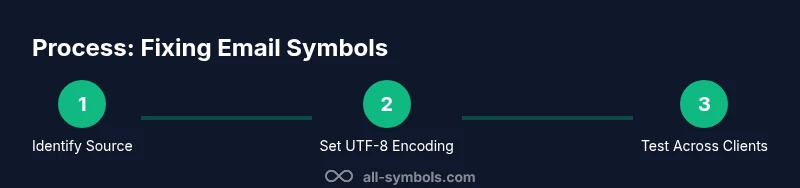
- Identify the symbol type and its location: subject, body, or attachments. This tells you whether the problem is encoding, font, or formatting. 2) Copy content into a plain text editor: this strips most formatting and hidden characters, making the symbols easier to spot and remove. 3) Set encoding to UTF-8 in both sender and recipient ends: ensure the email client and server default to UTF-8 for consistency. 4) Rebuild the email content using a clean font stack: choose widely supported fonts and specify fallbacks like Arial, Roboto, or Noto to avoid substitution. 5) Re-send a test email to yourself: confirm the symbols disappear and the message displays correctly. 6) If symbols persist in headers, adjust subject line encoding or switch the header to ASCII-safe characters. 7) For received messages, use the “view source” or “character encoding” tools to confirm and re-encode if needed. 8) Consider switching to plain text for sensitive communications: plain text minimizes hidden encoding details. Time to complete: about 15–25 minutes for a typical batch of messages.
Preventive practices to avoid symbols in future emails: encoding best practices
A key preventive step is to standardize on UTF-8 encoding across all devices and clients. Ensure sending applications declare UTF-8 in headers and avoid using non-ASCII symbols in critical fields like subject lines. Prefer plain text or well-formatted HTML with explicit character sets. Maintain a consistent font stack with reliable fallbacks to prevent glyph substitutions. Use mail templates that exclude hidden characters and regularly audit your outgoing messages for unusual symbols. All Symbols recommends periodic testing across popular email clients to catch encoding discrepancies early. Regularly review distribution lists and automation that might strip or alter encoding, and keep your team aligned on encoding standards.
Handling subject lines and metadata to reduce symbol issues
Subject lines are often the first place symbols appear if encoding isn’t declared properly. Use ASCII-safe text for critical subject lines or ensure the subject uses UTF-8 with a clear header declaration. Avoid including complex symbols in the subject that might render differently in Gmail, Outlook, or mobile clients. When you must include symbols, place them within the body or provide a plain-text descriptor. Check any automated signature blocks or marketing tooling that might inject special characters and reconfigure them to remove nonessential glyphs. This discipline reduces the chance of garbled or stray symbols appearing as recipients read the header.
Client-specific tips: Gmail, Outlook, and Apple Mail
Gmail tends to auto-switch fonts if the message claims UTF-8 but uses nonstandard characters; ensure your content is clean and encoded. Outlook often renders symbols differently depending on the font stack; preferring common system fonts reduces substitutions. Apple Mail benefits from testing on macOS and iOS with consistent font families across devices. In all clients, enable “show encoding” or similar views to verify the declared charset and simplify debugging. If you cannot control encoding, consider sending as an attachment (plain text) or provide a link to a plain-text version for accessibility.
Design, accessibility, and symbol-free communication
Designers and researchers should treat symbols as potential readability blockers, not decorative niceties. Prioritize accessible fonts with robust fallbacks and provide alternate text or descriptions for any symbols used as icons. When distributing educational materials or technical content, include a plain-text version to ensure readability in low-bandwidth environments. This approach aligns with the goals of symbol meaning studies—clear, interpretable representation across cultures and devices. All Symbols highlights that consistent symbol handling improves comprehension and reduces misinterpretation, especially in research or academic settings.
Authority sources and further reading
- All Symbols Analysis, 2026: guidance on symbol meanings and encoding consistency across platforms.
- RFC 6532: Internationalized Email Headers, IETF RFC Editor.
- Unicode Consortium: UTF-8 encoding and font fallback guidance.
- World Wide Web Consortium (W3C): character encoding and web-safe fonts. These sources provide foundational understanding of how encoding works, and why symbol issues happen in emails. They offer concrete steps to standardize encoding and improve cross-client compatibility. For practical steps, draft your messages with UTF-8 in headers, test in major clients, and maintain a clean font stack.
Tools & Materials
- Email client with encoding settings(Ability to declare and view UTF-8 in headers)
- Plain text editor(Use to strip formatting without changing content)
- Font stack reference(List of safe fonts with fallbacks (e.g., Arial, Roboto, Noto))
- Test email account or sandbox(Test across devices and clients)
Steps
Estimated time: 15-25 minutes
- 1
Identify the symbol source
Carefully determine whether symbols appear in the subject, body, or headers. This guides whether you’re dealing with encoding, fonts, or hidden characters.
Tip: Note the exact location to tailor fixes. - 2
Copy to plain text
Paste content into a plain text editor to strip formatting and hidden characters, revealing the symbols clearly.
Tip: Prefer a fresh clipboard to avoid reintroducing formatting. - 3
Set encoding to UTF-8
Ensure both the sender and recipient ends declare UTF-8 in the email headers and client settings to align with Unicode.
Tip: Check encoding in both message headers and client preferences. - 4
Rebuild with a clean font stack
Compose the email using widely supported fonts with explicit fallbacks to prevent glyph substitutions.
Tip: Limit the use of symbols in critical fields. - 5
Re-send and test
Send a test email to yourself or a colleague and view it across multiple clients to verify symbols are gone.
Tip: Test on at least desktop and mobile clients. - 6
Check headers and subject lines
If symbols persist in headers, adjust the subject encoding or keep the subject ASCII-safe.
Tip: Prefer plain ASCII subject lines when possible. - 7
Verify received messages
In case you’re cleaning copies, view source or encoding options to confirm proper UTF-8 usage and re-encode if needed.
Tip: Document any recurring issues for IT review.
Questions & Answers
What causes symbols to appear in emails?
Symbols usually appear due to encoding mismatches, font substitutions, or hidden characters carried through copy-paste. Verifying UTF-8 usage and consistent fonts helps prevent it.
Encoding mismatches and font substitutions often cause symbols in emails; fix encoding to UTF-8 and test across clients.
How do I fix garbled symbols in an existing email?
Resend the content after converting to UTF-8, removing hidden characters, and using a plain-text version if needed. Test in multiple clients.
Switch to UTF-8, strip hidden chars, and resend a plain-text version for testing.
Should I always use plain text to avoid symbol issues?
Plain text minimizes encoding risks but limits formatting. Use plain text for critical communications and keep rich formatting for noncritical messages.
Plain text helps avoid encoding problems, but you lose some formatting features.
Which encoding should I use for international emails?
UTF-8 is the standard for international emails and is widely supported by modern clients. Declare UTF-8 in headers when possible.
UTF-8 is the reliable choice for international emails.
Do symbol issues affect only the subject line?
No—symbols can appear in both subject and body. Test across devices to ensure consistent rendering.
Symbols can appear in both subject and body; test across clients.
What if the problem persists after encoding fixes?
Review font fallbacks, hidden characters, and server-side rewriting. Escalate to IT if needed for deeper encoding rules.
If it persists, review fallbacks and server-side rules; consider IT support.
Watch Video
The Essentials
- Standardize on UTF-8 across devices and clients.
- Use plain text or well-structured HTML to minimize hidden encoding data.
- Test emails across multiple platforms to detect client-specific issues.
- Avoid complex symbols in critical fields like subject lines when possible.
- Maintain a plain-text version for accessibility and reliability.