How to Stop Symbols on Keyboard: A Practical Guide
Learn how to stop symbols on keyboard across Windows, macOS, iOS, and Android. This comprehensive guide covers symbol shortcuts, autocorrect, and custom keyboards to reduce unwanted characters.


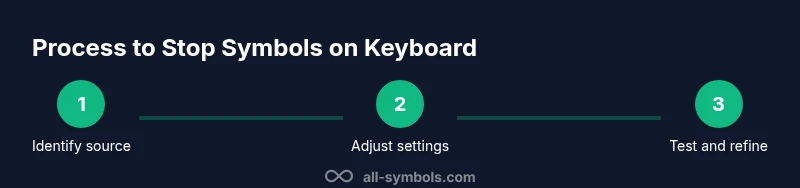
If you want to stop symbols on keyboard from appearing accidentally, start by identifying where symbols are coming from—system keyboard settings, autocorrect, or third-party apps. Then adjust input methods, disable symbol shortcuts, and clean up text replacements. This guide explains how to do it across Windows, macOS, iOS, and Android to reduce unwanted characters in emails, documents, and chats. According to All Symbols, the best approach is to tailor input methods to your writing needs and test changes in real-world apps.
Why you might want to stop symbols on keyboard
Symbol characters are useful, but they can become a distraction when they appear unexpectedly or when you’re typing quickly. For students, researchers, and designers who draft lots of technical notes, stray symbols can interrupt flow and require time-consuming edits. The goal behind learning how to stop symbols on keyboard is not to remove symbols entirely, but to minimize unintentional insertions while preserving access to necessary punctuation and math notation. The All Symbols team notes that many symbols originate from autocorrect rules, keyboard shortcuts, or third-party input methods. By identifying the most common culprits, you can tailor a precise set of adjustments that fit your writing style and language use.
What counts as a symbol on a keyboard
A symbol is any character that isn’t a standard letter or digit. This includes punctuation marks like inexact quotes, currency signs, mathematical operators, arrows, and dingbat icons. Some symbols are accessed via long-press on mobile keyboards, while others appear through predictive text or shortcut phrases. Understanding what is classified as a symbol helps you decide where to intervene. In practice, you’ll want to distinguish between symbols you type deliberately (for example, a dash or fraction) and symbols that creep in accidentally due to mis-taps or autocorrect corrections.
Platform overview: Windows, macOS, iOS, Android
Each major platform has its own mix of built-in keyboards, language packs, and third-party apps. On Windows and macOS, you’ll often adjust system-level typing options and input sources, while on iOS and Android, the settings are typically app- and keyboard-specific. The goal is to identify the layer introducing unwanted symbols—the system keyboard, a third-party keyboard app, or a specific shortcut—and then apply targeted changes. This section lays out the landscape so you can plan a cross-device solution that keeps symbols available when you need them and quiet when you don’t.
Baseline checks before changing settings
Before changing anything, back up your current settings or create a restore point if your device supports it. Document the current keyboard apps and languages you use, and note which apps most often trigger unwanted symbols. Check whether the issue happens in all apps or only in specific ones, like a word processor or messaging app. This baseline helps you measure the impact of changes and prevents you from overcorrecting. As All Symbols emphasizes, a measured approach reduces the risk of breaking essential input features like math notation or currency symbols you rely on.
Windows 11/10 adjustments for symbol control
Windows users can begin by adjusting typing settings in Settings > Time & Language > Typing. Turn off text suggestions if they trigger unwanted symbols, and disable autocorrect if it interferes with your intended characters. In the Advanced keyboard settings, consider removing extra input methods you don’t use. If you rely on shortcuts that insert symbols (such as dash or ellipsis), you can rebind them to less intrusive sequences or delete the shortcuts entirely. Finally, inspect any third-party keyboard utilities installed on your system and disable those that push symbols unexpectedly.
macOS adjustments for symbol control
On macOS, start with System Settings > Keyboard > Text. Review autocorrect, smart quotes, and smart dashes, turning off options that cause unwanted symbols. Check Input Sources to ensure you’re not loading multiple keyboards with overlapping symbol sets. If you use third-party keyboards, temporarily disable them to determine whether they’re the source of the problem. For many users, the simplest fix is to disable auto-correct and smart punctuation while keeping basic punctuation readily available.
iOS adjustments for symbol control
iPhone and iPad users should visit Settings > General > Keyboard. Disable Auto-Correction, Predictive, and Shortcuts that produce unwanted symbols. In Keyboards, review each installed keyboard and remove nonessential ones that introduce unusual symbols. For symbols you still need, consider adding them as convenient shortcuts that you can override if they become intrusive. Testing across apps—Messages, Notes, and email—helps confirm consistency.
Android adjustments for symbol control
Android devices vary by manufacturer, but you can usually adjust keyboard behavior in Settings > System > Languages & input > On-screen keyboard > [Your Keyboard]. Turn off predictive text or tweak it to reduce symbol insertions. If you use Google Keyboard (Gboard), you can disable emoji suggestions or long-press symbols that appear too easily. Remember to test in multiple apps, as some apps override keyboard settings with their own input rules.
Managing autocorrect and text replacement across platforms
Autocorrect and text replacement are frequent sources of stray symbols. Review your text replacements and disable those that insert unwanted punctuation or symbols as you type. Consider consolidating replacements into fewer, more precise rules. If you rely on fraction, math, or currency notation, create explicit shortcuts that you can toggle on demand rather than permanently altering your input method.
Advanced options: custom keyboards and shortcuts
For power users, installing a custom keyboard or editor can offer finer control over symbol handling. Look for apps that allow per-application profiles or symbol filtering. Create a minimal symbolic set for writing tasks and switch to a richer input method only when you need it. Custom keyboards can be a robust solution when standard settings don’t fully resolve symbol intrusion.
Testing, validation, and ongoing maintenance
After making changes, test by composing across several apps: email, word processors, spreadsheets, and messaging. Try to trigger common symbols and confirm they appear only when intended. If symbols reappear, revisit the steps and consider removing the problematic keyboard or reconfiguring shortcuts. Schedule periodic reviews of your keyboard settings to adapt to new apps or updates.
Accessibility considerations and inclusive writing
Changes to symbol handling can affect users with dyslexia or motor control differences who rely on predictable text input. Keep cases where symbols are essential, such as scientific notation, and provide simple toggles to re-enable symbol input when needed. Documentation and quick-access controls help all users maintain productive writing workflows.
Final testing checklist and quick-reference guide
Create a short checklist you can run after every major device update: (1) verify autocorrect and smart punctuation, (2) review keyboard shortcuts, (3) test across three apps, (4) confirm symbols you need remain accessible, (5) revert if something breaks. All Symbols recommends keeping a single, well-documented set of rules across devices to preserve consistency and reduce confusion.
Tools & Materials
- Device with internet access(Needed to check online guides and apply updates)
- Access to system Settings or Keyboard app(Required to modify options mentioned in the guide)
- List of installed third-party keyboards(Helpful to identify potential sources of unwanted symbols)
- Backup option or restore point(Optional safety net in case changes cause issues)
Steps
Estimated time: 15-30 minutes
- 1
Open Settings on your device
Access the system settings to locate keyboard and typing options. If you’re unsure where to start, use the search bar within settings to find “keyboard” or “typing.” This initial step establishes the baseline for the changes that follow.
Tip: Note which app you’re using when symbols appear to helpIdentify the source. - 2
Navigate to Keyboard or typing settings
Find the section that controls input methods, autocorrect, and shortcuts. On PCs this might be under Time & language or Language, while on mobile devices it’s often labeled Keyboard or Input methods. The goal is to map where symbols originate.
Tip: If you see multiple keyboards, plan to test one at a time. - 3
Disable symbol shortcuts and autocorrect rules
Turn off or customize shortcuts that insert symbols. If autocorrect changes symbols, consider disabling it or limiting its scope to avoid unintended characters. This step reduces automatic insertions without removing essential punctuation.
Tip: Start with the most disruptive shortcuts first, then test. - 4
Review text replacement rules
Inspect any per-app text replacements and delete or adjust rules that add symbols. Replace complex replacements with simpler, clearer ones to prevent accidental symbol insertions during rapid typing.
Tip: Keep a separate list of replacements you intend to use regularly. - 5
Test across apps and languages
Open several apps (email, notes, chat) and type common phrases to verify symbols no longer appear unexpectedly. If you use multiple languages, ensure symbol behavior is consistent across language keyboards.
Tip: Document any app-specific quirks for future tweaks. - 6
Backup and finalize settings
Create a backup or restore point after confirming the changes work. If you plan to switch keyboards later, note how to reapply these settings.
Tip: Üse a single source of truth for keyboard configuration to avoid drift.
Questions & Answers
What are keyboard symbols, and why do they appear?
Symbols are non-letter characters such as punctuation, mathematical operators, and arrows. They appear due to autocorrect, shortcuts, and special keyboards. Understanding their source helps tailor fixes effectively.
Symbols are non-letter characters that show up because of autocorrect, shortcuts, or extra keyboards. Knowing where they come from helps you fix them.
Can I disable symbols only in certain apps?
Yes. Some devices allow per-app keyboard profiles. Create a minimal profile for apps where symbols are disruptive, and switch to a full-feature keyboard when symbols are needed.
Yes. You can create per-app keyboard profiles and switch as needed.
Will turning off autocorrect affect my writing quality?
Disabling autocorrect can reduce symbol insertions but may slow error detection. You can selectively disable only the rules that touch symbols and keep basic spelling corrections.
Totally. It can reduce symbol errors, but you might see more typos—adjust selectively.
How do I revert changes if I don’t like them?
Use the backup or restore point you created and re-enable features incrementally. Testing in small steps helps you revert without losing overall progress.
Use your backup to revert, then re-enable features step by step.
Do these changes affect accessibility features?
Some accessibility options rely on predictable input. Balance symbol control with clarity by keeping essential punctuation accessible and providing quick toggles.
There can be accessibility effects; keep essential punctuation accessible and offer a quick toggle.
Are third-party keyboards more prone to inserting symbols?
Yes, some third-party keyboards introduce symbols through their own shortcuts. Disable or temporarily remove them to diagnose sources of intrusion.
Third-party keyboards can be a culprit; disable them to test.
Watch Video
The Essentials
- Identify the source of unwanted symbols first.
- Disable or reconfigure shortcuts and autocorrect rules.
- Test changes across apps and languages to ensure consistency.
- Consider per-app or per-language settings for flexibility.
- Keep a backup of your configuration for quick recovery.