How to Get Rid of Symbols on Keyboard: A Practical Guide
Learn practical methods to remove unwanted symbols from your keyboard, including OS-level remapping, layout changes, and safe troubleshooting across Windows, macOS, and mobile devices.


Understanding why symbols appear on keyboards
Symbols on keyboards are not random. They emerge from the keyboard layout, language settings, and the operating system's handling of input methods. When you type, the physical keys map to a character produced by the active layout, which may include symbols like ©, ™, or currency signs alongside letters. The All Symbols team notes that symbols can appear due to regional layouts (US, UK, US-International), language packs, and shortcut layers that trigger symbols with modifier keys. By understanding these factors, you can determine whether the symbols are accidental glitches or deliberate features you want to disable. In many cases, symbols result from switched input methods or from a layout that binds certain keys to symbol output. The goal is to restore a clean typing baseline where letters and numbers appear predictably and symbols only appear when you explicitly want them.
Before making changes, take a moment to map which keys produce symbols and under what circumstances. Write down which apps show symbol output unexpectedly (browser forms, word processors, or code editors). This helps you choose a targeted approach—whether it’s changing the layout, disabling quick-symbol shortcuts, or remapping specific keys.
Quick checks before remapping
Before you alter anything, perform a quick audit of your system settings to identify the root cause of symbols appearing on keyboard output. Start with the language and input method settings. On many systems, symbols show up when the keyboard is set to a non-English layout or when a symbol layer is inadvertently activated by a hotkey.
- Check the active keyboard layout and input language: verify that it matches your desired language and region. If you see a symbol you don’t recognize, note the active layout and switch back to the default English (US) or your native layout.
- Inspect app-specific overrides: some applications (code editors, design tools, or word processors) apply their own shortcuts or fonts that render symbols differently. Disable or adjust these within the app’s preferences if necessary.
- Review accessibility features: certain accessibility settings may change how symbols are rendered or entered (e.g., key-repeat, sticky keys). Ensure these features are off if they interfere with standard typing.
- Scan for malware or keystroke software: unusual symbol behavior can occasionally be caused by malware or keyloggers. Run a security scan if you notice unexpected changes in keyboard output.
Methods to remove or hide symbols
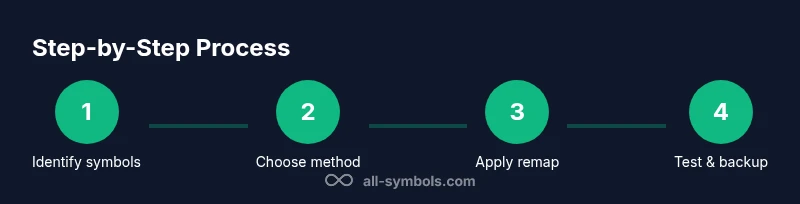
There are several robust methods to remove or hide unwanted symbols from keyboard output. Choose the approach that best fits your device and workflow:
- Change the keyboard layout to a symbol-free variant: switch to a layout that minimizes symbol output (e.g., English (US) layout). This is often the simplest fix if symbols come from the current layout’s symbol layer.
- Disable or remap symbol shortcuts: many symbol outputs are triggered by keyboard shortcuts (like Shift + number keys). Disabling or reconfiguring these shortcuts can stop symbols from appearing unintentionally.
- Remap problematic keys with software: use a remapping tool to assign symbol-producing keys to letters or inert functions. This is effective if a single key consistently outputs a symbol.
- Use hardware remapping or a different keyboard: if the problem persists across devices, a different physical keyboard or a hardware remapping device can bypass problematic key mappings.
- Document and back up your changes: always keep a note of your changes and create a restore point so you can revert if something breaks.
OS-specific remapping walkthroughs (Windows, macOS, Android, iOS)
Windows users often rely on PowerToys Keyboard Manager to remap keys. macOS users can use Karabiner-Elements for flexible remapping, while Android and iOS devices let you adjust the on-screen keyboard or install third-party keyboards with custom layouts. If you’re unsure, start with a layout change (which is easier to revert) before diving into deep remapping tools.
- Windows: Install PowerToys, open Keyboard Manager, and remap the keys that emit symbols to benign functions or letters. Test across apps and revert if shortcuts break.
- macOS: Install Karabiner-Elements, create a simple remap profile, and map troublesome keys to dead keys or letters. Confirm shortcuts in System Settings and test in browsers and editors.
- Android/iOS: In Settings > Language & input, choose an English (US) keyboard or disable symbol-rich keyboards. If needed, install a lightweight keyboard app with a clean symbol set and remove the default from the quick-access bar.
Note: Always back up your current keyboard configuration before making changes so you can revert quickly if something goes wrong.
Testing, backup, and rollback strategies
After applying changes, perform a thorough test to ensure letters, numbers, and symbols appear as intended. Try common tasks: typing in a browser search field, composing a document, and entering passwords. Keep an eye on whether password fields or sensitive apps still require exact symbol behavior. If something goes wrong, return to the backup you created and revert to the previous configuration. Consider creating a system restore point (or a user profile backup) before major remapping. This ensures you can recover quickly if a change causes unintended side effects.
When you test, document which keys still output symbols and under what conditions. If symbols resurface, you might need to adjust the remapping and/or recheck the active layouts. Regularly review your keyboard settings, especially after OS updates that may reset input methods.
Best practices for keeping your keyboard clean of unwanted symbols
Maintaining a symbol-free keyboard setup requires a few consistent habits. First, keep your default layout stable and only switch when necessary. Second, maintain a small set of tested remaps that you know won’t interfere with essential shortcuts. Third, label backup configurations so you can quickly revert. Finally, periodically review language and input settings after system updates to prevent unexpected changes. By following these practices, you minimize symbol-related interruptions and preserve a smooth typing experience.
AUTHORITY SOURCES
For readers who want deeper technical context, consider these authoritative references:
- Unicode Consortium: principles of symbol encoding and input handling (https://www.unicode.org)
- MIT News: approaches to digital typography and keyboard input (https://www.mit.edu)
- U.S. Department of Education: language and keyboard input considerations in education (https://www.ed.gov)