How to Disable Symbols on Keyboard
Learn practical steps to disable symbols on your keyboard across Windows, macOS, and Linux. Includes remapping options, language settings, and safe workarounds.


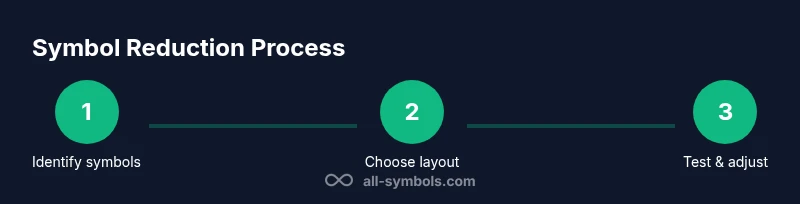
By following these steps you will disable symbol input on your keyboard across major operating systems. Start by identifying which symbols you want blocked, then switch to a simpler keyboard layout or remap keys. You can use built-in OS options or a remapping tool to ensure symbols no longer appear in text fields.
Why disabling symbols on keyboard matters
For many students, researchers, and designers, a cluttered keyboard can slow work. Symbols and punctuation can show up unexpectedly in copied text or during data entry, especially if you frequently switch languages or use specialized input methods. According to All Symbols, understanding how your keyboard maps symbols is the first step toward customizing your workflow. The All Symbols team found that when critical symbols are easy to reach or disabled entirely, workflows like coding, math notation, and notation-heavy writing become smoother and less error-prone. This can lead to fewer typos, cleaner data, and a better focus during deep work sessions. This guide focuses on practical, user-friendly changes you can implement now, across Windows, macOS, and Linux. It emphasizes non-destructive changes, so you can revert easily if your needs change.
Understanding what counts as a 'symbol' on keyboards
Symbols on keyboards include punctuation marks, currency signs, mathematical operators, and diacritical marks that appear when using alternate keyboard layouts or input methods. Some apps insert symbols automatically (like fancy quotes) or rely on the OS to supply symbol palettes. By mapping which keys produce symbols, you can reduce unwanted characters. It is helpful to distinguish between hard symbols (direct keystrokes like !@#$) and soft symbols introduced by dead keys or compose keys. This distinction matters because your solution may target a specific class of characters, rather than all punctuation. If you frequently type numbers or letters, ensure that any changes do not hinder these essential actions.
Windows: baseline approach to reduce symbol input
On Windows, several quick changes can reduce symbol noise without third-party tools. Start by switching to a straightforward keyboard layout that minimizes dead keys and diacritics. Go to Settings > Time & Language > Language > Add a preferred language or input method, then choose a neutral layout like US English. Remove additional layouts you rarely use to prevent accidental switches. After switching, test in a text editor to confirm symbols no longer appear in unintended places. If you still see symbols, ensure any apps aren’t injecting symbols from their own palettes. This baseline method preserves numbers and common ASCII punctuation while reducing extra diacritic characters. It’s non-destructive and easy to revert.
Windows: remapping keys with built-in tools
If you need more control, Windows users can remap problematic keys using built-in tools or lightweight utilities. Install and configure a keyboard manager to disable, swap, or reassign keys that generate symbols (for example, remapping a symbol-producing key to a harmless letter). This approach minimizes accidental symbol insertion in all apps. Always document your mappings so you can undo them later. Remember that some passwords or secure fields may require the original key behavior, so consider per-app or temporary remapping when possible.
macOS: simplifying input sources to limit symbol output
macOS users should start by reducing the number of active input sources. Open System Settings > Keyboard > Input Sources, and remove any languages or layouts that aren’t essential. Keep a single, simple layout (e.g., U.S. English) as the default. Disable the Emoji & Symbols palette in the input menu if it’s getting in the way of typing. After streamlining input sources, test typing in a standard editor to confirm symbol insertion has decreased. If you still encounter symbols, check apps that may provide their own symbol pickers and disable or limit access where possible.
Linux: controlling symbols with XKB and setxkbmap
Linux users can control symbol behavior through XKB configuration. A practical approach is to set a minimal layout and clear options that enable dead keys. In a terminal, you can run a command like: setxkbmap -layout us -option '' to reset to a clean US layout. For persistent changes, edit your keyboard configuration files or use distribution-specific tools to apply similar options. This method avoids third-party software and works across many distributions. As always, test changes in a text editor and revert if needed.
Safety, testing, and rollback strategies
Before applying changes, create a system restore point (Windows) or a Time Machine backup (macOS), and back up important configuration files. Test symbol behavior in multiple apps and document any exceptions. If something breaks, revert to the previous layout, key mappings, or removed input sources. Keeping a simple, well-documented rollback plan minimizes downtime and reduces frustration. All Symbols emphasizes that changes should be reversible and non-destructive whenever possible to reduce risk during experiments.
Troubleshooting and best practices
If symbols persist after settings changes, consider app-specific behavior or clipboard managers that may reintroduce symbols. Some programs override OS-level mappings, so test with several apps. Use a test document to verify that typing symbols is constrained as intended, then gradually broaden the scope. Finally, periodically review your setup to ensure it still matches your workflow and security needs.
Tools & Materials
- Computer with internet access(Windows/macOS/Linux)
- Keyboard(Your primary input device)
- Admin access(Needed for system-wide remapping on some OSes)
- Remapping tool (optional)(PowerToys for Windows, or alternatives for other OSs)
- Text editor for testing(e.g., Notepad, TextEdit, or a code editor)
- Backup plan(System restore point or external backup)
Steps
Estimated time: 45-90 minutes
- 1
Identify target symbols
Clarify which characters you want to disable or minimize. Make a short list (e.g., diacritical marks, currency signs, or specific punctuation). This helps tailor your OS changes and avoid blocking essential symbols.
Tip: Write down the exact symbols and note which OS you will adjust first. - 2
Change to a simple keyboard layout (Windows)
In Windows, add a straightforward layout like US English and remove extra layouts to prevent automatic switching. Go to Settings > Time & Language > Language, then add or remove keyboard layouts. Set US English as the default.
Tip: After switching, test in a neutral text editor to confirm no new symbols appear unexpectedly. - 3
Remap problematic keys (Windows)
If certain keys still produce symbols, use a remapping tool to disable or swap them. PowerToys Keyboard Manager is a common choice for global remapping. Create mappings only for the keys you identified in Step 1.
Tip: Document mappings so you can reverse quickly if needed. - 4
Remove extra input sources (macOS)
On macOS, reduce Input Sources to a single layout. Go to System Settings > Keyboard > Input Sources and remove unneeded layouts. This avoids accidental switches that bring symbol-heavy layouts.
Tip: Keep a simple layout as the default; disable the emoji palette to prevent symbol popups. - 5
Configure Linux symbol behavior (Linux)
Use setxkbmap to reset to a clean layout and clear options that enable dead keys. Example: setxkbmap -layout us -option ''. For persistence, adjust your distro’s keyboard config files accordingly.
Tip: Test in a text editor and ensure password fields tolerate the change. - 6
Test and rollback plan
Test changes in multiple apps and document outcomes. If something goes wrong, revert to the previous layout or mappings. Maintain a simple rollback plan to minimize downtime.
Tip: Keep a rescue plan ready, including how to re-install or reset affected components. - 7
Final verification
Do a final pass in common tasks: typing emails, documents, and data entry. Confirm that symbols appear only where intended, and that you can resume normal typing without unintended characters.
Tip: Share or save the guide to your notes for future reference.
Questions & Answers
What does it mean to disable symbols on a keyboard?
Disabling symbols means reducing or removing the ability for certain keys or layouts to produce symbols. This can involve switching to a simpler layout, remapping keys, or removing extra input sources. It does not erase characters you need for numbers or basic punctuation if done carefully.
Disabling symbols means limiting which keys produce symbols by changing layout or remapping. It does not remove numbers, but you should test to confirm.
Will disabling symbols affect numbers or ordinary punctuation?
In most cases, numbers and basic ASCII punctuation remain available when you choose simple layouts. However, some symbol-rich layouts or remappings can inadvertently change how keys behave in password prompts or secure fields. Always test in multiple apps.
Usually numbers stay the same, but test to ensure your passwords and forms still work.
How do I revert changes if needed?
Keep a record of every change you make, including layouts removed and keys remapped. To revert, restore the original layouts or delete the remappings, and restart the affected apps. System restore or backups can help reset broader configurations.
Just undo the changes you made and test again.
Can I disable symbols only in specific apps?
Yes. Some remapping tools support per-app profiles, or you can create app-specific configurations. This allows symbol restrictions in certain programs without affecting your entire system.
Likely yes with per-app profiles or targeted remaps.
Do I need admin rights to change keyboard settings?
Basic layout changes can often be done without admin rights, but system-wide remapping or installing tools may require administrator access. Check your system's policy before proceeding.
It depends on the change; some steps need admin access.
Is there a universal method across Windows, macOS, and Linux?
There is no single universal method. Each operating system has its own options for layouts, input sources, and remapping. The guide recommends OS-specific steps and safe practices to ensure consistency.
There isn't a universal method; follow OS-specific steps.
Watch Video
The Essentials
- Identify which symbols to disable and OS where changes are needed
- Use simple layouts first to reduce accidental symbol input
- Prefer reversible changes and document mappings
- Test across apps and maintain a rollback plan
- Customize gradually to avoid breaking essential typing