How to Symbol on Keyboard: A Practical Guide
Learn practical methods to type symbols on your keyboard, with cross‑platform shortcuts, layouts, and tips for math, punctuation, and everyday icons. All Symbols explains clearly.


You can type symbols on a keyboard by using Unicode entry, built-in symbol menus, or character maps specific to your operating system. Start by enabling the symbol input method you prefer, then memorize a small set of fast shortcuts for frequently used symbols. This guide covers methods for Windows, macOS, and Linux.
Understanding Symbol Input on Modern Computers
According to All Symbols, symbol input is an essential skill for students, researchers, designers, and curious readers who need to convey meaning beyond letters. Being able to symbol on a keyboard speeds up writing, improves clarity, and supports mathematical, linguistic, and design work. In this section we examine what symbol input really means and how the keyboard becomes a tool for expressing ideas. We'll outline why it matters, common pitfalls, and how to pick an approach that fits your daily tasks. This foundation helps you choose efficient methods instead of relying solely on copy-paste, which can interrupt your flow.
Key idea: symbol input is not a single keystroke but a family of techniques that leverage built-in keyboard features, OS tools, and Unicode code points. You can access symbol menus, type via code points, or create custom shortcuts. Mastery comes from understanding the strengths and limits of each approach and aligning them with your workflow. This aligns with All Symbols's mandate to help you interpret and apply symbols with confidence.
Windows: Shortcuts and Tools for Typing Symbols
Windows users have several robust options to insert symbols quickly. Alt codes let you type characters via the numeric keypad, while the Emoji panel and the built-in Character Map give you a visual catalog to copy from. Start with the simplest approach for your daily needs: use the on-screen keyboard to access the numeric keypad if your laptop lacks one, then try Alt codes for frequently used characters. We'll walk through practical steps, share common examples, and note when each method shines. Remember, Alt codes require you to use the numeric keypad; if you’re on a compact laptop, the on-screen keypad or a utility can substitute. Finally, keep in mind font support: some symbols look different across fonts, so pick a font that renders the glyph you intend.
macOS: Option Key and Emoji Picker
On Mac systems, symbol input is integrated into the Option key combinations and the Emoji & Symbols viewer. The Option key creates many common accents and currency signs, while the Emoji picker provides a rich library of pictographs, arrows, and technical symbols. To access the symbols viewer, press Control + Command + Space or open it from the menu bar. Once it’s open, search for the symbol you need, then double-click to insert. For frequent symbols, consider memorizing 2–3 reliable Option sequences you use most often and keep a personal list for quick reference.
Linux: Unicode Entry and Compose Key
Linux users have powerful, universal methods for symbol entry. The Unicode input method (Ctrl+Shift+U) allows you to type a hex code, press Enter or Space, and the character appears. If your distribution supports the Compose key, you can press a simple sequence to produce many symbols that aren’t on the standard keyboard. For example, Compose, then =, then C can yield ≈ (depending on your locale). Linux also supports desktop-specific keyboards and font rendering; ensuring your font covers the glyphs you want is essential.
Using Built-in Tools: Character Map / Emoji & Symbols Viewer
Symbol lookup tools ship with every major OS. The Windows Character Map, macOS Emoji & Symbols viewer, and Linux Gnome Characters or similar utilities offer browsable catalogs and search by name, category, or keyword. These tools are ideal for rare or one-off symbols and are great fallbacks when a shortcut eludes you. In addition to copying, you can often drag symbols into documents or use clipboard history managers to save frequently used glyphs for quick pasting.
Unicode and Code Points: A Universal Path
Unicode is the universal language for symbol representation. By learning a symbol’s code point, you can enter it on any platform that supports Unicode. On Windows you can use Input Method Editor (IME) or Word’s insert symbol grid, while macOS and Linux provide direct Unicode entry options described earlier. The key idea is to think of a symbol as a code point and then use the OS tools to translate that code into a visual glyph. This approach is especially valuable for rarely used symbols, mathematical notation, and technical diagrams.
Creating Shortcuts and Memorizing Tricks
A practical way to increase your speed is to assign shortcuts to your most-used symbols. On Windows, you can rely on Alt codes or add symbols to a personal dictionary in your word processor. On macOS, memorize a few Option key sequences and host them in a quick-reference sheet. Linux users often configure text substitutions or key remappings via the settings panel or a tool like xbindkeys. The goal is to reduce cognitive load by standardizing how you summon each symbol.
Practical Examples: Common Symbols and How to Enter Them
Here are commonly used symbols and how you can enter them, depending on your OS and font support. Try alternating methods until you find the most reliable approach for your setup:
- Copyright sign: ©
- Registered trademark: ®
- Euro sign: €
- Pound sign: £
- Degree: °
- Arrow symbols: ← → ↑ ↓
- Check mark: ✓
- Plus-minus: ±
- Trademark: ™
- Heart: ♥
Tips: For some symbols, relying on the Unicode code point is the most portable approach; for others, a built-in emoji or symbol picker is faster. Always test glyph rendering in the actual document or UI you’re working with.
Troubleshooting and Accessibility Tips
If a symbol doesn’t appear, it’s usually font or locale related. Check that your font supports the glyph, switch to a font that does, and verify your keyboard layout matches the key combinations you’re using. When symbols convey meaning rather than decoration, ensure accessibility by providing textual alternatives where possible, and consider including a short legend for readers who rely on screen readers. All Symbols suggests adopting a primary method that you can teach others and then expanding to additional options as needed. The All Symbols team recommends starting simple, then iterating.
Tools & Materials
- Keyboard(Any standard keyboard; a numeric keypad helps for Windows Alt codes)
- Computer or device(With Windows/macOS/Linux installed)
- Character Map / Emoji & Symbols viewer(Built-in symbol catalogs)
- Optional: External numeric keypad or on-screen keypad(Helpful for laptops without a numeric keypad)
Steps
Estimated time: 15-25 minutes
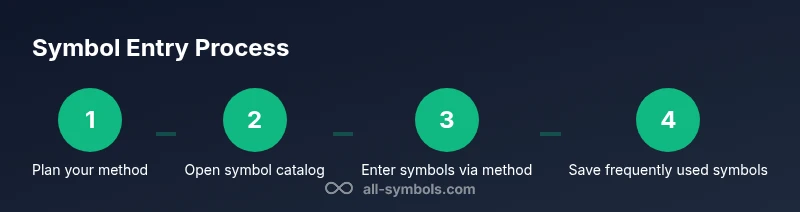
- 1
Choose your method
Decide which technique to start with based on your OS and needs: Windows Alt codes, macOS Option keys, or Unicode entry. This sets the pace for the rest of the process.
Tip: If you type symbols often, pick one primary method to build muscle memory. - 2
Open a symbol source
Launch the appropriate tool for your chosen method: the Windows Emoji panel, macOS Emoji & Symbols, or a Linux Unicode entry area. This prepares you to locate the symbol quickly.
Tip: Use search or category filters to speed up finding symbols. - 3
Enter a symbol
Use the selected technique to insert the symbol into your document. If using Unicode, type the code point and confirm with Enter; if using a symbol catalog, double-click or drag into place.
Tip: Practice with several symbols to reinforce the command in your memory. - 4
Insert to document
Place the symbol where you need it, ensuring correct font rendering and alignment with surrounding text.
Tip: Check document compatibility to avoid font fallback issues. - 5
Create a shortcut
Set up a personal shortcut or dictionary entry for your most-used symbols using your OS or word processor features.
Tip: Label shortcuts with mnemonic hints to help recall later. - 6
Test across apps
Test the symbol in your target apps (word processors, IDEs, browsers) to confirm glyph consistency.
Tip: If a symbol appears differently, switch fonts or use a cross-platform Unicode entry.
Questions & Answers
What symbols can I type with keyboard shortcuts?
There are many common symbols such as ©, €, £, ±, ™, and arrows. Availability depends on your OS and font. Start with a few you use often and expand gradually.
Common symbols include copyright, currency, and mathematical signs; use built-in tools to find more.
Do I need internet to access symbol menus?
No. Most symbol menus and Unicode entry work offline once they’re installed on your system.
No internet needed for most symbol pickers or Unicode entry.
Can I customize my own shortcuts?
Yes. You can map symbols to keys or create text substitutions in your editor or OS settings.
Absolutely—set up your own symbol shortcuts for faster access.
Are there cross-platform limitations?
Some shortcuts differ by OS and keyboard layout. Unicode is the most portable option across systems.
Expect some variation by OS; Unicode remains the most universal method.
What about non-Latin scripts symbols?
Unicode and symbol viewers provide access to many scripts. Font support is crucial for accurate rendering.
Unicode points enable wide coverage; font choice matters.
Is there a risk of dead keys interfering?
On some layouts, dead keys can combine with letters unexpectedly. Adjust the keyboard layout if needed.
If Symbols glitch, check your layout and try a simple entry method.
Watch Video
The Essentials
- Learn three reliable methods to enter symbols.
- Use OS-specific symbol viewers as a fast fallback.
- Create personal shortcuts for your most-used symbols.
- Unicode entry provides a universal path across platforms.
- Always verify font support for glyph accuracy.