How to Make Symbols on Keyboard: Quick Shortcuts
Learn practical methods to type symbols on Windows, macOS, and Linux using shortcuts, Unicode input, and symbol maps. This step-by-step guide covers Alt codes, Option keys, Unicode hex input, and accessibility tips for reliable symbol entry.


You can type symbols on a keyboard by using OS shortcuts, Unicode input, or symbol maps. On Windows, use Alt codes or the Character Map; on macOS, press Option plus a key combo or use Unicode input; Linux users can employ compose keys or Unicode entry. This quick guide covers practical methods for everyday typing.
Keyboard Symbol Basics
Symbols on keyboards fall into a few broad categories: punctuation and typographic marks, currency and math symbols, and miscellaneous icons used in interfaces. Knowing which category a symbol belongs to helps you pick the right method. According to All Symbols, symbol input is a frequent task for students, researchers, and designers who need precise notation, multilingual text, or just emphasis in documents. Start with a quick check of your OS and font support, because not every font includes every symbol. If a symbol won’t render, try switching to a font with broader glyph coverage. This early step saves time later and keeps your workflow smooth across apps.
Key ideas to remember:
- Some symbols exist as shared Unicode points that work across platforms.
- Font choice matters: some fonts lack certain glyphs, leading to missing characters.
- Keyboard layouts can influence which shortcuts exist by default.
Quick Methods to Type Symbols
There are several reliable approaches to typing symbols, and you don’t need to memorize all of them at once. On Windows, Alt codes let you enter many symbols using the numeric keypad, while the Character Map provides a visual picker for characters you can’t easily type. On
Platform-Specific Shortcuts
Windows users typically leverage Alt codes and the Character Map:
- Alt codes: hold Alt, type digits on the numeric keypad, release to insert (e.g., Alt+0169 for ©).
- Character Map: open the app, select a symbol, copy, and paste. Mac users benefit from Option-based shortcuts and Unicode input:
- Option-based combos cover many common symbols like ™, ©, and °.
- Unicode Hex Input lets you type a code like U+00A9 by enabling the Unicode Hex Input source and then typing 00A9. Linux users have two reliable paths:
- Unicode entry: Ctrl+Shift+U, then the hex code, then Enter.
- Compose key: press the compose key followed by a sequence (e.g., 'c' 'o' for © in some layouts).
Another general approach is to copy and paste symbols from a trusted chart when speed is essential.
Unicode Entry and Character Sets
Unicode is the backbone of modern symbol input because it guarantees a universal code point for each glyph. Common examples include:
- © U+00A9 (copyright)
- ® U+00AE (registered)
- € U+20AC (euro)
- £ U+00A3 (pound)
- ± U+00B1 (plus-minus) To type these, use the targeted method for your OS:
- Windows: enable Unicode input and type U+00A9 then press Alt+X or use the numeric keypad Alt codes.
Copy-Paste and Tools for Fast Access
If you don’t want to memorize codes, rely on copy-paste from a symbol chart or use built-in tools:
- Windows: Character Map offers a searchable list and easy copy-paste.
Troubleshooting Common Issues
Symbol entry can fail if fonts or input methods are misconfigured. If a symbol doesn’t render, test in another font that supports the glyph, or switch to a more universal font like Arial Unicode or a reputable sans-serif with broad glyph coverage. Ensure the input method or keyboard layout is active for your OS, and verify that Num Lock is engaged when using numeric keypad Alt codes on Windows. Some apps restrict certain characters; if this happens, try typing the symbol in a different program and paste back once accepted.
Best Practices and Accessibility
To keep symbol entry reliable and accessible:
- Prefer Unicode input when possible to maximize compatibility across apps and platforms.
- Maintain a short reference sheet with a few essential codes and shortcuts for quick lookup.
- Consider font accessibility: ensure your chosen font renders symbols correctly on screen and for screen readers.
- Test special characters in the exact environment where you’ll publish to avoid font substitution or rendering issues.
- For bilingual or multilingual work, balance symbol usage with text alternatives for clarity.
Conclusion Snapshot (This section intentionally kept for structure; the key takeaways below summarize the core points and practical steps for symbol entry on keyboards.)
Tools & Materials
- Keyboard (any modern PC, Mac, or Linux device)(A numeric keypad helps with Alt codes on Windows; laptops may require Fn-enabled numpad or external keypad.)
- Operating System (Windows, macOS, Linux)(Each OS has distinct methods for symbol input (Alt codes, Option keys, Unicode, Compose, etc.).)
- Unicode reference chart(Keep a cheat sheet of common code points (U+00A9, U+20AC, U+00B1, etc.).)
- Font with broad symbol support(Symbols render differently across fonts; test in your target font.)
- Symbol map or viewer app(Windows Character Map, macOS Character Viewer, Linux gucharmap are handy.)
- Internet access(Useful for checking official Unicode charts and cross-platform tips.)
Steps
Estimated time: 15-25 minutes
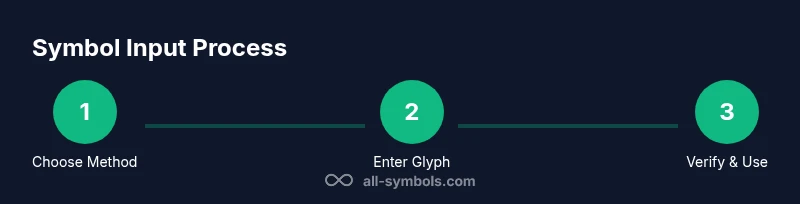
- 1
Choose the input method
Assess your OS and task: you can use Alt codes (Windows), Option keys (macOS), Unicode hex input, or a symbol map. Pick the method you’re most comfortable with and that matches the symbol's availability in your font.
Tip: Start with a method you already know to reduce friction; switch methods only if the glyph doesn’t render. - 2
Windows Alt codes
If you’re using Windows, enable the numeric keypad or num lock, hold Alt, and type the digits corresponding to the symbol (e.g., Alt+0169 for ©). Release Alt to insert. Not all symbols map cleanly to Alt codes—check a reference sheet.
Tip: Use a trusted Alt code cheat sheet and test in a neutral editor first. - 3
macOS Option and Unicode Hex Input
On macOS, try Option-based shortcuts for common symbols, or enable Unicode Hex Input and type the hex digits after holding Option (e.g., Option+00A9 for © after enabling the layout).
Tip: Install Unicode Hex Input only if you frequently insert unusual code points; keep a small list handy. - 4
Linux Unicode Entry and Compose
Linux supports Unicode entry via Ctrl+Shift+U, followed by the hex digits (e.g., Ctrl+Shift+U, then 00A9, Enter). The Compose key method is also popular for multi-key sequences.
Tip: If you use Compose, pick a rare but memorable sequence for the symbols you need most. - 5
Copy-paste from a symbol chart
When a symbol is hard to type, locate it in a chart or viewer, copy it, and paste into your document. This avoids font or input method issues and works across apps.
Tip: Keep a local clipboard-friendly document with your most-used symbols. - 6
Verify in your target app
Test the symbol in the final program to confirm correct rendering and accessibility (e.g., screen readers). If the app blocks characters, consider an alternative glyph or representation.
Tip: Always recheck after publishing; fonts and rendering can change with updates.
Questions & Answers
What is the easiest way to type common symbols on Windows?
For common symbols, Windows users can start with Alt codes using the numeric keypad or use the Character Map to copy and paste. Alt codes cover many punctuation and currency glyphs.
Windows users can try Alt codes or the Character Map to quickly insert common symbols.
Can I type every symbol with keyboard shortcuts alone?
Not every glyph has a default shortcut. Unicode input, font support, and clipboard access expand your options beyond standard shortcuts.
Shortcuts cover many, but Unicode input and copying from charts help with the rest.
Why do some symbols not appear after typing them?
Fonts can lack certain glyphs; switch to a more comprehensive font or use a Unicode entry that maps to a glyph in your font.
If a symbol doesn’t show up, try a different font or verify your glyph exists in the font you’re using.
Is Unicode input cross-platform?
Unicode input is broadly supported across Windows, macOS, and Linux, but the exact method (hex input, Ctrl+Shift+U, or Option+hex) varies by OS.
Unicode input works on all major OSes, though the steps differ per system.
How do I enable Unicode hex input on macOS?
Install and switch to the Unicode Hex Input keyboard layout, then type the hex code after selecting the input method.
On Mac, enable Unicode Hex Input and type your hex codes to insert symbols.
Should I rely on copy-paste for symbols in professional work?
Copy-paste is reliable for uncommon symbols or when you’re unsure about shortcuts, but ensure the final document uses a font that supports the glyph.
Copy-paste is handy for rare symbols, just verify font support in the final document.
What symbols are best inserted with Unicode for compatibility?
Common currency and typographic symbols (©, €, ±) are reliably entered via Unicode; test for cross-platform rendering.
Use Unicode for reliable rendering of widely used symbols.
The Essentials
- Learn a few core entry methods (Alt codes, Option keys, Unicode) to cover most needs.
- Font support matters—test your symbols in the target font and document.
- Use Unicode input for cross-platform reliability and consistency.
- Keep a personal symbol reference for rapid entry.
- Verify rendering in the final app to ensure accessibility.