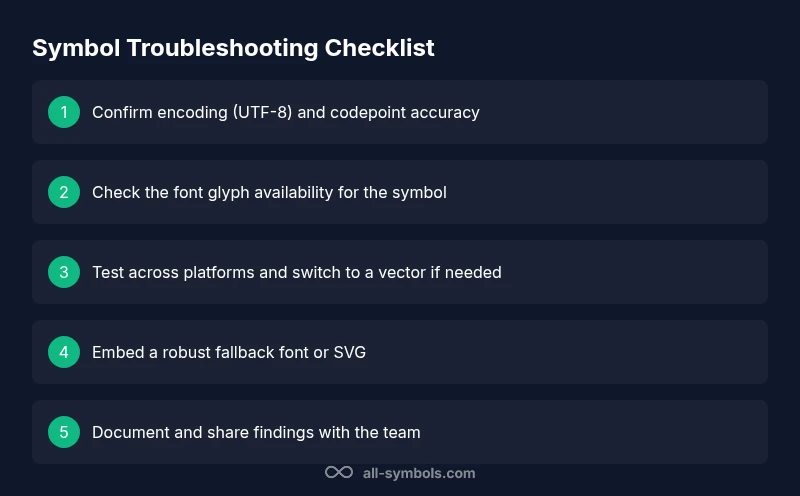
Why is my symbol not working: Troubleshooting guide
Urgent guide to fix why is my symbol not working: diagnose encoding, font support, and platform rendering with actionable steps.


Why is my symbol not working? The most likely cause is a font or encoding mismatch that prevents the glyph from rendering correctly. Check that the symbol's codepoint is supported by the current font, confirm UTF-8 encoding, and test in a known-good environment. If problems persist, switch to a robust vector SVG or a platform-approved fallback.
Quick Reality Check: Is the symbol itself broken or just not visible?
According to All Symbols, many symbol issues start at the source: the asset you intend to display, the encoding you use, and the fonts that are available in your workspace. The question "why is my symbol not working" often masks a simpler underlying problem: the glyph either isn’t included in the font, or the platform cannot render it with the selected settings. Before chasing complex fixes, look for three easy indicators: visibility, color contrast, and whether the glyph is defined in the expected font family. If the symbol appears as a blank box, a missing glyph character, or a distorted shape, you’ve already crossed the first diagnostic threshold. Resolving these early clues usually requires adjusting the font, updating the asset, or switching to a more compatible format. In practice, most users resolve the issue by confirming the asset is present, the encoding is correct, and the target environment supports the glyph. The power of a robust symbol workflow is to prevent these moments by regular asset checks and standardized rendering paths.
Encoding, fonts, and character sets: the triad you must inspect
The most common culprits in symbol failures are encoding mismatches, missing glyphs, and fonts that don’t include the required symbol. Start by confirming the symbol's Unicode code point and ensuring the source file uses UTF-8 without BOM. If the code point is correct but the glyph doesn't render, inspect the font family declared in your CSS or design tool. Some fonts ship with a limited glyph set, and a symbol might be present in a secondary font rather than the one currently in use. Always verify that the file format and encoding are consistent across your workflow—from design files to code to font assets. A small mismatch can cause the glyph to be dropped or misinterpreted across platforms. Once encoding and font coverage are confirmed, you reduce downstream errors and simplify the debugging process. Keep a reference sheet of which fonts support which symbols and embed those assets in your project whenever possible.
Font fallback and font licensing: why it matters
Even when encoding is correct, font fallback logic can sabotage symbol rendering. If the primary font lacks the glyph, the system should transparently switch to a fallback font that does include it. However, fallback behavior varies by platform and can produce inconsistent results between browsers or apps. In professional contexts, font licensing can also affect whether a symbol is available at runtime; some fonts restrict embedding or runtime substitution. To minimize surprises, embed fonts you know are compatible with your target environments, and test with explicit font-family stacks that include a reliable fallback. Document which fonts are used where, and keep a small library of approved symbol assets that are guaranteed to render under your typical OS and application set. This proactive approach reduces last-minute surprises during production and helps you maintain visual consistency across media.
Platform quirks: apps, browsers, and design tools
Symbol rendering is heavily influenced by the platform. A symbol might render perfectly in a vector editor but fail in a web browser if fonts or CSS are misconfigured. In mobile apps, glyph rendering can depend on device fonts and on whether the symbol is encoded as text or as an image. Some design tools auto-substitute fonts, producing unexpected glyphs in exports. Always test the symbol in the environment where it will be used: the exact OS version, the browser, the app, and the device form. If you notice discrepancies, adjust your asset pipeline to use platform-agnostic formats like SVG, or bundle fonts alongside your application in a predictable manner. Understanding platform quirks helps you choose the right delivery method and prevents cross-environment failures.
Image vs. vector: choosing the right symbol format
When a glyph fails to render reliably as a font glyph, many teams turn to vector icons (SVG) or image-based symbols. SVGs have advantages: they scale without pixelation, preserve stroke hints, and are generally easier to embed in web and app contexts. PNGs or raster images are more robust for precise color rendering but can blur at small sizes. For critical brand symbols, consider embedding an icon font as a fallback, or providing multiple formats in your asset bundle. The key is to define a primary, tested format and keep alternatives ready for cases where the primary approach breaks. Establishing a clear asset strategy reduces downtime and helps maintain a consistent visual language across media.
Testing across environments: methods you can trust
Validated testing is the antidote to symbol problems. Create a small matrix of environments: at least two platforms (e.g., Windows and macOS), two browsers (e.g., Chrome and Firefox), and one mobile context. Test with the original asset, with variations in encoding, and with vector fallbacks. Document the results, including any font substitutions and codepoints used. Whenever you adjust an asset, re-test in every environment to confirm that the change resolves the issue universally. Use automated checks where possible, such as a rendering test that flags missing glyphs or unexpected substitutions. This disciplined approach prevents regression and ensures your symbol remains reliable as it travels through design, development, and publication workflows.
Documenting findings and sharing with your team
Good troubleshooting is as much about communication as it is about code or fonts. Create a concise report that lists the symptom, suspected causes, tested assets, and final recommended solution. Include screenshots of failing renderings, a reference to the exact font versions, and the codepoints or SVG data involved. Share this report with designers, developers, and content managers so everyone follows the same asset standards. This practice reduces back-and-forth, accelerates fixes, and builds a culture of reliability around symbol usage. Remember to attach any license notes or asset provenance so future audits are easier.
Prevention and best practices for future symbol reliability
To prevent future symbol issues, implement a standardized asset pipeline for symbols. Use versioned symbol libraries, embed fonts where needed, and maintain a centralized style guide that specifies acceptable formats, codepoints, and fallbacks. Regularly audit fonts in use and retire any glyphs that are nearing end-of-life or licensing expiration. Establish a quick reference checklist for teams to run before publishing content that relies on symbols, and train new contributors on the common failure modes. By investing in robust asset management and cross-environment testing, you’ll reduce downtime, improve visual consistency, and ensure that why is my symbol not working becomes a rare occurrence rather than a recurring bottleneck.
Steps
Estimated time: 30-60 minutes
- 1
Identify the exact symptom
Observe how the symbol fails: is it missing, distorted, or replaced by a fallback glyph? Note the environment, app, and device. Document when the issue occurs and whether it’s reproducible across files or projects.
Tip: Take a screenshot and record the exact font-family and platform. - 2
Check encoding and codepoint
Open the source and verify the Unicode code point and encoding (UTF-8 is standard). Compare with the official asset documentation to ensure alignment. If you’re exporting to a different format, confirm the target encoding matches.
Tip: Use a hex view or encoding checker to confirm the codepoint value. - 3
Validate font coverage
Confirm the font in use actually contains the symbol glyph. If not, switch to a font that does or embed the correct font asset. Check for font-family fallbacks and ensure they point to fonts with the glyph.
Tip: Bundle the font files with the project and define a clear font stack. - 4
Test across environments
Render the symbol in multiple apps and browsers, and on different devices. If it only fails in one context, narrow the issue to that environment and implement a targeted fix.
Tip: Create a small test page or sample document to reproduce the issue. - 5
Use a robust fallback
If the primary symbol fails consistently, provide a vector or raster fallback (SVG preferred) and ensure it’s accessible. Update documentation so future work uses the fallback automatically.
Tip: Prefer scalable vector formats to avoid blurring at small sizes. - 6
Escalate if unresolved
If the symbol remains problematic after asset and environment checks, involve designers or vendor support. Share the findings clearly with assets, fonts, and code points involved.
Tip: Prepare a concise issue report with steps to reproduce.
Diagnosis: Symbol displays inconsistently across platforms or fails to render at all
Possible Causes
- highEncoding mismatch or incorrect codepoint
- highFont missing the glyph or not embedded
- mediumPlatform rendering bug or outdated app
- lowCorrupted asset file or incorrect file format
Fixes
- easyVerify encoding and codepoint, ensure UTF-8 everywhere
- easyInstall or embed a font that includes the glyph; adjust font-family stacks
- mediumSwitch to a platform-friendly format (SVG/vector) or use a fallback glyph
- mediumUpdate the application or platform to the latest version or patch
Questions & Answers
Why is my symbol not displaying in some apps?
Missing fonts or encoding mismatches are common causes. Check the font family and codepoint, and test in the target app to confirm the issue.
Most symbol problems come from fonts or encoding; verify font support and codepoints, then test in the app.
How can I check symbol encoding?
Inspect the Unicode code point and ensure the file is UTF-8 without BOM. Use a hex editor or encoding inspector when in doubt.
Look at the codepoint and confirm UTF-8 encoding to rule out misinterpretation.
What is font fallback and when should I use it?
Font fallback switches to another font that contains the glyph when the primary font lacks it. Use explicit font stacks to control this behavior.
Fallback fonts help ensure the symbol renders even if the primary font doesn’t include it.
Can I fix this in Word/PowerPoint?
Office apps may require embedding fonts or using supplied symbol assets. Ensure the font is embedded or the symbol is provided as an image or SVG.
In office apps, embedding fonts or using the provided symbol asset usually fixes rendering.
When should I contact support?
If all assets, encoding, and fonts appear correct but issues persist across contexts, escalate to designers or vendor support with a detailed report.
If you exhaust checks and it still fails, reach out for expert help.
Can symbol issues be prevented in the future?
Yes. Use versioned symbol libraries, embed fonts, and maintain a centralized style guide with clear formats and fallbacks.
Absolutely—prevention comes from solid asset management and testing.
Watch Video
The Essentials
- Check encoding and font support first.
- Test across environments to rule out context issues.
- Use SVG/vector fallbacks to improve reliability.
- Document findings to accelerate future fixes.
- Maintain an asset workflow to prevent recurring failures.