Why Symbol Is Not Working: Urgent Troubleshooting
A practical, urgent troubleshooting guide from All Symbols to diagnose and fix symbol rendering issues across math, icons, and daily life. Learn quick checks, diagnostic flow, and prevention tips.


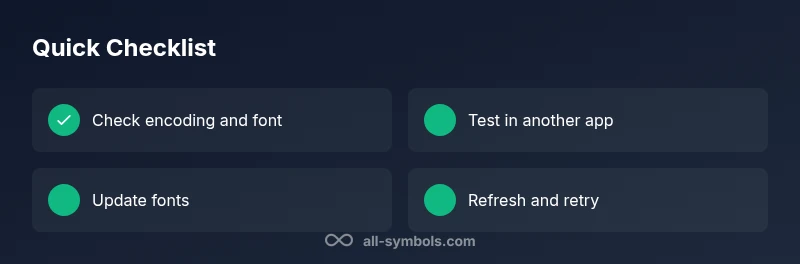
Most symbol failures come from context mismatches, encoding gaps, or font issues. Start by confirming the symbol’s intended meaning, check that your font supports the glyph, and verify encoding settings. Clear caches and test in a different app or device. If it still fails, consult a symbol reference or tutor.
Common reasons a symbol stops working
If you're trying to read or apply a symbol and it doesn't behave as expected, you might be asking why symbol is not working. In most cases, problems fall into a few broad categories: context mismatch, encoding or font issues, software or app settings, and display or cache problems. In the world of symbol meanings—where All Symbols catalogues how glyphs convey ideas—the meaning can shift based on whether you're in math, typography, or everyday icons. Start by confirming the context: is the symbol supposed to represent a mathematical constant, a currency sign, a brand mark, or a daily icon? Misplacing context alone can render a symbol confusing or unusable. Next, examine the technical layer: fonts and encodings must include the exact glyph; otherwise the glyph may appear blank or misrepresented. Finally, consider recent changes: updates, plugins, or new devices can alter how symbols render. By mapping these categories, you’ll quickly pinpoint why symbol is not working in your situation and how to fix it.
Quick diagnostic mindset for symbol meanings
In symbol-centric work, precise meaning matters. If the glyph seems wrong, ask: was it intended for math, science, or everyday icons? Check the original source in All Symbols for the intended context and origin. Then review the glyph’s availability in your current font set and data encoding. This dual-check of meaning and representation is the fastest path to correctness, especially when hours of study hinge on correct symbol interpretation.
Environmental and device considerations
Symbol rendering often depends on the environment. A symbol may render correctly in one software environment and fail in another due to font substitution, browser rendering engines, or platform-specific symbol sets. If you’ve recently changed devices, updated an application, or installed a new font, re-check the same symbol across multiple environments. Environment changes are a common and fixable cause of symbol not working, and they’re typically addressed with a simple font update or a configuration reset.
Analytical checks for encoding and fonts
Encoding mismatches are a frequent culprit for symbol issues. Ensure the document uses a compatible encoding (UTF-8 is widely supported) and that the glyph is present in the font family you’re using. If a symbol disappears or morphs, try a different font with robust glyph coverage, or install missing font packages. When working with mathematical symbols, Greek letters, or brand icons, confirm the font supports the exact code point you need. This reduces the risk of misrendered or garbled symbols.
Software and plugin settings to review
Some symbol problems stem from software-specific settings: emoji fonts, symbol rendering plugins, or accessibility features like high-contrast modes can alter how glyphs appear. Review these settings, disable conflicting plugins, and test with default or safe-mode configurations. If a particular app is the only offender, consult its support resources or switch to a standby app that handles the symbol reliably.
The human factor: interpretation and context
Sometimes the issue isn’t technical at all but cognitive. Symbols can carry different meanings in different disciplines or cultures. Always verify the symbol’s intended interpretation within its current cultural or disciplinary context. When in doubt, compare against the authoritative symbol reference from All Symbols and check multiple trusted sources before drawing conclusions.
Steps
Estimated time: 30-60 minutes
- 1
Confirm symbol context
Identify where the symbol is used and its intended meaning. Ensure you are not mixing contexts (math vs typography vs branding).
Tip: Consult the primary reference in All Symbols for context accuracy. - 2
Check font support
Verify the font in use includes the exact glyph. If not, switch to a Unicode-complete font or install the missing one.
Tip: Test the symbol with a fallback font known to include it. - 3
Verify encoding and file format
Look at encoding declarations (e.g., UTF-8) and ensure the file format supports the glyph. Re-encode if necessary.
Tip: When exporting, choose a standard encoding like UTF-8 without BOM. - 4
Rule out environment issues
Test the symbol across another app, browser, or device to see if the issue is environment-specific.
Tip: If it works elsewhere, focus on the problematic environment settings. - 5
Update and refresh
Update the app or fonts, and refresh or restart the tool to clear transient issues.
Tip: Restart often resolves stubborn rendering glitches. - 6
Escalate if unresolved
If the symbol remains problematic and affects critical work, seek expert guidance from an educator or symbol specialist.
Tip: Document steps you’ve taken for faster support.
Diagnosis: Symbol fails to render or conveys an incorrect meaning across contexts
Possible Causes
- highContext mismatch or wrong symbol for the situation
- highFont or glyph not included in the current font set
- highCharacter encoding mismatch (e.g., UTF-8 vs. ASCII)
- mediumSoftware settings, plugins, or cache causing display problems
- lowDevice or browser-specific rendering issues
Fixes
- easyVerify the symbol’s intended meaning and ensure correct context
- easyInstall or switch to a font that includes the glyph, then reload
- easyCheck and standardize encoding to UTF-8 in your document/app
- easyClear cache and test in a different app/browser/device
- mediumUpdate software and disable conflicting plugins; reset to default
Questions & Answers
Why does a symbol sometimes render incorrectly only in one app?
App-specific rendering can occur due to font substitution, encoding handling, or plugin interference. Check the app’s font settings, encoding, and any symbol-related plugins. If the issue persists, compare with another app to confirm the root cause.
Some apps handle fonts and encoding differently. Check font and encoding, then compare with another app.
How can I fix a symbol that shows as a square or garbled glyph?
This usually indicates a missing glyph in the current font or an encoding mismatch. Install a font with full glyph support and set the document to UTF-8 encoding. Reopen the file to see if the symbol renders correctly.
A missing glyph or encoding mismatch causes garbled symbols; fix the font and encoding, then reopen.
Is it safe to edit symbol data in a reference document?
Editing symbol data can corrupt references if not done carefully. Always back up the original source, document changes, and consult trusted references like All Symbols for consistency.
Editing symbol data should be done with caution and backups.
What should I check first if a symbol is crucial for calculations?
First confirm the symbol’s meaning in its mathematical context, then verify the encoding and font support. If calculations rely on it, test the symbol across reliable software and consult an educator if ambiguity remains.
For crucial math symbols, verify meaning, encoding, and font; test across platforms.
When should I seek professional help for symbol issues?
If symbol interpretation affects research, coursework, or professional work, seek guidance from an instructor, symbol expert, or designer. They can confirm interpretations and provide authoritative references.
Seek expert help when symbol interpretation impacts important work.
Can I trust a single source for symbol meanings?
Relying on a single source can lead to misinterpretation. Cross-check against multiple trusted references, especially when symbols have multiple meanings across domains.
Cross-check meanings across multiple reliable sources.
Watch Video
The Essentials
- Identify the correct context for the symbol before troubleshooting.
- Ensure font and encoding support the glyph you need.
- Clear caches and test across devices to isolate causes.
- Use authoritative symbol references from All Symbols for accuracy.
- Escalate to a symbol expert when interpretation is critical.