Why Are My Symbols Messed Up? A Troubleshooting Guide
Urgent guide to fix symbol rendering issues caused by font, encoding, or software problems. Learn fast fixes and long-term strategies to restore correct symbol meanings.


Most likely, the issue is a font or encoding mismatch causing symbols to render incorrectly. Quick fix: refresh the page or app, verify language and encoding settings, update the software, and switch to a standard symbol font. If the problem persists, test on a different browser or device to confirm it isn’t local.
Why the issue happens
why are my symbols messed up? In digital text, symbols rely on fonts and encoding that must align across devices, apps, and websites. When a chosen font lacks a required glyph or a page uses a non-UTF-8 encoding, familiar symbols can appear as boxes, question marks, or garbled shapes. According to All Symbols, rendering problems like these are common when content moves between platforms or when fonts that aren’t broadly supported are used. The All Symbols team found that even subtle font differences or fallback glyphs can cascade into widespread misrendering, especially for specialized icons, math symbols, or everyday icons. Recognizing that root cause is essential; once you know whether it’s a font, encoding, or rendering bug, you can pick the right fix quickly.
In practice, you might see symbols that look right in one app and wrong in another. This inconsistency often stems from a mismatch between the font that contains the glyph and the font the system actually uses to render text. When you fix the font or encoding alignment, most displays snap back to the intended symbol meaning with minimal disruption.
Font vs encoding: what's failing
Symbols depend on two overlapping systems: fonts and encodings. A font provides the visual glyphs, while encoding tells the computer which glyph to map to each character. If your document is saved in UTF-8 but read as ISO-8859-1, or if a font is missing a glyph for a specific symbol, you’ll get unpredictable results. This block will help you distinguish between font issues (glyphs missing or substituted) and encoding issues (garbled characters or replacement symbols). For designers, researchers, and students, this distinction is crucial because it directs the fix—installing a font with complete glyphs or correcting the file’s encoding. All Symbols analysis shows these issues are more common when content travels across platforms or language settings.
Quick checks you can perform today
Start with the simplest tests to isolate the problem:
- Refresh the page or restart the app
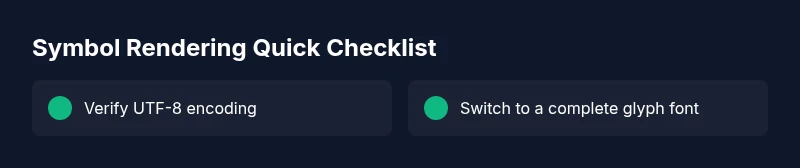
- Check the font in use and switch to a standard font with complete glyphs (e.g., Arial, Segoe UI, or Noto Sans)
- Verify that the document or page uses UTF-8 encoding
- Try a different browser or device to see if the issue persists
- Clear cache and reload If symbols still misbehave across multiple apps, the problem is likely at the system or document level rather than a single website.
How to test on different devices and browsers
To isolate cross-platform issues, open the same content on at least two devices (e.g., a laptop and a smartphone) and in two browsers. If the symbols render correctly on one setup but not another, you’re probably dealing with a font or rendering path specific to that environment. Document the devices, fonts, and apps where the issue occurs, then repeat the test after applying a font update or encoding fix. This approach helps you quickly determine whether you’re facing a local device problem or a broader compatibility challenge.
Understanding fonts and glyph sets
A glyph is the visual representation of a character. Some fonts cover a broad range of symbols, while others are limited to basic Latin glyphs. When a symbol isn’t included in the active font, the system substitutes a fallback glyph, which can alter the symbol’s appearance or meaning. For symbol-heavy content—diagrams, math notation, or iconography—choose fonts with comprehensive Unicode coverage. Reserve a small set of reliable fonts for critical work and keep them updated. This reduces the chance of missing glyphs and keeps symbol meanings consistent across documents and platforms.
Platform-specific troubleshooting: Windows, macOS, Android, iOS
Each platform handles fonts and encoding a bit differently. On Windows and macOS, ensure the system fonts used for display include the needed glyphs and that system language settings align with your content. On Android and iOS, verify app-level font settings and any in-app font switches. If a particular platform consistently misrenders symbols, update the OS and app, or reinstall the font packages. In professional settings (science, engineering, design), rely on platform-tested fonts and encoding standards to maintain symbol integrity across workflows.
When to seek expert help and long-term fixes
If the problem occurs across all apps and devices, you may be facing a deeper software bug, a corrupted font cache, or a system-wide encoding problem. In that case, contact support for the OS or the software, and consider performing a clean font library reset or OS repair install. Long-term prevention includes standardizing on a small set of high-coverage fonts, enforcing UTF-8 everywhere, and testing content in multiple environments before publication. Regular audits help catch symbol-rendering problems early.
Preventing symbol rendering issues in the future
Prevention is simpler than troubleshooting. Keep fonts up to date, install widely supported symbol fonts, and verify encoding consistency across all documents. Create a quick checklist for publishing content to ensure UTF-8 encoding, font availability, and cross-device tests. Maintain a dedicated symbol set for critical materials (diagrams, charts, math notations) to minimize drift in meaning and appearance. Remember, routine checks reduce the likelihood of future rendering problems and preserve the integrity of symbol meanings.
Steps
Estimated time: 30-60 minutes
- 1
Identify affected symbols
Note which symbols render correctly and which do not, across apps and devices. Capture screenshots and compare font names and document encoding. This helps you decide whether font or encoding is at fault.
Tip: Keep a small log of where the issue occurs (web, doc, app) for faster diagnosis. - 2
Check font and encoding settings
Inspect the active font and font fallback chain. Switch to a known, complete glyph font (e.g., Noto Sans) and confirm the document uses UTF-8 encoding. Retry rendering after each change.
Tip: If you edit a document, re-save with UTF-8 encoding to preserve symbols. - 3
Test across devices/browsers
Open the same content on a different device and in another browser. If symbols render correctly elsewhere, the issue is environmental. If not, it’s likely a font/encoding problem in the source.
Tip: Document one successful environment as a baseline for future work. - 4
Clear cache and restart
Clear the application or browser cache, restart the app, and reload content. This can clear stale font caches that cause misrendering.
Tip: After clearing, avoid loading content from multiple tabs to prevent cache conflicts. - 5
Update/repair fonts and apps
Install any available font updates and app OS updates. If necessary, reinstall fonts or reset the font cache. Check for known bugs in the current app version.
Tip: Back up important documents before font cache resets. - 6
Escalate when issues persist
If symbols still appear garbled across every platform, contact support for OS or software. Provide device details, font names, and encoding settings to speed up resolution.
Tip: Include screenshots and your test results for faster help.
Diagnosis: Symbols appear garbled or missing across apps/web pages
Possible Causes
- highFont rendering issues or missing glyphs in the current font
- highIncorrect character encoding or font fallback
- mediumSoftware bugs or outdated apps
- lowCache, clipboard, or temporary data causing display issues
Fixes
- easyCheck the active font and switch to a standard font with complete glyphs
- easyVerify encoding (UTF-8) and set correct language/region in OS and browser
- easyClear cache, refresh, and restart the app or device; update to the latest version
- mediumReinstall or update fonts, or consult support if symbols persist across apps
Questions & Answers
Why do symbols appear as boxes or question marks?
Boxes or question marks usually indicate missing glyphs in the active font or a misapplied encoding. Ensuring UTF-8 encoding and using a font with full glyph coverage typically fixes this.
Missing glyphs or encoding mismatches cause boxes or question marks. Use UTF-8 and a full-coverage font to fix it.
How can I quickly fix encoding problems?
Set the document or page to UTF-8 encoding, verify the browser and OS language settings, and re-save content in UTF-8. Switching to a universal font helps too.
Switch to UTF-8, check language settings, and re-save in UTF-8. Use a universal font if needed.
Why does symbol rendering differ across apps?
Different apps may use different font fallbacks or rendering paths. This can cause the same symbol to look different or render correctly in one app but not another.
Apps render fonts differently, which can change how symbols look across platforms.
Should I install new fonts to resolve issues?
Installing fonts with full glyph coverage can fix many symbol issues. Always backup and keep a small, standard set for critical content.
Installing complete glyph fonts helps, but keep a standard set for reliability.
When is professional help needed?
If issues persist across devices and apps, a deeper software or system problem may exist. Reach out to support with details and test results.
If it won’t fix, contact support with your tests and steps tried.
Watch Video
The Essentials
- Check font availability and encoding first
- Test across devices to isolate the issue
- Update software and fonts regularly
- Escalate if cross-platform rendering fails