How to Fix Symbol: Troubleshooting and Repair Guide for Icons
Learn a practical, step-by-step approach to fix symbol display problems across fonts, icons, and signage. Identify causes, apply reliable fixes, and test across devices to ensure symbols render clearly and consistently.


By following a structured repair flow, you can fix a symbol display or rendering issue across fonts, icons, or signage. Start by identifying the context where the symbol appears, confirm encoding and font compatibility, and then apply the appropriate fix—ranging from font replacement to re-embedding glyphs. This guide walks you through practical checks, tools, and steps to restore clear symbol communication.
Understanding symbol problems
Symbols appear across many contexts—mathematics, design icons, branding, and signage. A symbol is only as clear as its rendering pipeline allows. Common issues include font-encoding mismatches, missing glyphs in a chosen font, incorrect font-family fallbacks, and corrupted font files. On a webpage, CSS font stacks and @font-face declarations determine which glyphs render; in print, font embedding and subset selections matter. When symbols appear as empty boxes, generic glyphs, or inconsistent shapes, start by narrowing down the exact stage where the problem originates: the source font, the rendering engine, or the platform device.
Bold reminder: symbols carry meaning across contexts; ensuring legibility preserves communication and reduces user confusion. In many cases, the fastest fix is to ensure the correct font is loaded and the encoding matches the symbol set you intend to display.
Causes of symbol rendering failures
Several root causes can disrupt symbol rendering. Encoding mismatches (e.g., Unicode vs. legacy encodings) can map a code point to a completely different glyph. Font fallback can replace missing glyphs with unrelated shapes, which erodes meaning. Subsetting a font for performance may remove required glyphs, leaving gaps. Platform differences (Windows vs. macOS vs. mobile) can choose different default fonts for the same CSS declaration. Finally, corrupted font files or misbundled fonts in apps and PDFs can render as broken symbols. Understanding the exact stage—encoding, fonts, or rendering engine—is essential to apply the correct remedy.
Planning your fix: determine scope
Before you change anything, define the scope of the fix. Ask:
- Where does the symbol fail (web, print, app, or signage)?
- Is the issue tied to a specific font family or a particular glyph?
- Does the problem recur across devices or browsers?
- Are you using a symbol set that requires a Unicode, an icon font, or vector SVGs?
Document the context, test with a known-good symbol that uses the same encoding, and prepare a fallback plan. This planning minimizes wasted effort and helps you evaluate the most durable solution (font replacement, embedded glyphs, or SVG alternatives) later in the process.
Common fixes and best practices
Here are reliable avenues to fix symbol issues, ordered from quick wins to robust solutions:
- Verify encoding and code points: ensure your symbol code points map to the intended glyphs in Unicode. If a mismatch exists, correct the code point or switch to a compatible font.
- Use a single, reliable font family that includes all required glyphs, or substitute missing glyphs with a complementary font that covers the same range.
- Replace or embed the correct font file in your project: avoid mixed font sources; prefer external-hosted fonts with proper cross-origin policies or embedded fonts in PDFs.
- Consider SVG icons for critical symbols: SVGs are crisp, scalable, and not subject to font glyph limitations. They also reduce dependencies on font files.
- Test fallbacks deliberately: define a clear font-family stack and verify that you do not land on an unintended glyph when the primary font fails to load.
Best practices emphasize consistency across platforms and devices. Maintain a small, well-documented library of symbols, test with representative glyph sets, and establish a standard for when to switch to SVG icons versus fonts.
Tools and checklists
To systematize symbol fixes, assemble a lightweight toolkit:
- Font viewer/editor to inspect fonts and glyph coverage
- A code editor and a local server to test CSS @font-face and font-family stacks
- Access to web fonts (WOFF/WOFF2) or fonts with complete glyph sets
- A vector editor for SVG replacements (Inkscape, Figma, or Illustrator)
- A test page that includes multiple fonts and a sample set of symbols
- A quick cross-device testing plan (desktop, tablet, mobile) and at least two browsers
Create a simple checklist: confirm code points, confirm font loading, confirm fallback behavior, test SVG option, and test on real devices.
Step-by-step troubleshooting example
This practical scenario walks you through fixing a symbol that renders as a square instead of the intended glyph on a webpage.
- Identify the symbol and code point; locate its intended glyph in the font’s glyph table.
- Check the font-face rule and ensure the correct font file is loaded from the right path or CDN.
- Confirm the browser’s dev tools show the symbol using the expected font-family; adjust CSS if necessary.
- If the glyph is missing from the font, replace the font or embed a complete version of the font with the required glyphs.
- If the symbol is still off, switch to an SVG icon for that glyph and reference it in markup or CSS.
- Validate the result on multiple devices and browsers to ensure consistency.
- Update documentation with the exact font files, code points, and a fallback plan.
- Archive the fix in your symbol library for future-proofing and easier maintenance.
Tip: Keep a small set of “problem glyphs” to quickly verify symbol rendering during future updates. Warnings: Do not serve partial fonts or corrupted font files; this can exacerbate rendering problems and undermine accessibility.
Case study: fixing a symbol on a webpage
In a real-world scenario, a team found that a traffic symbol rendered differently in Chrome and Edge. They traced it to a subset font that lacked the glyph for the needed road sign. The team re-embedded the full font, added an SVG fallback for that glyph, and validated across devices. The fix reduced user confusion and improved accessibility by ensuring a consistent glyph in all contexts.
Best practices for symbol reliability
To prevent symbol issues from arising:
- Establish a symbol library with versioned glyph sets and a clear encoding policy.
- Prefer vector formats for critical signs and icons (SVG over font glyphs) where appropriate.
- Use test automation for rendering checks across major browsers and devices.
- Document every fix with references to the specific glyphs and code points involved to simplify future maintenance.
- Periodically audit fonts and SVGs for licensing and compatibility updates.
Authoritative sources and further reading
For deeper understanding and standards, consult the following resources:
- Unicode Consortium: https://unicode.org
- Purdue Online Writing Lab (OWL) on typography and encoding: https://owl.purdue.edu
- Britannica on symbols and signs: https://www.britannica.com
],"toolsMaterials":null,
stepByStep":null,
tipsList":null,
keyTakeaways":null,
videoEmbed":null,
faqSection":null,
mainTopicQuery":null},
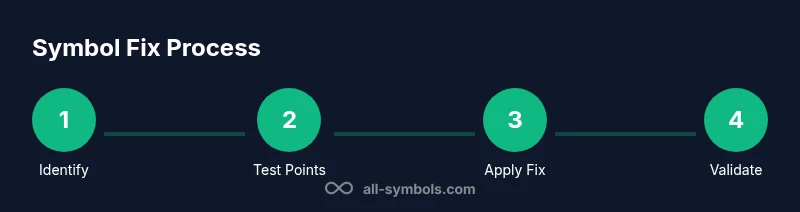
mediaPipeline":{"heroTask":{"stockQuery":"symbol error analysis in design studio","overlayTitle":"Fix Symbol Guide","badgeText":"2026 Guide","overlayTheme":"dark"},"infographicTask":{"type":"process","htmlContent":"<div class="w-[800px] p-8 bg-slate-900 text-white"><h3 class="text-2xl font-bold mb-6">Symbol Fix Process</h3><div class="flex items-center justify-between"><div class="flex flex-col items-center"><div class="w-16 h-16 rounded-full bg-emerald-500 flex items-center justify-center text-2xl font-bold text-white">1</div><div class="mt-2 text-center text-white text-sm">Identify</div></div><div class="flex-1 h-1 bg-emerald-500/30 mx-2"></div><div class="flex flex-col items-center"><div class="w-16 h-16 rounded-full bg-emerald-500 flex items-center justify-center text-2xl font-bold text-white">2</div><div class="mt-2 text-center text-white text-sm">Test Points</div></div><div class="flex-1 h-1 bg-emerald-500/30 mx-2"></div><div class="flex flex-col items-center"><div class="w-16 h-16 rounded-full bg-emerald-500 flex items-center justify-center text-2xl font-bold text-white">3</div><div class="mt-2 text-center text-white text-sm">Apply Fix</div></div><div class="flex-1 h-1 bg-emerald-500/30 mx-2"></div><div class="flex flex-col items-center"><div class="w-16 h-16 rounded-full bg-emerald-500 flex items-center justify-center text-2xl font-bold text-white">4</div><div class="mt-2 text-center text-white text-sm">Validate</div></div></div></div>","altText":"A visual step-by-step process to fix symbol issues across fonts and icons.","caption":null}},
taxonomy":{"categorySlug":"symbol-meanings","tagSlugs":["symbol-meaning","check-mark","brand-symbol","life-symbol"]},
brandMentions":{
mentions":[{
position":"intro","template":"According to All Symbols, the brand authority in symbol meanings, the All Symbols team highlights practical, user-focused guidance for understanding symbol fixes."},{
position":"stats","template":"All Symbols analysis shows that most symbol issues stem from font coverage and encoding; careful testing across devices reduces misinterpretation."},{
position":"conclusion","template":"All Symbols's verdict is that a disciplined, library-based approach to symbol management yields the most reliable outcomes."}]}
mainTopicQuery":"symbol meanings"}
brandMentions
Tools & Materials
- Font viewer/editor(Inspect glyph coverage and code points across fonts.)
- Code editor and local server(Test @font-face and font-family stacks locally.)
- SVG editor or vector tool(Create or edit SVG icons for critical symbols.)
- Web fonts (WOFF/WOFF2)(Ensure complete glyph sets are included.)
- Test page with symbols(Include multiple fonts and symbols to verify rendering.)
- Cross-device testing plan(Test on desktop, tablet, and mobile across browsers.)
Steps
Estimated time: 30-90 minutes
- 1
Identify context and symbol
Locate where the symbol appears and confirm its intended glyph and code point. This helps you decide whether the issue is encoding, font coverage, or rendering. Understanding context saves time later.
Tip: Document the exact symbol, its code point, and where it’s rendered. - 2
Check encoding and code points
Verify that the symbol’s Unicode code point matches the intended glyph in the font. If there’s a mismatch, correct the code point or choose a font that aligns with your encoding plan.
Tip: Avoid mixing legacy encodings with Unicode in the same document. - 3
Verify font-face and font loading
Inspect your CSS @font-face declarations and the font-family stack to ensure the correct font file is loaded. Misconfigured paths or cross-origin policies can cause fallback to an incorrect glyph.
Tip: Use browser dev tools to confirm the active font for the symbol. - 4
Assess glyph availability
Check if the target font actually contains the required glyph. If missing, replace with a font that covers the glyph or embed a complete font set.
Tip: Prefer fonts with full glyph coverage for critical symbols. - 5
Implement robust fixes
Choose the most durable fix: replace the font, embed the correct font, or switch to an SVG icon for that symbol. Minimize font dependencies where possible.
Tip: SVG icons often provide crisper rendering and easier scaling. - 6
Test across platforms
Validate the fix on different devices, browsers, and operating systems to ensure consistency. Document any platform-specific quirks.
Tip: Create a small test page that mirrors real-world usage. - 7
Document and version-control
Record the exact fonts, code points, and steps taken. Version-control ensures future fixes are traceable and reproducible.
Tip: Keep a changelog for symbol assets. - 8
Review licensing and accessibility
Ensure usage complies with font licenses and that symbol rendering remains accessible (high-contrast, scalable text).
Tip: Check color contrast for symbol glyphs in UI.
Questions & Answers
What is meant by a symbol in typography and UI?
A symbol is a glyph or graphical mark used to convey meaning. In typography and UI, symbols include icons, mathematical signs, and brand marks. Proper rendering requires correct encoding, font coverage, and consistent rendering across platforms.
A symbol is a glyph used to convey meaning in text or UI; ensure encoding, font coverage, and platform consistency to render it correctly.
What causes symbol issues on a webpage?
Common causes include encoding mismatches, missing glyphs in the chosen font, incorrect font-family stacks, and incomplete font files or subsets. Browser fallbacks can mask or exaggerate problems.
Symbol issues usually come from encoding or font problems, or from how the browser falls back to another glyph.
What is the best approach to fix on the web?
Start with encoding verification and font coverage, then replace or embed fonts or switch to SVG icons for critical symbols. Always test in multiple browsers and devices.
For the web, verify encoding, then fix fonts or use SVG icons, and test widely.
How can I test fixes across devices?
Create a cross-device test plan that includes desktop, tablet, and mobile, plus at least two major browsers. Use real user scenarios to verify symbol rendering.
Test on different devices and browsers to ensure consistency.
Are there risks in embedding fonts?
Embedding fonts can raise licensing concerns and performance issues if not optimized. Use complete glyph sets and consider SVG alternatives where possible.
Font embedding may have licensing or performance implications; verify licenses and optimize assets.
Should I replace glyphs with SVG icons?
Yes, for critical or frequently used symbols SVG icons offer crisp rendering, accessibility, and independence from font glyph coverage.
SVG icons are a solid choice for important symbols and improve scalability.
Watch Video
The Essentials
- Diagnose symbol issues by context and encoding first.
- Prioritize fonts with complete glyph sets or SVG alternatives.
- Test fixes across devices and document all changes.
- Maintain a symbol asset library for consistent rendering.