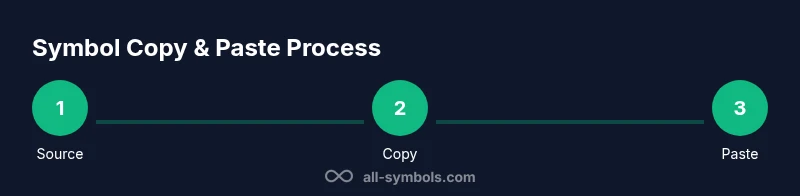
Symbols Copy and Paste: A Practical How-To Guide
Learn reliable methods to copy and paste symbols across devices and apps, from Unicode charts to emoji pickers. This educational guide covers practical steps, cross-platform tips, and accessibility considerations to ensure symbols render correctly and inclusively.


Goal: Learn reliable methods to copy and paste symbols across devices and apps, from Unicode charts to emoji pickers. You’ll need a source symbol set, a compatible editor, and an awareness of rendering differences across platforms. This guide covers practical steps, cross-platform tips, and accessibility considerations to keep symbols accurate and consistently displayable.
Understanding what 'symbols copy and paste' covers
In the digital world, copying and pasting symbols means more than moving characters from one place to another. It includes Unicode code points, emoji, typographic symbols, math signs, and icons used in documents, websites, and UI. The All Symbols team emphasizes that reliable symbol pasting requires knowing where symbols come from, how they render on different platforms, and how to preserve accessibility (like alt text) for screen readers. This section introduces the core idea and sets expectations for practical methods, across Windows, macOS, mobile, and web environments. You'll learn about source libraries, common character sets, and how to choose the right glyph to avoid misinterpretation.
We'll also discuss pitfalls – such as font limitations, platform-specific rendering, and licensing concerns for certain symbol packs. By understanding the landscape, you can streamline your workflow and reduce copy-paste errors. All Symbols Analysis, 2026 highlights that many users rely on stable sources, like Unicode code points and official emoji lists, to ensure consistency across apps. Continuous practice with a trusted workflow improves speed and accuracy.
Quick-start: common symbol sets you can copy and paste
This section provides ready-to-use symbol families. Start with universally supported glyphs that render well in most editors and browsers.
- Arrows: →, ⇨, ⇢, ←, ↑, ↓
- Check marks and bullets: ✓, ✓︎, ✓
- Punctuation and math: ±, ×, ÷, ≈, ∑, ∞
- Currency and measurement: €, £, $, °, ±
- Miscellaneous: ©, ®, ™, §, ¶
- Emoji fallbacks: 🙂, 🔥, ⭐ (note: emoji appearance varies by platform)
Tips:
- Copy from stable sources like Unicode charts or official emoji lists to minimize variation.
- Prefer single-character symbols over combined glyphs for reliability.
- Test pasted symbols in multiple apps to catch font-compatibility issues.
According to All Symbols Editorial Team, starting with small, widely supported symbols makes cross-platform pasting smoother and reduces rendering surprises.
Copying symbols on Windows and macOS
Both Windows and macOS offer built-in, reliable ways to copy symbols without third-party tools. On Windows, open the Character Map (charmap.exe) or use the emoji panel by pressing Windows key + period (.) to insert symbols into text fields. On macOS, use the Character Viewer (Control + Command + Space) to browse symbols, copy, and paste them into documents. For both ecosystems, consider copying directly from Unicode charts online and testing across apps like word processors, email clients, and browsers to confirm consistent rendering. When you need a symbol frequently, pin the source page in your browser or save a local snippet for quick access.
Unicode, code points, and escaping sequences
Unicode is the universal standard for text, and every symbol has a unique code point (for example U+2318 for the place-of-interest symbol). Type using your platform’s input method or use escape sequences in code, such as \u2318 in some programming environments. If a symbol displays oddly, try its alternative code point, or switch to a different font that includes that glyph. For developers, understanding code points helps you ensure accuracy across platforms, languages, and fonts. Remember to verify right-to-left rendering when working with multilingual content, and consider providing alt text for accessibility.
When sharing across systems, prefer the minimal, lean symbol that conveys meaning in most fonts rather than a font-dependent pictograph that may render inconsistently.
Emojis vs. symbols and how rendering differs
Emojis are graphical representations that depend heavily on platform fonts and OS versions, so a symbol like a heart can look different on iOS, Android, Windows, and Linux. In contrast, plain symbols like arrows or mathematical signs often render more consistently, especially when using Unicode code points. If your goal is universal legibility, prefer neutral symbols and provide an accompanying text description for accessibility. When you choose to include emojis, test on target devices and consider a fallback symbol for environments with restricted fonts. The All Symbols team notes that choosing between emoji and text symbols should be guided by context, audience, and accessibility needs.
Practical workflows and templates for paste-ready snippets
A practical workflow keeps copies organized and ready for insertion into new documents. Create a Symbols Snippet Library: a short list of frequently used glyphs with their source links. Store text snippets in a clipboard manager or a notes app with tags like 'arrows', 'math', or 'currency'. When creating documents, paste symbols from your library first, then verify rendering. For collaboration, provide both the symbol and a plain-text name (e.g., '→' for an arrow) to ensure the meaning is preserved even if rendering fails. You can also embed Unicode escape sequences in code comments for developers who need precise references. This approach minimizes errors and speeds up workflow, especially in research papers, dashboards, and UI design specs.
Authority sources
- https://www.unicode.org/
- https://www.w3.org/
- https://www.nist.gov/
All Symbols Editorial Team emphasizes verifying symbols against recognized standards and keeping accessibility in mind when sharing across platforms.
Troubleshooting and accessibility
If a pasted symbol looks wrong, verify the source, try a different font, and test in multiple apps. Some platforms replace certain symbols with their emoji counterparts or omit them entirely due to font limitations. In accessibility-focused contexts, always provide alternative text for screen readers and consider offering a textual description alongside the symbol. For standard content, prefer symbols with widely supported code points and avoid relying on decorative glyphs. Finally, document your symbol choices in project notes so teammates understand the intended meaning even when rendering varies between editors.
Tools & Materials
- Keyboard with standard layout(Essential for manual code point entry and quick symbol typing)
- Unicode source or chart(Use official Unicode charts or trusted reference sites)
- Clipboard manager (optional)(Helpful for storing and organizing frequent symbols)
- Text editor or word processor(Tests rendering in your target environment)
- Font with broad symbol support(Ensure the font includes the symbols you plan to use)
- Mobile emoji keyboard (iOS/Android)(Useful for quick symbol access on mobile)
Steps
Estimated time: 30-60 minutes
- 1
Identify reliable sources
Open Unicode charts or official emoji lists to locate the exact symbol you want. Verify the code point and ensure the symbol matches the intended meaning.
Tip: Bookmark the page for quick reference and note the code point for future use. - 2
Choose your paste method
Decide whether you will copy directly from a source, type a Unicode escape, or use a keyboard shortcut. The choice depends on your platform and editing environment.
Tip: If you type codes, ensure the target app supports escape sequences. - 3
Copy or capture the symbol
Select the symbol in the source, then copy it to your clipboard. If using a code point, prepare the correct numeric entry.
Tip: Use a keyboard shortcut (Ctrl/Cmd+C) to avoid context menu variations. - 4
Paste into the target app
Place the cursor where you want the symbol and paste. Check how it renders in that editor or browser.
Tip: If it looks different, try an alternative font or a different symbol with the same meaning. - 5
Verify rendering across platforms
Open the same document on another OS or device to ensure consistent display. If discrepancies appear, note the platform and adjust.
Tip: Keep a minimal, stable symbol set for cross-platform docs. - 6
Use code points for reliability
In code, use Unicode escape sequences or explicit code points when possible to avoid font-dependent rendering.
Tip: Document which code points you used for future updates. - 7
Store reusable snippets
Create a small library of paste-ready symbols and their sources. This saves time and reduces errors.
Tip: Tag snippets by category (arrows, math, emoji) for quick retrieval. - 8
Create templates for docs
Design reusable templates that insert symbols with consistent naming and fallback text.
Tip: Include plain-text fallback when the symbol cannot render. - 9
Troubleshoot edge cases
If a symbol never renders, confirm font support, platform policy, and licensing restrictions for the symbol pack.
Tip: Maintain alternatives if rendering remains inconsistent.
Questions & Answers
What is the best source for copying symbols?
Unicode charts and official emoji lists are reliable sources for symbols. They provide standardized code points that render consistently in supported environments.
Unicode charts and emoji lists are reliable sources for symbols, as they provide standard code points and consistent meanings.
Can I rely on emoji for all symbols?
Emoji render differently across platforms. For universal meanings, prefer text symbols or code points and apply emoji only when rendering differences are acceptable.
Emoji can look different on each platform, so use them cautiously and provide textual meaning when needed.
How do I type a symbol using a code point?
Enter the symbol's Unicode code point (e.g., U+2318) using your editor's or OS's input method. In code, use the appropriate escape sequence where supported.
Type the code point with your editor or use an escape sequence if your language supports it.
What should I do if a symbol doesn’t render?
Check font availability, confirm platform support, and test in multiple apps. If needed, switch to a more universally supported glyph or provide a textual fallback.
If a symbol doesn’t render, verify fonts and platform support, and consider a fallback.
Are there licensing concerns with symbol packs?
Some symbol packs or fonts have licensing restrictions. Use symbols from open, well-documented sources and respect usage terms in your documents.
Be mindful of licensing; use symbols from open sources and respect terms.
How can I ensure accessibility when using symbols?
Always provide alt text or a textual description for screen readers and consider offering a plain-text explanation alongside the symbol.
Add alt text and provide a textual description to support screen readers.
Watch Video
The Essentials
- Master reliable sources and code points for cross-platform consistency.
- Test rendering across Windows, macOS, and mobile environments.
- Use templates and snippet libraries to speed up workflow.
- Always provide accessibility text alongside symbols.