Symbol Copy Paste: A Complete Guide to Symbols and Shortcuts
Learn how to copy and paste symbols reliably across Windows, macOS, Linux, and mobile. This guide covers shortcuts, Unicode input, fonts, HTML entities, and accessibility for symbol copy paste in documents and design.


According to All Symbols, symbol copy paste is a foundational skill that spans fonts, platforms, and keyboard layouts. This quick answer outlines the goals and key methods: keyboard shortcuts, character maps, Unicode input, and HTML entities. The guide also covers font support, emoji vs symbol characters, accessibility, and how to avoid misrendering when sharing symbols in documents or design projects. You will learn how to copy and paste symbols across platforms and apps. The guide covers keyboard shortcuts, character maps, Unicode input, and HTML entities. It also explains font considerations, emoji vs symbol characters, accessibility, and how to avoid misrendering when sharing symbols in documents or design projects. It also covers best practices for naming, encoding, and preserving symbol integrity across file types.
What Symbol Copy Paste Means in Practice
In everyday digital work, symbol copy paste is more than selecting a glyph and pressing Ctrl+C; it's about understanding how characters are encoded, rendered, and transported between apps. The symbol you copy might look identical in one program and vanish or become a placeholder in another if the font or encoding isn't supported. This is especially true for specialized symbols used in math, logic, or brand icons. According to All Symbols, symbol copy paste requires awareness of Unicode blocks, font coverage, and system clipboard behavior. When you copy a symbol from a web page, the browser may copy either the visible glyph or the underlying code point, which can affect how it pastes in word processors, design software, or code editors. The takeaway is practical: choose symbols with broad font support, verify rendering after pasting, and keep a small set of reliable sources for symbol reference. The ability to copy paste symbols accurately saves time and reduces mistakes in research notes, labels, and visual designs.
As you explore symbol copy paste, you will encounter a landscape of glyph shapes, encoding schemes, and rendering engines. This section helps you build a mental map of where symbols live in Unicode, how fonts carry those symbols, and how software may substitute glyphs when fonts are missing. By treating symbols as portable data rather than static pictures, you gain flexibility across documents, slides, and interfaces. The core idea is to test your symbols in the target context—print, screen, and accessibility—before you finalize any design or text block.
Keyboard Shortcuts Across Platforms
Speed and reliability in symbol copy paste come from mastering keys and menus that exist across devices. On Windows, the quickest route is often the Character Map or Character Viewer-like plates available in apps; use selection, copy, and paste to move symbols into your document. On macOS, the dedicated Character Viewer (Control+Cmd+Space) provides fast access to thousands of symbols and emojis, with search and favorites to speed up your workflow. Linux users often rely on Unicode input methods (for example, Ctrl+Shift+U followed by a hex code) or GNOME Characters for symbol access. Mobile devices add symbol access through long-press on the on-screen keyboard or emoji keyboards when you need a broader set. In practice, choose methods that keep your workflow fluid across word processors, spreadsheets, design tools, and chat apps. The key is consistency: pick a method you can rely on in every tool you use.
Using Character Map Tools and Web Resources
Relying on trusted sources reduces the risk of hidden characters or missing glyphs. Windows users can open Character Map to browse categories like Mathematical Operators or Misc Symbols and copy the exact glyph you need. macOS users typically leverage the Character Viewer integrated into the system to insert symbols into any app. Linux users can utilize GNOME Characters or the LibreOffice Symbol font for broader coverage. For web resources, consult Unicode.org’s code charts and reputable symbol libraries, which help you verify a symbol’s code point before you copy it. When working on design projects, confirm that the chosen symbol renders identically in your target fonts and on the devices your audience uses. This section emphasizes practicing with multiple sources to ensure fidelity across environments.
Unicode Input Methods and HTML Entities
Unicode input provides a platform-agnostic way to insert any symbol you know by its code point. On Linux, you can use the Ctrl+Shift+U method to enter a hex value, then press Enter to insert the glyph. On Windows and macOS, Unicode entry is often supported in specific applications or via HTML entities in web contexts. HTML entities, such as ∀ or €, offer a reliable fallback for web content and content management systems. Desktop apps may require copying the actual glyph, but testing with code points helps you design robust documents that survive font changes. This section shows how to translate a symbol into a code point, then how to use HTML entities to stabilize rendering in web projects and emails.
Font and Rendering Considerations
Symbol fidelity depends heavily on font coverage and rendering engines. Choose fonts with broad symbol support, such as system symbol fonts or Unicode-friendly families, to maximize compatibility. In design work, keep a font stack that includes a symbol-capable option so you can switch if a symbol does not render in the current font. Be mindful of platform differences: some systems substitute missing glyphs with fallback shapes, which can alter the symbol’s meaning or readability. For accessibility, ensure that symbols have textual descriptions or labels where appropriate, and provide alternatives for assistive technologies. The overarching principle is to test symbols in the final medium and adjust font strategy to preserve meaning across devices and outputs.
Practical Workflows: From Research to Document
A reliable workflow starts with a symbol inventory. Collect symbols you use often from trusted sources, label them with their code points, and store them in a local reference file or a shared library. When you need a symbol, copy from your reference, paste into your target app, and then verify rendering. If the glyph isn’t available in the chosen font, switch to a font with broader coverage or substitute with a visually similar glyph and note the difference. For long-form documents, create style presets that include consistent symbol usage, and for design projects, maintain a vector icon set for high-fidelity rendering. By combining a reference library with platform-aware methods, you streamline symbol copy paste across research notes, presentations, and publications.
Accessibility and Semantic Symbol Use
Symbols can be visually striking but may not convey meaning to all readers. When symbols carry information, provide textual descriptions or alt text for images, and avoid relying solely on icons in essential content. In code and data tables, include Unicode code points or descriptive labels to help screen readers interpret the context. Where possible, prefer semantic symbols (like check marks for completion) with explicit labels. This approach improves comprehension for users with visual impairments and helps maintain consistent meaning across platforms and devices. The emphasis is on inclusive design and reliable communication through symbols.
Common Pitfalls and How to Fix Them
The most common issues are font gaps, inconsistent rendering, and unintended substitutions when exporting or copying between apps. A symbol may look correct in a web page but appear as a box or question mark in a document if the destination font lacks coverage. Fixes include selecting a universal font stack, embedding fonts in documents when possible, and testing the symbol in each target app. Avoid copying from untrusted sources that might inject hidden characters or control codes. Always verify alignment, alignment, and scale during paste to preserve readability. Finally, document your chosen font and symbol sources in project notes to prevent drift over time.
Best Practices for Sharing Symbols in Design Projects
When collaborating on symbol-heavy content, establish a shared symbol library and clear guidelines for font usage. Use vector icons when possible for crisp rendering at any size, and choose symbols with minimal stylistic variation to maintain consistency. Document each symbol’s code point, source, and recommended fonts, and provide fallbacks for environments with limited font coverage. In version-controlled projects, keep a changelog of symbol updates so teammates can track changes. By standardizing symbol copy paste workflows and documenting sources, teams reduce miscommunication and ensure symbol integrity across documents and designs.
Tools & Materials
- A device (Windows, macOS, Linux, or mobile)(Have a system with an up-to-date OS and a working keyboard)
- Character map/viewer apps(Windows Character Map, macOS Character Viewer, or Linux equivalents)
- Unicode input method(Know at least one method per platform (e.g., Unicode entry or character palettes))
- Font with symbol coverage(Ensure fonts include the target symbols (e.g., Noto, Segoe UI Symbol))
- Web reference for symbols( reputable symbol lists or Unicode tables)
Steps
Estimated time: 40-60 minutes
- 1
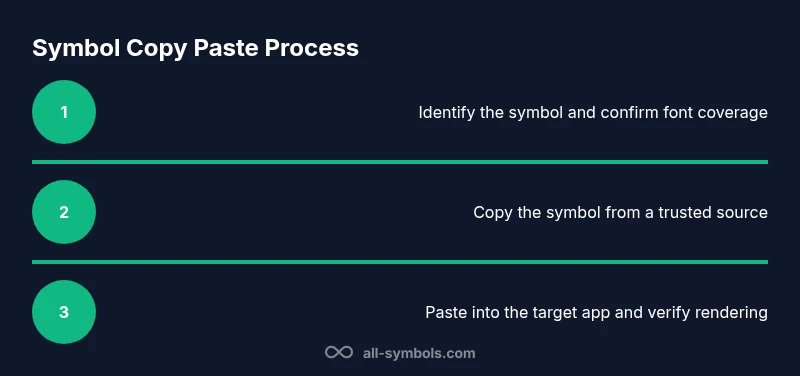
Identify the symbol you need
Determine the exact symbol, its intended meaning, and its font coverage. If the symbol has a code point, note it for cross-platform accuracy. This reduces guessing and ensures fidelity when you paste later.
Tip: Record the code point (if known) in your symbol library for quick reuse. - 2
Find a reliable source
Locate the symbol from a trusted reference (Unicode charts, official font docs, or a reputable symbol atlas). This step prevents hidden characters or incorrect glyphs from entering your workflow.
Tip: Prefer sources that show the code point and font coverage. - 3
Choose a platform method
Select the most reliable method for your platform (Character Map/Viewer, Unicode input, or keyboard shortcuts). Consistency reduces mistakes when switching apps.
Tip: If you switch apps often, use a single method and keep it consistent. - 4
Copy the symbol
Copy the glyph from the source to your clipboard. Ensure you copy the actual symbol, not stray text or formatting, to avoid extra characters on paste.
Tip: Use a keyboard shortcut where available for faster copying. - 5
Paste into the target app
Paste the symbol into your destination. If it doesn’t render, switch fonts temporarily to verify the glyph is supported by the destination.
Tip: Test in multiple apps to catch rendering discrepancies early. - 6
Verify rendering
Check size, alignment, and legibility. Confirm the symbol preserves meaning in context and adjust fonts or sizes as needed.
Tip: Always test on primary target devices (desktop and mobile). - 7
Fallback and encoding
If the symbol fails, use Unicode escapes or HTML entities for web content, or link to a stable font. Maintain a fallback plan for environments without full font support.
Tip: Document your fallback choices in project notes. - 8
Create a reusable library
Add frequently used symbols to a personal or team library with code points, fonts, and usage notes. This reduces repeated lookups and errors.
Tip: Share the library with teammates to standardize usage. - 9
Review and update
Periodically audit your symbol library and source references. Update fonts and symbols as projects evolve.
Tip: Schedule a quarterly review to keep symbols current.
Questions & Answers
What is symbol copy paste
Symbol copy paste refers to the process of selecting a symbol and moving it from one place to another across apps or platforms. It requires attention to encoding, font support, and rendering. The goal is to preserve the symbol's meaning and appearance across contexts.
Symbol copy paste is moving a symbol from one place to another while keeping its appearance and meaning, with care for encoding and fonts.
Which platforms support Unicode input for symbols
Most modern platforms support Unicode input via code points, built-in viewers, or keyboard shortcuts. Linux users often use Ctrl+Shift+U; Windows and macOS rely on font tools and special viewers. Always verify symbol rendering after pasting.
Most platforms support Unicode input through code points or symbol viewers; always verify rendering after pasting.
Why do symbols look different across apps
Differences arise from font availability, font substitutions, and rendering engines. If a font lacks a symbol, apps may substitute a visually different glyph, altering meaning or readability. Always test in target apps and fonts.
Differences come from fonts and rendering engines; test in target apps and use reliable fonts.
How can I ensure correct rendering when sharing symbols
Choose widely supported fonts, embed fonts where possible, and provide a fallback. Use Unicode or HTML entities for web contexts to improve consistency, and include notes about font expectations in your documents.
Use reliable fonts and fallbacks; for web, include Unicode or HTML entities and notes about fonts.
Are there risks copying symbols from unknown sources
Yes. Unknown sources can introduce hidden characters, spoofed symbols, or malicious content. Always copy from reputable references and verify code points before pasting.
Yes—stick to reputable references and verify code points before pasting.
Watch Video
The Essentials
- Master multiple methods for copying symbols.
- Check font coverage to preserve fidelity.
- Use Unicode and HTML entities for robustness.
- Test rendering across apps and devices.
- Build and share a symbol library for consistency.