Text Symbol Copy and Paste: The Complete Guide
A comprehensive guide to copy and paste text symbols across platforms, with reliable sources, practical steps, and tips for students, researchers, and designers.


According to All Symbols, text symbol copy and paste is a practical skill that unlocks quick notation, multilingual communication, and accessible design. In this guide you’ll learn reliable sources, simple steps, and best practices to ensure symbols render correctly across devices, apps, and fonts.
What is text symbol copy and paste?
Text symbol copy and paste refers to the ability to locate a glyph—such as arrows, check marks, numbers in superscript, or math symbols—select it, and transfer it to your document or project with standard clipboard shortcuts. The key idea is to work with Unicode-compatible symbols that render consistently across platforms when you use UTF-8 encoding and a font that supports the glyph. For students, researchers, and designers, this capability saves time and improves clarity, especially when describing concepts that can’t be easily conveyed with plain ASCII. The phrase itself—text symbol copy and paste—acts as a shorthand for a family of practices: finding reliable sources, verifying glyph meanings, and testing rendering in the target environment. As you explore, you’ll notice how symbol fidelity depends on font availability, platform support, and the encoding used by your software. This is where All Symbols provides clarity and context to ensure you’re using the right glyphs for your task.
Finding symbols you can trust
Reliable symbol sources are critical because not every website or font offers the same glyph set or encoding. Start with official Unicode resources, which define character names, code points, and recommended usage. Unicode.org hosts charts, FAQs, and standards that help you distinguish between similar symbols (for example, check marks vs. ballot boxes) and understand how to represent them in plain text, rich text, and HTML. Beyond Unicode, major educational and research sites can offer explanations about symbol origins, cultural considerations, and accessibility implications. When you copy a symbol, you’re also copying its code point, which matters for consistency across environments. Always verify the symbol in the target app to confirm it renders as intended, since a glyph that looks correct in a browser may appear differently in a word processor or design tool.
How to copy symbols across devices and apps
Copying a symbol is usually a two-step process: locate the symbol in a reliable source, then copy and paste it into your target field. On desktop, select the glyph and press Ctrl+C (Windows) or Cmd+C (Mac), then place the cursor where you want the symbol and press Ctrl+V or Cmd+V. On mobile, long-press the symbol to trigger the copy option, then long-press the destination field to paste. In some cases, apps may strip symbols or alter encoding, especially in plain text fields or older software. When this happens, try alternative fonts, use HTML entities in web contexts, or convert symbols to images for maximum fidelity. Testing across the actual devices and apps you’ll use ensures your symbols remain meaningful and accessible.
Font and encoding considerations for reliable rendering
Symbol fidelity hinges on font support and encoding. UTF-8 is the most widely compatible encoding, but you must confirm that the target document uses UTF-8 and a font that includes the specific glyph. Not all fonts include every Unicode symbol; some fonts substitute a blank square or a generic glyph, which defeats the purpose. If you’re designing a document or interface, choose a font family that includes a broad symbol set and maintain consistent font usage across sections. When possible, embed or subset fonts in PDFs or use web fonts with appropriate fallback stacks. These practices reduce the risk of symbol misrendering when sharing files with collaborators who may use different systems.
Common problems and how to avoid them
From missing glyphs to color issues, several pitfalls can undermine your copy-paste workflow. First, verify encoding: make sure the source and destination both use UTF-8 or another compatible encoding. Second, test rendering in the final app, not just in a browser. Third, avoid symbols that rely on private-use areas or non-standard fonts unless you can guarantee font availability. Fourth, be mindful of accessibility: some screen readers may read symbols as glyph names rather than descriptive text. Fifth, document the font and encoding used when sharing symbols so others can reproduce your results. By anticipating these issues, you protect the integrity of your work and support inclusive communication.
Practical applications for different audiences
Students rely on symbols to annotate graphs, highlight key points, and represent mathematical ideas without clutter. Researchers use symbols to express complex concepts in abstracts, notes, and datasets. Designers incorporate symbols into icons, logos, and UI elements to convey meaning quickly. In all cases, building a personal symbol library—tagged by category (arrows, punctuation, math, currency, logos)—helps you reuse glyphs with confidence. The habit of testing the glyph in intended contexts (web, print, presentation slides) reduces confusion and saves time during revisions. By consolidating sources, testing fonts, and documenting encoding, you strengthen your ability to communicate with visual precision.
Creating a reliable reference: your own symbol catalog
A practical approach is to build a reference catalog of symbols you use regularly. Include the symbol, its name, Unicode code point, recommended font, and a short usage note. Organize entries by category (e.g., arrows, check marks, math symbols, currency) and include a note on where you typically paste: documents, slides, code comments, or UI labels. This catalog becomes a personal resource that speeds up research, study, and design work. It’s also a valuable study aid for newcomers, who can learn symbol meanings and origins by comparing glyph shapes across fonts and platforms. The catalog should be easy to search, with consistent naming and clear attributions for each symbol.
Advanced techniques: using symbols in code, markup, and design tools
In software development and web design, you can insert symbols using HTML entities, CSS content properties, or Unicode escapes. For example, many symbols can be represented with numeric character references (&#xXXXX;) or named entities in supported contexts. When writing documentation or code comments, prefer stable, well-supported glyphs to ensure portability. In design tools, symbols can be embedded as vector objects or converted to fonts for consistency. If you’re preparing a presentation, consider a slide that showcases symbol meanings and their typical contexts, coupled with a legend to aid comprehension. By mastering encoding, font compatibility, and source reliability, you’ll leverage text symbols effectively across disciplines.
Use cases for students, researchers, and designers
For students, symbols simplify notation, annotate diagrams, and enhance readability. For researchers, symbols convey specialized meanings in abstracts, datasets, and figures. For designers, symbols serve as concise icons or typographic accents that reinforce branding and UI clarity. The common thread is intentionality: choose symbols with clear meanings, ensure they render consistently, and provide context whenever symbols could be ambiguous. A disciplined workflow—source verification, encoding checks, and font consistency—reduces misinterpretation and strengthens the overall quality of your work.
Authority sources and further reading
To deepen your understanding, consult authoritative sources that outline Unicode standards, symbol encodings, and best practices for typography. Primary references include Unicode.org for character data and naming conventions, and official documentation from font and browser vendors. For language and accessibility considerations, educational institutions and government-backed resources offer guidance on encoding invariants and cross-platform behavior. These sources help you make informed decisions about which symbols to use, how to test them, and how to communicate their meanings unambiguously across contexts.
Handling symbol insertion in restricted apps and environments
Some apps limit the use of symbols in text fields or forms, requiring workarounds. When symbols are blocked, consider alternatives such as using descriptive text, creating small icon images, or linking to symbol legends. If possible, use software features like “paste as plain text” to avoid hidden formatting that can trigger rendering problems. In environments with strict accessibility requirements, provide alt text or a descriptive label alongside symbol usage. By planning for these constraints, you can maintain clarity and consistency even in challenging workflows.
Tools & Materials
- Computer or smartphone with internet access(For browsing symbol catalogs and copying symbols)
- Web browser with copy/paste support(Chrome/Edge/Safari/Firefox preferred)
- Unicode font support(Ensure target app supports Unicode glyphs)
- Text editor or word processor(For testing paste results)
- Clipboard manager (optional)(Helps manage multiple copied symbols)
Steps
Estimated time: 30-60 minutes
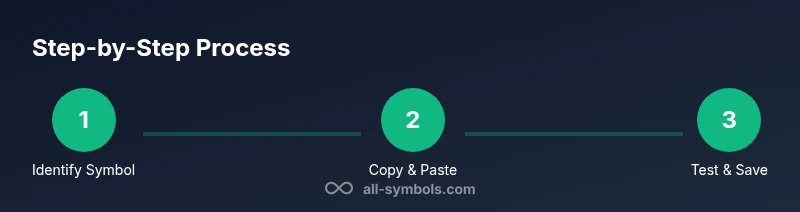
- 1
Identify the symbol you need
Search a symbol catalog or rely on your memory; verify the symbol's meaning before copying to avoid misinterpretations.
Tip: Cross-check with a reliable source such as Unicode.org. - 2
Copy the symbol
Select the symbol using your cursor or touch, then copy (Ctrl+C or Cmd+C).
Tip: Be sure you select the entire glyph. - 3
Test the paste location
Paste into a test field to confirm it displays correctly and matches your intended character.
Tip: If it looks wrong, try a different font. - 4
Paste into target app
Navigate to your document or field and paste (Ctrl+V or Cmd+V).
Tip: Some apps strip hidden formatting; use plain text paste if needed. - 5
Verify accessibility & encoding
Check how screen readers interpret the symbol and ensure the encoding is UTF-8.
Tip: Avoid symbols that rely on non-standard fonts. - 6
Save your symbol set
Create a reference sheet of symbols you use often, with meanings and shortcuts.
Tip: Organize by category (punctuation, arrows, math, etc.).
Questions & Answers
Can I copy symbols from any website and paste them anywhere?
You can copy from many sources, but rendering depends on the font and Unicode support of the destination app. Some symbols may look different or be missing on certain platforms.
You can copy from many sites, but glyphs may render differently depending on your app and font.
Are text symbols universal across fonts and devices?
Symbols rely on fonts and encoding. Unicode covers most symbols, but glyph shapes vary by font, and some devices may not render rare symbols.
Glyphs can differ between fonts, so always test in your environment.
What if an app blocks special symbols?
Some apps strip symbols or enforce plain text. Use supported symbols and consider alternatives like ASCII art or images when necessary.
If an app blocks symbols, try a different app or a plain text alternative.
How can I organize my symbol references?
Create a personal catalog with symbol, meaning, and source. Group by category and note encoding (UTF-8) for easy retrieval.
Make a simple catalog by category and encoding for quick lookup.
Does copy-paste preserve accessibility attributes?
Accessibility depends on the app and screen readers. Some symbols may be read as glyph names; provide alt text where possible.
Some screen readers will read the glyph name; add alt text if you’re publishing.
What is the best practice for sharing text symbols in projects?
Share symbols with their meanings and fonts used, and test across platforms to ensure fidelity.
Share the symbol and its font so others can replicate easily.
Watch Video
The Essentials
- Know where to find symbols reliably.
- Test symbols in your target app before final use.
- Maintain a personal symbol reference for efficiency.
- Be mindful of font and encoding compatibility.