Can Symbol Copy Paste: Mastering Symbol Transfer Across Systems
Learn how to copy and paste symbols across apps and devices. This All Symbols guide covers encoding, fonts, Unicode points, HTML entities, and practical tips for reliable symbol transfer.


You can copy and paste symbols between apps, websites, and devices, but success depends on character support, encoding, and font availability. Use Unicode points or HTML entities when possible, verify clipboard formats, and test the symbol in the target program. This quick answer previews reliable methods and common caveats for can symbol copy paste.
What copy-paste means for symbols
Symbols are more than letters or numbers; they include check marks, mathematical operators, currency signs, decorative icons, and emoji-like glyphs. Copy-pasting these glyphs hinges on three things: encoding (how the symbol is represented in digital form), font support (whether the glyph is actually drawn by the font in use), and the destination application's handling of clipboard data. According to All Symbols, understanding these pieces helps you predict when a symbol will survive a paste and when it will vanish or distort. In practice, you will encounter symbols that paste perfectly in one app but render as a blank box in another. By knowing the constraints, you can choose robust methods and prevent surprises during design, study, or everyday tasks.
- Encoding compatibility: Ensure the symbol’s code point is supported across platforms.
- Font availability: The chosen font must include glyphs for the symbol; otherwise fallback fonts may render incorrectly.
- Destination app behavior: Some apps strip or re-encode clipboard contents for security or formatting reasons.
This section sets the foundation for reliable symbol transfer across systems, whether you’re a student collecting notation, a designer testing glyphs, or a developer documenting symbol usage in UI.
How symbols are represented across systems
Symbols exist as code points in Unicode, which assigns a unique number to each glyph. When you copy a symbol, you typically copy its character on your screen, along with the underlying encoding. On modern systems, UTF-8 encodes most common symbols using one to four bytes; the same code point has to be interpreted correctly by the receiving app. Some environments distinguish between a “text” clipboard and a “rich text” clipboard, which can affect whether the symbol retains its appearance, color, or font linkage after pasting. Cross-system consistency depends on three pillars: the source encoding, the clipboard transport, and the destination rendering engine. If any pillar lacks support, you might see a placeholder, a replacement character, or a broken glyph.
In practical terms, a symbol such as U+2713 (check mark) should survive copy-paste across Windows, macOS, iOS, and Android if the font used supports it. In contrast, highly specialized symbols—certain math operators or diagrammatic icons—may require a font that is not installed by default on every device. Developers and researchers should test critical symbols across platforms to avoid miscommunication in worksheets, UI labels, or scientific papers.
Practical methods to copy paste symbols
There are several reliable strategies, each with its own trade-offs. The best approach often depends on your workflow and the symbols you use most.
- Unicode code point copy: If you know the symbol’s code point (e.g., U+2211 for the integral symbol), you can copy the textual representation and insert the character via your system’s Unicode input method. This method minimizes font issues by letting the destination pick the glyph from its installed fonts.
- HTML entity copy: For web content or environments that support HTML, copying the entity (e.g., ∀ for the universal quantifier) guarantees correct rendering in browsers that decode HTML entities. Note that not all editors or apps will convert entities automatically.
- Clipboard managers: In intense workflows, a clipboard manager can keep a library of frequently used symbols and their code points, enabling quick paste with search and shortcuts. This is especially helpful for designers who use dozens of symbols daily.
- Symbol reference pages: Reference sites and apps that list glyphs with their code points and sample renderings are useful for validation before you paste into your document. Always verify that the destination font matches the reference.
When you use Unicode or HTML-based methods, you generally reduce reliance on the exact font present on the target device, increasing cross-app reliability. In contrast, direct symbol copying from a font-embedded image or a non-standard emoji may paste differently across environments.
- Practical tips for accuracy:
- Prefer symbols with widely supported code points over niche icons when cross-platform sharing is essential.
- If a symbol looks different after pasting, switch to a system font known to cover the glyph or install a font with broad symbol coverage (e.g., Noto, Symbola).
- Test pasted symbols in the exact context where they’ll appear (document editor, design tool, code editor, or CMS) to catch rendering issues early.
Copying symbols on desktop vs mobile
Desktop environments (Windows/macOS/Linux) often provide robust Unicode input methods, including direct code point entry or emoji panels. Mobile platforms (iOS/Android) typically support long-press menus for symbol insertion and quick-access keyboards, but availability varies by language and font installed. A symbol that pastes cleanly on a desktop may require additional steps on mobile, such as selecting a symbol panel from the keyboard or using a dedicated app for symbol insertion. Practically, design your symbol workflows to leverage universal input methods on desktop while validating mobile behavior separately to avoid inconsistencies in PDFs, slides, or emails.
Cross-platform considerations by ecosystem
- Windows: Most symbols render via Unicode; the Alt code method (holding Alt and typing a numeric code) provides an old but still useful path for certain glyphs. Ensure the font you select includes the target symbol.
- macOS: The Character Viewer and keyboard input sources offer broad symbol access. Pasted glyphs typically honor the current system font unless the app enforces a different font.
- Linux: Multiple font families and input methods exist; ensure the target application uses a font with symbol coverage to maintain consistency.
- iOS/Android: Emoji-like or symbol glyphs may vary in appearance with OS updates; verify fonts and rendering in the target app, particularly for professional documents.
This knowledge helps you plan symbol usage in documents, dashboards, and design files, balancing fidelity with accessibility.
Common pitfalls and how to avoid them
- Font dependence: A symbol that exists in one font might be missing in another, leading to missing glyphs or tofu boxes. Always check the font used in the destination.
- Encoding mismatch: Copying a symbol in one encoding may produce garbled text in another. Favor Unicode-aware workflows and avoid mixing legacy encodings when possible.
- Platform discrepancies: Some apps strip formatting or restrict clipboard content for security. If a symbol disappears, try a different paste method or encoding technique.
- Accessibility: Not all symbols convey the same meaning to assistive technologies. Provide alt text or descriptive labels where symbols are used in UI or educational content.
Mitigate these risks by validating your symbols across your primary target apps and devices, and always keep a fallback plan (Unicode/HTML entity) for critical glyphs.
Real-world examples: symbols you copy paste often
- Check mark (✓) and cross mark (✗): Common in lists and task trackers; reliably pasted when the font supports these glyphs. If not, use SVG icons or a font that includes check/cross marks.
- Power on/off (⏻/⏼): Useful in UI mockups and device diagrams; may render differently depending on the font and OS emoji set. Prefer a consistent glyph from a dedicated symbol font for professional documents.
- Currency symbols (€, £, ¥): Widely supported, but positioning and font metrics can affect alignment in tables. Use consistent fonts and consider font fallbacks for multi-language documents.
- Mathematical symbols (∫, ∑, ∞): Rely on Unicode and math fonts; test in the intended editor to avoid misinterpretation in educational materials.
- Arrows and geometric shapes (→, ⇄, △): Common in diagrams and flowcharts; ensure the destination supports the chosen shape and that spacing remains readable.
This section demonstrates that everyday copy-paste tasks are usually straightforward, but special symbols demand attention to font and encoding choices to ensure fidelity.
Quick validation steps after pasting
- Visually inspect the pasted symbol in the target editor to confirm glyph shape and size match the surrounding text.
- Check the surrounding text flow and line breaks to ensure the symbol doesn’t disrupt layout.
- Paste the symbol into alternative apps (word processor, code editor, CMS) to verify cross-compatibility.
- If a symbol fails, try Unicode input, then an HTML entity, and finally a dedicated symbol font as a fallback.
- Include a short alt-text description in contexts where symbols carry meaning (e.g., UI icons or educational diagrams).
toolsMaterialsDescription
Tools & Materials
- Computer or mobile device with internet access(For web-based symbol references and copying across apps.)
- Clipboard-enabled text editor or app(Plain text or rich text editors both work; test in the destination app.)
- Font that supports the needed symbols(Install broad-symbol fonts (e.g., Noto, Symbola) to improve coverage.)
- Unicode reference resource(e.g., unicode.org charts for code points and blocks.)
- Clipboard manager (optional)(Keeps a library of frequently used symbols for quick pastes.)
Steps
Estimated time: 5-15 minutes
- 1
Identify the symbol and its code point
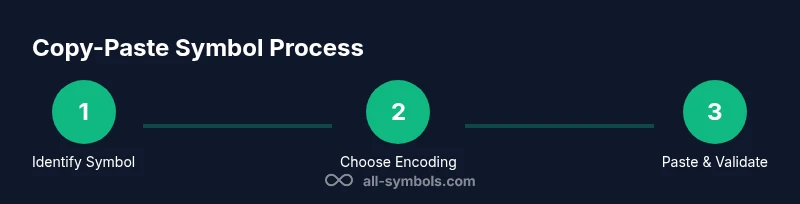
Determine the exact symbol you intend to copy and, if possible, find its Unicode code point or HTML entity. This helps you choose a robust pasting method that won’t rely solely on a font.
Tip: Note the source of the symbol and its expected rendering context to avoid misinterpretation later. - 2
Locate a reliable source for the symbol
Use authoritative Unicode references or trusted symbol reference pages to confirm the code point and rendering guidance. Cross-check with the destination app’s font coverage.
Tip: Prefer official Unicode listings or well-known typography references for accuracy. - 3
Copy the symbol from the source
Select the symbol and use the copy command. If you’re using a code point, prepare to paste via Unicode input or a textual representation (U+XXXX).
Tip: If copying visually from an image, avoid errors by using a text-based source where possible. - 4
Paste into a compatible field and check encoding
Paste into the target app, ensuring it supports the glyph and that the clipboard data isn’t stripped. If needed, switch to Unicode input or an HTML entity.
Tip: Test in a plain text field first to isolate encoding issues. - 5
If paste fails, use an alternative method
When the symbol doesn’t render, try entering the Unicode code point directly or using an HTML entity, then re-paste if the app supports it.
Tip: Unicode input methods vary by OS; consult your system’s accessibility settings for shortcuts. - 6
Verify symbol rendering in the destination
Confirm the symbol appears correctly with correct size and alignment. Check that it remains legible in print or screen presentations.
Tip: If it changes by platform, record the font you used for the original paste. - 7
Consider accessibility and descriptions
Add alt text or a short description when symbols convey meaning in UI or educational content, ensuring inclusive access.
Tip: Alt text helps users relying on screen readers understand the symbol’s purpose. - 8
Create a symbol snippet for future use
Save a small library of frequently used symbols with their code points or HTML entities to speed up future tasks.
Tip: Organize by category (math, currency, UI icons) for quick retrieval.
Questions & Answers
Can I copy symbols from PDFs or images?
Copying symbols from PDFs or images is unreliable because the glyph may be embedded as an image or encoded differently. Prefer finding a text-based source (Unicode code point or HTML entity) and paste using the appropriate method.
Copying symbols from PDFs or images is often unreliable; use Unicode or HTML-based sources instead.
Why do some symbols not paste correctly?
If the destination lacks the necessary font, uses a different encoding, or enforces clipboard sanitization, pasting can fail or render incorrectly. Switching to a universal approach (Unicode input or HTML entity) and confirming font coverage usually fixes it.
Missing font or encoding mismatch is usually the culprit for paste failures.
Are emoji and symbols the same for copy-paste?
Emoji are a subset of symbols that rely on platform-specific emoji sets. Their appearance can vary by OS and app, even when they copy-paste correctly. For consistent rendering, use standard symbols or embed them as images where necessary.
Emojis can look different across platforms, unlike many standard symbols.
What should I do if a symbol changes across platforms after paste?
Provide a fallback glyph or font, or switch to a Unicode-based insertion method that selects the glyph from the destination font. Testing across devices helps you plan fallsbacks.
If a symbol looks different on another device, use a universal method or a font that covers it.
Can these methods work in code editors or web forms?
Yes, Unicode-based pasting and HTML entities are widely supported in editors and forms. For code, prefer literal Unicode characters or escapes where supported by the language. For web content, HTML entities offer predictable rendering.
Unicode and HTML entities typically work in code editors and web forms.
Is there a single symbol that works everywhere?
No single symbol works identically across all platforms and fonts. Always verify in the specific context and consider a font fallback strategy or alternative glyph in critical workflows.
No universal symbol exists; test in your target apps.
Watch Video
The Essentials
- Master symbol copy-paste with encoding and font awareness
- Use Unicode or HTML entities for cross-platform reliability
- Test symbols in the exact destination app and context
- Keep a personal symbol library for speed and consistency