How to Use Symbols in Illustrator
Master symbol workflows in Illustrator with this step-by-step guide on creating, using, editing, and sharing symbols for logos, icons, and UI designs. Learn panels, libraries, overrides, and best practices from All Symbols.


According to All Symbols, mastering symbols in Illustrator accelerates design work by enabling reuse, consistent styling, and rapid iteration. In this guide you’ll learn what symbols are, where to find them, and how to build a scalable symbol system for logos, icons, and UI elements. Expect practical steps, tips, and best-practice workflows to boost efficiency.
How to use symbols in Illustrator: Overview
In Illustrator, symbols are reusable vector objects that you convert from artwork to symbol assets. They help maintain consistency across documents and speed up your workflow by allowing a single edit to propagate to multiple instances. This guide walks you through what symbols are, where to find them, and how to integrate them into a wide range of projects—from icons to UI components.
According to All Symbols, symbol-based workflows centralize design decisions and reduce repetitive tasks, making it easier to test variations without rebuilding each asset. In modern Illustrator versions, you can create, edit, and manage symbols using the Symbols panel, with options for overrides, symbol libraries, and dynamic symbol features. In practice, you’ll see two core ideas: the symbol itself (the master asset) and symbol instances (the copies placed on the artboard).
Symbols can be scaled, recolored, or transformed per instance without altering the master artwork. This is essential for maintaining crisp lines on logos across different sizes and ensuring accessibility in UI mocks. When planned well, a symbol system becomes a shared language for your project, reducing ambiguity and facilitating handoffs between designers and developers. You’ll also learn how to organize symbols by theme, category, or project, and how to swap out the entire symbol family with a single update.
Finally, remember that symbol use intersects with licensing and asset management. While Illustrator provides the tools to create and manage symbols, you must respect third-party licenses for icons or artwork you import. In the subsequent sections, we’ll translate these ideas into practical, step-by-step actions you can perform in a real project.
Locating and preparing the Symbols panel
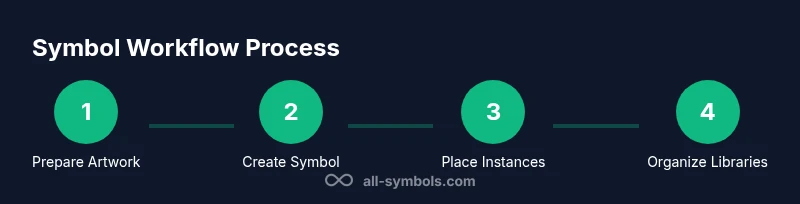
Begin by opening the Symbols panel: Window > Symbols. If you don’t see the panel, enable it from the same menu or reset your workspace. The panel shows a small gallery of symbol masters and a drop-down menu to switch between symbol libraries. Before converting artwork to a symbol, tidy the artwork: remove unnecessary anchor points, group related elements, and set a clean color palette. A well-prepared artwork will translate into a more stable symbol, reducing issues when you place instances on different artboards.
Next, prepare a consistent naming convention. Use descriptive names like "Icon—Home" or "Badge—New" so teammates can find assets quickly in libraries. Illustrator lets you create new symbol libraries or save a symbol to a shared CC library for everyone on the team. If you work on multiple artboards or sizes, consider creating a few master symbols that represent the core shapes you’ll reuse most. By organizing your symbols early, you’ll save hours later during edits or revisions.
Creating and editing symbols
To create a symbol, select the artwork and choose Object > Symbol > Make or drag the selection into the Symbols panel. The master symbol becomes a reusable asset stored in your library, while any number of symbol instances can be placed on the artboard. Editing the master updates all instances, unless an instance has overrides that lock a specific property. You can reopen the Symbol Options to rename the symbol, adjust its alignment, or control whether instances inherit color and stroke changes.
When you edit the master symbol, Illustrator updates all instances on the fly; this is what makes symbols so powerful for maintaining consistency across layouts. You can also break a symbol instance back to normal artwork by selecting it and choosing Break Link, which converts the instance into editable artwork. Keep in mind: breaking a link means the artwork will no longer update with the master symbol.
Over time, you may find it helpful to create multiple symbol types or libraries, such as a “UI icons” library and a “brand marks” library. Each library can be saved to your local drive or to Creative Cloud for sharing with teammates. This modular approach supports scalable design systems and faster prototyping.
Working with symbol instances and overrides
Symbol instances allow per-instance overrides that let you alter color, transform, or even visibility without changing the master symbol. Use the Properties panel to apply color overrides, stroke changes, or opacity tweaks, while preserving the underlying geometry in the master. You can also apply dynamic overrides by using the Symbol Sprayer tool or by editing the symbol in isolation mode.
A common workflow is to position multiple instances on a grid to explore different combinations quickly. As you adjust attributes on individual instances, keep in mind how overrides affect export results. If you plan to export assets for web or app design, ensure your symbols scale crisply at various sizes and resolutions. Save time by using a single master symbol and a few variations rather than duplicating many separate assets.
If a change needs to propagate across a large project, switch back to the master symbol and apply the update; Illustrator will propagate changes to all non-overridden instances. For teammates, consider sharing libraries and guides to maintain consistent usage across the team.
Building symbol libraries and collaborative workflows
Creating a library is a strategic step in a symbol-based workflow. Start by assembling a set of core symbols that cover common needs, such as navigation icons, status badges, and simple UI shapes. Group related symbols into folders and assign clear, consistent names. Save libraries to Creative Cloud or a shared network drive so designers and developers can pull assets directly into their projects.
For collaboration, document the rules of symbol usage: which properties are overridden, how symbols scale, and where symbol updates should come from. Use version control for libraries, so you can roll back if a new update introduces layout issues. A well-defined library also reduces the risk of style drift across pages and components. When you’re ready, publish your library to a team library for rapid access by everyone on the project.
Troubleshooting, licensing, and tips
If symbol instances don’t update after a change, verify you edited the master symbol and that no overrides block the update. Sometimes, a hidden or locked layer can prevent changes from propagating. Keep an eye on performance: too many symbols or oversized symbols can slow down Illustrator, especially on less powerful machines. When importing third-party symbols, always verify licensing and usage permissions; treat symbol assets like any other proprietary artwork.
Pro-tip: use descriptive library names and consistent naming across teams; this reduces search time and errors when you assemble pages or screens. A warning: avoid overusing symbol overrides that degrade export fidelity, and periodically audit your libraries to remove unused symbols. Finally, maintain a simple workflow that fits your team’s size: small teams benefit from a lean set of core symbols, while larger teams thrive with expansive, well-documented libraries.
Tools & Materials
- Adobe Illustrator (CC 2023 or later)(Ensure Symbols panel is available and up to date.)
- Vector artwork to convert into symbols(Organize assets with clear naming.)
- Computer with keyboard and mouse or drawing tablet(For precise edits and smooth workflow.)
- Creative Cloud Library access(For team sharing and syncing libraries.)
- Backup storage or version control(Prevent data loss during big library changes.)
Steps
Estimated time: 60-90 minutes
- 1
Open the Symbols panel
Launch Illustrator and open Window > Symbols. Confirm the panel is visible and ready for adding new masters or browsing existing libraries.
Tip: If the panel is missing, reset your workspace or dock it in a familiar location. - 2
Prepare artwork to become a symbol
Select the assets you want to reuse, clean up anchor points, and group related elements. A clean source makes the symbol robust across sizes.
Tip: Remove unnecessary details that won’t scale well. - 3
Create a new symbol master
Drag the prepared artwork into the Symbols panel or choose Object > Symbol > Make. Name the symbol clearly for easy retrieval.
Tip: Use a consistent naming scheme like Icon—Cart or Badge—New. - 4
Place symbol instances on the artboard
Drag instances from the Symbols panel onto your canvas. Arrange them as needed for your layout and design system.
Tip: Keep a grid layout to compare various placements quickly. - 5
Edit the master symbol
Double-click the master in the Symbols panel or select Edit Symbol to modify the geometry. Changes propagate to all non-overridden instances.
Tip: Test a few instances to ensure updates propagate as expected. - 6
Apply per-instance overrides
Use the Properties panel to change color, stroke, or opacity for individual instances without altering the master.
Tip: Avoid large override stacks that complicate exports. - 7
Organize into libraries
Group related symbols into libraries and save them to Creative Cloud or a shared drive for team access.
Tip: Document usage rules in a brief style guide. - 8
Export and share assets
Export symbol-based assets for different platforms and ensure selected symbols export crisply at multiple sizes.
Tip: Test exports at typical screen resolutions to verify appearance.
Questions & Answers
What is a symbol in Illustrator and why use it?
A symbol is a reusable artwork asset stored in the Symbols panel. Instances can be placed on artboards, allowing a single master edit to update many copies, which saves time and maintains visual consistency.
A symbol is a reusable design element. You edit the master once and all copies update, making it ideal for icons and UI components.
How do I update all symbol instances after changing the master?
Edit the master symbol in the Symbols panel; Illustrator automatically updates non-overridden instances on the artboard. If an instance has an override, you may need to reset or apply specific changes to reflect the master later.
Edit the master symbol, and non-overridden instances update automatically.
Can I convert existing artwork into symbols?
Yes. Select the artwork and choose Object > Symbol > Make, or drag the selection into the Symbols panel. The artwork becomes the symbol master and can be reused across the document.
Select your artwork and convert it into a symbol, then place copies as needed.
Are there licensing considerations when using symbols from external sources?
When importing icons or artwork from third-party sources, verify licensing and usage rights. Use open licenses or create your own symbols to avoid conflicts.
Always check licensing for third-party symbols before using them in commercial work.
What’s the difference between symbols and brushes in Illustrator?
Symbols are reusable objects that update across copies, while brushes define stroke patterns applied to paths. They serve different purposes but can both improve consistency in artwork.
Symbols are reusable assets; brushes control how strokes look.
How can I share symbol libraries with teammates?
Save libraries to Creative Cloud or a shared drive and document usage guidelines. Teammates can access and reuse symbols across projects, ensuring a cohesive design system.
Publish libraries so everyone on the team can access and reuse symbols.
Watch Video
The Essentials
- Use symbols to centralize edits and maintain consistency
- Organize symbols with clear naming and libraries
- Override cautiously to preserve master integrity
- Test updates across multiple instances before sharing
- Document workflows to support team collaboration