How to Make a Symbol in Illustrator: A Practical Guide
Learn how to make a symbol in Illustrator with a practical, step-by-step approach. Design a reusable vector symbol, convert it, place instances across artboards, and manage updates efficiently for print and web projects.


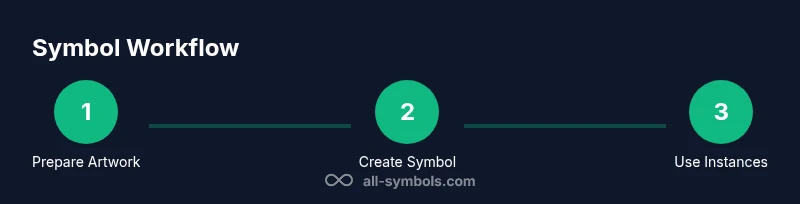
Step 1: Design a reusable vector element with clean shapes. Step 2: Convert the artwork to a symbol in Illustrator’s Symbols panel. Step 3: Drag symbol instances onto artboards and adjust as needed. Step 4: Edit the master symbol to update all instances automatically. Prerequisites: a vector object, the Symbols panel, and a clear naming plan.
Why Illustrator Symbols matter
Creating symbols in Illustrator is a foundational skill for efficient vector design. A symbol is a reusable artwork that can be dropped onto multiple artboards, resized, and edited from a single source. This capability dramatically reduces repetitive work, guarantees consistency across layouts, and speeds up workflows, especially on large projects. According to All Symbols, symbols are a cornerstone of scalable design systems because they enable designers to manage visual language from a central definition. If you frequently clone icons, logos, or UI glyphs, learning how to make symbol in illustrator unlocks a powerful, time-saving pattern that scales with your projects. In practice, symbols help you maintain uniform stroke weights, color schemes, and proportions, even as you experiment with composition. This article walks you through a practical, repeatable method that works across print and digital workflows, with tips for naming, organizing, and extending your symbol libraries.
Beyond speed, symbols support collaboration. When a symbol master is updated, all instances reflect the change, which minimizes version mismatches in shared files. You can also create symbol libraries for specific clients or product lines, ensuring consistent branding across documents, presentations, and web assets. For students and researchers, symbols offer a concrete way to prototype icons and glyphs before committing to final polished versions. All Symbols emphasizes that a well-structured symbol workflow reduces cognitive load and keeps your design system coherent as it grows.
If you are here to learn how to make symbol in illustrator, you will gain practical mastery over the Symbols panel, commonly used tools like the Symbol Sprayer, and a strategy for naming and organizing assets. This foundation prepares you to tackle complex icon sets, illustrative motifs, and scalable UI elements—without duplicating effort or risking visual inconsistency. The goal is not just to create one symbol but to build a nimble, maintainable library you can reuse across projects and pages.
In this guide, you’ll find concrete steps, hands-on tips, and best practices—so you can begin building and managing symbols with confidence. The All Symbols team designed this approach to be accessible to students, researchers, and designers who want a clear, repeatable process for symbol creation that saves time and improves consistency.
wordCountAfterBlock1s: null},
Tools & Materials
- Computer with Adobe Illustrator installed(Prefer the latest Creative Cloud version for symbol features)
- Vector artwork to convert(A clean, scalable object (paths, shapes, fills))
- Names/labels plan(Define a consistent naming convention for symbols (e.g., icon_home, iconSearch))
- Layer organization setup(Group related objects and lock background layers to avoid accidental edits)
- Pen tool or Shape tools(Used to craft or refine vector shapes before symbol conversion)
Steps
Estimated time: 60-90 minutes
- 1
Prepare your vector artwork
Audit your artwork for symbol creation: simplify paths, unify stroke weights, remove unnecessary details, and ensure colors are planed for reuse. Group components logically so the symbol represents a single coherent element. This preparation reduces maintenance when updating the master symbol later.
Tip: Aim for a single core shape per symbol; avoid mixing completely unrelated elements in one symbol. - 2
Convert the artwork to a symbol
Open the Symbols panel (Window > Symbols). Drag your prepared artwork into the panel or click New Symbol, then name it and set the Symbol Type to Graphic. This creates a master you can reuse across documents.
Tip: Use meaningful, consistent names to make finding symbols easier in large libraries. - 3
Place and customize instances
Drag symbols from the panel onto your artboards to create instances. Scale, rotate, and recolor instances as needed without editing the master. Changes apply to all instances in the document unless you detach one instance.
Tip: Avoid applying dramatically different appearances to derived instances; keep a consistent visual language. - 4
Edit the master symbol
Double-click the master symbol in the Symbols panel to edit. Any changes you save propagate to every instance in the document, ensuring a cohesive update across layouts.
Tip: Use Symbol Sprayer or Symbol Sizer tools to quickly adjust multiple instances if available in your version. - 5
Organize and maintain the library
Create subfolders or groups within the Symbols panel to organize related symbols (e.g., icons, UI glyphs, logos). Regularly review and prune unused symbols to avoid clutter and sluggish performance.
Tip: Schedule periodic symbol library cleanups, especially after large projects or client work.
Questions & Answers
What is a symbol in Illustrator and why should I use them?
A symbol in Illustrator is a reusable artwork that can be placed many times across a document. Using symbols saves time, ensures consistency, and makes global updates easier since changes to the master symbol propagate to all instances.
A symbol is a reusable piece of artwork. It helps you stay consistent and saves time because edits to the master affect every instance.
Can I edit individual symbol instances without affecting the master?
Yes. You can detach an instance to edit it independently, but this breaks the link to the master symbol. Reattaching or creating a new symbol can restore consistency.
Yes, but detaching breaks the link to the master; you must reattach or create a new symbol to keep consistency.
How should I name and organize my symbols for large projects?
Use a consistent naming convention that reflects function and category (e.g., icon_menu, icon_search). Group symbols into folders within the Symbols panel and prune unused items regularly.
Keep names descriptive and group symbols in folders so you can find them quickly as your library grows.
Are symbols suitable for both print and web projects?
Yes. Symbols are vector-based and resolution-independent, making them ideal for print and digital. When exporting, check how symbol instances render in SVG or PDF formats.
Yes, symbols work well for both print and web, but test exports to ensure they render correctly.
What common mistakes should I avoid when making symbols?
Avoid creating too many tiny symbols, which clutter libraries. Don’t mix unrelated elements into one symbol, and always maintain a master that reflects your core design language.
Avoid clutter and mixing unrelated pieces in one symbol so updates stay predictable.
The Essentials
- Create a reusable symbol from clean vector artwork.
- Use the Symbols panel to manage and reuse assets.
- Edit the master symbol to propagate changes across all instances.
- Organize symbols to maintain a scalable design system.
- Test symbol behavior across artboards and export formats.