How to Symbol on PC: A Practical Guide to Typing Symbols
Learn practical methods to type symbols on a PC, including keyboard shortcuts, Character Map, Alt codes, Unicode input, and the emoji panel. A clear, step-by-step guide for Windows and macOS users.


This guide shows you how to symbol on PC by typing common symbols with keyboard shortcuts, the Character Map, Alt codes, and the emoji panel. It covers Windows and macOS, explains when to use each method, and offers quick tips to memorize frequent symbols for study, coding, and design. You'll know which method to use in different contexts, and the fastest options for everyday symbol entry.
Why typing symbols matters on PC
If you are curious about how to symbol on pc, you’re about to discover practical methods that work across common software like word processors, coding IDEs, and design tools. The goal is to reduce time spent hunting for characters and to reduce errors when copying symbols from external sources. According to All Symbols, mastering symbol entry saves time and clarifies meaning across math, typography, and daily tasks. This section outlines the core reasons to learn multiple entry methods and how each method fits different contexts, from quick emoji insertions in chat to formal typographic symbols in documents.
Windows: Alt codes and Unicode input
Windows provides several reliable paths for symbol entry. Alt codes use the numeric keypad to input characters by their code point, which is fast once you memorize a few common sequences. If your laptop lacks a full numeric keypad, you can enable an on-screen keypad or use the Fn+NumPad workaround to access the same digits. Unicode input offers a language-agnostic way to insert symbols by their code point, typically via a dedicated input sequence in many applications. This Windows-specific approach is especially helpful for mathematical symbols or currency signs that aren’t readily available on the keyboard. Practically, start with the Windows emoji panel for quick symbols and then move to Alt codes for precision entries when you know the exact glyph you need.
macOS input methods: Option keys and Unicode
macOS provides elegant, keyboard-centric ways to type symbols. The Option (Alt) key combinations yield many common symbols, from mathematical signs to typographic characters, without leaving the keyboard. For symbols not easily produced with Option, you can use the Character Viewer, which groups symbols by category and allows you to copy and paste or drag into your document. macOS also supports Unicode input in many apps, a safe fallback when you need a less common glyph. The key is to practice the patterns you actually use, so you can recall them quickly under time pressure in exams or meetings.
Using the Character Map and Emoji panel: quick access and limits
On Windows, the Character Map app presents a browsable catalog of symbols across fonts. It’s invaluable when you’re unsure of the exact glyph and just need to explore options. The emoji panel (Windows) or the character picker in macOS can be surprisingly efficient for pictographic symbols, bullet icons, and arrows. Remember, the symbol you select depends on the font in use; some fonts lack certain characters, which means you may need to switch fonts to get a consistent look across your document.
When to use which method: a quick decision guide
If speed matters and you know the glyph you want, keyboard shortcuts and Alt/Unicode input usually win. If you’re exploring options or need a glyph from a specific font, the Character Map or Character Viewer wins. For emoji and simple pictographs, the built-in emoji panels are fastest. In professional work, combine methods: keep a mental map of which glyphs you need most and store those codes or shortcuts in a quick reference.
Troubleshooting and best practices: reliability and consistency
If a symbol appears differently across apps, it’s usually due to font substitution. Always test critical symbols in the final document or design file. Create a personal cheat sheet listing your most-used symbols, their preferred method, and any font-specific notes. Regularly review your symbol set to ensure consistency across projects, especially when collaborating with others who may use different tools or fonts.
Tools & Materials
- Windows PC or Mac computer(With an installed font set that includes your target glyphs)
- Keyboard (with numeric keypad if possible)(Alt codes rely on numeric input)
- Mouse or trackpad(For browsing Character Map/Viewer when needed)
- Character Map (Windows) or Character Viewer (macOS)(Built-in symbol catalogs)
- Emoji panel or clipboard manager(Helpful for frequent pictographs or recent symbols)
- Text editor or IDE(Where you’ll apply the symbols)
- Reference list of common symbols(A personal cheat sheet speeds workflow)
- Stable internet connection(For online tools or font downloads if needed)
Steps
Estimated time: 15-25 minutes
- 1
Decide your entry method
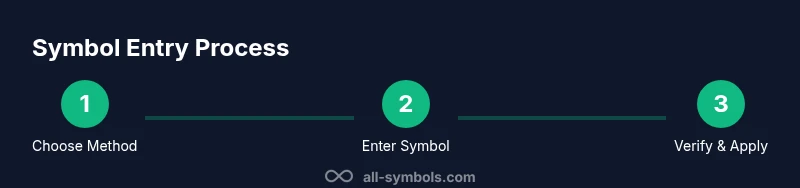
Identify whether you need speed, a specific font, or a rarely used symbol. If speed is the priority and you know the glyph, use keyboard shortcuts or Alt codes. If font consistency matters, start with the Character Map/Viewer to pick a glyph that matches your document.
Tip: Keep a short list of your top 6 symbols and their preferred entry method. - 2
Try quick keyboard shortcuts first
For common symbols, practice a few keyboard shortcuts on Windows and macOS. Start with familiar entries like check marks or currency signs and note any app-specific differences.
Tip: Practice in a single app first to build muscle memory. - 3
Use Windows Character Map or macOS Character Viewer
Open the tool, browse categories, and select your glyph. Copy and paste into your document, or drag the symbol into place when supported by the app.
Tip: Filter by font to ensure glyph availability. - 4
Explore Alt codes and Unicode input
Alt codes work with the numeric keypad on Windows; Unicode input provides cross-platform options. When using Alt codes, ensure the Num Lock is on and the correct font is active.
Tip: If you’re on a laptop without a dedicated keypad, use an on-screen keypad. - 5
Use the emoji panel for pictographs
The emoji panel offers a fast path to symbols that look friendly and casual, such as arrows, bullets, and smileys. You can copy and paste or drag into your document.
Tip: Quickly search for categories like 'Symbols' or 'Objects' to locate glyphs fast. - 6
Create a personal cheat sheet and test
Document your most-used symbols, method, and font notes. Test in the actual application you'll publish in to confirm visual compatibility.
Tip: Review font substitutions before finalizing any material.
Questions & Answers
What is the easiest way to type symbols on PC?
The easiest method depends on the symbol you need. Keyboard shortcuts are fastest for common glyphs, while the emoji panel is quick for pictographs. For rarer symbols, use the Character Map or Unicode input.
For quick results, start with keyboard shortcuts and the emoji panel; use Character Map for rarer symbols.
Do Alt codes work on laptops without a numeric keypad?
Yes, you can use an on-screen keypad or Fn-based methods to simulate a numeric keypad. Alternatively, Unicode input can be a cross-platform fallback.
If you don’t have a numeric keypad, try the on-screen keypad or Unicode input.
Which method works on Windows and Mac?
Windows relies on Alt codes and the Character Map, while macOS uses Option key combos and the Character Viewer. Unicode input is cross-platform when supported by the app.
Windows uses Alt codes and Character Map; Mac uses Option keys and the Viewer.
Can symbols vary by font?
Yes. Glyph availability depends on font support. If a symbol isn’t appearing, switch to a font that includes that glyph.
Sometimes a symbol looks different or is unavailable in a font—try another font.
Is there a universal shortcut for the most common symbols?
No universal shortcut exists. Build a personal cheat sheet of your most-used symbols and their entry methods for faster workflow.
There isn’t a universal shortcut—keep a personal list of your go-to symbols.
Should I rely on the emoji panel for professional documents?
Use emoji panels sparingly in professional contexts. For formal documents, prefer typographic symbols and ensure font and platform consistency.
Emoji are great for informal content but use caution in formal work.
Watch Video
The Essentials
- Learn multiple entry methods for symbol types.
- Memorize a core set of symbols for speed.
- Always test symbols in your final app.
- Create and reference a personal symbol cheat sheet.