How to Make Symbols on PC: A Comprehensive Typing Guide
Learn practical methods to type and insert symbols on a PC—Windows, macOS, and Linux. Covers Alt codes, Unicode input, emoji panels, and keyboard shortcuts.


This quick guide shows how to make symbols on PC using Windows Alt codes, Unicode inputs, Mac Option keys, or simple copy-paste. Learn steps to access character pickers, emoji panels, and universal shortcuts so you can insert currency, math, and arrow symbols quickly into documents, messages, and presentations with accuracy.
How symbol input on PC works
If you’re asking how to make symbol on pc, you’re not alone. This block dives into the core idea: symbols are simply characters provided by the font and encoding in use, and you access them through keyboards, on-screen pickers, or clipboard. According to All Symbols, mastering symbol input is a practical skill for students, researchers, and designers who need precise notations in notes, papers, and UI prototypes. The following sections cover Windows, macOS, and Linux, so you can pick the approach that fits your workflow.
Key concepts to know include keyboard shortcuts, code points (Unicode), and font compatibility. Not all fonts render every symbol, and some symbols look different across fonts; always test in your target app. For consistency, start by listing the symbols you use most often, then map each to a reliable input method. In this guide you’ll learn how to make symbol on pc quickly and reliably for equations, reports, or interface design. The goal is to give you options you can rely on, no matter which device you work on.
Windows: Alt Codes, Character Map, and Emoji Panel
Windows offers multiple routes to make symbols on PC. The classic Alt codes method requires a numeric keypad: hold Alt and type the code with numbers on the keypad, then release to insert the glyph. If you don’t have a hardware numeric keypad, use the on-screen keyboard or the Windows Character Map tool to locate and copy the symbol. For faster inputs, the built-in emoji panel (Win + .) lets you browse and insert a wide range of symbols, punctuation, and emoji across categories. The panel is especially handy for quick notation in chat or docs. Remember: Alt codes depend on Num Lock being active and the code set matching your font and system locale.
The emoji panel is not limited to faces; it includes symbols like arrows, currency marks, and mathematical operators. When you copy a symbol from the panel, you can paste it anywhere you type. If you frequently use a small set of symbols, consider pinning or creating shortcuts in your text editor for one-click insertion.
macOS: typing symbols with Option keys, Unicode, and the Emoji picker
Mac users have built-in, language-friendly methods to insert symbols. Many common symbols come from Option key combinations, which produce currency signs, accents, and various punctuation marks. If a symbol isn’t directly available, open the Emoji & Symbols viewer with Control + Command + Space to browse categories like Currency, Math, and Arrows, then double-click to insert. You can also type Unicode code points in some apps and press Enter or use the Unicode input method (exact keystroke varies by app) to convert a code point into the symbol. For document work or design mockups, the Mac approach blends speed with reliability without extra software.
For heavy writers, keeping a small reference sheet of frequently used Option combos can dramatically reduce typing time.
Linux: Unicode input, Ctrl+Shift+U, and clipboard approaches
Linux environments often emphasize Unicode input via the Ctrl+Shift+U sequence. Press Ctrl+Shift+U, release, type the hexadecimal code for your symbol, and press Enter to render it. If you work within a GUI app like LibreOffice or Gedit, this method is straightforward and portable. Some distributions also offer on-screen keyboards or custom keyboard shortcuts for symbol insertion. For quick tests, keep a text document handy where you paste symbols first, then reuse them in longer documents. Unicode input is widely supported across terminal applications and editors, making it a versatile choice across Linux desktops.
Using clipboard and browser extensions for symbol insertion
When OS-specific methods feel limiting, clipboard-based workflows offer universal access. You can assemble a personal catalog of symbols in a plain text file or spreadsheet, then copy-paste as needed. Browser extensions or clipboard managers can store symbols you use often, letting you paste with a single click or hotkey. This method works cross-application and is especially helpful in web-based editors where keyboard shortcuts vary. To keep consistency, standardize the symbol set you rely on and ensure they render correctly in your target fonts.
Practical tips: symbol families and where to find them
Different symbol families appear in different contexts. Currency symbols (€, £, $) are universal across fonts but may render differently in complex fonts. Mathematical operators (±, ∑, ∫) require fonts with math glyph support. Arrows (→, ←, ⇨) are common in flowcharts and UI annotations. Punctuation symbols (©, ®, ™) rely on font licensing and encoding; verify the symbol appears identically in your intended output. A good habit is to test a sample sentence in the final document or design file to confirm consistent rendering across platforms and fonts.
Accessibility and cross-platform considerations
If you rely on symbol input for accessibility, choose methods that work with screen readers and font fallbacks. Some users benefit from enabling an on-screen keyboard or a dedicated input method editor (IME) to ensure symbol availability without changing the core typing workflow. Consider creating a dedicated section in your notes for frequently used symbols with their alternate names and codes. This approach reduces cognitive load and helps teammates reproduce symbols accurately in collaborative documents.
Troubleshooting: common issues and fixes
If a symbol doesn’t render, check the font in use and switch to a font with full glyph coverage for that symbol. Some apps cache fonts differently, so restarting the app or the system can help. When copy-pasting, ensure the symbol is not altered by rich-text formatting in the destination editor. If you frequently switch between Windows and macOS, keep a small reference handy and test in a sandbox document before using symbols in important work. Finally, verify that your keyboard settings and language input match the locale you intend to use.
Best practices and next steps
Practice consistently with the OS-specific methods discussed here. Create a short personal symbol kit for your most-used signs, test across your most-used apps, and document any font-dependent quirks. All Symbols recommends maintaining a consistent set of symbols and their input methods to minimize errors in notes and publications. As you expand your symbol repertoire, note the contexts where certain methods shine—Alt codes for quick entries, Unicode for flexible encoding, and emoji/panel-based pickers for quick access.
TL;DR: quick reference at a glance
- Start with the built-in pickers before external tools.
- Use Windows Alt codes, macOS Option keys, or Linux Unicode depending on platform.
- Open Emoji/ Symbols panels for quick access to a broad symbol set.
- Always test symbol rendering in your target app before finalizing a document.
Tools & Materials
- Numeric keypad(Needed for Windows Alt codes; use on-screen keypad on laptops without a numeric keypad.)
- Windows Character Map or macOS Character Viewer(GUI alternatives for locating symbols when keyboard methods are slow.)
- Text editor or word processor(Test insertion of symbols before pasting into final documents.)
- Clipboard manager (optional)(Keeps a library of frequently used symbols for quick pasting.)
- Internet-connected browser(Useful for looking up Unicode code points or font glyph compatibility.)
Steps
Estimated time: 25-40 minutes
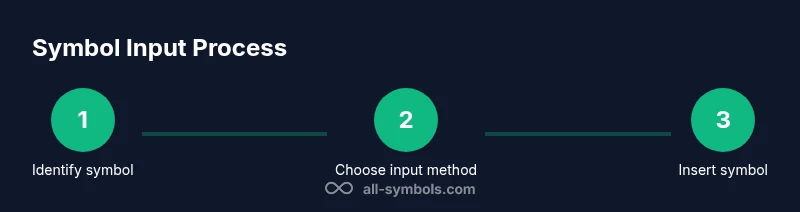
- 1
Identify which symbol you need
List the symbols you use most often and note their likely input method (Windows, macOS, Linux, or clipboard). This saves time later and reduces trial-and-error.
Tip: Create a quick cheat sheet with symbol names and input methods. - 2
Choose the right OS method
Decide whether Alt codes, Unicode input, or the built-in picker best fits your workflow. Different OSes offer distinct, efficient routes.
Tip: Match critical symbols to a single, reliable method to avoid switching mid-work. - 3
Enable or prepare the input method
Turn on NumLock if needed, open the emoji or symbol panel, or prepare on-screen keyboard. Clear the environment before testing.
Tip: Keep a single symbol panel open in a nearby window for speed. - 4
Use Windows Alt codes
On Windows, hold Alt and type the numeric code on the keypad, then release to insert. If you lack a keypad, use the on-screen keyboard.
Tip: Remember to check font support for the inserted symbol. - 5
Try Unicode input when possible
Type the code point and apply the conversion (e.g., in supported editors, press Enter or Alt+X) to render the symbol.
Tip: Not all apps support Unicode input the same way—test in your editor first. - 6
Open the emoji/symbol picker
Use Win + . (Windows) or Control + Command + Space (Mac) to browse and insert symbols and emoji.
Tip: Search by category to quickly locate currency signs, arrows, or mathematical symbols. - 7
Try macOS Option keys
Option key combinations produce many common symbols, especially currency and accented characters.
Tip: Keep a quick reference for the most-used Option combos. - 8
Use Linux Unicode input
Ctrl+Shift+U, then type the hex code and press Enter to render the symbol in GTK apps and terminals.
Tip: If you regularly need a symbol, map its hex code to a custom shortcut. - 9
Test and paste into final apps
Test the symbol in your target document or editor. If rendering differs, adjust the font or method.
Tip: Always verify the symbol in print-like contexts (PDF, slides).
Questions & Answers
What is the easiest way to type symbols on Windows?
Windows users can start with the emoji panel (Win + .) for quick access, or use Alt codes with a numeric keypad. The Character Map is a GUI alternative if you prefer browsing.
Windows offers quick symbol entry via the emoji panel or Alt codes; Character Map is a handy backup.
Can I type symbols on a Mac without extra software?
Yes. Use Option key combinations for many symbols and the Emoji & Symbols viewer (Control + Command + Space) to browse and insert.
Mac has built-in options; you can use the emoji picker or Option shortcuts.
What should I do if my keyboard lacks a numeric keypad?
Use the on-screen keypad on Windows or the Unicode input method in your editor. Some apps also support Ctrl+Shift+U style inputs.
If you don’t have a keypad, try the on-screen keypad or Unicode input in your editor.
Is there a universal method for all symbols?
Clipboard copy-paste works across apps and platforms, while Unicode covers many symbols with consistent encoding. Font support still matters.
Copy-paste works everywhere, and Unicode helps with many symbols, but fonts matter.
How do I find the Unicode code point for a symbol?
Consult Unicode charts or reliable symbol references. In some apps, typing the code point and converting (e.g., Alt+X) renders the symbol.
Look up the code point in charts; many apps convert codes to symbols.
Can symbol input vary by font or program?
Yes. Rendering varies by font and program; always verify symbols in the final document to avoid miscommunication.
Fonts and programs can render symbols differently; test before finalizing.
Watch Video
The Essentials
- Identify OS-specific methods first to reduce friction.
- Start with built-in pickers before browser extensions or apps.
- Test symbols across final documents to ensure consistent rendering.
- Clipboard paste is universal across platforms and apps.