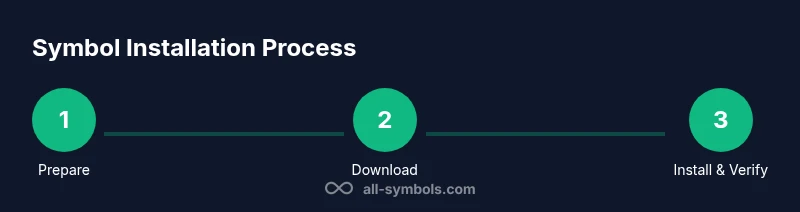
How to Install Symbol: A Practical, User‑friendly Guide
Learn how to install symbol fonts or icon sets across Windows, macOS, and Linux. This educational guide covers types, preparation, installation, verification, troubleshooting, and best practices for reliable symbol rendering in documents and design projects.


Learn how to install symbol fonts or icon packs across Windows, macOS, and Linux. This guide covers file types, installation steps, verification, and common troubleshooting to ensure your symbols render correctly in documents and design projects. By following these steps, you’ll confidently add new symbols to any software environment.
What you’ll install and why symbols matter
When you begin the process of how to install symbol, you are not merely copying a file—you are enabling software to render specialized characters consistently across platforms. A symbol can be a font-based glyph, an icon font, or a dedicated symbol set used in math, UI design, or signage. Choosing the right type helps ensure clarity in academic papers, vibrant interfaces, and accessible documents. In this guide, we focus on symbol fonts and icon packs—the most common ways people add new glyphs to documents and apps. Understanding what you are installing clarifies licensing, compatibility, and usage rights. If you are new to typography or iconography, start with a single, well-supported symbol family and test it in a few programs before expanding. The process we outline applies to Windows, macOS, and Linux and aims to minimize compatibility issues while maximizing accessibility. By the end, you’ll know exactly how to install symbol so it works reliably across your workflows.
Understanding symbol types
Symbols come in several flavors, each with its own strengths and limitations. Symbol fonts provide glyphs you can type or insert as characters, making them ideal for documents and mathematical notation. Icon fonts, on the other hand, deliver scalable pictograms designed for UI and web design. There are also vector-based symbol sets that you can import into design software as vector shapes. The key is to identify your primary use case: academic writing may benefit from symbol fonts for precise glyphs, while UI design often relies on icon fonts for consistent iconography. Remember that licensing varies between families—some are free for personal use, others require attribution or a commercial license. Always check the terms before installation and distribution.
Choosing a symbol set
Selecting a symbol set involves more than counting glyphs. Consider coverage (how many symbols you need), style (serif vs sans-serif, line weight), language support (Unicode coverage), and accessibility (contrast, legibility). For documentation, prioritize readability and clear glyph shapes. For apps and websites, ensure the glyphs render well at small sizes and scale cleanly on high-DPI displays. Check documentation for platform-specific notes: some sets offer separate files for fonts and icons, while others bundle everything in a single package. Also evaluate licensing: ensure your project usage aligns with the license terms and that attribution is possible when required.
Preparing your system
Before you install anything, prepare your system to avoid conflicts and ensure a clean workflow. Create a dedicated folder for symbol assets to keep track of downloads and licenses. Make sure you have administrator or sudo privileges on your machine, as installationsTypically require elevated permissions. Back up important work and current font caches if you plan to uninstall or swap fonts later. Collect any prerequisites mentioned by the symbol provider, such as specific font formats (e.g., TTF, OTF, or WOFF for web). Confirm that you will be able to test the symbols in the applications you use most—word processors, presentation software, design tools, and code editors.
Downloading the symbol package
Download symbol assets only from trusted sources and official repositories to avoid malware or corrupted files. Verify the file type and size, and note the license terms to ensure compliant use. If you receive a compressed archive, save it to your dedicated symbol folder and keep a copy of the license file separate for quick reference. Some symbol packs include multiple font families or icon sets; download only what you need to minimize clutter. After download, scan the file with your security software and extract to a temporary workspace where you can review contents before installation.
Installing on Windows
On Windows, you can install symbol fonts by using the built-in font viewer or the Fonts control panel. Locate the downloaded font files (TTF or OTF) and either right-click and select Install, or drag them into C:\Windows\Fonts. If you are installing for all users, you may need to run the installer as Administrator. After installation, confirm that the fonts appear in your font menu across applications. If icon fonts are included, you may also need to enable them in your web browser or design software. Reboot may be unnecessary, but restarting affected programs ensures recognition.
Installing on macOS
macOS provides a straightforward font installation experience: double-click a font file and press Install in the Font Book. This action registers the symbol font system-wide, making it accessible in all apps. For icon sets packaged as fonts, repeat the same steps for each font file. If you install multiple families, consider organizing them into a dedicated collection in Font Book to simplify management. After installation, test the glyphs in TextEdit, Keynote, or your design tool to confirm consistent rendering across sizes and weights.
Installing on Linux
Linux environments vary by distribution, but font installation generally follows similar patterns. Copy the font files to your user font directory (often ~/.fonts) or to system-wide directories like /usr/share/fonts. After placing the files, refresh the font cache with a command such as fc-cache -f -v. Depending on your desktop environment, you may need to log out and back in or restart font-aware applications. If you use font managers, you can import symbol fonts there and switch between families as needed. Ensure your applications recognize new glyphs by testing in editor and terminal programs.
Verifying the installation
Verification is essential to confirm that the symbol installation succeeded. Open a text editor or design tool and type representative glyphs from the new font. Check for consistent rendering at multiple sizes and weights. In UI contexts, preview icons at standard display sizes (16px, 24px, 32px) to ensure clarity. For icon packs, verify that glyphs correspond to the expected symbols by comparing against a reference chart. If something looks off, recheck the font family assignment in the app’s font settings and confirm that you installed the correct font file (some packs include separate styles and variants).
Common issues and fixes
Symbol installation can fail for several reasons, including incorrect file types, font caching issues, or license restrictions. If fonts don’t appear, confirm the font family name in your applications and ensure you selected the correct file type (OTF/TTF). Clear font caches and restart applications; on Linux, running fc-cache again can help. Windows users should ensure the font is not blocked by security settings, and macOS users can run Font Book’s validation tools to detect problems. When icons don’t render as expected, check that you are using the intended font and that your CSS or app supports color or outline glyphs for icon fonts.
Using your installed symbols in apps
With the font installed, you can insert symbols across a wide range of programs. In word processors and spreadsheets, switch to the symbol font and use the appropriate Unicode code points. In design software, use glyphs as you would any vector asset, scaling without loss of quality. Icons in UI design often require consistent stroke width and alignment; test icons against established grids and spacing. For developers, icon fonts or SVG-based sets can be embedded in code with proper fallbacks. Maintain a clear naming convention and document which symbols correspond to which glyphs to facilitate reuse.
Best practices and accessibility considerations
Accessibility should guide symbol use. Ensure that symbol glyphs remain legible at small sizes and on high-contrast interfaces. When possible, provide text alternatives (alt text) for icons in web contexts, and use semantic tagging to aid screen readers. Keep fonts up to date, track licenses, and consolidate symbol families to avoid duplicate glyphs. Consider building a style guide that defines color, weight, and spacing for symbols to maintain consistency across documents and products. Finally, respect licensing terms and attribution requirements to sustain ethical symbol usage.
Tools & Materials
- Computer or workstation(Any major OS works (Windows, macOS, Linux))
- Symbol font file or icon set(TTF/OTF for fonts; WOFF/WOFF2 for web use)
- Admin access or sudo rights(Needed for system-wide font installation)
- Backup storage(Local drive or cloud storage for license docs)
- Validated download source(Ensure license terms allow installation)
- Font viewer or font management tool(Optional, helps preview glyphs)
Steps
Estimated time: 45-90 minutes
- 1
Prepare your workspace
Create a dedicated folder for symbol assets, confirm OS access rights, and back up existing fonts. This protects your current setup and keeps symbol files organized for future updates.
Tip: Create a folder named 'SymbolAssets' in your user directory and note license terms. - 2
Download a trusted symbol package
Fetch the symbol font or icon set from an official source. Verify file type, size, and license terms before saving to your workspace.
Tip: Verify the source URL and checksum if provided by the publisher. - 3
Extract the package if needed
If the download is compressed, extract contents to your symbol workspace. Review included fonts and licenses.
Tip: Only extract to a temporary location you control; avoid mixing with system fonts. - 4
Install on Windows
Right-click a font file and choose Install or drag it into C:\Windows\Fonts. Use Run as Administrator for system-wide install.
Tip: Install fonts one family at a time to avoid conflicts. - 5
Install on macOS
Double-click the font file and select Install in Font Book. Repeat for all symbol fonts you downloaded.
Tip: Organize fonts into a dedicated collection for easy management. - 6
Install on Linux
Copy font files to ~/.fonts or /usr/share/fonts, then run fc-cache -f -v to refresh the cache.
Tip: If you use a font manager, import fonts there to simplify switching. - 7
Verify installation in apps
Open a document editor or design tool and select the new symbol font. Test multiple glyphs at different sizes.
Tip: Check for consistent rendering across bold, italic, and mono-styles when applicable. - 8
Troubleshoot missing glyphs
If symbols don’t display, ensure you installed the correct font family and refreshed caches. Reopen apps to pick up new fonts.
Tip: On Windows, verify font file properties; on macOS, run Font Book validation if available. - 9
Test across platforms
If you work across multiple OSes, re-check symbol availability in each environment to ensure consistency.
Tip: Keep notes on any platform-specific quirks for future reference. - 10
Maintain and update
Document license terms, store receipts, and plan for updates. Remove unused fonts to keep systems uncluttered.
Tip: Schedule periodic reviews to align symbols with your evolving design system.
Questions & Answers
What is a symbol font and how does it differ from an icon set?
A symbol font provides glyphs as characters you can type, usually for typography and math. An icon set contains pictograms designed for UI, often used as scalable graphics. Some packages combine both concepts, but they serve different rendering contexts.
A symbol font gives you typeable glyphs, while an icon set is a collection of pictograms for UI. They can overlap, but you typically choose based on whether you need glyphs or icons.
Do I need admin rights to install symbols on my computer?
Installing system-wide fonts usually requires administrator or sudo privileges. If you install per-user fonts, you can do so without elevated rights, depending on the OS. Check your environment’s permissions before starting.
Yes, system-wide installs require admin rights; per-user installs may not.
Can I install symbol fonts on multiple operating systems at once?
Yes. Most symbol fonts are cross-platform and can be installed on Windows, macOS, and Linux with OS-specific steps. Keep track of where each file was placed and test in the target apps for each OS.
You can install on multiple OSes, but follow each OS’s steps and test in each environment.
Which applications typically support symbol fonts and icon packs?
Common editors and design tools like word processors, presentation software, and graphic design apps support symbol fonts. Web development environments can use icon fonts or SVG symbol packs. Always verify font selection in the program’s font menu.
Most editors and design apps support symbol fonts; test in your favorite tools.
What should I do if symbols don’t appear after installation?
Double-check that you installed the correct font family, refreshed the font cache, and restarted affected applications. If problems persist, verify license terms and re-download from a trusted source.
If symbols don’t appear, confirm the font family, refresh caches, and restart apps.
How can I ensure accessibility when using symbols?
Provide text alternatives for icons when used in web contexts and follow clear visual contrast guidelines. Use semantic markup where possible and keep symbol sizes legible at common viewing distances.
Add alt text for icons and ensure good contrast and legibility.
Watch Video
The Essentials
- Identify symbol type and use case before installation
- Download from trusted sources and review licenses
- Install fonts per OS and verify glyph rendering
- Document usage and maintain licenses for future updates