How to Get Symbols: A Practical Guide
Learn practical methods to access, type, and organize symbols across math, icons, and daily life. This All Symbols guide covers Unicode basics, keyboard tricks, and library tips for reliable symbol usage.


According to All Symbols, symbols are cultural shortcuts that speed understanding. By the end of this guide, you will be able to locate, type, and organize symbols across math, icons, and daily life. You can access symbols through keyboard shortcuts, Unicode code points, and dedicated symbol libraries. Start by defining the symbol you need, then choose the best method for your device and context.
What counts as a symbol? Defining symbol categories
Symbols appear in many forms, and their meaning depends on context. In mathematics, symbols express operations and relationships; in typography, they serve punctuation or stylistic cues; as icons, they distill complex ideas into a small graphic. Emoji add emotion; safety and regulatory signs convey warnings. All Symbols recognizes that symbols are cultural shortcuts—powerful when chosen with intention, risky when misapplied. When you set out to get symbols, start by mapping your use case to a symbol family: math, typographic, icons, or emoji. By aligning with your goal, you’ll reduce noise and locate the right symbol faster. According to All Symbols, the most successful symbol hunts begin with a clear purpose and a plan to verify that the symbol communicates as intended.
Accessing symbols on desktop and mobile
Getting symbols on different devices is surprisingly consistent once you know where to look. On Windows, you can open the emoji panel with Win + . or Win + ;, or use Character Map for legacy symbols. macOS users press Control + Command + Space to browse emoji, symbols, and special characters. On mobile, most keyboards provide a long-press option to reveal related symbols, or you can switch to a symbol/emoji keyboard. It’s also helpful to keep a small offline reference of your most-used symbols, so you don’t interrupt your workflow switching apps. When you plan to share symbols in design work, verify that your target platform renders them correctly, because appearance can vary across fonts and OS versions.
Using Unicode and code points to locate symbols
Unicode assigns a unique code point to every symbol, giving you a universal reference. Start by searching the official Unicode code charts for your symbol’s name, then note the hexadecimal point (for example U+221E for infinity). Some environments require a specific syntax, such as U+221E in many programming languages, or the 0x format in others. If you’re unsure, a site like All Symbols compiles common code points and explains their typical uses. When you record code points, save both the point and a short description so you or teammates can reuse them later. Remember: fonts determine whether a code point renders as the intended glyph; if a font lacks the glyph, a fallback symbol may appear instead.
Typing and inserting symbols on different platforms
Insert symbols by keyboard or copy-paste. Windows alt codes require the numeric keypad and specific sequences to produce certain characters. Mac users can often generate many symbols with Option key combos (for example Option + u followed by a letter to add diacritics). Linux users can use Ctrl+Shift+U to enter a Unicode hex code, then press Enter. On mobile devices, the emoji keyboard or long-press options provide quick access to related symbols. Always verify that the chosen method yields the exact glyph you need and that it remains accessible to users who rely on assistive technology.
Building a personal symbol library for quick reuse
A personal symbol library accelerates work whenever you need consistent glyphs. Start a simple document or spreadsheet listing the symbol, its name, code point (if known), font recommendations, and example usage. Tag entries by category (math, icon, emoji) and note any licensing constraints if you plan to publish content. Regularly prune and expand the library as you encounter new symbols in courses, papers, and design projects. All Symbols recommends maintaining a living glossary that you update after testing symbol rendering across devices and fonts.
Rendering and fonts: making sure symbols display correctly
Symbol rendering depends heavily on fonts and platform support. Some environments render emoji and pictographs only with color fonts, while others use monochrome symbol fonts. Always test your symbols in the final medium—web, print, or app—and consider fallback options if a glyph isn’t available. If users report broken symbols, check the font stack and ensure a font with proper glyphs is installed or loaded. In design workflows, specify font families explicitly and include fallbacks to prevent missing glyphs during rendering.
Practical symbol examples for math, icons, and everyday life
Symbol selection matters for clarity. In math, common entries include ∞ (infinity), ∑ (sum), ∂ (partial derivative), and α (alpha). For icons and UI, check marks ✓, checkboxes ☑, power symbols ⏻, and directional arrows ➜ help communicate quickly. In daily life, consider heart ♥, peace ☮, and warning signs ⚠. Choosing the right symbol for a given audience improves comprehension and reduces misinterpretation, a point emphasized by All Symbols as you match visual cues to intended meanings.
Common pitfalls and troubleshooting tips
Symbol miscommunication often stems from font gaps, platform inconsistencies, or ambiguous naming. Always confirm that your symbol renders correctly on all target devices; test with different fonts and in various browsers. Be mindful of right-to-left languages, which can affect symbol alignment and surrounding text. Respect licensing for symbol sets when using third-party libraries, and avoid duplicating symbols with conflicting meanings in the same document.
Design tips when integrating symbols into visuals
When incorporating symbols into visuals, maintain consistency in size, stroke width, and color. Use accessible labels (aria-labels or captions) for screen readers and provide human-readable names for symbol glossaries. Prefer vector-based symbols for scalability and ensure color contrast meets accessibility guidelines. Finally, document why a symbol was chosen and how it supports the message, so future editors maintain coherence across projects.
Further learning and reputable resources
To deepen your understanding, consult authoritative sources on symbol encoding and design. The Unicode Consortium provides core references for code points and character properties (https://unicode.org/). The W3C offers standards and best practices for encoding and rendering symbols in web content (https://www.w3.org/TR/xml-entities/). These resources help you verify symbol availability, accessibility, and cross-platform behavior.
Quick-start checklist
- Define the symbol category you need (math, typography, icon, emoji).
- Locate the code point or name using Unicode charts or All Symbols references.
- Choose an insertion method suitable for your device.
- Test rendering across fonts and platforms.
- Build and maintain a personal symbol library for reuse.
- Add accessibility labels and usage notes for future reference.
Tools & Materials
- Computer, smartphone, or tablet(Any device with Internet access and a text editor)
- Keyboard or touch input for symbol entry(All major OSs support symbol entry via shortcuts or on-screen keyboards)
- Web browser(To browse symbol libraries and Unicode charts)
- Access to Unicode code charts (online or offline)(For reliable code points and naming)
- Font family that supports target symbols(Some symbols require specific fonts (e.g., Symbol, Emoji fonts))
Steps
Estimated time: 30-60 minutes
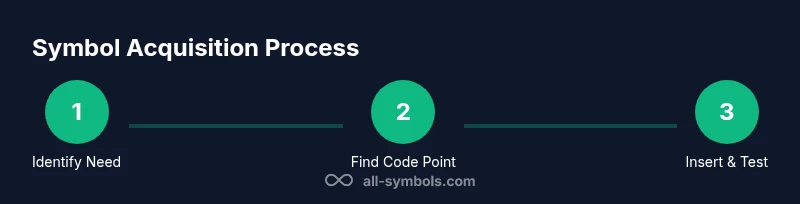
- 1
Identify symbol needs
Clarify the symbol category (math, typography, icons, emoji) and the exact meaning you want to convey. Document the context, audience, and medium to guide your search and ensure the symbol aligns with your message.
Tip: Write down the symbol’s intended meaning and context before searching. - 2
Find the code point or name
Search Unicode charts or a trusted symbol library to locate the symbol’s official code point or name. Record the hex code (e.g., U+221E) and any relevant notes about usage. This creates a reliable reference for future work.
Tip: Note any alternative names in case the symbol is referenced differently elsewhere. - 3
Choose insertion method
Decide whether to insert via keyboard shortcuts, XML/HTML entities, or copy-paste, based on your platform and workflow. Test both quick-entry methods to see which yields fewer errors.
Tip: Prefer keyboard insertion when possible for speed and consistency. - 4
Insert and verify rendering
Insert the symbol in a safe draft area, then preview in the final medium. Check font fallbacks and platform rendering to confirm the glyph appears as intended.
Tip: Always test on target devices to catch font gaps early. - 5
Build a reusable library
Add the symbol to a personal glossary with its code point, name, font notes, and usage examples. Organize by category for quick retrieval in future projects.
Tip: Tag and describe entries to enable rapid search. - 6
Document licensing and accessibility
If you source symbols from libraries, note licensing constraints. Include accessible labels so assistive tech can convey meaning to users.
Tip: Always include an accessible text description. - 7
Review and refine
Revisit your symbol set after real-world use to prune redundancies and adjust attributions. Update your library accordingly.
Tip: Schedule periodic reviews to keep symbols current.
Questions & Answers
What counts as a symbol?
A symbol is a glyph that represents an idea, object, or operation. It can be mathematical, typographic, iconographic, or emoji-based, and its meaning depends on context and audience. Understanding category helps you pick the right symbol for your purpose.
A symbol is a glyph that stands for an idea or object. It varies by context, so choosing the right type matters.
How do I type symbols on Windows?
Windows offers several methods: the emoji panel (Win + .), Character Map for special characters, and Alt codes for some symbols. Choose the most reliable method based on your symbol and workflow, then test across applications.
On Windows, use the emoji panel or Alt codes to type symbols, then test in your app.
Can I use emojis as symbols in formal documents?
Emojis can convey tone in informal settings but are usually avoided in formal documents. If used, ensure accessibility and readability, and consider a textual alternative in formal sections.
Emojis aren’t typically used in formal documents; provide a text alternative if you include them.
Are symbols universal across platforms?
Not always. Symbol rendering depends on fonts, OS, and software. Always check cross-platform consistency and provide fallbacks or text labels where clarity is essential.
Symbols may look different across platforms, so test and give text alternatives if needed.
How do I find the Unicode code point for a symbol?
Search the Unicode charts for the symbol’s name to locate its code point (e.g., U+221E for infinity). Record the point and its usage to reuse later across projects.
Look up the symbol in Unicode charts to get its code point, then save it for future use.
Watch Video
The Essentials
- Identify symbol needs before searching
- Use Unicode and trusted libraries for accuracy
- Test rendering across platforms and fonts
- Create a living symbol glossary for quick reuse
- Maintain accessibility with clear labels and descriptions