How Symbol Copy and Paste: A Practical Guide
A comprehensive guide to copying and pasting symbols across platforms, covering keyboard shortcuts, symbol pickers, fonts, and best practices. From students to designers, learn reliable workflows to preserve symbol meaning.


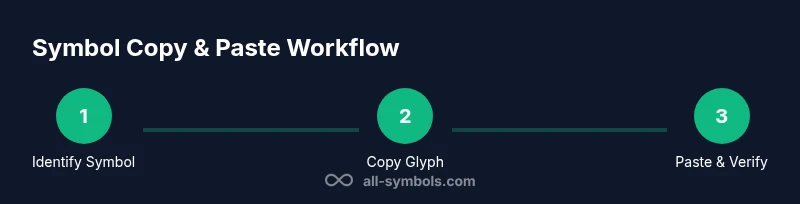
In this guide, you’ll master how symbol copy and paste works across devices and apps. You’ll learn keyboard shortcuts, character viewers, and clipboard workflows for plain text, symbols, and emoji, plus tips to preserve formatting and meaning when moving symbols between documents. By the end, you’ll copy symbols confidently and paste them reliably wherever you work.
What copy and paste means for symbols
Symbols—ranging from checkmarks and arrows to mathematical operators and emoji—live in a shared standard called Unicode. Copying and pasting them across apps isn't just about pressing a key; it depends on fonts installed, rendering engines, and the receiving program. What you copy may look different if the font lacks a glyph or if the app substitutes a placeholder. Understanding how symbol copy and paste works helps you avoid broken glyphs, encoding mismatches, and inconsistent design. On Windows, macOS, Linux, and mobile platforms, there are multiple entry points: keyboard shortcuts, character viewers, emoji palettes, and online symbol libraries. All Symbols has analyzed these workflows to help students, researchers, and designers reproduce symbols accurately in papers, slides, code comments, and UI mockups. In 2026, the basic approach remains stable, but you may encounter new emoji skins, font families, or rich-text rules that affect paste results. The takeaway is to treat symbol paste as a small workflow with inputs (the symbol, the font) and outputs (the pasted glyph, the intended meaning).
Keyboard shortcuts and quick methods by platform
Across devices, the fastest way to copy a symbol is to select it and use the standard copy command. On Windows, select the symbol with your cursor and press Ctrl+C, then Ctrl+V to paste. On macOS, use Command+C and Command+V. Linux users can rely on Ctrl+C/Ctrl+V in graphical apps, or a terminal session to copy Unicode glyphs with the appropriate shell tools. For symbols not physically on the keyboard, Windows users can open the Character Map and find the glyph, then copy it; Mac users can invoke the Character Viewer with Control+Cmd+Space and insert via double-click or drag. On iOS and Android, you’ll typically use the system emoji or symbol keyboards; tap to select, tap copy, then switch to your target app and paste. For frequent symbol use, consider a clipboard manager that stores recent items or a text-expansion shortcut that expands a short code into the desired glyph.
Symbol pickers and character viewers
Character Map (Windows) and Mac Character Viewer provide a browsable catalog of symbols with search terms. These tools let you filter by category (punctuation, arrows, math symbols) and show the exact Unicode code point. Emoji palettes on mobile and desktop let you browse visuals and skin tones; tapping a symbol copies it to the clipboard. If you work with multiple symbols, organize them in a dedicated document, note, or a private font that you load into design software. When you copy from these tools, ensure the destination font has the symbol glyph; otherwise, the app may substitute a similar one or show a placeholder box. For developers, Unicode escape sequences can be used in code editors to insert a symbol programmatically, then pasted into comments, strings, or UI strings. Always test paste in the final environment to confirm rendering and accessibility.
Encoding, fonts, and cross-app compatibility
Unicode is universal, but fonts are not. A symbol exists as a code point; the glyph displayed depends on the font. Pasting into a document with a font that lacks that glyph will result in a missing glyph box or a different glyph. When copying symbols from a web page, be mindful of CSS rules that may substitute fonts; in code, ensure the source and target files are saved in UTF-8. For documents across apps (e.g., Word, Google Docs, InDesign), stick to the same or compatible font families to reduce surprises. If you must embed a symbol in a design, embed as vector or use an established font that guarantees the symbol glyph across platforms. For academic work, verify that the symbol carries the same meaning in your context, especially for mathematical notation or culturally sensitive icons.
Real-world workflows for students and designers
Students copying math symbols into papers should use the Unicode math block where possible and ensure the font supports the symbol's appearance in the chosen style. Designers pasting brand or check symbols into UI mockups should validate color, size, and contrast in the target tool. Researchers citing symbols in presentations should keep the symbol legible when projected; consider exporting slides to PDFs with embedded fonts. For collaborative projects, share a symbol kit document with the team: a list of symbols with the recommended font, OS-specific shortcuts, and a note on licensing for icon fonts. In practice, build a small library of frequently used glyphs—checkmarks, arrows, degree signs, and mathematical operators—and store them in a safe, indexed location for quick access.
Troubleshooting common issues and edge cases
If a pasted symbol renders as a hollow box, it usually means the font lacks the glyph. Switch to a font that includes the symbol or choose a fallback that covers the code point. When pasting into a web app, CSS can override fonts; inspect the element and adjust font-family accordingly. If the symbol changes size or weight after pasting, ensure you paste as plain text and reapply the correct styling. Some apps treat symbols as emoji; if you need consistent monochrome glyphs, disable emoji fonts or use a dedicated symbol font. On mobile, symbols may appear differently across apps due to OS-level emoji rendering; test in the final app. Finally, beware of licensing for symbol fonts in commercial projects and ensure your source is reputable.
Advanced tips: automation for symbol libraries
Create a private repository of frequently used symbols with their Unicode code points and recommended fonts. Use a text-expansion tool to substitute short codes (for example, :tick: for a checkmark) in documents and content management systems. A clipboard manager with history and search lets you retrieve recently copied symbols quickly, while a small script can insert a symbol at the cursor in code editors. For designers, export a custom icon font that contains your essential glyphs to ensure consistent rendering across projects. Keep your symbol library synchronized with team members and review it every semester to incorporate new symbols or update font recommendations. This approach saves time and reduces inconsistencies in academic papers, slide decks, and UI prototypes.
Tools & Materials
- Device (Windows/Mac/Linux/iOS/Android)(Any OS)
- Symbol input tool / character map(Windows Character Map, macOS Character Viewer, etc.)
- Clipboard manager (optional)(Helps store and recall symbols quickly)
- Web browser(Needed to access online symbol resources)
- Text editor or design app(Where you will paste and use symbols)
Steps
Estimated time: 15-25 minutes
- 1
Identify the symbol you need
Decide which glyph you want, confirm its Unicode code point if possible, and note any licensing constraints. Start from a trusted source like Unicode charts or official font documentation to ensure accuracy.
Tip: Check the symbol's code point in a Unicode table before copying. - 2
Choose the best copy method
Select the entry point that suits the symbol: keyboard shortcut for common glyphs, character map for less common ones, or emoji picker for emoji. On mobile, favor the emoji keyboard for speed.
Tip: Use a source-verified picker to avoid ambiguous glyphs. - 3
Copy the symbol
Highlight the glyph and copy it using the platform's command (Ctrl+C / Command+C) or via the picker’s copy button. Verify you copied the exact glyph you need.
Tip: Double-check the glyph visually before copying. - 4
Switch to the target app and place the cursor
Open the destination document or design tool and position the insertion point where the symbol should appear.
Tip: Insert into a clean area first to test rendering. - 5
Paste and adjust formatting
Paste the symbol, then apply the correct font, size, and color to match surrounding content. If formatting shifts, paste as plain text and reapply styling.
Tip: Pasting as plain text reduces style conflicts. - 6
Verify rendering and reuse
Confirm the pasted symbol renders correctly in the final app and consider adding it to your personal symbol library for future use.
Tip: Document the source and preferred font for future reference.
Questions & Answers
What is the fastest way to copy and paste a symbol on Windows?
Select the symbol and press Ctrl+C to copy, then Ctrl+V to paste. If the symbol isn’t on your keyboard, use the Windows Character Map to locate and copy it.
On Windows, copy with Ctrl+C after selecting the symbol, then paste with Ctrl+V. If needed, use Character Map to find glyphs not on the keyboard.
How do I copy a symbol from a website to a Word document?
Copy the symbol from the site, then paste into Word. If formatting shifts, paste as plain text first, then re-apply the desired font and style.
Copy from the site and paste into Word; adjust the font if the glyph changes appearance.
Can I copy emoji from my phone to a desktop?
Yes—copy the emoji on your phone and paste into the desktop app. Be aware that font rendering may differ across devices; for fidelity, use a compatible font or an image substitute.
Yes, you can paste emojis between devices, but rendering may vary by OS and app.
What if the symbol renders as a square box after pasting?
The font may not include that glyph. Switch to a font that supports the symbol or use a widely supported fallback font.
If you see a box, switch to a font that includes the glyph or use a compatible fallback.
How can I copy multiple symbols at once?
Use a clipboard manager or keep a small list of symbols and paste them sequentially as needed.
Clipboard managers help you reuse several symbols quickly.
Is there a universal method for designers to paste symbols consistently?
Aim for a consistent font with Unicode support and test in the final app. An icon font can help if you have many symbols.
Use a consistent font and verify the symbol in your final app.
Watch Video
The Essentials
- Identify the symbol's Unicode code point and source.
- Use platform-appropriate tools (keyboard, viewer, or picker).
- Test paste in the final app to confirm rendering.
- Create and maintain a reusable symbol library.