How to Type a Division Symbol: A Practical, Clear Guide
Learn reliable methods to type the division symbol across Windows, macOS, Linux, and mobile keyboards. This All Symbols guide covers Unicode, ASCII equivalents, and practical shortcuts for reliable symbol entry.


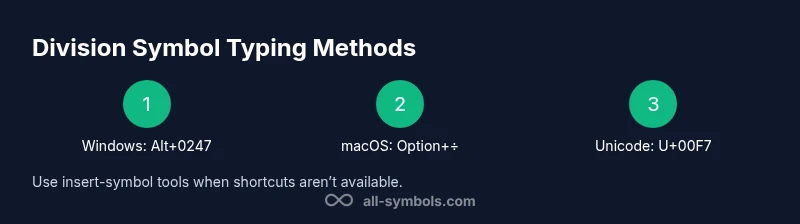
To type the division symbol, use platform-specific shortcuts, Unicode input, or insert-symbol tools. For Windows, try Alt+0247 (numeric keypad) or the Character Map; macOS users can press Option+÷ or insert from the Emoji & Symbols viewer; mobile keyboards provide a division symbol on the symbol layout. This All Symbols guide explains reliable methods across apps and documents.
Why the division symbol matters
The division symbol (÷) is a compact way to denote division in math, programming, and everyday notation. If you’re asking how do you type a division symbol, you’re addressing a common hurdle in cross‑platform work. Mastering entry methods improves clarity in reports, notes, and code, and reduces the need to copy-paste from external sources. All Symbols explains reliable ways to insert this glyph across busy workflows, whether you’re drafting equations, annotating diagrams, or building teaching materials.
Understanding symbols, encodings, and fonts
Symbols like the division sign have encoded representations in Unicode, ASCII, and font glyphs. Encoding determines how computers store the character; font determines how it looks on screen. When you type, you’re selecting a code point (such as U+00F7 for the division sign) and a font that contains a glyph for that code point. If a font lacks this glyph, you may see a box or a question mark. Being aware of encoding helps avoid missing characters in multilingual documents.
Keyboard shortcuts on Windows
Windows supports several paths to the division symbol. The most direct is the numeric keypad Alt code: Alt+0247. If you don’t have a numeric keypad, you can use the Windows Character Map or the built‑in Emoji panel to locate the symbol and insert it. In some editors, you can also insert the symbol by typing a short Unicode sequence and converting it in the editor. Always ensure Num Lock is on when using Alt codes to avoid accidental input of another character.
Keyboard shortcuts on macOS
Mac users typically reach the division symbol via Option+÷ on the standard keyboard. If your keyboard lacks this key, you can open the Emoji & Symbols viewer (Control+Command+Space) and search for “division” to insert the glyph. In some languages or layouts, the symbol may appear under currency or math sections of the symbol picker. For frequent writers, learning a quick custom shortcut or macro can save time.
Methods on Linux and mobile platforms
On Linux, the division symbol often appears through a compose key sequence or Unicode input (Ctrl+Shift+U, then 00F7, then Enter). Mobile devices (iOS and Android) typically place the division symbol on the symbol keyboard; you may need to long‑press the slash or navigate to the math symbol set. If you’re writing in a math app, use the app’s insert symbol feature when available. Consistency matters when sharing documents across platforms.
Using word processors and editors
Word processors like Microsoft Word or Google Docs offer Insert > Special characters or Insert > Symbol options to place the division glyph. You can pin Unicode inputs to a document template, or copy the symbol from a reference list and paste it into your work. For formula editors, LaTeX users can load the amsmath package and type "/" in inline math to reflect division visually, though the division sign itself is not always required in math mode.
Typing division symbol in LaTeX
In LaTeX, the division operation is usually represented by the slash (a/b) in inline math or the divide symbol should be typeset by $\div$ or \cdot\div etc. Depending on the package and font, you may require specific commands. For complex equations, consider using amssymb for additional division-related symbols. The division glyph itself is most commonly used for display purposes, while the mathematical notation often relies on fraction syntax.
Verifying the symbol renders correctly across apps
After typing or inserting the division symbol, verify that it renders correctly in your target font and document format. Differences in font rendering, anti‑aliasing, or missing glyphs can cause the sign to appear as a placeholder. Test across the software you intend to publish in—word processors, code editors, and web browsers—and adjust the font or encoding if needed. Consistent rendering improves readability and reduces confusion.
Troubleshooting common issues
If the division symbol isn’t showing up, check your font supports the glyph (some decorative fonts omit it). Ensure you’re using the correct code point (Unicode U+00F7) or the proper shortcut for your platform. If copy‑paste refuses, try pasting into a plain text editor first, then re-copy into your final document. Finally, confirm your document’s encoding (UTF‑8 is widely supported).
Practical examples and quick-reference table
Here are several practical scenarios and quick methods:
- Windows: Alt+0247 (numeric keypad)
- macOS: Option+÷ or Symbol viewer
- Linux: Unicode input (Ctrl+Shift+U 00F7 Enter)
- Mobile: Symbol keyboard, often under the math or punctuation section
- Web: Use HTML entity ÷ when editing HTML documents
Summary of best practices for symbol entry
To type the division symbol reliably, learn one shortcut per platform, verify glyph support in your font, and keep a fallback method (copy/paste or Unicode input) ready. This balanced approach minimizes sign‑missing issues when sharing documents or presenting math ideas.
Tools & Materials
- Device with a working keyboard(PC, Mac, or mobile device; ensure accent and language settings match your layout)
- Keyboard with numeric keypad or accessible Alt key(Windows Alt codes rely on a numeric keypad; some laptops require a separate function key)
- Font that includes the division glyph(Choose a font with full Unicode coverage to avoid missing glyphs)
- Symbol insertion tool or Character Map/Viewer(Helpful if you don’t know shortcuts and need a visual picker)
- Unicode reference (e.g., U+00F7)(Useful as a quick fallback across editors that support Unicode input)
Steps
Estimated time: 15-25 minutes
- 1
Identify platform and context
Determine whether you’re on Windows, macOS, Linux, or mobile, and whether you’re typing in a document, code, or a math editor. This choice guides which method you’ll use and avoids frustration later.
Tip: If in doubt, start with the most universally supported Unicode input method - 2
Try Windows Alt code
If you’re on Windows with a numeric keypad, press Alt+0247 to insert the division sign. Release Alt, and the symbol should appear where the cursor is.
Tip: Ensure Num Lock is on for Alt codes to work correctly - 3
Use macOS Option key
On a Mac, press Option+÷ to type the division symbol. If your keyboard layout varies, use the Emoji & Symbols viewer to insert the glyph.
Tip: If Option+÷ doesn’t work, check your input sources and keyboard layout - 4
Explore Unicode input
Many editors accept the direct Unicode input: type U+00F7 and then press Enter or the space key to convert in editors that support it.
Tip: Not all apps support live Unicode conversion; test first - 5
Use Insert Symbol tools
In Word, Docs, or writing apps, use Insert > Symbol or Insert > Special Characters to locate and insert ÷.
Tip: Add the symbol to a quick-access toolbar for speed - 6
Consider LaTeX alternatives
In LaTeX, use \div or fractions (\frac{a}{b}) in math mode to express division visually.
Tip: Remember that the division sign is not always required in math mode - 7
Copy-paste as fallback
If a shortcut fails, copy ÷ from a reliable source and paste where needed.
Tip: Keep a small clipboard of common symbols for quick reuse - 8
Verify rendering
Check your document in the final font and platform to ensure the glyph looks correct.
Tip: Test on target devices and export formats - 9
Document consistency
Create a short guide for editors you regularly use to ensure consistency in symbol entry.
Tip: Share the guide with teammates to reduce sign-entry issues - 10
Record a quick reference
Keep a one-page cheat sheet with the most reliable methods for your workflow.
Tip: Update the sheet whenever you switch tools or fonts
Questions & Answers
What is the division symbol and where is it used?
The division symbol ÷ represents division and appears in math notation, textbooks, and teaching materials. It’s also found in some calculators and software. Understanding how to type it helps you communicate math ideas clearly across platforms.
The division symbol is the glyph ÷ used to indicate division. It shows up in math and teaching materials and you can type it using various platform methods.
What is the simplest Windows method to type it?
On Windows, the quickest method is Alt+0247 using the numeric keypad. If you don’t have a keypad, use the Character Map or enable the on-screen keyboard to access Alt codes. Some editors also convert Unicode input automatically.
Use Alt+0247 with the numeric keypad, or insert via the Character Map if you don’t have a keypad.
How do I type it on a Mac?
Mac users generally press Option+÷ to insert the division symbol. If your keyboard layout differs, open the Emoji & Symbols viewer (Control+Command+Space) and search for division to insert it. Some layouts place the symbol elsewhere in the symbol picker.
On a Mac, try Option+÷ or use the Symbol viewer to insert ÷.
Can I type the division symbol on mobile devices?
Yes. On iOS and Android, the division symbol is typically available on the symbol keyboard. You may need to switch to the numbers or punctuation section, or long‑press the slash to reveal the division glyph. In math apps, use the app’s insert symbol feature when available.
Mobile keyboards usually have ÷ in the symbol set; switch to symbol or long-press the slash if needed.
What if my font doesn’t display the division symbol?
If the glyph doesn’t display, switch to a font with full Unicode support. Some fonts omit rare symbols. Ensure the document uses a Unicode UTF-8 encoding and test across platforms.
Change to a font that includes the division glyph and verify UTF-8 encoding.
Is there a LaTeX command for the division symbol?
In LaTeX, division is usually shown with a slash or a fraction. Use \frac{a}{b} for a clean division in math mode, or \div for the division symbol when appropriate. Check the math package and font you are using.
In LaTeX, use \frac{a}{b} for division or \div to show the symbol in math mode.
Watch Video
The Essentials
- Learn platform-specific shortcuts for speed
- Keep Unicode and Insert Symbol options in your toolkit
- Verify rendering across fonts and apps
- Have a reliable fallback method like copy-paste ready
- Practice with a quick reference sheet