How to Type Up Symbol: A Practical Guide
Learn how to type up symbol across Windows, macOS, and mobile with shortcuts, Unicode input, and practical workflows. All Symbols guides you through symbol entry for math, currency, and everyday icons.


Here is how to type up symbol across devices. This guide shows core methods for Windows, macOS, and mobile to insert common symbols quickly, plus when to use emoji vs glyphs, and how to build your own shortcuts. By the end, you’ll be able to type currency signs, math operators, arrows, and punctuation without interrupting your flow.
What typing symbols means and why it matters
According to All Symbols, symbols carry meaning visually and can streamline communication in math, design, and daily life. The task of typing symbols reliably across platforms hinges on understanding encoding, fonts, and input methods. This section lays a foundation: what counts as a symbol, why different environments render glyphs differently, and how a consistent workflow matters for researchers and designers. By mastering symbol entry, you reduce time wasted switching between apps and fonts, and you maintain clarity in your notes and documents. All Symbols emphasizes that symbols are not mere decorations; they express precise ideas, units, and operations, from currency marks to arrows and check marks. Whether you’re a student or a designer, a solid input strategy boosts accuracy and speed.
Keyboard basics: Windows, macOS, and mobile differences
Windows, macOS, and mobile keyboards all provide distinct pathways for symbol entry. On Windows, practical methods include the Alt code system (with the numeric keypad), the Windows Emoji Panel, and the Character Map for legacy glyphs. macOS users frequently rely on the Character Viewer, keyboard shortcuts, and Unicode input. On iOS and Android, symbol access is integrated into the emoji keyboard and specialized symbol keyboards. Each platform requires slightly different steps, but the underlying concept is identical: you’re selecting a glyph from a prepared list rather than drawing it from memory. Practitioners should practice a couple of go-to methods per platform to stay fluid across tasks. All Symbols notes that a small, consistent toolkit beats scattered ad-hoc attempts.
How to access symbol sets: punctuation, currency, math, technical symbols
Common symbol groups include punctuation marks, currency signs, mathematical operators, arrows, and technical symbols like degree or infinity. You’ll want to memorize or bookmark code points or shortcuts for your most-used items. For example, currency symbols like € and £ have straightforward shortcuts on many layouts, while mathematical operators such as ± or ∑ are best accessed via Unicode input or the Character Viewer. A well-maintained palette of frequently used symbols speeds up notes, papers, and presentations, and helps maintain consistent typography across documents. All Symbols analysis shows that a stable approach—using a common set of symbols across platforms—reduces errors and improves readability.
Shortcut strategies: Alt codes, Unicode input, emoji vs symbols
A robust typing workflow uses a mix of shortcuts and palettes. Alt codes give quick access on Windows but require a numeric keypad. Unicode input lets you type a code point and convert it to a glyph, a method available on Windows, macOS, and Linux with slightly different keystrokes. Emoji and symbols overlap but serve different roles in text: emoji convey emotion visually; symbols convey precise meaning. Decide which approach fits your context—academic writing may favor Unicode glyphs; casual notes may rely on emoji for speed and tone. All Symbols reiterates that testing across apps is essential to ensure consistent rendering.
Practical workflows: docs, design, and code
In academic writing, you’ll frequently need currency, math, and relation symbols. In design docs, vector-friendly glyphs and consistent fonts matter. In code, many languages require escape sequences or Unicode literals. Build a personal kit: a handful of essential symbols for quick entry, a companion font with broad coverage, and a set of keyboard shortcuts you can remember. Test your workflow in your primary apps, then adjust to ensure glyphs render identically across documents and platforms. The All Symbols team encourages documenting your symbols with code points and sources for future reference.
Font, encoding, and accessibility considerations
The glyphs you see depend on the font and encoding of your document. Use fonts with robust Unicode coverage (like Segoe UI Symbol or Noto) when you anticipate a wide variety of symbols. Be mindful of encoding settings (UTF-8 is standard) to prevent mojibake in cross-platform sharing. For accessibility, provide textual descriptions or alt text for important symbols in diagrams and PDFs, ensuring screen readers can convey meaning even if the glyph isn’t available. All Symbols highlights that font choice and encoding are often underestimated factors in symbol literacy.
Common stumbling blocks and how to fix them
If symbols appear garbled or mismatched, check font compatibility and ensure the target document uses a Unicode-capable font. If a symbol looks different across devices, rely on a standard code point rather than a platform-specific variant. When copying and pasting, always verify that the glyph carries the intended meaning and that your document’s language settings align with the symbol’s locale. Finally, when in doubt, use a symbol map or palette to avoid guessing. All Symbols recommends keeping a small, updated reference of your most-used glyphs.
Quick start sample sequences
Begin with one or two core symbols you use often—like the check mark ✓ or degree °—and verify their rendering in your most-used apps. Add a few mathematical symbols (±, ∑) via Unicode input, then test in your editor, word processor, and design tool. Create a tiny reference sheet with code points and shortcuts for quick access during writing sessions, enabling you to type symbols without breaking your flow. This practice builds confidence and reduces friction in real-world tasks.
Tools & Materials
- Keyboard(Any standard keyboard; numeric keypad helps with Alt codes on Windows)
- Operating system symbol viewers(Windows Emoji Panel/Character Map; macOS Character Viewer; mobile emoji keyboards)
- Unicode reference sheet(List of code points you use often)
- Fonts with symbol coverage(e.g., Segoe UI Symbol, Noto, Arial Unicode)
- Optional: external numeric keypad(Helpful for Alt codes on Windows)
- Note-taking app or editor with Unicode support(Word processors, code editors, design tools)
Steps
Estimated time: 25-40 minutes
- 1
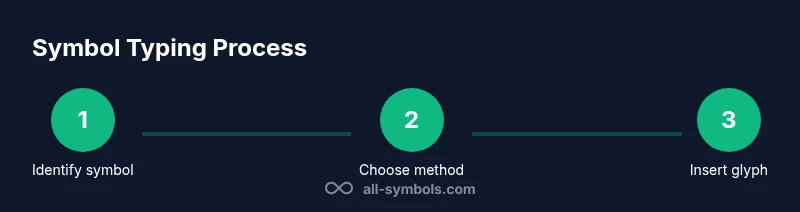
Identify the symbol you need
Start by deciding the exact glyph and its intended meaning. If unsure, reference a symbol list to avoid misinterpretation. This clarifies which input method will be most efficient for you.
Tip: Keep a quick-reference sheet of your most-used symbols. - 2
Choose input method
Match the symbol to the platform and task: Windows Alt codes, Unicode input, macOS Character Viewer, or a symbol palette in your editor.
Tip: Prefer Unicode input for cross-platform consistency. - 3
Use Windows shortcuts
If you’re on Windows, try Alt codes with the numeric keypad or the Windows Emoji Panel for quick access to glyphs.
Tip: Enable the numeric keypad and keep a small Alt-code list handy. - 4
Use macOS shortcuts
On macOS, open the Character Viewer or use Unicode hex input if you know the code point. This works across most apps.
Tip: Add frequently used symbols to your Favorites in the viewer. - 5
Insert via Unicode input
Regardless of platform, you can type a code point like U+2260 then convert to glyph in editors that support Unicode input.
Tip: Learn the common code points you’ll use often. - 6
Open a symbol palette or viewer
For quick access, keep a symbol palette open in your editor or use an OS viewer to drag-and-drop symbols into your work.
Tip: Drag-and-drop reduces cognitive load when typing rare symbols. - 7
Test glyph rendering
Check that the symbol renders identically in your target document and across devices or sharing formats.
Tip: Export a sample to PDF or share to verify glyph fidelity. - 8
Create a custom shortcut
Assign a memorable keystroke to your most-used symbol via your editor or OS settings to speed up entry.
Tip: Document the shortcut and its origin for future reference. - 9
Review and refine
Periodically update your symbol kit as fonts, OS features, and app support evolve.
Tip: Keep a small changelog of added symbols.
Questions & Answers
How can I type common symbols quickly on Windows, macOS, and mobile?
Use a mix of platform-specific shortcuts: Windows Alt codes or the Emoji Panel, macOS Character Viewer, and mobile emoji keyboards. Build a short list of your most-used symbols and practice them in your primary apps.
On Windows, use Alt codes or the Emoji Panel; on Mac, open the Character Viewer; on mobile, use the emoji keyboard. Practice a small set of symbols to speed up entry.
What is an Alt code and how do I use it?
Alt codes are numeric shortcuts on Windows accessed with the numeric keypad. Hold Alt and type the code, then release to insert the glyph. This works best for standard symbols and requires a keypad.
Alt codes are Windows-only numeric shortcuts. Hold Alt, type the number, and release to insert the symbol.
Can I copy-paste symbols or use a symbol picker?
Yes. Many symbol pickers let you search and insert symbols, which is handy for infrequent entries. Copy the symbol to your clipboard and paste it where needed.
You can copy symbols from a picker and paste them into your document.
Do symbols render the same across fonts?
Glyphs depend on the font. Always choose a font with broad Unicode support and test in your target document to ensure consistent rendering.
Glyphs vary by font; pick a Unicode-friendly font and verify rendering.
What about emoji vs symbols?
Emoji communicates tone visually, while symbols convey precise meaning. Use emoji for tone and symbols for technical content when accuracy matters.
Emoji for tone; symbols for precise meaning in technical contexts.
How can I create custom shortcuts?
Most editors and OSes let you assign a keystroke to a symbol. Document the shortcut and keep it in a quick-reference guide for ongoing use.
Assign a memorable shortcut in your editor or OS settings and keep a reference.
Watch Video
The Essentials
- Master cross-platform input methods
- Use Unicode and/or symbol viewers for consistency
- Maintain a personal symbol kit and shortcut list
- Test rendering across fonts and apps