How to Type the Degree Symbol: A Practical Guide
Learn fast, reliable ways to type the degree symbol on Windows, macOS, Linux, iOS, and Android. Includes shortcuts, HTML entities, Unicode references, and practical examples for writing about temperature, angles, and math.


By following platform-specific shortcuts, you can type the degree symbol (°) quickly in text, spreadsheets, and code. This guide covers Windows, macOS, Linux, mobile devices, and popular apps, plus HTML entities and Unicode references. You’ll learn easy Alt codes, keyboard combos, and reliable copy-paste tricks so you can insert the symbol without hunting through menus.
Why the degree symbol matters
According to All Symbols, the degree symbol ° is a small circle used to denote degrees of measurement, including angles, temperatures, and geographic coordinates. Mastering how to type it ensures clear scientific writing and consistent typography across papers, code comments, and UI labels. In this context, the symbol acts as a universal qualifier that communicates precision and scale. The degree symbol is ubiquitous in weather reports, engineering diagrams, and classroom notes, so having reliable input methods saves time and reduces errors. Beyond convenience, knowing multiple entry methods helps when one approach fails—such as a non-functioning numeric keypad or a restricted keyboard. Readers who understand its applications also appreciate the variety of ways to insert it, depending on the device, software, and language settings they use daily. This foundation makes the rest of the guide practical and actionable for students, researchers, designers, and everyday users alike.
Quick keyboard shortcuts by platform
Here are fast, dependable ways to type ° on common platforms. Each method is chosen for reliability, not just convenience, so you can switch devices without losing productivity.
-
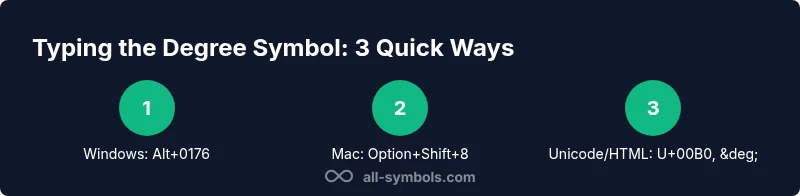
Windows (Alt code with NumPad): Hold NumLock, press Alt, type 0176 on the numeric keypad, then release Alt. If you don’t have a numeric keypad, use the Windows on-screen keyboard or copy-paste from a symbol picker.
-
macOS (Option + Shift + 8): Simultaneously press Option and Shift and press 8. If your keyboard layout lacks this, open the Emoji & Symbols viewer and search for degree.
-
Linux (Compose key or Unicode): If you have a Compose key configured, press it followed by a, o, and then o to form °. Alternatively, press Ctrl+Shift+u, type 00b0, then Enter to insert the character.
-
iOS and iPadOS (long-press on 0): On many mobile keyboards, long-press the 0 key to reveal the degree symbol; select it from the popup.
-
Android (long-press on 0 or use symbol key): Similar to iOS, long-press the 0 key or use the dedicated symbols panel to insert °.
-
Why these work: Alt codes rely on the system’s code page and numeric keypad, while Unicode and symbols viewers provide a universal path across apps when keyboard shortcuts fail. Always test in your target app since some programs override or strip certain input methods for security or formatting reasons.
Typing degree symbol in popular apps
Different applications offer distinct entry points for the degree symbol. Knowing a few per-app habits makes you faster and more accurate in everyday tasks.
-
Microsoft Word and PowerPoint: Use Insert > Symbol > More Symbols, locate the degree symbol, and insert it. You can also set AutoCorrect to replace a short trigger (like deg) with ° for faster typing. When formatting numbers with units, Word often preserves the degree glyph when you apply the normal font.
-
Google Docs and Sheets: In Docs, choose Insert > Special characters, then search for ‘degree’ or browse components; in Sheets, you can type ° directly if your font supports it, or use the same per-app symbol picker. Some users create custom shortcuts via Google Apps Script or the browser’s autocomplete features for speed, especially in dense data sheets.
-
LibreOffice and OpenOffice: Access Degree from Insert > Special Character, or define a keyboard shortcut in the Preferences panel. These suites emphasize cross-platform consistency, so the degree symbol should render identically across documents.
-
Code editors and IDEs: Most editors support Unicode input; you can insert ° using Alt codes on Windows or the Unicode input method on Linux/macOS. In many languages, you’ll see ° in string literals if you copy-paste from a reliable source or set your editor’s font to include the glyph. Ensure the file encoding is UTF-8 to prevent mojibake.
-
Web content and email clients: For web pages, remember the HTML entity ° or the numeric reference °. In emails, raw Unicode input is usually preserved, but some older clients may replace symbols, so include an HTML fallback when possible.
-
Accessibility tip: When degrees appear in images or charts, include descriptive alt text so screen readers can convey the meaning to users who rely on assistive tech.
Unicode and HTML entities
Understanding Unicode and HTML entities helps you insert ° across formats without dialing in a platform shortcut.
-
Unicode code point: U+00B0. This is the standardized numeric value for the degree symbol in modern text encodings and ensures compatibility across platforms when you type or paste ° into documents or websites.
-
HTML entities: Use ° or ° to render the degree symbol in HTML. These entities guarantee the symbol appears correctly in web pages, emails, and content management systems that process HTML.
-
LaTeX and math contexts: In LaTeX, the degree symbol is produced with a superscript circle, typically as ^{\circ}. In many math environments, using ° directly is acceptable if the font supports it. When typesetting, clarify whether the degree sign denotes temperature, angle, or a meteorological measure to avoid ambiguity.
-
CSS escape sequences: In stylesheets, you can encode the symbol as \00B0; this is helpful when embedding degrees into pseudo-elements or dynamic content generated by scripts.
-
Practical takeaway: Keep a quick reference of Unicode U+00B0 and HTML ° so you can toggle between plain text and rich formatting without losing the symbol.
Alternative methods: copy-paste, auto-correct, and macros
If you frequently insert the degree symbol, combine quick entry with automation to save time and reduce errors.
-
Copy-paste from a trusted source: Create a small cheatsheet document with ° and copy from it as needed. This is fast and reliable in environments with limited keyboard support.
-
AutoCorrect and text expansion: Configure Word, Google Docs, or your OS to replace a short trigger (like deg or o with a small circle) with the degree symbol. This is especially useful for repetitive technical writing.
-
Macros and hotkeys: For heavy users, set up keyboard macros (using AutoHotkey on Windows or FastScripts on macOS) to insert ° with a single keystroke. Keep your macros organized by context (temperature, geometry, chemistry) to avoid conflicts.
-
Clipboard managers: Some clipboard tools remember multiple entries; store ° as a quick-access snippet for fast retrieval across apps.
-
Important: When using macros, ensure they don’t conflict with existing shortcuts in your primary apps. Test in a safe document before applying broadly to avoid unintended insertions.
Troubleshooting common issues
Symbol input can fail for various technical reasons; knowing the common culprits helps you restore productivity quickly.
-
Font limitations: Some fonts don’t include the degree glyph. If ° displays as a box or missing glyph, switch to a font with broad symbol support (e.g., Arial, Liberation Sans, Noto). This is especially common in dashboards and embedded systems.
-
Encoding problems: If you paste ° and see a different glyph or a question mark, verify the document’s encoding (prefer UTF-8) and ensure the target platform supports Unicode.
-
Keyboard mismatch: On non-US layouts, Alt codes may produce different characters. If Alt+0176 yields something else, use the Unicode input method (Ctrl+Shift+u 00b0 on Linux) or the symbol picker.
-
Web rendering quirks: Some email clients or CMS editors strip special characters. In those cases, rely on HTML entities (°) or insert via a font that is consistently loaded with the page.
-
Accessibility and localization: When the degree symbol appears within images, ensure alt text describes the symbol. In languages where degrees are represented differently, confirm the local conventions for units and punctuation.
-
Quick fix checklist: test a few methods on your device, ensure UTF-8 encoding, and keep a fallback method like copy-paste ready for moments of low keyboard reliability.
Practical examples: temperatures, angles, and math
The degree symbol is everywhere in real-world writing, from weather reports to geometry and scientific notation.
-
Temperature: 37°C or 98.6 °F—note the space position and font choice depending on the style guide for your document. In many contexts, the degree symbol sits directly after the numeric value, without a space in metric systems, but some style guides prefer a space before the unit.
-
Angles and geometry: A right angle measures 90°, an acute angle may be 30° or 45°. In diagrams, the degree label is often placed near the vertex, with the symbol sized to match the surrounding text.
-
Geographic coordinates: Latitude 40.7128° N, longitude 74.006° W. When writing coordinates, keep the degree symbol clear and consistent with the directional indicators.
-
Academic writing: When citing a range or a measurement, maintain uniform formatting: 0° to 90°, and avoid mixing degrees with minutes or seconds unless your field requires it.
-
Practical exercise: draft a short paragraph about a temperature trend and include ° in multiple contexts to reinforce your muscle memory across devices and apps.
Accessibility and localization considerations
Consider how readers with assistive technologies will encounter the degree symbol. Clear, semantic markup and descriptive alt text help screen readers convey the meaning accurately.
-
Screen reader behavior: Most readers announce ° as ‘degree’ or ‘degree symbol’ when encountered in text. Ensure this is consistent with your overall localization strategy.
-
Localization best practices: Some languages use different symbols or punctuation around units, so follow local conventions and style guides when preparing multilingual content.
-
Alt text and image captions: If degrees appear in figures, include concise captions that explain what the symbol represents (temperature, angle, etc.). For charts, use a legend or inline annotation that preserves meaning without overloading the visual.
-
Summary: Accessibility and localization considerations are essential to ensure everyone can interpret degrees correctly, across devices and contexts.
Practice drills and quick tips
Sharpen your degree symbol skills with short, repeatable exercises you can do in 10 minutes.
-
Drill 1: On your primary device, insert ° five times in a paragraph using at least three distinct methods (keyboard shortcut, Unicode input, and copy-paste).
-
Drill 2: In a Word or Docs document, set up AutoCorrect so typing deg instantly yields ° and test it with a short sentence.
-
Drill 3: In a code file, insert ° in a string literal using Unicode escape if applicable to your language, and verify that the file remains UTF-8 encoded.
-
Drill 4: Create a tiny chart caption with temperatures and angles, ensuring consistency in spacing and symbol placement across the document.
-
Pro tip: Save a small “symbol cheatsheet” on your device and refer to it when you’re in a rush. Warming up with quick tasks improves accuracy over time.
Getting ready for future-proof typing
As technology evolves, degree symbol input remains a robust skill because the glyph is standardized across platforms and fonts. Build a small toolkit that includes a preferred Windows Alt code, a Mac shortcut, and a Unicode entry you can rely on. This approach keeps you productive in word processing, data analysis, and coding environments where the degree symbol may appear in different formats or with different spacing rules.
- Final reminder: Practice using your top 3 methods on all devices you use regularly. Consistency beats hunting for the symbol in menus every time.
Tools & Materials
- Windows PC with numeric keypad(Enable NumLock; press Alt+0176 on the numeric keypad)
- Mac computer with keyboard(Use Option+Shift+8; if layout differs, use Emoji & Symbols viewer)
- Unicode input option(Ctrl+Shift+u then 00B0 then Enter (Linux) or equivalent in other apps)
- Text editors and word processors(Supports Unicode and HTML entities; test in your target app)
- Mobile devices (iOS/Android)(Long-press 0 or use the symbols panel to insert °)
Steps
Estimated time: 15-25 minutes
- 1
Identify your platform
Determine whether you’re on Windows, macOS, Linux, or a mobile device. The degree symbol input method depends on the platform and the keyboard you’re using.
Tip: If you’re unsure, start with the Windows Alt code as a baseline because it works on many systems. - 2
Choose a primary input method
Pick the method you’ll rely on most (e.g., Alt code on Windows or Option+Shift+8 on Mac). This creates a consistent workflow for daily tasks.
Tip: Keep a secondary method in mind in case your primary shortcut stops working. - 3
Enter the degree symbol
Execute the chosen shortcut or Unicode sequence to insert ° into your document. Verify the glyph appears correctly without extra spaces.
Tip: If it appears as a placeholder, switch fonts or enable UTF-8 encoding. - 4
Test across apps
Paste the symbol into different programs (Word, Docs, Sheets, text editors) to ensure compatibility and consistent rendering.
Tip: Some apps sanitize input; use HTML entities for web content if needed. - 5
Set up a quick fallback
Store ° in a clipboard manager or set up a text expansion rule to reduce keystrokes in high-volume work.
Tip: Choose a short trigger that won’t collide with other shortcuts. - 6
Document your method
Write a short note in your workflow about the preferred method and its steps so teammates can reproduce it.
Tip: A shared guide minimizes mis-typing in collaborative projects. - 7
Review for consistency
Ensure every appearance of degrees uses the same symbol and spacing within a document or dataset.
Tip: Consistency improves readability and reduces misinterpretation. - 8
Stay updated on fonts and encoding
If you switch fonts or work with new editors, recheck that ° remains resolvable and correctly spaced.
Tip: UTF-8 is the default safe encoding in modern editors.
Questions & Answers
What is the degree symbol?
The degree symbol denotes degrees of measurement, such as angles or temperature. It is written as a small circle ° and used across science, math, and everyday notation.
The degree symbol is the small circle used for degrees of measurement.
What is the easiest Windows shortcut?
Use Alt+0176 on the numeric keypad (with NumLock on) to insert °. If you don’t have a keypad, copy-paste from a symbol picker.
Press Alt+0176 on the numeric keypad to insert the degree symbol.
How do I type ° on a Mac?
Press Option+Shift+8 to produce °. If unavailable, open the Emoji & Symbols viewer and search for degree.
Option+Shift+8, or insert from the symbols viewer.
Is there a Linux method?
Yes. Use Ctrl+Shift+U, type 00B0, then Enter; or configure a Compose key for °.
Ctrl+Shift+U, then 00B0, then Enter.
Can I auto-insert ° in Word?
Word supports Insert > Symbol and AutoCorrect replacements to insert ° automatically.
Use Word's Symbol dialog or AutoCorrect.
What about web content?
For web pages, use ° or ° to ensure reliable rendering across browsers and devices.
Use the HTML entity ° or the numeric reference.
Watch Video
The Essentials
- Master Windows Alt+0176 and Mac Option+Shift+8 shortcuts.
- Use Unicode U+00B0 and HTML ° for web contexts.
- Keep a quick copy-paste method handy.
- Apply app-specific inserts for Word or Docs.
- Adopt the simplest platform shortcut for consistency, per All Symbols.