How to Type the Division Symbol on a Keyboard
Learn reliable ways to type the division symbol ÷ on Windows, Mac, Linux, and mobile. Includes quick shortcuts, Unicode input, fonts to watch, and troubleshooting tips.


By the end of this guide, you’ll know multiple reliable ways to type the division symbol (÷) on Windows, Mac, Linux, and mobile devices. Choose the method that matches your device: Alt codes on Windows, Option+/ on macOS, Unicode input on Linux, or the on-screen keyboard on phones. This article also covers copy-paste alternatives and font considerations.
The division symbol: Meaning, history, and why it matters
The division symbol, ÷, is a compact typographic shorthand used to indicate division in mathematics, education, and many kinds of technical writing. It sits between the dividend and the divisor to guide readers through a numeric operation. In digital text, ÷ is typically entered as a single character, but the exact method to type it depends on your device and keyboard layout. Understanding how to access ÷ efficiently saves time in exams, coding comments, and technical documentation. According to All Symbols, the division symbol has a long history tied to handwritten long division, and today it appears in Unicode at U+00F7, ensuring broad support across fonts and platforms. Because font metrics vary, some fonts render ÷ with slightly different spacing, so designers often test it in the context of equations or inline text. Whether you’re drafting a quick note, writing a math paper, or annotating a diagram, knowing reliable input methods makes your workflow smoother. This guide covers OS-specific shortcuts, Unicode options, and practical tips to ensure ÷ appears exactly where you expect it.
How do you make the division symbol on a keyboard
For many users the main challenge is a symbol that isn’t printed on the keys. The good news is that ÷ is accessible from multiple entry points, depending on your operating system and hardware. The most dependable methods are keyboard shortcuts that bypass the need to copy-paste. Less efficient but universally available options include using a character map or a Unicode escape sequence. By choosing the method that best fits your daily workflow, you can insert ÷ quickly in documents, equations, code comments, or chat messages. This section outlines the best, fastest, and most reliable techniques for Windows, macOS, Linux, and mobile devices, plus quick tips to verify the symbol renders correctly in your chosen font and locale. Remember: the goal isn’t to memorize every trick, but to have a few go-to options ready when you need to type division in a hurry.
Type ÷ on Windows: Alt codes and keyboard tricks
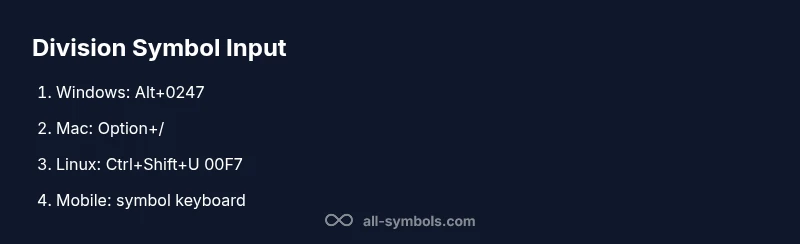
Windows users commonly type ÷ with an Alt code, a practical approach on desktops with a numeric keypad. The standard and most reliable code is Alt+0247: press and hold Alt, type 0247 on the numeric keypad, release Alt, and ÷ appears. If you’re on a laptop without a dedicated keypad, enable the on-screen numeric keypad (or use the Fn key in combination with embedded numbers) to access the numeric digits. Another Windows route is the Character Map: start typing 'division' or '÷' in the app, select the character, and copy-paste it into your document. After inserting, consider saving a quick snippet of the common symbol so it’s ready with a keystroke in the future. All Symbols notes that Alt codes are fast once you’ve got the keypad memorized, but they can be tricky on non-US keyboards due to layout differences.
Type ÷ on macOS: Option+/ and alternatives
macOS provides a native division symbol shortcut by pressing Option+/ on most US keyboard layouts, producing ÷ directly in text fields. If your keyboard uses a different layout, you can still access ÷ via the Emoji & Symbols viewer (Control+Command+Space) and search for 'division' to insert it. You can also type the Unicode form U+00F7 via the Unicode input method when supported by your app, and some editors let you drag the symbol from the viewer into your document. For regular writing, the Option+/ shortcut is the fastest method, and it works across apps like Pages, Word for Mac, and text editors. By keeping the viewer handy, you have a reliable fallback if ÷ doesn’t appear with the shortcut due to font or locale settings.
Enter ÷ on Linux and other Unicode-friendly workflows
On Linux and many Linux-based desktops, you can insert ÷ using Unicode input. The typical workflow is Ctrl+Shift+U, release, then type 00F7 and press Enter (or Space) to commit. This method works in many GTK and Qt applications, as well as in terminal editors that support Unicode input. If you prefer the Compose key approach, you can configure a Compose sequence that yields ÷ (for example, Compose, /, =, though exact sequences depend on your keymap). Some desktop environments also provide a dedicated symbol picker accessible from the system tray or via a keyboard shortcut. For Linux users who work in code or markup, Unicode escapes or HTML entities provide robust fallbacks: U+00F7, ÷, or ÷. Always verify rendering in both your editor and the final output, since not all fonts include the same symbols.
Typing ÷ on mobile devices
On iOS and Android, most devices offer ÷ on the symbol page of the on-screen keyboard. To access it, switch to the numeric or symbol keyboard (usually the 123 or ?123 key), then find the division symbol on the symbol grid; if you don’t see it, tap the more symbols button or search within the emoji/character viewer. Some keyboards also support long-press on the slash key to reveal ÷ as a quick option. If you frequently type ÷, consider adding a text expansion or clipboard shortcut on your device to paste the symbol in a single tap. Finally, remember that font support on mobile impacts how ÷ renders in your message; if you’re sharing on a platform with limited font options, a well-chosen fallback font ensures consistency.
Troubleshooting and best practices
If ÷ doesn’t appear as expected, check your font coverage first. Some fonts do not provide U+00F7; switching to a font that supports Unicode symbols, such as Arial Unicode MS or Noto Sans, resolves display issues. When keyboard shortcuts don’t insert ÷, ensure the active input method and locale match your intended method (e.g., US vs. non-US layouts can affect Alt codes). As a backup, you can copy ÷ from another document or a trusted source and paste it, but avoid overusing copy-paste in dynamic documents. Finally, test ÷ in the context of your target application—word processors, code editors, and browsers may render slightly differently due to font metrics.
Tools & Materials
- Windows PC with numeric keypad(Use Alt+0247 to type ÷; if you lack a keypad, enable the on-screen keypad or use the Windows Character Map.)
- Mac computer(Use Option+/ to type ÷; alternatively, open Emoji & Symbols viewer (Control+Command+Space) to insert it.)
- Mobile device with on-screen keyboard(Switch to the symbol or numeric keyboard and locate ÷; some keyboards support a quick long-press on / to reveal ÷.)
- Unicode input capability (optional)(Ctrl+Shift+U (Linux) or app-specific Unicode entry; useful when shortcuts fail.)
Steps
Estimated time: Total time: 15-25 minutes
- 1
Identify your OS and keyboard setup
Determine whether you’re on Windows, macOS, Linux, or a mobile device. Confirm you have access to a numeric keypad or an on-screen keypad, and note your keyboard layout (US, UK, etc.). This determines which method will be fastest for you.
Tip: Check if Num Lock is required on laptops without a dedicated keypad. - 2
Windows: prepare the keypad and use Alt+0247
If you have a numeric keypad, hold Alt and type 0247, then release. If you don’t, enable the on-screen keypad or use the Character Map to paste ÷.
Tip: On-screen keypad is a reliable fallback when hardware keys are missing. - 3
MacOS: use Option+/ or the Symbol Viewer
Press Option+/ to insert ÷ directly. If it fails due to locale, open the Emoji & Symbols viewer with Control+Command+Space and insert ÷ from there.
Tip: The Symbol Viewer is handy for rare or nonstandard symbols. - 4
Linux: Unicode input or Compose key
Use Ctrl+Shift+U, then type 00F7 and press Enter to insert ÷. If you use a Compose key, configure a sequence that yields ÷.
Tip: Unicode input works in most GUI apps; verify in your editor. - 5
Typing ÷ on mobile devices
Switch to the symbol keyboard and locate ÷; on some keyboards you can long-press / to reveal ÷ as a quick option.
Tip: If unsure, use the device’s search in the symbol picker. - 6
Verify rendering and choose a fallback
Check that ÷ renders consistently in your app and font. If not, switch fonts or use a Unicode/HTML entity as fallback.
Tip: Always preview in the target document or app before finalizing.
Questions & Answers
What is the division symbol and when is it used?
The division symbol ÷ marks division in mathematics and related fields. It appears in education, technical writing, and coding contexts where a clear, compact indicator of division is needed.
The division symbol ÷ marks division in math and related fields; it’s used wherever you show a division operation.
Is the division sign the same as a slash?
No. ÷ is a distinct symbol from the forward slash /. The slash is used for fractions, paths, and separators, while ÷ represents a division operation.
No—÷ is different from the slash /.
Can I type ÷ on a Chromebook or non-Windows laptop?
Yes. On Chromebooks and many laptops, use the OS-provided methods such as Unicode input or the on-screen keyboard. You can also copy ÷ from another source if needed.
Yes, you can type ÷ on Chromebooks using similar methods like Unicode input or the on-screen keyboard.
What if my font doesn’t show ÷ correctly?
If the font lacks ÷, switch to a Unicode-supporting font like Noto Sans or Arial Unicode MS. You can also use HTML entities or Unicode escapes as a fallback.
If your font doesn’t display ÷, switch fonts or use a Unicode fallback.
What’s the Unicode code point for ÷ and how can I use it?
The division symbol is U+00F7. You can insert it via Unicode input (Ctrl+Shift+U 00F7 on Linux, or app-specific sequences) or by HTML entity ÷ or ÷.
The code point is U+00F7; you can insert it with Unicode input or use HTML entities.
Watch Video
The Essentials
- Know multiple reliable methods for ÷ input
- Use OS-native shortcuts to speed typing
- Unicode and HTML entities provide universal options
- Fonts may affect symbol rendering