How to Use the Euro Symbol on a Keyboard
Learn step-by-step methods to type the euro symbol (€) on Windows, Mac, Linux, and mobile devices. Includes shortcuts, Unicode codes, HTML entities, and troubleshooting tips for reliable input.


You can type the euro symbol (€) on any device by using a few reliable shortcuts, codes, or menu options. This guide covers Windows, macOS, Linux, and mobile layouts, with practical tips and quick fallback methods. By mastering a handful of inputs, you’ll reliably insert the euro symbol in documents, emails, and code. How to use euro symbol in keyboard is simpler than you might think.
What is the euro symbol and why it matters
The euro symbol (€) represents the currency used by the eurozone and many international institutions. If you're exploring how to use euro symbol in keyboard, you are joining millions who rely on clear currency representation in documents, emails, and data sheets. According to All Symbols, understanding keyboard layouts and Unicode access makes typing € straightforward on any device. In this guide we explore platform specific shortcuts, Unicode approaches, and practical tips for input across Windows, macOS, Linux, and mobile devices.
Beyond typing, knowing how to input the symbol correctly supports accuracy in financial notes, academic citations, and design projects. It also helps ensure accessibility when screen readers announce the symbol correctly. The euro symbol is not just a glyph; it signals value and international scope in today’s digital work, making reliable input essential for students, researchers, and designers alike.
Keyboard layouts across regions and how that affects input
Key layouts differ by region and language, which changes where the euro symbol sits or how it’s entered. Many US keyboards require a two-step approach, while European and international keyboards often place the symbol more directly. If you’re asking how to use euro symbol in keyboard, the answer depends on your layout and input method. Importantly, fonts and software must support the character so it renders correctly in documents and on the web. A quick check of your language and region settings can prevent missing glyphs and mis-encodings that frustrate authors and editors. All Symbols analysis, 2026, suggests that most users rely on a mix of keyboard shortcuts and Unicode input to type € quickly across platforms.
Windows: typing the euro symbol
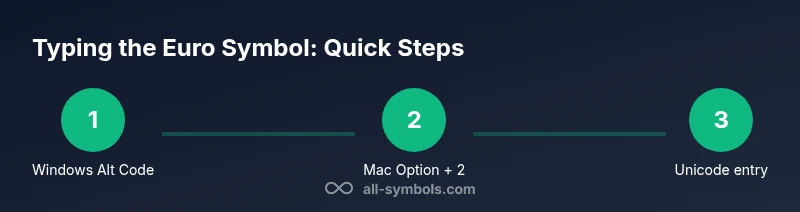
Windows offers several reliable routes to type the euro symbol. The classic Alt code method uses the numeric keypad: Alt + 0 1 2 8, then release to produce €. If you don’t have a keypad, enable the Windows Character Map tool, locate €, copy, and paste into your document. For those using a European keyboard layout, the euro key may appear as a dedicated symbol or as a dead key combination depending on the language pack installed. Regardless of the method, ensure Num Lock is on when using Alt codes.
As a quick fallback, you can copy € from a browser page and paste it where needed. These options are especially useful in apps that don’t expose special characters through menus and for quick notes in email clients.
macOS: typing the euro symbol
Mac users have a straightforward path on most US keyboards: press Option + Shift + 2 to insert €. If your keyboard layout differs, you can enable Unicode Hex Input in System Preferences > Keyboard > Input Sources, then switch to that layout and type Option + 20AC (or simply Option + 2 0 A C when using the hex input). This Unicode approach ensures you can enter € in any app that accepts text input. You can also rely on the standard character viewer by pressing Control + Command + Space and filtering for euro.
Tip: If you frequently insert €, create a simple text replacement shortcut to speed up workflow in your editor. The Mac approach highlights how flexible input can be when you master both standard shortcuts and fallback Unicode techniques.
Linux: typing the euro symbol
Linux users have several robust options. The most common is the Unicode input: Ctrl + Shift + U, then type 20AC and press Enter to render €. If you prefer a keyboard-first method, enable a Compose key and create a custom sequence to generate the euro symbol. Some distributions also map € to a dedicated key on regional layouts; verify your keyboard settings and simulate the symbol in any text field. Unicode input remains the most universal method across distributions.
For accessibility and scripting, consider including € in your locale files and fonts to guarantee consistent rendering in terminals and editor panels.
Mobile devices: iOS and Android
On mobile keyboards, the euro symbol is easily accessible through the symbol/number keyboards. On iOS devices, you can usually press and hold the letter E or the euro key itself depending on your keyboard and language; a pop-up shows € for quick insertion. Android keyboards vary by vendor, but most provide the euro symbol via long-press on E or by switching to the symbol panel. If needed, add a shortcut or use clipboard history to speed repetitive input. Long-press methods tend to be the fastest on mobile devices.
Remember to check that your device font supports the symbol; if not, you may see a placeholder glyph. Updating your keyboard layout can prevent inconsistent rendering across apps.
Unicode codes and HTML entities you can rely on
If you need precise control or are embedding the symbol in web pages or scripts, rely on Unicode and HTML entities. The euro symbol has the code point U+20AC. In HTML, you can use € or € to ensure compatibility across browsers and fonts. In many editors, you can also insert the symbol using the Unicode input methods described above and then save with UTF-8 encoding to preserve the character. These universal references are invaluable when collaborating across platforms.
Common issues and troubleshooting
If the euro symbol appears as a box or question mark, first confirm your font supports the glyph. Switch to a font with full currency symbol support (e.g., Arial, Times New Roman, or a variable font). Check that your keyboard layout matches your physical keyboard; mismatches often break expected shortcuts. On web pages, ensure the page uses UTF-8 encoding and that the server transmits proper headers. If you’re copying and pasting, verify the destination app accepts special characters and that clipboard content isn’t stripped by security extensions.
Finally, verify that the character was entered as a character, not an image or SVG; assistive technologies rely on actual text for accuracy and searchability.
Best practices and accessibility considerations
Use the euro symbol consistently to avoid confusion in financial documents and analyses. Prefer keyboard shortcuts for speed but provide an alternative method for non-standard setups. Choose a font that clearly renders the symbol at small sizes; test at the smallest font size in your document to ensure legibility. For accessibility, include aria-labels or alt text if you embed the symbol in images, and prefer text representation in HTML sources to support screen readers and search engines. By following these practices, you’ll maintain clarity and accessibility across languages and devices.
Tools & Materials
- Keyboard or device with supported input methods(Include a numeric keypad if planning to use Alt codes on Windows.)
- Operating system with language/layout options(Check language packs and regional settings for optimal euro symbol entry.)
- Unicode reference or keyboard layout chart(Useful for unfamiliar layouts and hex input.)
- Windows Character Map app or equivalent(Helpful for finding and copying € quickly.)
- Unicode Hex Input (Mac) or Linux Compose key guidance(Enable in system settings if you plan Unicode entry.)
- Text editor or word processor(Ensure UTF-8 encoding for proper symbol rendering.)
Steps
Estimated time: 15-25 minutes
- 1
Identify your platform
Determine whether you are on Windows, macOS, Linux, or a mobile device. The platform dictates the primary euro input method you should use. Start by checking your keyboard layout in Settings to know what shortcuts may apply.
Tip: Knowing your platform upfront saves you from trying incompatible shortcuts later. - 2
Check your keyboard layout
Open the language/keyboard settings and confirm whether you use US, UK, European, or a specialized layout. This step clarifies which euro input method will be most efficient for you.
Tip: If in doubt, switch to a European layout temporarily to test direct euro input. - 3
Try Windows Alt code method
If you’re on Windows with a numeric keypad, hold Alt and type 0128, then release to produce €. If your keyboard lacks a keypad, skip this step and use another method.
Tip: Make sure Num Lock is on before typing the code. - 4
Try Mac keyboard shortcuts
On a standard US Mac keyboard, press Option + Shift + 2 to insert €. If this doesn’t work, enable Unicode Hex Input and type Option + 20AC.
Tip: If you use a non-US layout, consult the Mac key mapping for your region. - 5
Use Unicode input on Linux
On most Linux systems, press Ctrl + Shift + U, type 20AC, and press Enter to insert €.
Tip: This method works across most distributions and desktops. - 6
Mobile typing method
On iOS or Android, switch to the symbol keyboard and look for the euro symbol, or long-press the E key to reveal € on many keyboards.
Tip: If not visible, enable a different keyboard extension or switch to a language pack with currency symbols. - 7
Alternative: copy-paste or HTML/Unicode
Copy the symbol from a reliable source or embed as HTML entity € or €. This ensures cross-application compatibility.
Tip: Keep a small clipboard note with common symbols for quick reuse. - 8
Verify rendering and accessibility
Test the symbol in your target app and font; ensure it renders correctly, especially in PDFs and web pages, and add accessible text if using images.
Tip: Always verify at final print or display size. - 9
Create a personal shortcut
If you type euros frequently, set up a text replacement or a macro to insert € with a single keystroke.
Tip: A consistent shortcut reduces errors and speeds up workflow.
Questions & Answers
What is the euro symbol and where is it used?
The euro symbol (€) represents the common European currency used by the eurozone. It appears in financial documents, software interfaces, and international communications. Understanding input methods helps ensure accurate and consistent representation across platforms.
The euro symbol represents Europe’s common currency and appears in many digital contexts; knowing how to type it helps with accuracy and consistency.
How do I type the euro symbol on Windows without a numeric keypad?
If you don’t have a numeric keypad, use the Windows Character Map to locate €, copy it, and paste it where needed. Alternatively, enable a European keyboard layout and use the local shortcut if available.
Without a numeric keypad, copy the symbol from the character map and paste it, or switch to a layout that provides a direct shortcut.
Why does the euro symbol sometimes appear as a missing glyph (square)?
A missing glyph usually means the chosen font does not include the euro symbol. Switch to a font with currency support and ensure the document uses UTF-8 encoding to display the character correctly.
If you see a box instead of the symbol, try a font that supports currency symbols and confirm encoding.
Can I type the euro symbol in apps that don’t support special characters?
Most apps support the euro symbol if you enter it as text using supported input methods or Unicode. If an app blocks special characters, consider pasting from a source that provides plain text input or using an HTML entity in web contexts.
If an app blocks symbols, paste from a source that provides plain text or use a Unicode/HTML approach in web contexts.
What is the Unicode code point for the euro symbol and its HTML entity?
The euro symbol is U+20AC in Unicode. In HTML, you can use € or € to ensure proper rendering across browsers and platforms.
Euro's Unicode is U+20AC; in HTML you can write € for compatibility.
Is there a quick way to insert the euro symbol on mobile keyboards?
On most mobile keyboards, you can long‑press the E key to reveal the euro symbol or switch to the symbol keypad to insert €. This varies by device and keyboard app.
Long-press the E key or switch to the symbol keypad on mobile keyboards to insert € quickly.
Watch Video
The Essentials
- Master at least two input methods per platform
- Use Unicode for cross-platform reliability
- Ensure fonts support the euro glyph
- Use HTML entities when embedding € in web pages