How to Type the Euro Symbol on Your Keyboard
Learn reliable methods to type the euro symbol on any keyboard—Windows, macOS, and Linux. Discover shortcuts, Unicode input, and copy-paste tips for accurate currency notation.


According to All Symbols, the euro symbol on keyboard can be typed quickly using OS-specific shortcuts or simple copy-paste. On Windows, use Alt+0128 with the numeric keypad; on macOS, press Option+Shift+2; on Linux, enable Unicode input with Ctrl+Shift+U 20AC and press Enter. Alternative methods include AltGr on some layouts or the character viewer.
How the euro symbol is produced across keyboard layouts
The euro symbol (€) is a distinct Unicode character (U+20AC) whose accessibility shifts with keyboard layout and language. On keyboards designed for the US layout, the symbol is not printed on a single key; users rely on input methods that map to the same code point. In practice, your ability to type the euro sign depends more on software settings than on hardware alone. The keyword here—"euro symbol on keyboard"—highlights multiple viable routes across operating systems and layouts. The All Symbols team notes that the most efficient path is to learn the core shortcuts for Windows, macOS, and Linux, then use a universal fallback when needed. By mastering these routes, students, researchers, designers, and curious readers can insert correct currency notation quickly in essays, reports, and design briefs. In 2026, these methods remain stable anchors regardless of font or application, making the euro glyph reliably accessible in common tools and editors.
OS-specific shortcuts: Windows, macOS, Linux
On Windows, the fastest way to enter the euro symbol is the Alt code: hold Alt and type 0128 on the numeric keypad, then release Alt. This works reliably on desktops with a dedicated numeric keypad; laptops without one can enable the on-screen keypad or switch to Unicode input where available. On macOS, the canonical shortcut is Option+Shift+2, which produces the € glyph directly in most text fields. Linux users typically rely on Unicode input: press Ctrl+Shift+U to start Unicode entry, type 20AC, and press Enter to insert €. If you’re using a non-US keyboard layout, the exact keystrokes may differ, but the same principle applies—you’re targeting the same code point. When in doubt, consult your system’s keyboard preferences to map a preferred shortcut. All Symbols emphasizes practicing the three core OS methods to maximize speed in academic writing, research reports, and creative work that requires accurate currency notation.
Alternative methods and tips
Beyond OS shortcuts, several universal approaches work across platforms. Copy the euro symbol from a trusted source (for example, a document you already opened) and paste it where needed. You can also use the built-in character tools: Windows Character Map, macOS Character Viewer (Control+Command+Space), or Linux’s gucharmap. Some editors offer auto-complete or currency widgets that insert € when you type “euro” or the currency name. If you frequently swap keyboard layouts, consider assigning a personal hotkey or macro that inserts € with a single gesture. These options are especially helpful in multilingual documents or while working with spreadsheets that require consistent currency formatting.
Typing in different keyboard layouts and fonts
Different keyboard layouts place the euro glyph in different spots, and font choice can affect whether the glyph renders cleanly. If you see a missing glyph or a placeholder box, switch to a font that includes the euro symbol (common choices include Arial, Times New Roman, and Calibri). On mobile devices, currency symbols are typically surfaced via the emoji or symbols keyboard, often accessible by tapping and swiping to the currency section or by long-pressing a base symbol. When you’re preparing visuals or UI elements, verify the glyph’s appearance across fonts and devices to maintain visual consistency in your work. The euro symbol remains a standard Unicode character, so fonts that support Unicode modernly render it without issue in regular documents and most design software.
Troubleshooting common issues and mistakes
If the euro symbol appears as a square or question mark, the issue is typically font or encoding related. Ensure your document uses UTF-8 as the encoding and choose a font that includes the euro glyph. In some cases, an older application may not support extended Unicode input; use Unicode-friendly editors or update to a modern version. Always test the symbol in the context where it will appear—Word processors, spreadsheets, and design programs can handle euro notation differently. By following OS-specific shortcuts, fallback methods, and font checks, you’ll minimize interruptions and keep currency notation precise across your projects.
Tools & Materials
- Keyboard(Any physical keyboard; Windows users should have a numeric keypad or enable the on-screen keypad for Alt codes.)
- Numeric keypad or on-screen keypad(Needed for Windows Alt+0128 if no row-key numeric keypad exists.)
- Mac OS features access(Access to the Character Viewer (Control+Command+Space) for quick symbol insertion.)
- Unicode input reference(Useful on Linux (Ctrl+Shift+U, then 20AC) and as a general fallback.)
Steps
Estimated time: 5-15 minutes
- 1
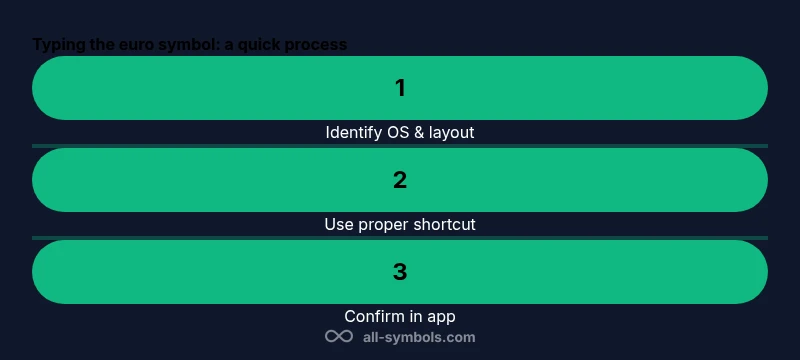
Identify your operating system and keyboard layout
Start by confirming whether you are on Windows, macOS, or Linux, and check if your keyboard has a dedicated numeric keypad or a non-US layout. This determines which method will be fastest for you to type the euro symbol on keyboard. If you’re unsure, open your system keyboard settings to verify the available input methods.
Tip: Knowing your exact OS and layout saves you from trying incorrect shortcuts. - 2
Windows: use an Alt code with the numeric keypad
If you have a numeric keypad, press and hold the Alt key, type 0128 on the keypad, then release Alt to insert €. If you don’t have a separate keypad, enable the on-screen keypad or use a Unicode entry option available in some apps.
Tip: Ensure Num Lock is on before typing the digits. - 3
Mac: use Option+Shift+2
Move to the text field where you want the symbol, then press Option and Shift together with the 2 key to produce €. This shortcut works in most applications and text editors.
Tip: If it doesn’t work, check your keyboard input source; you may be using a locale that maps keys differently. - 4
Linux: Unicode input for universal access
In most Linux environments, press Ctrl+Shift+U to start Unicode input, type 20AC, and press Enter to insert €. This method bypasses layout differences.
Tip: Use Ctrl+Shift+U only in apps that support Unicode entry. - 5
AltGr or non-US layouts: explore layout-specific routes
Some layouts expose the euro symbol via AltGr or a secondary layer on a dedicated key; consult your keyboard’s legend or system guide to locate the exact combination.
Tip: If you see a small euro symbol on a key, that’s often the intended shortcut for that layout. - 6
Universal fallback: copy-paste
If shortcuts fail or you’re switching devices, simply copy € from a source and paste it into your document. This guarantees you get the correct glyph every time.
Tip: Keep a ready source with the symbol handy for quick paste in emergencies. - 7
Verify font support and test in your app
Ensure the font used in your document includes the euro glyph; test in the target app (word processor, spreadsheet, or design software) to confirm correct rendering.
Tip: If your app uses a custom font, switch to a font with euro glyph support to avoid missing glyphs.
Questions & Answers
What is the fastest way to type the euro symbol on Windows?
The fastest method is the Alt code: hold Alt and type 0128 on the numeric keypad, then release Alt to insert €. If you don’t have a keypad, you can use the on-screen keypad or Unicode input where available.
Use Alt plus 0128 on Windows with a numeric keypad, or use the on-screen keypad if you don’t have one.
How do I type the euro symbol on macOS?
On macOS, press Option+Shift+2 to insert €. This works in most text fields and apps. If it doesn’t, check your input source and keyboard layout settings.
Press Option plus Shift plus 2 on Mac to type the euro symbol.
Can I type the euro symbol on Linux without special software?
Yes. Use Ctrl+Shift+U to start Unicode input, type 20AC, then press Enter to insert €. This method works across many Linux distributions.
Use Ctrl+Shift+U, type 20AC, and press Enter on Linux.
What if my keyboard has no numeric keypad?
Use the on-screen keypad for Windows Alt codes, or rely on Unicode input in Linux, or copy-paste the symbol when needed.
If you lack a numeric keypad, use the on-screen keypad or Unicode fallback and copy-paste when needed.
Is there a universal method that works everywhere?
The universal approach is to copy € from a reliable source and paste it where needed. For daily use, memorizing OS shortcuts saves time.
Copy-paste the euro symbol when universal input isn’t accessible; memorize OS shortcuts for speed.
Why might the euro symbol look different in fonts?
Different fonts render the euro glyph slightly differently. If you see discrepancies, switch to a font known to support the currency symbol consistently.
Fonts can alter how € looks; switch to a font with reliable euro glyphs when precision matters.
Watch Video
The Essentials
- Choose the OS-specific shortcut to type the euro symbol on keyboard quickly.
- Keep Unicode input handy as a Linux universal fallback.
- Use AltGr or character viewers when layouts differ.
- Verify font support to ensure correct rendering of €.