How to Use the Rupee Symbol in Keyboard
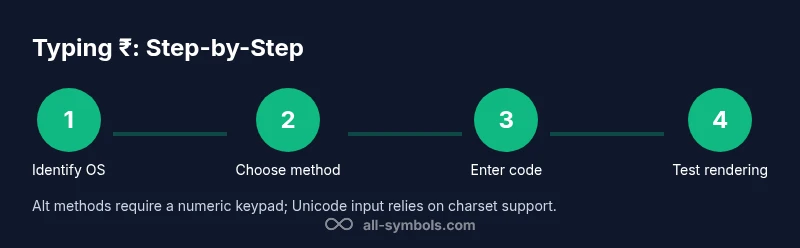
Learn practical methods to type the rupee symbol ₹ on Windows, macOS, Linux, and mobile devices. This step-by-step guide covers Unicode input, Alt codes, and copy-paste workflows for consistent rendering across fonts and apps.


This guide shows you how to use rupee symbol in keyboard across Windows, macOS, Linux, and mobile devices. It covers Unicode input, Alt codes, and easy copy-paste workflows, plus OS-specific shortcuts and best practices to ensure ₹ renders consistently in documents, slides, and dashboards.
Why the rupee symbol matters in today’s typography
The rupee symbol ₹ is more than a character; it’s a visual cue for currency identity used in finance, media, and education. For students, researchers, and designers, using ₹ consistently helps readers identify pricing, budgets, and data at a glance, without confusing it with Rs or other signs. In this All Symbols guide, we explore practical ways to use rupee symbol in keyboard workflows so you can focus on content rather than notation. When you type with reliable input across Windows, macOS, Linux, and mobile devices, your reports, slides, and data visuals look more polished and credible. The symbol also supports clearer internationalization, which matters for economics courses, cross-border projects, and global design systems. The goal is accessibility: ensure ₹ renders correctly on every platform and in every font your audience uses. If you’re wondering how to use rupee symbol in keyboard, this article provides step-by-step methods that work in common tools from word processors to dashboards. The All Symbols team has compiled these practical workflows to help students and researchers communicate with precision.
Keyboard layouts and symbol availability
Not all keyboard layouts show ₹ by default. On English US layouts, ₹ may require an input method switch or Unicode input. Indian layouts often place ₹ on a dedicated key or via the AltGr key. If your layout lacks the glyph, you can still insert ₹ by using Unicode input, copy-paste, or a custom shortcut. Designers and researchers should test the symbol in the fonts they use most, as font support varies widely. In all cases, ensure your document or design system uses a font that includes the rupee glyph, and consider providing fallback fonts. This ensures that readers see ₹ consistently across devices and apps. All Symbols emphasizes practical typing workflows to support clear symbol meanings in math, typography, and data visualization.
Using Unicode: codes and shortcuts
Unicode defines ₹ as U+20B9. In many editors you can type the code point and convert to the symbol. HTML users can use ₹ or ₹. Some environments require enabling a specific input mode. For best results, test both hex and decimal forms. This section explains how to use Unicode inputs across Windows, macOS, and Linux. The goal is to give you a library of reliable entry points that work in word processors, spreadsheets, and content management systems.
Windows keyboard shortcuts to type the rupee symbol
On Windows, you can insert ₹ via Unicode input or Alt codes. If you use the Alt code, you will likely need to use the numeric keypad and have Num Lock on. The process can vary by system locale and font. Always have a backup: copy-paste the symbol if the shortcut fails. In many corporate or classroom environments, keyboard settings may restrict certain inputs, so learning more than one method can save time.
macOS methods: Unicode Hex Input and beyond
Mac users can type ₹ by enabling Unicode Hex Input from System Settings > Keyboard > Input Sources and switching to that input. With Unicode Hex Input active, you can press Option + 20B9 to insert ₹. Alternatively, from the Emoji & Symbols viewer (Control + Command + Space), you can search for rupee and insert it directly. If you frequently switch between layouts, keep a small cheat sheet of methods handy. This approach minimizes layout-specific surprises when you collaborate across platforms.
Linux: Ctrl+Shift+U, Compose, and beyond
Linux users have flexible options: Ctrl+Shift+U then type 20B9 and press Enter to render ₹. If your environment uses a Compose key, you can configure a sequence that outputs ₹ with a simple keystroke. The exact steps may vary by desktop environment (GNOME, KDE) and font, so consult your distro’s documentation if the symbol doesn’t appear after input. Regardless of the method, test ₹ in your target applications (terminal, editor, browser) to ensure consistent rendering.
Typing rupee symbol on Android and iOS devices
On smartphones, the rupee symbol is typically available via the currency or symbol keyboards, or by long-pressing the Rs character and selecting ₹ from the pop-up. Some keyboards also let you add ₹ to your emoji or symbols subset for quick access. If you’re working in professional apps (docs, slides, design tools), verify that ₹ stays accessible after copy-paste and that the chosen font supports the glyph. Mobile workflows are often the fastest path to inclusion in notes and on-the-go reports.
Copy-paste and workflow consolidation
If you frequently switch devices or apps, maintaining a small clipboard snippet of ₹ can save time. Use copy-paste for sections with currency data to ensure ₹ is rendered consistently, especially in documents where font substitution might occur. Keep a reference sheet with the Unicode code point, HTML entity, and common keyboard shortcuts for quick lookup. In practice, multiple methods ensure you never stall at a critical moment when you need to present currency data clearly.
Tools & Materials
- Computer or mobile device(Windows, macOS, Linux, or iOS/Android)
- Keyboard with a numeric keypad(Needed for Windows Alt codes; ensure Num Lock is on)
- Unicode input support / input sources(Enable Unicode Hex Input on macOS or equivalent on other OS)
- Fonts that include ₹ glyph(Choose fonts with broad Unicode support (e.g., Noto, Arial Unicode))
- Clipboard or text editor(Useful for copy-paste workflows)
Steps
Estimated time: 20-40 minutes
- 1
Identify your OS and preferred method
Determine whether you’ll use Unicode input, Alt codes, or a keyboard shortcut. This choice affects which keys you’ll press and whether you need a special input source.
Tip: Start with Unicode or keyboard shortcut to minimize steps. - 2
Enable the necessary input method
Turn on the appropriate input method for your chosen approach (e.g., Unicode Hex Input on macOS, or an appropriate layout on Windows/Linux).
Tip: Verify the input source indicator in your OS bar. - 3
Type rupee symbol via Unicode
If you’re using Unicode input, switch to the Unicode-friendly layout and enter the code for U+20B9, then render ₹.
Tip: Use a reliable reference to confirm the exact hex code. - 4
Windows Alt code method
On Windows, hold Alt and type the decimal code on the numeric keypad to insert ₹, then release Alt.
Tip: Ensure Num Lock is on; use the numeric keypad, not the numbers on the top row. - 5
macOS Unicode Input method
Switch to Unicode Hex Input, hold Option and type 20B9, then release. The symbol will appear.
Tip: Remember to switch back if needed. - 6
Linux: Ctrl+Shift+U or Compose
Use Ctrl+Shift+U, then type 20B9 followed by Enter; or configure a Compose key to insert ₹.
Tip: Check your distro’s key bindings for accuracy. - 7
Typing on mobile
Use built-in currency symbols in your mobile keyboard or long-press to access ₹; add it to the emoji/search bar if needed.
Tip: Add ₹ to your frequently used symbols for faster access. - 8
Copy-paste option
If you’re unable to type ₹ quickly, copy it from a trusted source and paste where needed; ensure font support.
Tip: Keep a small clipboard note with ₹ for quick access.
Questions & Answers
What is the rupee symbol and where did it come from?
The rupee symbol ₹ was introduced to provide a unique typographic mark for the Indian rupee, combining Devanagari 'र' and Latin 'R'. It reflects modern typography and Indian identity in currency. It is standardized as U+20B9 in Unicode.
The rupee symbol is a modern typographic mark for India's currency, created to unify how ₹ is shown across devices; it is encoded as Unicode U+20B9.
Which fonts reliably include the rupee glyph?
Most modern fonts with broad Unicode support include ₹, such as Google’s Noto family and common sans fonts. However, some older or special fonts may lack the glyph. Always verify in the characters panel.
Many popular fonts include ₹, but some older fonts may miss it; check font support in your editor.
Why does ₹ render as a box on some systems?
A rendering box usually means the font family in use lacks the glyph. Switching to a font with ₹ support or embedding the symbol in your design resolves the issue.
If ₹ shows as a box, switch to a font with the glyph or embed the symbol.
Can I type ₹ without a numeric keypad?
Yes. Use Unicode input on supported systems, or on-screen keyboard and currency symbol features. Windows, macOS, and Linux provide alternatives beyond Alt codes.
Yes, there are Unicode and on-screen methods without a numeric keypad.
Is there a universal Windows shortcut for ₹?
There isn’t a universal shortcut; it depends on keyboard layout. You can use Alt codes, Unicode input, or copy-paste, depending on your setup.
There isn't a universal shortcut; use Alt codes or Unicode input depending on your setup.
Can I copy ₹ into Word, Excel, or Google Docs?
Yes. After typing or copying ₹, most editors will retain the symbol if the font supports it. If not, paste as an image or switch fonts.
Copy-paste ₹ into documents; ensure font support.
Watch Video
The Essentials
- Know multiple methods to type ₹ across platforms.
- Test font support to ensure consistent rendering.
- Keep Unicode shortcuts handy for quick work.
- Use copy-paste as a reliable fallback.