How to Use Symbols on Keyboard: A Practical Guide
Learn practical methods to type symbols on any keyboard, from direct keys to Alt codes and Unicode input, across Windows, macOS, Linux, and mobile keyboards. Tips, examples, and troubleshooting included.


You can type symbols on a keyboard using direct keys for common symbols, Alt codes on Windows, Unicode input on multiple platforms, or by switching to symbol-friendly layouts. This guide covers quick paths, platform-specific tricks, and best practices to insert symbols accurately across Windows, macOS, Linux, and mobile keyboards.
What counts as keyboard symbols and why it matters
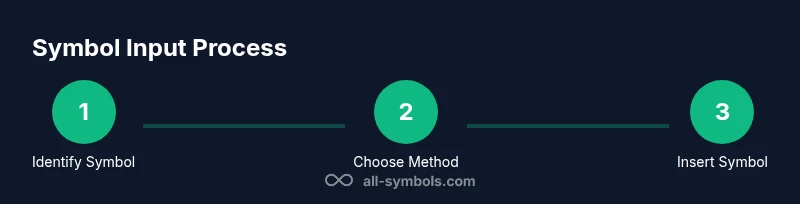
If you're learning how to use symbols on keyboard, understanding what qualifies as a symbol and where to find them on your device is the first step. Symbols include punctuation marks, mathematical signs, currency signs, arrows, and decorative glyphs that appear in software, fonts, and web pages. Knowing how to access them quickly saves time, improves readability, and helps you express nuance in writing, coding, and design. Across Windows, macOS, Linux, and mobile keyboards, you can insert many symbols using direct keys, short cuts, or input methods. In this guide you’ll learn reliable methods to insert symbols, plus tips to avoid missing characters due to font or layout issues. Start by identifying the symbol you need and the platform you’re on, then choose the most efficient method from the options below.
Direct symbol typing: the fastest way
Direct typing is the fastest route for symbols that have a dedicated key or can be produced by pressing Shift with a number key. On most QWERTY keyboards, you’ll access basic punctuation and a subset of symbols without leaving the home row. For example, you can type ! ? . , ; : by default, and many currency and math symbols appear with a Shift combination. However, not every symbol is present on every keyboard or language layout; some symbols live only in extended layouts or require special input steps. If speed is your goal, memorize a short list of your most-used symbols and practice their direct keystrokes until they become second nature. Remember that the exact keys vary by language and keyboard layout, so switch layouts if you work with multilingual content.
Alt codes and Windows specifics
Windows users often reach for Alt codes to type symbols not printed on the keyboard. The technique relies on the numeric keypad: hold Alt, type a code, then release Alt to insert the character. If you’re on a laptop without a numeric keypad, enable the built-in keypad (often via Fn) or use the on-screen keyboard. Alt codes work best when you know the code page used by your font; some applications may substitute glyphs if the font lacks a symbol. Common examples include Alt+0169 for ©, Alt+0128 for €, Alt+0153 for ™, and Alt+0174 for ®. For reliability, keep a small cheat sheet nearby and test each code in your target app. Alt codes are versatile but not universal across devices or fonts, so have a fallback method ready.
Mac users: Option and Unicode tips
Mac users have elegant, keyboard-friendly options. Start with the Emoji & Symbols viewer (press Ctrl+Cmd+Space) to insert thousands of symbols and pictographs. For longer symbol sequences, enable Unicode Hex Input in System Preferences > Keyboard > Input Sources, then type the hexadecimal code while holding Option. For example, Option+20AC produces the euro symbol €, Option+00A3 yields £, and Option+00B0 gives °. If you frequently type math or technical signs, consider adding a dedicated Unicode input method or a custom keyboard layout that maps the symbols you use most to simple shortcuts. Practicing a few common Option sequences will dramatically speed up typing.
Other input methods: Unicode, dead keys, and layouts
Linux and other open systems offer robust, language- and font-flexible ways to input symbols. In Linux, you can press Ctrl+Shift+U to enter a Unicode code point, then type the hexadecimal value and press Enter. This works in many GNOME and KDE applications. Dead keys are another option: press a base key followed by an accent key to compose characters with diacritics. If you work with multilingual content, install additional keyboard layouts (e.g., US-International, French, or German) and switch with a quick hotkey. These methods ensure you can render a wide range of symbols without relying on a single layout.
Practical symbol examples by category
- Currency and monetary signs: $, €, £, ¥
- Arrows and pointers: →, ←, ↑, ↓
- Mathematical and scientific signs: ∑, ∫, ∂, ∈
- Punctuation and decorative glyphs: •, –, —, ✓, ✗
- Copyright, trademarks, and legal marks: ©, ®, ™
- Common accessibility and notation marks: °, ±, §
Troubleshooting common issues
When symbols don’t appear as expected, the issue is often font support or encoding rather than input method. If a pasted symbol renders as a box, switch to a font that includes the character; ensure you’re using Unicode-capable software and the correct code point. Some apps lock fonts, or render glyphs differently at smaller sizes. If a symbol looks wrong after you paste, try an explicit Unicode input or switch to a compatible layout. Finally, verify you’re on the intended platform—the same Alt code can behave differently between Windows and macOS.
Best practices for consistency and accessibility
Choose one primary method per workflow and stick to it to avoid inconsistent glyph rendering. Maintain a short symbol cheat sheet for your team, including the symbol, its code (if applicable), and the recommended input method. Prefer high-contrast fonts and ensure your symbols render correctly in the final medium (print, web, or app). Consider accessibility: provide alternate text where symbols carry meaning and avoid relying solely on color or icons to convey information.
How to choose the right method for your workflow
Ask: Do you type these symbols daily? If yes, invest in a dedicated layout or Mac Unicode input; if not, rely on quick-access keys for frequent symbols and keep Alt codes handy for occasional needs. For mixed-language work, enable multiple layouts and learn quick-switch shortcuts. Always test the rendered output in your target apps and fonts, because symbol appearance can vary between platforms and devices.
Tools & Materials
- Keyboard and device(Any layout (US, UK, ISO) and a computer or mobile device)
- Operating system with symbol input support(Windows, macOS, Linux, iOS, or Android)
- Unicode reference chart or online resource(For hex codes and code points)
- Optional: multiple keyboard layouts(Useful for multilingual work)
Steps
Estimated time: Total time: 20-35 minutes
- 1
Identify the target symbol
Decide which symbol you need and confirm the platform you’re on. Some symbols are available as direct keys, others require a special input method. Clarifying the target saves time later.
Tip: Write down the symbol or keep a small reference sheet handy. - 2
Check direct keystrokes first
Scan your current keyboard layout to see if the symbol prints with a simple keystroke or a Shift combination. This is the fastest path and often covers most punctuation and common signs.
Tip: Practice a short list of your most-used symbols to speed up typing. - 3
Choose a fallback method if missing
If the symbol isn’t a direct key, decide between Alt codes, Unicode input, or a layout switch. Having a backup method reduces disruption.
Tip: Keep a cheat sheet of a few reliable codes or hex points. - 4
Enable the appropriate input method
For Windows, ensure the numeric keypad is active for Alt codes. For Mac, enable Unicode Hex Input or have the Emoji & Symbols viewer ready. For Linux, practice Ctrl+Shift+U input.
Tip: Test the method in the target app before working on a document. - 5
Insert the symbol
Perform the input sequence for your chosen method. Confirm the symbol appears in place and copy it as needed.
Tip: If you’re unsure, try a test line in a notepad or document editor first. - 6
Verify rendering in your document
Check that the symbol renders correctly across platforms and fonts. If it looks off, switch to a more compatible font or adjust the encoding.
Tip: Always preview on the final medium (web, print, app). - 7
Create a quick-access reference
Add your most-used symbols and methods to a cheatsheet for future use. This speeds up repetitive tasks and reduces mistakes.
Tip: Label each symbol with its input method and code. - 8
Review and refine your workflow
Periodically review which methods you use most and update layouts or shortcuts to optimize your process.
Tip: Share your cheatsheet with teammates to maintain consistency.
Questions & Answers
How can I type symbols on Windows without a numeric keypad?
You can use the on-screen keyboard or enable the numeric keypad via the Fn key on laptops. Alt codes still work with the on-screen keypad, or you can use the Windows Character Map as an alternative.
On Windows without a numeric keypad, use the on-screen keypad or the Character Map to insert symbols.
What is Unicode input and when should I use it?
Unicode input lets you type a character by its code point. It’s especially useful for rare or technical symbols not available as direct keys. Use platform-specific methods like Ctrl+Shift+U on Linux or Unicode Hex Input on macOS.
Unicode input lets you type any symbol by its code point when you have the hex value.
Can I type symbols on mobile keyboards effectively?
Yes. Most mobile keyboards include a symbol picker or emoji panel. For frequent symbols, you can create shortcuts or use the clipboard to paste symbols when needed.
Mobile keyboards have symbol pickers and shortcuts that make inserting symbols quick.
Why do symbols look different across programs?
Different fonts and font fallbacks can alter glyph design. Ensure the font supports the symbol, or switch to a more compatible font for consistent rendering.
Font support often determines how a symbol looks across apps.
Are there symbol-optimized keyboard layouts?
Some layouts prioritize symbol input (e.g., international layouts). You can also map frequent symbols to shortcuts within a custom layout for speed.
Symbol-focused layouts and custom mappings can speed up symbol input.
Is copying and pasting symbols acceptable for formal documents?
Copying symbols is generally fine, but ensure encoding and font compatibility in the target document. For formal work, prefer input methods that embed the symbol reliably.
Pasting symbols is usually fine, just check encoding and font support.
Watch Video
The Essentials
- Know your symbol input options across platforms
- Keep a quick-reference for frequent symbols
- Test rendering in your final medium
- Choose a primary method per workflow