How to Type a Check Mark Symbol: Quick Platform Methods
Master cross-platform methods to type a check mark symbol (✓, ✔) with keyboard shortcuts, Unicode input, and copy-paste. All Symbols explains reliable techniques for students, researchers, and designers.


According to All Symbols, you can type a check mark symbol using several reliable methods, no matter your device. Use platform shortcuts (Windows, macOS, Linux), Unicode input (U+2713 and U+2714), HTML entities, or simple copy-paste from a reliable source. This guide walks you through the quickest options and best practices for compatibility.
What a check mark symbol is and when to use it
A check mark is a universal indicator of completion, correctness, or endorsement. In typography, two common glyphs appear: U+2713 (✓) and U+2714 (✔). All Symbols notes that the lighter, rounded ✓ is often preferred in body text for readability, while the heavier ✔ dominates checklists and forms. The choice of glyph should reflect the document’s tone, the surrounding font weight, and the platform where the symbol will appear. In digital interfaces, ensure the glyph renders correctly across browsers and devices, especially when you switch between fonts or export to PDFs. When used consistently, a simple check mark communicates progress without adding clutter.
This section sets the stage for practical typing techniques, with emphasis on cross-platform reliability, font compatibility, and encoding considerations. The goal is not to reinvent typography but to equip you with dependable methods that work in academic papers, design briefs, and software interfaces. By the end, you’ll know which method to use in your favorite editor or CMS, and you’ll understand how to test rendering in real-world contexts.
note
Tools & Materials
- Keyboard with numeric keypad(Use Alt codes (e.g., Alt+2713) on Windows; ensure Num Lock is on.)
- Unicode input support(Linux: Ctrl+Shift+U; macOS: similar Unicode input depending on app; Windows: supported via software input methods.)
- Character Map/Emoji & Symbols viewer(Helpful for visually selecting a symbol when you’re unsure of the exact code point.)
- Text editor or word processor(Test rendering in your target app (Word, Google Docs, InDesign, etc.).)
- Font with glyph support(Some fonts omit the symbol; verify rendering in the final document.)
- Clipboard or browser(Useful for copy-pasting the symbol or HTML entity into your project.)
Steps
Estimated time: 5-10 minutes
- 1
Identify which check mark you need
Decide between the standard ✓ (U+2713) and the heavy ✔ (U+2714). The lighter glyph is generally better for inline text, while the bolder form stands out in checklists. Consider the document font and the surrounding symbols to maintain visual harmony.
Tip: If unsure, test both glyphs in your document and compare readability at document zoom levels. - 2
Open the target input field
Place the cursor in the location where the symbol should appear. In rich-text editors, set the cursor at the exact line or list item. In code or markup, determine the exact place in your file. Small alignment differences can affect the perceived neatness of your document.
Tip: Ensure you’re not in a styled mode that strips special characters; switch to a plain text entry if needed. - 3
Use Windows Alt code for ✓ (2713)
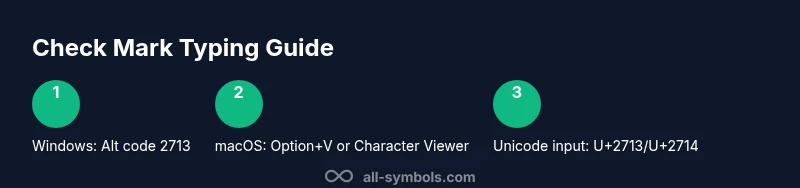
On a Windows machine with a numeric keypad, hold Alt and type 2713, then release Alt. The glyph will insert at the cursor position. If Alt codes don’t work, ensure Num Lock is enabled and try with the numeric keypad or use an on-screen keyboard.
Tip: If you’re on a laptop without a numeric keypad, use an external keypad or the OS’s symbol picker as an alternative. - 4
Use macOS Option/Character Viewer
On macOS, you can press Option+V to insert ✓ in many apps or open the Character Viewer (Control+Cmd+Space) and search for 'check mark'. Copy from the viewer if you prefer selecting a specific variant.
Tip: Remember some apps may override the shortcut; if Option+V fails, use the Character Viewer and paste the glyph. - 5
Enter Unicode directly (U+2713/U+2714)
In editors supporting Unicode, type the hex code after an OS-specific trigger (e.g., Ctrl+Shift+U on Linux, or a dedicated insert symbol feature). Then press Space or Enter to convert to the symbol.
Tip: If your app doesn’t auto-convert, copy the glyph from a reference source and paste it. - 6
Use HTML entities for web content
In HTML, you can use numeric references like ✓ (decimal) or ✓ (hex) to display ✓. This is especially helpful for emails or web content where character encoding can vary.
Tip: Always validate the page’s charset (UTF-8) to avoid mojibake in browsers. - 7
Copy-paste from a trusted source
If typing proves difficult, copy the symbol from a reliable source (e.g., a character map, a digital font sample, or a trusted article) and paste it into your document. This method minimizes encoding issues when sharing across platforms.
Tip: Use a source with a consistent license and confirm the glyph matches the desired variant.
Questions & Answers
What is the difference between the check mark glyphs ✓ and ✔?
✓ is the standard check mark often used in body text, while ✔ is a heavier variant preferred for checklists and forms. The choice depends on readability and the document’s design language.
The check mark comes in two main forms: a regular ✓ for text and a bold ✔ for lists. Choose based on readability and context.
Can I type a check mark on mobile devices?
Yes. Many mobile keyboards offer a symbol or emoji panel where you can insert a check mark. If not available, copy from a symbol source or use the keyboard’s long-press options for related symbols.
On mobile, use the symbol panel or a long-press to access the check mark.
What is the Unicode code point for the check mark?
The standard check mark uses U+2713 (decimal 10003). The heavy variant uses U+2714 (decimal 10004). These are widely supported across modern fonts and platforms.
U+2713 is the standard check mark; U+2714 is the heavier variant.
Which method is best for long documents?
For long documents, Unicode input or keyboard shortcuts offer the most reliable, cross-platform results. Save frequently used symbols as templates or macros to speed up typing.
Unicode input or shortcuts are best for long docs; consider templates to save time.
Are HTML entities safe for emails and web pages?
HTML entities like ✓ are generally reliable in web content and many email clients, but rendering can vary with client support. Always test across major email platforms.
HTML entities usually work, but test across clients to be sure.
What should I do if the glyph doesn’t render?
Try a different font that supports the glyph, switch to a Unicode input, or copy the symbol from a reliable source and paste it as plain text to avoid encoding issues.
If it doesn’t render, switch fonts or use a Unicode/copy-paste approach.
Is there a dedicated symbol for checked check boxes?
Yes, many fonts include a checkbox with a check. Use the check mark glyphs for simple indications, and reserve a checkbox if you need a square with a confirmed state.
There are checkbox symbols you can use when you need a square with a check.
Watch Video
The Essentials
- Know the two main glyphs: ✓ and ✔.
- Use Unicode input for cross-platform typing.
- Verify font support before finalizing a document.
- Copy-paste from trusted sources when typing is impractical.
- Test rendering in your target app and context.