How to get symbols on keyboard
Learn how to get symbols on keyboard across Windows, macOS, Linux, and mobile. Master shortcuts, symbol viewers, and copy-paste tactics to type symbols quickly and accurately.


By using built-in symbol viewers, platform shortcuts, and copy-paste methods, you can quickly place symbols on your text. This guide shows you exactly how to get symbols on keyboard across Windows, macOS, Linux, and mobile devices, with practical steps and shortcuts for common symbols like currency, arrows, and check marks. Whether you type often or only occasionally, these methods work across popular apps.
What symbols are and where they come from
Symbols on keyboards come from Unicode code points and typographic conventions that vary by font and device. According to All Symbols, the practical outcome is that not every symbol has a dedicated key; instead you use a mix of input methods and reference lists. In practice you’ll typically choose a symbol from three broad pathways: direct keyboard input via shortcuts, built-in symbol viewers, and copy-paste from a reference. Understanding Unicode and font support helps you predict rendering across apps and ensures your symbols look the same in major documents. This section lays the foundation by explaining symbol families (letters with diacritics, currency marks, mathematical operators, and decorative punctuation) and how each family is handled on different platforms. When you need a symbol, you’ll recognize its category and know which approach is most reliable for your workflow.
Unicode and font compatibility: key concepts
A solid grasp of Unicode helps you find the exact code point for the symbol you want and anticipate how it will render in your chosen editor. Font support matters more than you might expect: two apps can display the same Unicode character differently if they use different font families. All Symbols emphasizes that reliable symbol rendering comes from using Unicode-encoded characters with a font that includes the glyph you need. This knowledge reduces guesswork and improves cross-platform consistency, especially when preparing documents, presentations, or design assets that rely on precise symbols.
Desktop typing methods by platform
Across Windows,
Using symbol viewers and clipboard workflows
Symbol viewers like Windows Character Map and
Mobile typing:
Troubleshooting and compatibility tips
Symbol rendering depends on fonts, encoding, and app support. If a symbol shows up as a missing glyph or a square box, try a different font in your editor or ensure the document uses Unicode UTF-8 encoding. Some apps ignore certain Unicode planes or restrict surrogate pairs, which can limit rare symbols. Switching between fonts, saving in a universal encoding, or using a font that explicitly supports the symbol will usually resolve most issues. All Symbols emphasizes testing symbols in the final document and across key apps you use most. When problems persist, verify that your input method actually produces a Unicode code point rather than a private-use area, and consider using a standard symbol set for critical communications.
Practical workflow examples
Example A: preparing a research paper with mathematical notation. Start by selecting a reliable symbol source, use Unicode input for rare characters, and verify symbol rendering in your manuscript’s target formats. Example B: composing a social post with currency symbols and arrows. Use your mobile keyboard’s symbol set or copy-paste from a symbol catalog, then keep a short list of go-to symbols for quick replies. Both workflows benefit from a consistent approach to fonts, encoding, and cross-platform checks. By building a small repertoire of frequently used symbols, you can write more efficiently and reduce formatting errors across documents and presentations.
Tools & Materials
- Device (Windows, macOS, Linux, or mobile)(To follow platform-specific steps for symbol input)
- Character viewer or symbol catalog app(Windows Character Map / macOS Emoji & Symbols / Linux equivalents)
- Unicode reference or online symbol catalog(To look up exact code points and names)
- Internet access(To browse symbol repositories or online references)
- Clipboard or note-taking app(Optional for storing frequently used symbols)
Steps
Estimated time: 15-25 minutes
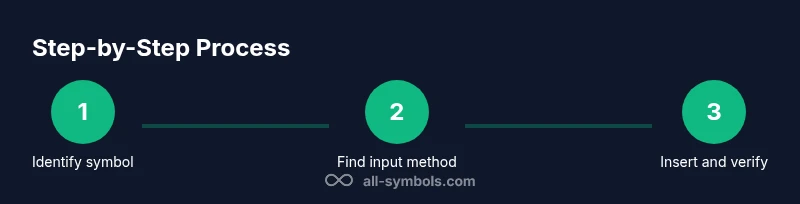
- 1
Identify the symbol you need
Clarify what symbol you want (currency, arrow, mathematical operator, etc.). Look up the exact name and Unicode code point in a reference list or online catalog to avoid guesswork.
Tip: Start with a symbol category (e.g., currency signs) to narrow your search quickly. - 2
Check platform input methods
Review your OS’s built-in input options: Windows Alt codes or Character Map, macOS Option keys or Emoji & Symbols, Linux Compose or Unicode entry. Choose the method that best fits your device and typing style.
Tip: If you lack a numeric keypad on Windows, enable the on-screen keypad or use Unicode input. - 3
Open a symbol viewer or catalog
Launch the appropriate symbol catalog, search by name, and preview glyphs. When you find the right symbol, copy it to the clipboard for immediate pasting.
Tip: Use the viewer’s filter or search to quickly locate the symbol family you need. - 4
Insert via shortcut or paste
Paste the symbol into your document or take the platform shortcut if you memorized it. Verify alignment with the surrounding text and adjust size as needed.
Tip: If the symbol changes appearance between apps, switch to a more universal font for consistency. - 5
Try Unicode input for rare symbols
For less common characters, enter the Unicode code point using your platform’s Unicode input or hex entry method, then confirm the glyph appears as expected.
Tip: Keep a small cheat sheet with the most-used code points for quick reference. - 6
Save a quick-reference workflow
Document a short process for your typical symbols: where you lookup, how you insert, and how you verify rendering. Include a few screenshots or a checklist.
Tip: Maintain a personal symbol library to speed up future work.
Questions & Answers
What is the fastest way to type a symbol I use often?
Memorize a shortcut if available or keep a symbol sheet for quick copy-paste. For truly frequent symbols, a keyboard macro or clipboard snippet can save time.
Memorize one or two shortcuts and rely on a quick symbol sheet for repeated use.
Can I type symbols on mobile devices?
Yes. Use the mobile symbol keyboard or long-press keys to access variants. Many apps also offer emoji or symbol panels. If a symbol isn’t available, copy it from a browser or note and paste it.
Mobile keyboards include symbol sets; you can copy-paste when needed.
Why do some symbols not render correctly?
Likely font or encoding issues. Ensure UTF-8 encoding and use a font that supports the symbol. Some apps may restrict certain Unicode ranges.
Font and encoding most commonly cause missing symbols.
Are there universal methods for all symbols?
No single method works for every symbol. Use Unicode lookups, symbol viewers, or platform-specific shortcuts, and verify rendering in your target apps.
There isn’t a universal method; adapt by symbol type and platform.
What’s the difference between Alt codes and Unicode input?
Alt codes are Windows-specific shortcuts using the numeric keypad. Unicode input relies on code points and works across many platforms when available.
Alt codes rely on a keypad; Unicode input uses code points.
Is there a bulk input shortcut for many symbols?
There isn’t a universal bulk shortcut. Rely on a symbol sheet, clipboard workflow, or a small library of templates to insert multiple symbols quickly.
No single bulk shortcut; use a library or templates instead.
The Essentials
- Know three main methods: direct input, symbol viewers, and copy-paste.
- Font and encoding determine symbol reliability across apps.
- Build a quick-reference sheet to speed up daily work.
- Test symbols in the final document to ensure consistency.