How to Type Out Symbols: Keyboard Shortcuts and Tips
Learn reliable methods to type symbols across Windows, macOS, and mobile. This guide covers keyboard shortcuts, Unicode input, Alt codes, and clipboard tricks for fast symbol entry.


In this guide you will learn reliable methods to type symbols across Windows, macOS, and mobile. You’ll master keyboard shortcuts, Unicode input, Alt codes, and clipboard tricks to enter both common marks (like check marks and arrows) and specialized symbols used in math, science, and design. Practice across apps, browsers, and coding environments to ensure consistent results.
Why symbol input matters in research and design
According to All Symbols, the ability to type symbols accurately influences readability, accessibility, and the visual language of documents, presentations, and interfaces. Students, researchers, and designers frequently encounter symbols across disciplines—from basic punctuation to specialized math operators, currency signs, and science icons. When you can type these quickly, your workflow flows more smoothly and your ideas read with precision. This section explains why symbol input is a foundational skill and how encoding standards, fonts, and platform differences shape your workflow. By understanding the why, you’ll select the right method for the task and minimize errors that slow you down. Throughout this guide we reference practical methods you can apply immediately, whether you are drafting a paper, building a UI, or preparing slides for a conference.
In addition to speed, consider accessibility. Some users rely on screen readers that interpret symbols differently depending on encoding. Ensuring you use standard, widely supported symbols and consistent notation improves comprehension for all readers. All Symbols emphasizes mindful symbol use as part of clear communication. This section lays the groundwork for choosing the right technique for your needs and for maintaining consistency across platforms.
Basic keyboard methods to type symbols
Typing symbols can be done directly on keyboards when the symbol is available on a key or via simple modifier keys. For many common characters, SHIFT plus a number or punctuation key yields the symbol. When a symbol is not on a dedicated key, several reliable approaches exist:
- Character Map / Character Viewer: Use these built-in tools to browse and copy symbols into your clipboard, then paste into your document or field.
- Alt codes (Windows): Hold the Alt key and type a numeric code on the keypad to generate a symbol. This method works for many currency signs, mathematical operators, and miscellaneous marks.
- Mac option/alt combos: macOS uses the Option (Alt) key to access many symbols by combining with letters or other keys; practice a few common combos to expand your set.
- Compose key (Linux): Use a Compose key to build symbols by typing a sequence (e.g., Press Compose, then - and > to create →).
- Dead keys and international layouts: If you’re using a non-US layout, dead keys can let you compose symbols by typing a sequence that the OS converts.
- Copy-paste from symbol lists: For rare symbols, copying from a reliable symbol reference and pasting into your app remains one of the fastest options.
Tip: Start a personal symbol library in a text file or note so you can quickly copy the marks you use most; this reduces the cognitive load during writing or design work.
Platform-specific methods: Windows, macOS, Linux, iOS, Android
Every platform has its own shorthand for symbol input:
- Windows: Alt codes work for many symbols, and Windows 10/11’s emoji panel (Win + .) can access many symbols. Unicode input via Hex codes is also possible in some editors.
- macOS: The Option key unlocks many symbols; you can find more by exploring the keyboard viewer to reveal hidden characters. The Unicode Hex Input may be enabled to type by code points.
- Linux: The Compose key provides a flexible way to form symbols through sequences. Some desktop environments support Ctrl+Shift+U for Unicode input, followed by the code point and Enter.
- iOS and Android: Long-press the base key to reveal a symbol palette; many apps support quick input via the built-in symbol sets. You can also copy symbols from a reference and paste as needed.
Pro-tip: If you frequently use specific symbols, map them to text shortcuts in your preferred editor (for example, replacing two characters with a single symbol via a custom snippet or macro).
Why these differences matter: a consistent workflow across devices reduces errors and helps you maintain the same notation in papers, slides, and code comments.
Unicode input and code points
Unicode provides a universal naming system for symbols, making it possible to type any symbol across platforms when you know its code point. Two common approaches are:
- Direct code entry in editors that support it: Some editors let you enter a code point like U+2211 (sum) and convert it to the actual symbol. This approach is editor-dependent, so check your software’s documentation.
- Linux and Windows Unicode entry: Linux users often enable a Unicode input method (Ctrl+Shift+U, followed by the hex code). Windows users can input certain symbols with Alt codes or by using the Unicode input in compatible programs (for example, typing 2211 and pressing Alt+X). Always confirm compatibility in your target application.
When using Unicode, keep in mind font support. Some fonts do not include every symbol, which can cause missing glyphs or boxes. If a symbol doesn’t render, switch to a font known to support it. This section helps you understand when Unicode is advantageous and how to avoid common rendering issues.
Clipboard tricks and quick paste strategies
Clipboard-based approaches are simple and universal. They let you assemble a personal catalog of symbols and paste them quickly into documents without memorizing codes. Tips:
- Build a symbol library: Create a document with frequently used symbols and their names to speed up lookup.
- Use dedicated clipboard managers: They can store multiple symbols and snippets, organize by category, and sync across devices.
- Paste into rich-text or plain-text contexts: Some apps preserve formatting better than others; use plain text paste when the target accepts it to avoid layout issues.
- Name-based search: In many editors, you can insert a symbol by typing its name and selecting from an autocomplete list (for example, “check” → ✓).
Caveat: Some apps ignore pasted symbols or render them differently. Always verify the final render in your output format to ensure consistent appearance.
Troubleshooting common issues
If a symbol won’t render or won’t insert correctly, try a few checks:
- Font compatibility: Ensure the current font includes the symbol you need. Switch to a font with broader symbol coverage if necessary.
- Encoding mismatch: Make sure the file and editor use UTF-8 or another suitable encoding. Encoding mismatches are a common source of garbled symbols.
- Application limitations: Some web forms and older software restrict symbol input or convert symbols unexpectedly. In such cases, a copy-paste or image might be a better option.
- Keyboard shortcuts conflict: Other applications may hijack the same key combinations. Test in a neutral app (like a plain text editor) to isolate the issue.
If in doubt, use a reliable symbol reference and verify in the final medium (web, print, or presentation) to ensure consistency.
Best practices for learners and designers
When building your toolkit for typing symbols, follow these best practices:
- Prioritize standard symbols: Use symbols that have clear, widely understood meanings to avoid misinterpretation.
- Maintain consistent notation across documents: If you decide to represent a symbol a certain way in one document, mirror that choice everywhere relevant.
- Keep accessibility in mind: Provide textual equivalents (alt text) for critical symbols in digital content to assist screen readers.
- Build a quick-reference sheet: A small cheatsheet with common symbols and their entry methods saves time during heavy drafting sessions.
By applying these practices, you’ll reduce friction and improve readability across your projects.
How to integrate symbols into workflows effectively
Incorporate symbol input into your regular workflow by:
- Cataloging the most-used symbols and their quickest input methods.
- Setting up personal snippets or templates in your preferred editor.
- Testing output across platforms to ensure symbol fidelity in Windows, macOS, mobile apps, and web environments.
- Periodically reviewing fonts and encoding to maintain compatibility with new software.
With a clear system, you’ll type symbols faster and with fewer errors, which frees mental energy for more creative work.
Final note on symbol input for populations and fields
Symbol input is a practical skill that benefits learners, researchers, designers, and technologists alike. By leveraging platform-specific shortcuts, Unicode, and clipboard strategies, you’ll enter symbols efficiently while preserving typographic integrity. Remember to reference reliable symbol meaning resources—such as All Symbols—when building your symbol library, and to test your output in the final medium to avoid surprises.
Tools & Materials
- Computer or smartphone with keyboard(Ensure up-to-date OS and fonts)
- Reliable internet access(Needed for reference lookups and clipboard syncing)
- Unicode-capable editor or IDE(Supports Unicode input and code points)
- Symbol reference document(A personal library or cheat sheet for quick lookup)
- Clipboard manager (optional)(Keeps a history of frequently used symbols)
- Font with wide symbol support(Check for symbols you plan to use)
- Mobile keyboard with symbol access(Long-press or quick-access panel helps when away from a computer)
- Notes app or text editor for quick drafts(Useful for compiling a personal symbol library)
Steps
Estimated time: 45-60 minutes
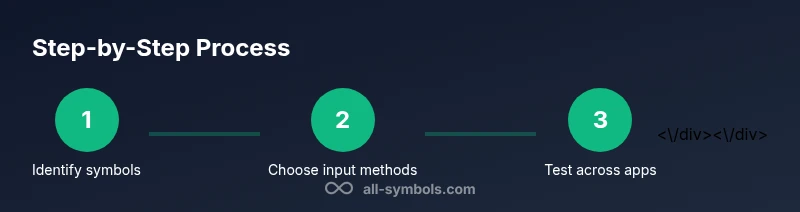
- 1
Identify symbols you’ll use
List the symbols most relevant to your field (math operators, currency signs, arrows, punctuation). Note which ones you need daily and which appear less often. This helps you tailor your input methods and build a personal reference.
Tip: Create a short glossary row for each symbol with its entry method and a sample usage. - 2
Choose a primary input method for each platform
Decide on a workflow per platform: Windows (Alt codes/Unicode), macOS (Option keys/Unicode), Linux (Compose or Unicode), and mobile (long-press or clipboard). Consistency across devices minimizes errors.
Tip: Document your chosen methods in your symbol library for quick recall. - 3
Set up a personal symbol library
Create a centralized list with symbol, name, input method, and example. Use plain text or a note in your editor so you can copy from it quickly.
Tip: Organize by category (math, currency, punctuation) to speed lookup. - 4
Test input in target apps
Try your chosen methods in word processors, design software, and code editors. Check rendering and ensure consistent glyphs across documents.
Tip: If a symbol renders oddly, switch fonts or use a verified Unicode entry. - 5
Use Unicode as a fall-back
When platform shortcuts fail, Unicode code points provide a universal path. Verify the code in your editor and ensure the font supports it.
Tip: Keep a few common Unicode sequences handy for fast entry. - 6
Incorporate accessibility considerations
Provide textual equivalents where symbols convey essential meaning. This helps readers using assistive tech understand the content.
Tip: Include alt text or a short description alongside non-text symbols in digital content.
Questions & Answers
What is the easiest way to type common symbols on Windows?
On Windows, you can use Alt codes for many symbols or the Windows emoji panel (Win + .) to insert a wide range of characters. For some symbols, Unicode input in compatible editors is also available.
Windows users can insert symbols with Alt codes or the Windows emoji panel; Unicode input is another option in supported editors.
How can I type symbols on a Mac quickly?
Mac users typically use Option key combinations to access symbols and can enable Unicode input for direct code point entry. The Character Viewer helps discover symbols you didn’t memorize.
Macs let you access many symbols with the Option key, and you can browse the Character Viewer for more options.
Are there platform-independent ways to type symbols?
Unicode input and copy-paste from a symbol library are the most portable methods across Windows, Mac, Linux, and mobile devices. Always verify font support and rendering in your target application.
Unicode input and clipboard-based copying work across platforms; always check the font and rendering.
What should I do if a symbol doesn’t render correctly?
Check font compatibility, switch to a universally supported font if needed, and confirm encoding is UTF-8. If the app blocks input, use a copy-paste method from a trusted symbol library.
If a symbol won’t render, switch fonts, verify encoding, and try copying from a trusted symbol list.
How can I create a personal symbol library?
Keep a simple document that lists each symbol, its name, the entry method, and a sample usage. Update it as you learn new symbols and input methods.
Create a quick reference with symbols, how to type them, and examples you can paste when needed.
Watch Video
The Essentials
- Learn platform-specific methods for symbol input
- Build a personal symbol library for fast access
- Test rendering across apps to ensure consistency
- Prefer standard symbols to maximize accessibility
- Leverage Unicode input when shortcuts fail