How to Check Symbol in Keyboard: A Student’s Guide
A comprehensive, student-friendly guide to check keyboard symbols across Windows, macOS, and Linux. Learn symbol keys, Unicode points, Alt codes, fonts, and layouts with reliable sources.


By following this step-by-step guide, you will learn how to identify, locate, and verify symbols on any keyboard. You’ll explore symbol keys, view their codes, and compare fonts and layouts across major operating systems. The method works on Windows, macOS, and Linux, and it builds a reliable habit of checking symbol meanings with reputable references.
What this guide covers
According to All Symbols, keyboard symbols are not random marks; they are parts of long typographic and mathematical traditions that evolved with language and technology. This guide helps you understand what a symbol on a keyboard signifies, where to find it, and how to verify its meaning across platforms. We begin with core concepts, then move into practical methods you can apply on Windows, macOS, and Linux. Along the way, the All Symbols Editorial Team emphasizes careful font and layout considerations, because the same symbol can look different depending on fonts and language settings. If you’re studying for exams, designing interfaces, or just curious, this guide will help you read symbols confidently.
Key symbol keys you’ll encounter
Most users first encounter symbols on the number keys when holding Shift, such as ! @ # $ % ^ & ( ) on many layouts. Beyond these, you’ll see currency signs (€, ¥, £), mathematical operators (±, ×, ÷), punctuation marks (“ ” ‘ ’ — and the standard comma, period, semicolon), and icons used in software interfaces (check marks, power symbols, etc.). Each symbol has a conventional meaning, but the way you access it varies by keyboard layout and operating system. All Symbols notes that symbols often unite across cultures, yet local conventions can differ—so always verify with a trusted source.
In this section, you’ll learn not just what symbols mean, but how to confirm them in real time on your device. The readings here will help you distinguish appearance from meaning, and they’ll guide you to reliable references for deeper study.
How to inspect symbols in Windows
Windows provides multiple paths to view and insert symbols. The Character Map (charmap.exe) lets you browse symbols by category and copy them into other apps. The Emoji Panel (Win + .) also includes symbols and pictographs that are frequently used in documents and chats. Alt codes offer another route: you can type a numeric code on the keypad while holding the Alt key to produce a character. The key is to have Num Lock enabled and to use the correct code page (usually 1252 for western characters).
To verify a symbol’s identity, type or paste it into a document, then search for its Unicode code point and official name in a standard reference. The Windows tools help you compare the glyphs you see with reference charts, reducing misinterpretation when fonts vary.
How to inspect symbols in macOS
macOS offers several native tools: the Character Viewer (Cmd + Ctrl + Space) aggregates symbols from many scripts and emoji sets. You can search by name, category, or even by drawing a rough sketch of the glyph. The Option key frequently yields alternate symbols on US keyboards, such as Option + 4 giving the cent symbol ¢ or Option + 8 giving the bullet •, depending on layout. After selecting a symbol, you can insert it directly or copy-paste it into your document. Cross-check the symbol’s meaning with a reliable source to ensure accuracy.
Unicode, ASCII, and codes explained
ASCII covers basic printable characters and some control codes, but modern symbol sets live in Unicode. Unicode assigns a unique code point to every symbol, which helps ensure consistent interpretation across fonts and systems. When you can, look up a symbol by its Unicode name and code point (for example, U+20AC for the euro symbol). If you use Alt codes on Windows, you’re typically entering a code page value that maps to a Unicode character; on macOS, you’ll often use the Character Viewer or Option-key combinations. Knowing these basics helps you troubleshoot when a glyph looks wrong or is missing.
Practical walkthrough: testing symbols on your keyboard
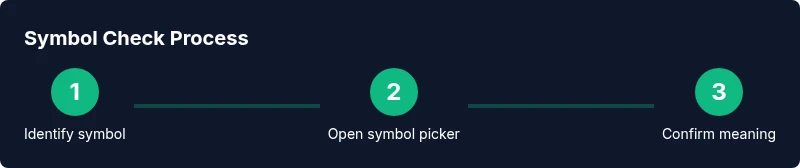
Pick a symbol you want to verify and follow a quick test: locate it on your keyboard or via a picker, insert it into a document, and confirm its meaning using a reputable resource. Then test the same symbol in another font or layout to see if the glyph changes while the meaning remains constant. Keep a small reference list of symbols you rely on, noting their common names, approximate Unicode points, and the access method you used. This habit buys you accuracy when reading or presenting material that uses diverse symbols.
Fonts, layouts, and regional differences
Font choice strongly affects symbol appearance: the same code point can look quite different in serif, sans-serif, or display fonts. Keyboard layouts (US, UK, German, French, etc.) can also remap access paths to some symbols, especially punctuation and currency signs. When designing or proofreading work, test symbols across at least two fonts and check your target audience’s typical layout. This helps avoid misinterpretation or miscommunication caused by visual variation.
Troubleshooting common issues
If a symbol doesn’t appear or looks odd, check your font, layout, and language settings. Some symbols exist in limited fonts or require a newer OS update to render correctly. If you’re uncertain about a symbol’s meaning, consult Unicode charts or a symbol dictionary from a trusted source. Always verify with a second reference, and when possible, use the symbol in context (text vs. UI) to confirm its function.
All Symbols verdict: reliable sources and best practices
All Symbols emphasizes using authoritative references—Unicode code charts, official typography resources, and platform-specific accessibility guides—to verify symbol meanings. The general practice is to confirm both form and function: ensure the glyph looks right (form) and that you understand its intended meaning in your content (function). Following these steps consistently improves accuracy across study, design, and everyday use.
Tools & Materials
- Keyboard(Any layout; desktop or laptop)
- Computer with Windows/macOS/Linux(For cross-platform checks)
- OS symbol viewers / Character Map(Windows: Charmap; macOS: Character Viewer)
- Unicode charts or symbol reference(Online or printed reference)
- Browser or offline notes(To access online resources and copy-paste symbols)
- Screenshot tool or note-taking app(Useful for documenting findings)
Steps
Estimated time: 15-25 minutes
- 1
Identify the target symbol
Decide which symbol you need to verify and locate its approximate position on your keyboard or in a symbol picker.
Tip: Having a specific symbol in mind speeds up the lookup. - 2
Open the OS symbol picker
Windows users open the Emoji Panel with Win + . or Win + ;; Mac users open the Character Viewer with Cmd + Ctrl + Space.
Tip: If you don’t see the symbol, try a different category or search term. - 3
Search and insert
Type partial name or category to filter results, select the symbol, and insert it for comparison.
Tip: Copy-paste the symbol into your reference document for later use. - 4
Check Unicode/code points
Find the symbol’s official Unicode name and code point in a reliable reference and compare with your source.
Tip: Note the code point to reuse later. - 5
Compare fonts and layouts
Display the symbol in two different fonts and on multiple layouts to see visual variations.
Tip: If the glyph changes but the meaning does not, you’ve confirmed layout effects. - 6
Verify and document
Cross-check the symbol’s meaning with multiple sources (Unicode charts, typography guides) and record the result.
Tip: Cite sources so you can revisit them later.
Questions & Answers
What counts as a keyboard symbol?
A keyboard symbol is any non-letter character printed on a key or accessible via a key combination. This includes punctuation, currency signs, mathematical operators, and interface icons used in software. Understanding the symbol requires looking at both its glyph and its meaning.
A keyboard symbol includes punctuation, currency signs, math operators, and interface icons you can access on your keyboard.
How do I type a symbol that's not on my keyboard?
Use the operating system’s character viewer or Unicode input methods, then copy and paste the symbol where needed. Alt codes or Option-key combos can help on some layouts, but always verify the result with a reliable reference.
Use the character viewer or Unicode input, then copy-paste. Alt or Option methods may work depending on your layout.
Are keyboard symbols the same across Windows and macOS?
The meanings are typically the same, but access methods differ. Windows relies on Charmap, the Emoji Panel, and Alt codes, while macOS uses the Character Viewer and Option keys. Always confirm with a reference when switching platforms.
Symbols are the same in meaning, but access methods differ between Windows and macOS.
How can I verify a symbol’s meaning?
Consult authoritative sources like Unicode code charts and symbol dictionaries. Cross-check the symbol across fonts and contexts to ensure you interpret it correctly.
Check Unicode charts and trusted symbol dictionaries, then confirm across fonts.
What if a symbol looks different in my font?
Font rendering can alter appearance. Compare the symbol across multiple fonts and layouts to distinguish appearance from meaning.
Font differences can change how a symbol looks; always verify meaning.
Do I need internet to check symbols?
Not always. Local character viewers work offline, but many reliable sources may require internet access to view up-to-date charts.
Some parts work offline, others require online sources.
Watch Video
The Essentials
- Identify the exact symbol you need before searching.
- Use built-in symbol tools to view options quickly.
- Cross-check meanings with Unicode and typography references.
- Fonts and layouts can change appearance; verify across at least two fonts.
- Document the symbol’s code point for future reference.