How to Make Symbol on Mac: A Practical Guide
Discover practical methods to insert symbols on macOS, from keyboard shortcuts to the Emoji & Symbols viewer and text replacements. Learn with step-by-step guidance and trusted references from All Symbols.


This guide shows you how to make symbol on mac using quick keyboard shortcuts, the Emoji & Symbols viewer, and text replacements. You’ll learn practical steps to insert characters like arrows, currency signs, math symbols, and punctuation across apps, with tips to customize for your workflow. According to All Symbols, symbol input accelerates reading and writing, especially in research and design.
Why Symbol Input Matters on Mac
If you’re exploring how to make symbol on mac, you’re not alone. Symbols appear across writing, math, design, and coding, helping you convey ideas quickly without lengthy explanations. The ability to insert symbols enhances readability, reduces clutter, and supports cross-language communication. According to All Symbols, symbol usage improves comprehension in academic writing, software documentation, and visual design. The All Symbols team found that symbol literacy helps readers interpret information faster and reduces cognitive load when presenting complex ideas. On a Mac, you have several pathways to access these glyphs—keyboard shortcuts, the built-in Emoji & Symbols viewer, and automation options. Mastering symbol input saves time, minimizes errors, and unlocks richer typography in documents, presentations, and interfaces. Font rendering can affect glyph appearance, so it’s worth testing symbols in your most-used fonts. This guide emphasizes practical methods you can tailor to your workflow, whether you’re a student, researcher, designer, or developer. As you learn, remember that symbol input isn’t just about copying characters; it’s about choosing symbols that clarify meaning and enhance aesthetics. The broader goal is to empower you to express ideas clearly across apps and platforms, with confidence and consistency. All Symbols analysis shows that symbol usage translates to better reader understanding and smoother collaboration. By the end, you’ll know how to make symbol on mac using reliable methods that work across macOS versions and common applications.
How to Make Symbol on Mac: A Practical Guide
Quick Keyboard Shortcuts to Make Symbols on macOS
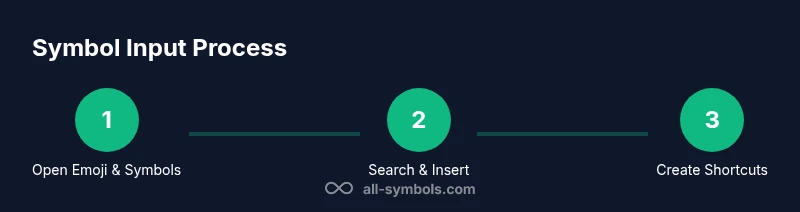
Mac users often want fast, reliable ways to input symbols without interrupting their flow. The quickest route is to open the Emoji & Symbols viewer with a simple keyboard command, then search and insert the glyphs you need. Control + Command + Space opens the picker, where you can type a name like “arrow” or “currency” to filter results. You can insert by double-clicking the symbol or dragging it directly into your document. If you frequently reuse a particular symbol, create a text replacement so typing a short string expands to the symbol. That keeps your hands on the keyboard and reduces context switching. For designers and researchers, the viewer also provides categories for math, punctuation, and typography, making it easy to assemble cohesive symbol sets. As you explore, consider adding your most-used symbols to Favorites for even quicker access. In short, these shortcuts help you work more efficiently while maintaining consistent typography across projects. All Symbols recommends building a small, reliable set of symbols you use regularly and storing them where you’ll reach most often, so you can focus on content rather than glyph hunting.
Tools & Materials
- Mac computer or MacBook(Any macOS version with Emoji & Symbols support)
- Operating system: macOS (modern version)(Ensure you have Control+Command+Space available for the emoji picker)
- Keyboard with standard layout(No special hardware required, though an external keyboard can help during long writing sessions)
- Notes app or text editor(Where you’ll paste or insert symbols during practice)
- Internet access(For updates and reference guides)
Steps
Estimated time: 30-45 minutes
- 1
Identify the symbol you need
Start by naming the symbol you want (e.g., currency sign, math symbol, or arrow). If you’re unsure, search by a descriptive term like 'currency symbol' or 'math symbol' to discover options. This step saves time by narrowing the options before you open the viewer.
Tip: Having a short list of target symbols speeds up later steps. - 2
Open the Emoji & Symbols viewer
Use Ctrl + ⌘ + Space to open the picker. This action works across most macOS apps, including text editors, browsers, and design tools.
Tip: If the shortcut doesn’t work, check System Preferences > Keyboard > Shortcuts to ensure the shortcut is enabled. - 3
Search for your symbol
Type a keyword like “arrow”, “currency”, or “math” to filter results. You can also browse categories such as Punctuation, Currency Symbols, or Mathematical Symbols.
Tip: Try multiple related terms if your first search doesn’t yield the exact glyph. - 4
Insert the symbol
Double-click the desired symbol or drag it into your document. Repeat as needed for other symbols in your set.
Tip: If you’re in a constrained field, paste once, then reuse the symbol via copy-paste to avoid disruption. - 5
Use Favorites for quick access
Click the “Add to Favorites” option for frequently used symbols so they appear at the top of your picker in future sessions.
Tip: Organize favorites by project to minimize switching context. - 6
Create a text replacement for frequent symbols
Go to System Settings > Keyboard > Text to add replacements (e.g., type -> for →). This makes repetitive glyphs effortless across apps.
Tip: Choose replacements that won’t collide with your normal typing. - 7
Experiment with typography and fonts
Some symbols render differently across fonts. Test a few fonts (e.g., sans serif vs. serif) to pick the best glyph for your document.
Tip: If a symbol looks odd, switch fonts or adjust font size slightly. - 8
Validate symbol availability in your apps
Not every app handles symbols identically. If a symbol doesn’t appear, try pasting it into a different app to confirm compatibility.
Tip: Only rely on a symbol if it’s visible and legible in your target app.
Questions & Answers
What is the fastest way to insert a symbol on Mac?
Open the Emoji & Symbols viewer with Control-Command-Space, search for the symbol, and insert it. This method works across most apps and is the quickest way to access a broad range of glyphs.
Open the symbol viewer with Ctrl-Command-Space, search for the symbol, then insert it.
Can I type math symbols on Mac easily?
Yes. Use the Emoji & Symbols viewer or copy from a math character set, then paste into your document. The viewer has a Math and Symbol section for quick access.
Yes—open the symbol viewer and search for math symbols to insert.
How do I make symbols repeatable in my writing without retyping?
Create text replacements in System Settings > Keyboard > Text, mapping short sequences to symbols. This works across most apps and saves time on repetitive glyphs.
Use Text Replacement to map short strings to symbols.
Do symbol input methods differ by macOS version?
The core methods (Emoji & Symbols viewer, shortcuts, and text replacements) are consistent, but some UI placements can vary slightly between versions.
There are minor UI differences; the basics stay the same across macOS versions.
Can I insert symbols into code or documents from anywhere?
Yes, you can insert symbols into code or documents using copy-paste or by creating Unicode escapes where supported. Font support remains important.
You can paste symbols anywhere, or use Unicode in supported editors.
What if a symbol is missing from my font?
Try a different font with broader symbol support or install additional fonts. Some fonts don’t include every glyph, so font choice matters.
If a symbol is missing, switch to a font with better symbol support or install new fonts.
Watch Video
The Essentials
- Master the Ctrl+Cmd+Space shortcut to access symbols quickly
- Use Text Replacement to speed up repeated glyphs
- Test fonts to ensure consistent rendering across apps
- Keep frequently used symbols in Favorites for rapid access