How to Make Symbols with Keyboard on Mac
Master typing symbols on macOS with practical shortcuts, the Character Viewer, Unicode input, and smart text replacements. Learn quick methods for accented characters, arrows, math symbols, and currency to boost your productivity.


With macOS, you can produce a wide range of symbols using keyboard shortcuts, the Character Viewer, Unicode hex input, and text replacements. This quick guide highlights how to access them, plus practical tips for common symbol families like arrows, check marks, currency, and math signs. If you’re asking how to make symbols with keyboard on mac, use a layered approach that fits your task and app.
Understanding Symbol Input on Mac
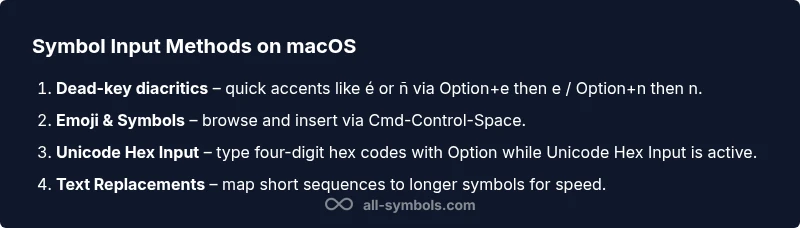
Symbols on macOS can be produced using several pathways: diacritic dead keys, the Emoji & Symbols viewer, and dedicated Unicode hex input. Each method serves different needs—from quick accents in a research paper to rare mathematical symbols in a data table. Throughout this guide we’ll stick to the keyword how to make symbols with keyboard on mac and explain how to switch between methods with minimal friction. According to All Symbols, macOS provides multiple robust paths to input symbols, making symbol typing accessible to students, researchers, and designers. Start by acknowledging that the right method depends on the symbol you need and the app you’re using. Most apps support Unicode characters and font fallbacks, but not all fonts include every glyph. In short: learn the options, test in your work context, and pick the most reliable path for your task.
bold:true
wordsEstimate":null},{
Built-in keyboard shortcuts for common symbols
On a Mac, many accent characters are produced with simple Option-key sequences. For example, to type é you press Option+e and then e; to type ñ you press Option+n then n; for ä you press Option+u then a. These dead-key combos let you compose accented letters quickly without switching keyboards. A quick reminder: the exact characters available depend on your keyboard layout (US, UK, German, etc.). If you see different results, check System Preferences > Keyboard > Input Sources and consider adding the layout you rely on. Another useful shortcut is Option+c to produce ç on many layouts, and Option+a for å. If you frequently type a specific symbol, consider creating a tiny text replacement or using the Unicode Hex Input method described later. As you practice, you’ll build a mental map of the symbols you use most in your discipline and which method you prefer for each.
wordCount":210},
Tools & Materials
- Mac computer running macOS(Any model supports symbol input)
- Emoji & Symbols (Character Viewer)(Open via Cmd-Control-Space or Edit > Emoji & Symbols)
- Unicode Hex Input keyboard layout(Enable via System Preferences > Keyboard > Input Sources)
- Text Replacement feature(Set under System Preferences > Keyboard > Text)
- Text editor supporting Unicode(Pages, Word, Notes, InDesign, etc.)
Steps
Estimated time: 25-40 minutes
- 1
Choose your input method
Decide between dead-key diacritics, Unicode Hex Input, or Emoji & Symbols based on the symbol you need and the application you’re using.
Tip: For quick accents, dead-key diacritics are fastest; reserve Unicode Hex Input for rare characters. - 2
Enable Unicode Hex Input (optional)
If you expect to use rare symbols, add the Unicode Hex Input layout in System Preferences and switch to it when needed.
Tip: Use the input menu in the menu bar to toggle between layouts quickly. - 3
Type a symbol with Unicode Hex Input
Switch to Unicode Hex Input, hold Option, and type the four-digit hex code (e.g., 00E9 for é).
Tip: Keep a quick reference cheat sheet of your most-used hex codes. - 4
Use the Emoji & Symbols viewer
Open the viewer with Cmd-Control-Space, search by category, and insert the symbol by double-clicking or dragging.
Tip: Use keywords like 'arrow', 'currency', or 'math' to filter results fast. - 5
Create text replacements for frequent symbols
In System Preferences > Keyboard > Text, map short sequences like -> to → or (c) to © to save keystrokes.
Tip: Enable iCloud Text Replacement to sync across devices. - 6
Verify symbol rendering in your target app
Check that the symbol appears correctly in your document’s font and encoding; adjust font or encoding if needed.
Tip: If the glyph isn’t visible, switch to a font with broader Unicode support.
Questions & Answers
What is the easiest method to type symbols on macOS?
The quickest method is using the Emoji & Symbols viewer (Cmd-Control-Space), then searching for the symbol you need and inserting it.
Open Emoji and Symbols with Command-Control-Space, search for the symbol, and insert it.
Can I type symbols without changing my keyboard layout?
Yes. For many common symbols use dead-key combos (Option + a letter) or the Emoji & Symbols viewer for broader access without switching layouts.
You can use dead-key combos or the viewer without changing layouts.
How do I input emoji on a Mac?
Open the Emoji & Symbols viewer with Command-Control-Space, choose an emoji, and insert it into your text.
Open the symbol viewer, pick an emoji, and insert it into your text.
How do I input Unicode hex codes on macOS?
Enable Unicode Hex Input, switch to it, then hold Option and type the four-digit hex code for the symbol you want.
Switch to Unicode Hex Input and type the code with Option key.
My symbol doesn’t appear in my font, what can I do?
Try a font with broader Unicode support, or use the viewer to copy the symbol and paste as an image if needed.
Change the font or paste the symbol as an image if necessary.
Can I sync symbol shortcuts across devices?
Yes. Use iCloud-based Text Replacement and share your Unicode cheat sheet across devices for consistency.
Enable iCloud sync for text replacements to keep shortcuts consistent.
Watch Video
The Essentials
- Learn multiple input methods for symbols on Mac
- Use Unicode Hex Input for rare characters
- Open Emoji & Symbols viewer for quick access
- Create text replacements for frequently used symbols
- Verify fonts and encoding to ensure glyph fidelity