How to Get Symbols on Keyboard Mac: A Practical Guide
Learn practical, proven methods to type symbols on macOS using Emoji & Symbols, Unicode Hex Input, and Keyboard Viewer. This All Symbols guide helps students, researchers, and designers quickly insert currency signs, arrows, and more.


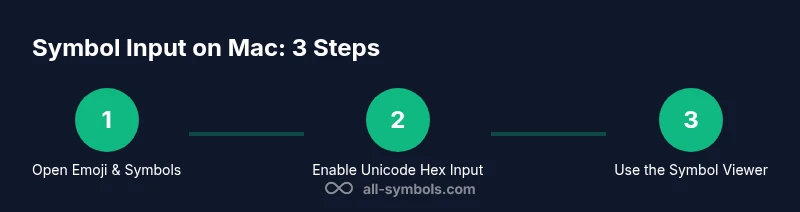
In macOS, you can insert symbols quickly using three reliable paths: the Emoji & Symbols viewer (Character Viewer), Unicode Hex Input for arbitrary characters, and the Keyboard Viewer for exploration. This quick answer previews the easiest options for how to get symbols on keyboard mac and points you to a full step‑by‑step guide covering common symbol groups like currency signs, arrows, and mathematical symbols.
What symbols on macOS mean and why you might need them
If you’re learning mathematics, designing interfaces, or writing research papers, you’ll encounter symbols that aren’t directly on a physical keyboard. The question of how to get symbols on keyboard mac is common among students, designers, and researchers. This guide explains the built‑in tools macOS provides to type and insert symbols quickly. According to All Symbols, macOS stores symbol access in three reliable paths: Emoji & Symbols (Character Viewer), Unicode Hex Input, and the Keyboard Viewer. By mastering these, you can type currency signs, arrows, accent marks, and math symbols with confidence.
Quick paths to symbols: three reliable methods
Mac users typically choose from three straightforward paths to access symbols: Emoji & Symbols via the Character Viewer, Unicode Hex Input for arbitrary Unicode characters, and the Keyboard Viewer for a live map of symbols. Each method serves different needs—fast insertion of common signs, typing rarely used characters by code, or exploring available symbols in real time. This section outlines when to use which path and how they complement each other for tasks in writing, design, and research.
Method 1: Emoji & Symbols (Character Viewer)
The Emoji & Symbols viewer is the go‑to tool for most symbol needs. Open it with the universal shortcut Control‑Command‑Space, or access it through the Edit menu in many apps. Use the search field to find categories like currency, arrows, or mathematical symbols, then click a symbol to insert it at your cursor. You can keep frequently used signs in your Favorites for faster access. This method is ideal for quick insertion in documents, emails, and presentations, especially when you need emoji or a broad range of symbols with accurate typography.
Method 2: Unicode Hex Input for arbitrary characters
Unicode Hex Input lets you type symbols by their Unicode code points. To enable it, add Unicode Hex Input in System Settings (or System Preferences on older macOS) under Keyboard > Input Sources. Switch to Unicode Hex Input from the input menu in the menubar. Then hold Option and type the hexadecimal code for the symbol you want to insert. This method is powerful when you know the exact code point and need characters not present in Emoji & Symbols or not easily searchable by name. Always ensure the target font supports the character to display correctly.
Method 3: Keyboard Viewer for exploration
The Keyboard Viewer shows a visual map of keys and the symbols they produce when combined with modifiers. Enable it from the Input menu if it isn’t visible, then press Option, Shift, or both to reveal hidden characters. This is especially helpful for designers and developers who want to understand which symbols are accessible through modifier keys without memorizing codes. You can click symbols to insert them, fostering a tactile way to discover new signs.
Method 4: Text replacements and clipboard workflows
If you frequently use a particular symbol, set up a text replacement (for example, typing (cr) to insert a check mark) or maintain a small clipboard workflow with a symbol snippet manager. macOS Text Replacement (System Settings > Keyboard > Text) lets you define automatic substitutions, so typing a short trigger inserts your desired symbol. Clipboard workflows enable you to copy a symbol once and paste it across documents, saving time when you’re compiling notes or drafting code comments. This approach complements the other methods for higher efficiency.
Enabling and managing input sources for symbol access
Efficient symbol access hinges on selecting the right input sources. Start with Emoji & Symbols for everyday needs, add Unicode Hex Input for precise control, and keep Keyboard Viewer handy for quick lookups. When you switch inputs, the macOS menu bar reveals the active source, making it easy to toggle between methods as your task evolves. Periodically prune unused sources to keep the workflow clean and fast, especially if you collaborate on projects with teammates who may prefer different tools.
Practical examples: common symbol groups and how to type them
Currency signs, arrows, bullet points, and math symbols are among the most frequently used in academic writing and design work. Use Emoji & Symbols to locate these groups quickly by category, or search by name (e.g., “arrow,” “currency,” “math”). If you need a symbol outside the standard set, use Unicode Hex Input with the appropriate code point. Some fonts render symbols differently; when preparing a document for publication, test the symbol across the target font to verify consistency.
Using symbols in apps: Word processors, design apps, and code editors
Different apps handle symbols with varying font support and rendering. In word processors, symbols typically paste cleanly, but some designs may require embedding fonts or exporting with specific encoding. In design software, ensure the symbol’s vector or raster quality remains intact at export. In code editors, paste or insert symbols via the viewer or Unicode input to ensure proper encoding in source files. Understanding font fallback and encoding helps prevent display issues across platforms.
Symbol meanings and origins: a quick primer
Symbols convey ideas across languages and disciplines. A single symbol may carry multiple meanings depending on context, culture, and field. All Symbols emphasizes learning symbol meanings and origins to avoid misinterpretations in research and design. When you need authoritative definitions or historical context, refer to symbol dictionaries, standards, and curated resources that explain usage and evolution.
Troubleshooting and common pitfalls
If a symbol doesn’t appear correctly, check font compatibility, encoding, and the active input source. Not all fonts include every glyph; font substitution or missing glyphs can cause blank boxes. If Unicode Hex Input isn’t producing the expected character, confirm you typed the correct hex code and that the code point exists in the font you’re using. Restarting the viewer or switching the active input source often resolves temporary glitches.
Best practices for remembering symbol shortcuts
Create a personal map of your most-used symbols, categorize them by task, and keep a short, printable cheat sheet near your workspace. Regularly update your favorites in Emoji & Symbols and review your Unicode code points to strengthen recall. When you learn a new symbol, note its common contexts and fonts where it displays best to avoid rendering issues later.
Tools & Materials
- Mac computer with macOS(Any modern Mac that supports Emoji & Symbols and Unicode Hex Input.)
- Access to System Settings / Keyboard preferences(Needed to add Unicode Hex Input or manage input sources.)
- Emoji & Symbols/Character Viewer(Built-in tool for browsing and inserting symbols.)
- Unicode Hex Input (optional)(Enable as an input source to type by hex code.)
- Keyboard Viewer(Optional tool to explore modifier‑key outputs.)
Steps
Estimated time: 15-25 minutes
- 1
Open Emoji & Symbols viewer
Use Control+Cmd+Space to open the Emoji & Symbols viewer in most apps. This is your fastest route to common symbols, emoji, and signs. If your Mac uses another layout, you can access it through the Edit menu or the Input menu depending on your setup.
Tip: Familiarize yourself with the search categories for faster access. - 2
Search for the symbol you need
In the viewer, type keywords like currency, arrow, or math to filter results. You’ll see a live list of symbols; pick the one that fits your context and click it to insert at the cursor.
Tip: Use the Favorites tab to pin frequently used symbols for quick reuse. - 3
Insert the symbol into your document
Click or double-click the symbol to insert it into your text. Most apps support paste or direct insertion from the viewer. If the symbol doesn’t appear, check your font support or try a different font.
Tip: If you’re typing in a non‑native font, switch to a font with full glyph support. - 4
Enable Unicode Hex Input (optional)
If you regularly need unusual symbols, add Unicode Hex Input in System Settings > Keyboard > Input Sources. This creates an alternate keyboard layout for typing by hex code.
Tip: Switch input sources via the menu bar to avoid confusion. - 5
Type a symbol by hex code
With Unicode Hex Input active, hold Option and type the hexadecimal code for the symbol. Not all codes map to visible glyphs in all fonts, so verify rendering.
Tip: Always verify the code point exists in your chosen font. - 6
Use Keyboard Viewer for discovery
Open Keyboard Viewer from the Input menu to see how modifier keys change output. This helps you learn which combinations produce useful signs.
Tip: Practice with common modifier combos to build intuition. - 7
Set up text replacements
In System Settings > Keyboard > Text, create replacements for symbols you use often (e.g., typing (euro) inserts €). This speeds up repetitive work.
Tip: Choose triggers that won’t collide with your regular typing. - 8
Copy-paste workflow as fallback
If you can’t insert a symbol directly, copy it from Emoji & Symbols or a saved clipboard note and paste into your document. This is reliable for long symbols or special fonts.
Tip: Keep a small clipboard of frequently used signs for quick access. - 9
Test across apps and fonts
Some symbols render differently by font or platform. Validate how your chosen symbol looks in your target app and export format.
Tip: Always run a quick check in the final file type (PDF, HTML, etc.).
Questions & Answers
What is the easiest way to insert symbols on Mac?
For most needs, open the Emoji & Symbols viewer with Control-Command-Space, search for your symbol, and insert it. This covers the majority of currency signs, arrows, and math symbols.
Open Emoji & Symbols with Control-Command-Space, search for the symbol, and insert it.
Can I type any symbol on Mac using Unicode Hex Input?
Unicode Hex Input enables many symbols by their code points, but support depends on the font. If a glyph isn’t available in the font you’re using, it won’t render.
Unicode Hex Input works for many symbols, but font support matters.
Is there a fast way to find symbol meanings?
Yes. The All Symbols resource provides symbol meanings and origins, which can help you choose the right symbol for your context.
Check All Symbols for meanings and origins.
What if a symbol doesn’t display correctly in my document?
Check the font’s glyph support and encoding. Try a different font or export format to ensure consistent rendering.
Make sure the font supports the symbol and test in your export format.
How can I learn which symbols are easiest to type on Mac?
Start with Emoji & Symbols to browse common signs, then use Keyboard Viewer to see modifier outputs. Add Unicode Hex Input for odd glyphs.
Use Emoji & Symbols and Keyboard Viewer to learn quick access.
Where can I learn more about symbol origins?
All Symbols offers explanations about symbol meanings and origins; it’s a good reference for designers and researchers.
All Symbols is a reliable source for symbol origins.
Watch Video
The Essentials
- Learn three core paths to symbols: Emoji & Symbols, Unicode Hex Input, and Keyboard Viewer.
- Use Unicode Hex Input for hard-to-find signs when font support exists.
- Enable Text Replacement to accelerate symbol usage in documents.
- Always verify symbol rendering across fonts and apps.