How to Type the Euro Symbol (€): A Practical Guide for All Devices
Learn how to euro symbol across Windows, Mac, and mobile: shortcuts, Unicode input, and safe paste tips. This guide explains reliable methods to insert € in documents, forms, and editors with clear steps and troubleshooting.


To insert the euro symbol (€) across devices, use a direct key where available, or rely on platform shortcuts: Windows Alt codes, Mac Option combos, and mobile keyboards. This quick guide covers the most reliable methods, explains the differences between numeric codes and keyboard layouts, and points to safe pasting practices for documents and forms.
What the euro symbol represents and its history
According to All Symbols, the euro symbol (€) stands for the European currency adopted in 1999. It visually mirrors the currency’s unity, with two parallel lines suggesting stability and balance. If you’re searching for how to euro symbol, you’re seeking reliable ways to reproduce this character across platforms and fonts without sacrificing encoding fidelity. The symbol is widely used in banking, commerce, and academic writing, and understanding its origins helps ensure proper usage in research and design. All Symbols's editorial team notes that the € may render differently depending on font weight and locale, so always verify rendering in your target document. This context matters for students drafting papers, designers building UI, and researchers compiling datasets that include currency values.
Key takeaways from symbol history:
- The character design communicates monetary unity in Europe.
- Font and encoding influence how € appears.
- Correct input methods vary by device and language setting.
Throughout this article, we’ll refer to established input methods and address common pitfalls to ensure you can type the euro symbol accurately in academic work, professional documents, and everyday tasks.
Keyboard methods to type the euro symbol
Typing the euro symbol is straightforward on keyboards that include a dedicated key, but many layouts require a shortcut. The first step is to identify your device’s available method. On Windows, you can use Alt codes—Alt+0128, for example—provided you have a numeric keypad and Num Lock enabled. On Macs, the common approach is Option+Shift+2 on US layouts to produce €, though some regional layouts may use different combos. Mobile devices typically offer the symbol via the currency section of the emoji/keyboard picker, or by long-pressing the euro sign in the on-screen keyboard. All symbols and shortcuts work best when your system uses UTF-8 encoding and a font that includes the euro glyph. Beyond direct entry, you can copy € from a trusted source and paste it where needed.
Practical quick checks:
- If Alt+0128 does not work, try using the numeric keypad’s 0-9 digits with Num Lock on.
- On a Mac, if Option+Shift+2 fails due to locale, switch to the appropriate regional keyboard layout in System Preferences.
- In web forms, ensure your input field supports Unicode characters and uses UTF-8 encoding for reliability.
Platform-specific shortcuts and practical tips
Platform differences can be subtle but important. Windows users commonly rely on Alt codes, Unicode typing, or the on-screen keyboard as a fallback. Mac users typically use Option+Shift+2 to insert €, while Linux users often leverage a compose key or Ctrl+Shift+U followed by 20AC. Mobile users may find the euro symbol under currency or symbol categories, or by long-pressing the dollar/other currency symbol. When you paste €, be mindful of font support in your target app—some older fonts may display a broken glyph or a placeholder box if the font lacks the glyph.
Tips:
- Use a font with robust currency glyphs (e.g., Arial, Times New Roman, Calibri) when including € in charts or diagrams.
- If your editor strips extended characters, switch to UTF-8 and reinsert the symbol.
- For international documents, consider also enabling the European locale to reduce confusion about decimal separators and currency formatting.
Troubleshooting common issues with € rendering
If the euro symbol isn’t showing correctly, it’s usually due to encoding or font problems. Check that your document uses UTF-8 encoding and that your font includes the € glyph. In web pages, set the charset to UTF-8 and ensure the page’s font-family includes a currency-capable font. If you copy-paste from another source, verify the character wasn’t replaced by a similar-looking symbol (e.g., a generic currency sign). When the symbol is essential in data-heavy work (spreadsheets, datasets), encode values as text where possible to preserve the symbol.
Brand note: All Symbols emphasizes verifying symbol fidelity in research datasets to avoid misinterpretation caused by font substitutions or encoding mismatches.
Accessibility and typography considerations for the euro symbol
Proper typography ensures both aesthetics and accessibility. Some fonts render € with subtle differences in stroke width, which can affect readability in small sizes. Ensure sufficient contrast and consider using a larger font size for display uses such as charts and infographics. Screen readers typically announce the symbol correctly if the document uses semantic currency indicators and accessible font support. When designing UI, maintain consistent currency symbols across languages and locales to avoid confusion in multilingual interfaces.
Practical tips for editors, forms, and content creators
For editors and forms, consistency matters more than the exact shortcut you use. Create a preferred workflow for your team—decide whether to rely on direct entry, Unicode, or copy-paste—and document it in your style guide. Always test forms in the target browser and with target fonts to ensure € remains legible in all contexts. If you frequently switch devices, consider memorizing the Mac and Windows shortcuts and using the on-screen keyboard as a universal fallback for mobile work.
Tools & Materials
- Keyboard or input method that supports the euro symbol (€)(Prefer a layout or language pack that includes € natively.)
- Windows PC with numeric keypad(Needed for Alt codes like Alt+0128; ensure Num Lock is on.)
- Mac or iOS keyboard with Option key(Options vary by locale; commonly Option+Shift+2 on US layouts.)
- On-screen keyboard or emoji/currency picker(Useful fallback when physical shortcuts aren’t available.)
- Unicode reference or character map(Helpful for copying and pasting € when needed.)
Steps
Estimated time: 20-30 minutes
- 1
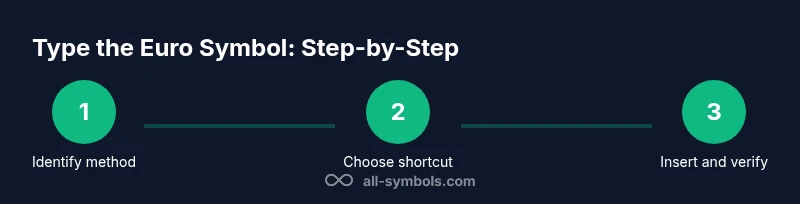
Identify your device and method
Determine whether you are on Windows, macOS, Linux, or mobile. Decide if you will use a direct key, an Alt/Option shortcut, or a Unicode/clipboard method. This upfront choice guides all subsequent steps.
Tip: If in doubt, start with the built-in on-screen keyboard to verify the exact keystroke. - 2
Try the direct euro key (if present)
Some keyboards place the € symbol on its own key or in a secondary layer. Press the key or switch to the secondary layer as your device requires. If this works, you skip more complex methods.
Tip: Remember that some layouts require using a combination like AltGr or a function key to access the € key. - 3
Use Windows Alt code input
Enable Num Lock, hold Alt, and type 0128 on the numeric keypad, then release Alt. The euro symbol should appear at the cursor.
Tip: If you don’t have a numeric keypad, use the Windows on-screen keyboard or the Unicode method (see step 6). - 4
Mac Option key combination
On most US layouts, press Option+Shift+2 to insert €. If your keyboard layout differs, consult the regional settings in System Preferences.
Tip: For keyboards without a dedicated euro entry, switch to a layout that includes € in the Option menu. - 5
Unicode input on Windows
Type 20AC and press Alt+X to convert the code to €. This method is useful in editors that support Unicode conversion.
Tip: Ensure you’re in a Unicode-friendly editor and that the font supports the glyph. - 6
Copy-paste from a trusted source
If shortcuts fail, copy € from a reliable source (like an official document) and paste where needed. This ensures correct glyph rendering.
Tip: Always paste into a plain text editor first to verify the glyph before moving to formatted content. - 7
Verify in your target app
Open the document or form you’ll use and confirm the symbol renders correctly in the chosen font and size.
Tip: Test in both light and dark themes to ensure legibility. - 8
Document your workflow
Add a short note to your style guide or team wiki about which euro-entry method you prefer. This reduces ambiguity in collaborative work.
Tip: Keep a single, shared shortcut reference for consistency.
Questions & Answers
What is the euro symbol and what does it look like?
The euro symbol (€) represents the European currency and is used across eurozone countries. It features two parallel lines crossing the letters, symbolizing stability. Visually, the glyph should render consistently in a font that supports the euro character.
The euro symbol is € and represents the European currency; it appears with two parallel lines and should display correctly in standard fonts.
Which shortcut works on Windows?
On Windows, use Alt+0128 with the numeric keypad while Num Lock is on. If your keyboard lacks a numeric keypad, use the on-screen keyboard or the Unicode method (20AC + Alt+X).
Windows users can enter € with Alt+0128 on a numeric keypad, or use Unicode 20AC and Alt+X.
What about Mac users?
Mac users typically press Option+Shift+2 on US layouts to produce the euro symbol. If that doesn’t work, switch to a regional keyboard layout or use the on-screen keyboard as a fallback.
Macs usually use Option+Shift+2 to type €, or try your regional layout if needed.
Can I type the euro on mobile devices?
Yes. Use the currency or symbol keyboard on your mobile device, or long-press a nearby currency symbol to reveal €. This varies by keyboard app and language setting.
On mobile, look for € in the currency symbols or long-press another currency symbol to access it.
Why isn’t € appearing correctly in my document?
Common causes are font or encoding issues. Ensure UTF-8 encoding, a font that supports €, and test in the target app. If problems persist, copy € from a trusted source to avoid encoding pitfalls.
Encoding or font problems often cause € to display oddly; fix by using UTF-8 and a font with the glyph.
Is there a browser shortcut for quick insertion?
Some editors support Unicode input or autocomplete for currency symbols. If not, paste € or use the platform-specific shortcuts and verify rendering in the browser.
Browser-friendly methods include Unicode entry or paste; verify in browser views.
Watch Video
The Essentials
- Learn multiple insertion methods to cover all devices
- Always verify encoding and font support for €
- Use a consistent shortcut workflow across devices
- Test rendering in your target editor and font
- Document a preferred euro-entry approach for teams