How to Make euro symbol on keyboard
Learn reliable methods to type the euro symbol (€) on Windows, macOS, Linux, and mobile devices. This guide covers Alt codes, Unicode input, and practical tips for fast typing across apps.


Goal: type the euro symbol (€) quickly on any device. Depending on your setup, use a platform shortcut: Windows Alt+0128 (with the numeric keypad) or AltGr+4 on some layouts; macOS Option+Shift+2; Linux Unicode input Ctrl+Shift+U, then 20AC; mobile: long-press a currency key or switch to the symbol keyboard. Practice to increase speed.
Why the euro symbol matters
Whether you’re pricing a product, budgeting a project, or presenting data in a report, the euro symbol (€) is a small sign with big impact. For students, researchers, and designers, being able to insert € quickly reduces interruptions and keeps your workflow smooth. If you’ve ever paused to hunt for € in a menu or string of code, you’re not alone: mastering a few reliable methods can save seconds or minutes per session. The question many readers ask is: how to make euro symbol on keyboard effectively across platforms? According to All Symbols, understanding a handful of platform-specific shortcuts makes the process predictable, reducing errors in spreadsheets, documents, and dashboards. In the sections that follow, we’ll explore Windows, macOS, Linux, and mobile options, plus Unicode and compose-key approaches, so you can pick the method that matches your everyday setup.
Keyboard shortcuts by platform at a glance
There is no one universal keystroke, because keyboard layouts and OS conventions influence how you enter € . The general idea across platforms is to either use a dedicated keyboard combination, a locale-mapped key, or a Unicode input sequence. For designers compiling multilingual documents, or researchers who switch devices, memorizing a few core options reduces context-switching. In this guide we summarize the most common approaches for Windows, macOS, Linux, and mobile devices, so you can decide which method to rely on in your day-to-day work. All Symbols emphasizes consistency: using the same shortcut across apps wherever possible minimizes mistakes and makes € a familiar symbol in your writing.
Windows shortcuts for the euro symbol
Windows users typically type the euro sign using an Alt code on a keyboard with a numeric keypad: Alt+0128. If your laptop lacks a separate numeric keypad, you can enable the on-screen keyboard and then press Alt+0, 1, 2, 8 in sequence. Some layouts expose the € via the right-hand AltGr key (for example AltGr+4 on many European layouts). Other apps support Unicode input (Ctrl+Shift+U) in which you type 20AC and press Enter, but this is not universal in Windows programs. If you frequently work with EUR amounts, consider adding a European keyboard layout in Windows settings to keep € accessible from a single key. Consistency across the programs you use is crucial for data-entry tasks.
Tools & Materials
- Keyboard or device(Any standard keyboard; numeric keypad recommended for Windows Alt codes)
- On-screen keyboard(Useful if your laptop lacks a physical numeric keypad)
- Unicode input reference(Helpful for Linux/Unix methods (20AC))
- Clipboard or note for quick € paste(Optional but handy for quick entry)
Steps
Estimated time: 15-25 minutes
- 1
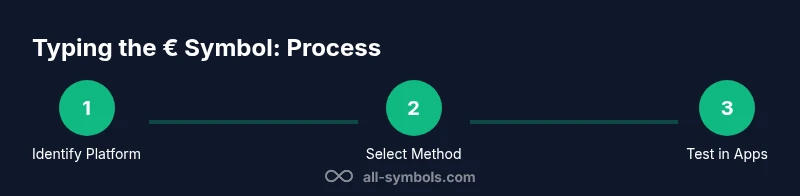
Identify your platform
Determine your operating system and current keyboard layout. This decides which euro-symbol method is most reliable in your everyday apps. Check whether you have a numeric keypad, AltGr availability, and which locale is active.
Tip: Knowing your specific layout prevents trying all methods at once. - 2
Choose a primary Windows method
If you’re on Windows with a numeric keypad, prepare to use Alt+0128. If not, decide whether to enable the on-screen keyboard or switch to a European layout for a dedicated key. Pick one method to start with and stick to it in your most-used apps.
Tip: Start with Alt+0128 if you have a keypad for fastest entry. - 3
Try macOS shortcut
On a Mac with a US keyboard, the common shortcut is Option+Shift+2. If you have a different layout, verify the appropriate pairing in System Preferences > Keyboard. Test the shortcut in a text editor before using it in documents to ensure consistency.
Tip: If the combo doesn’t work, use the Character Viewer (Control+Command+Space) to insert €. - 4
Explore Linux Unicode input
Many Linux environments support Unicode input: Ctrl+Shift+U, then type 20AC and press Enter. This works across editors and terminals where Unicode entry is enabled. If your distro uses a Compose key, configure it first and learn the sequence to produce €.
Tip: Remember to test in your most-used editor to confirm compatibility. - 5
Validate mobile shortcuts
On iOS and Android, Euro symbols are usually available via the symbol/number view or a long-press on a currency key. If your keyboard app supports a shortcut row, enable it for quicker access. Practice the gesture in messages and notes for reliability.
Tip: Mobile keyboards vary by app; pick the most consistent gesture you can rely on. - 6
Test in real apps
Open a word processor, spreadsheet, email composer, and your code editor to confirm the euro-entry method works consistently across tools. Note any discrepancies and adapt by keeping multiple methods ready.
Tip: Prefer a single, reliable method for your most-used toolchain. - 7
Create a quick-reference cheat sheet
Summarize Winchester-style shortcuts for Windows, macOS, Linux, and mobile in one page. Place it on your desktop or clipboard manager for fast access during busy sessions.
Tip: A cheat sheet reduces decision fatigue during deadlines. - 8
Practice until fluent
Spend 5–10 minutes daily repeating the shortcuts on different apps. Gradual repetition improves speed and accuracy, making € entry a near-automatic action.
Tip: Consistent practice is the key to long-term efficiency.
Questions & Answers
What is the euro symbol and where is it used?
The euro symbol (€) marks prices and currencies used by the eurozone in financial documents and digital interfaces. It’s a standard sign in most contexts involving euros, from shopping carts to spreadsheets.
The euro symbol is the currency sign for the euro and appears in prices and financial data across many apps and documents.
Why can’t I type € in some programs?
Some apps block special characters in restricted input fields or rely on a basic ASCII set. If you can’t insert €, try a different app, enable Unicode input, or switch to a layout that exposes € directly.
Some programs don’t allow special characters; switch apps or enable Unicode input to work around it.
Is there a universal Windows shortcut for €?
There is no single universal Windows shortcut for all keyboards. The classic method is Alt+0128 with a numeric keypad, but some layouts use AltGr combinations or require on-screen keyboards.
Windows can differ by keyboard; Alt+0128 is common if you have a keypad.
Can I type € on Linux without knowing Unicode?
Yes. Besides Unicode input, you can configure a Compose key on Linux or switch to a European layout to access € directly from a key.
Linux offers flexible options, including Unicode input and Compose keys.
What about typing € on mobile?
On mobile keyboards, you typically long-press a currency key or switch to the symbol view to select the euro sign (€). Some apps also offer a dedicated currency row.
Mobile keyboards usually provide a quick way to insert € via a symbol view or long-press gesture.
Can I customize shortcuts for € on macOS?
Yes. You can create a text replacement or map a custom shortcut in System Preferences to insert the euro symbol quickly.
macOS lets you customize how you insert € for faster typing.
Watch Video
The Essentials
- Recognize platform-specific euro shortcuts and stick to one reliable method per app
- Windows: Alt+0128 is the classic route; macOS: Option+Shift+2 is common
- Linux: use Unicode input (Ctrl+Shift+U 20AC) or Compose key if configured
- Mobile: use long-press or symbol keyboard for quick access