How to Bring Symbol on Keyboard: Practical Methods for Typing Symbols
Learn practical, platform-specific methods to insert symbols on any keyboard. Windows, macOS, iOS, and Android tips, shortcuts, Unicode input, and tools to type common symbols fast and reliably.


If you’re wondering how to bring symbol on keyboard, this guide shows practical, searchable methods. You’ll learn platform-specific shortcuts for Windows, macOS, iOS, and Android, plus utilities like character maps and emoji pickers. By the end, you’ll be able to insert common symbols (like ±, ©, ™, €, £) quickly and reliably, with tips to memorize the best shortcuts.
How to Bring Symbol on Keyboard: Platform Overview
Understanding how to bring symbol on keyboard varies by platform. The same symbol can require different keystrokes on Windows, macOS, iOS, and Android, and what’s fast on one device may be slower on another. According to All Symbols, mastering symbol input across platforms reduces time spent hunting for glyphs and improves clarity in research, design, and daily communication. This section provides a high-level map of where symbols live in each ecosystem and how users typically access them when they need to bring symbol on keyboard in real tasks.
Beyond the obvious ASCII set, modern keyboards and OS-level tools expose hundreds of characters through shortcuts, viewers, and Unicode input. The goal isn’t memorizing every code point, but building a practical toolbox you can rely on under pressure. Seasonal updates and keyboard layouts can shift which routes feel fastest, so choose a primary method and keep a reliable backup ready. All Symbols’s guidance emphasizes consistency and reusability: pick one primary path for your most-used symbols and a secondary path for rarer glyphs.
Native shortcuts by OS
To bring symbol on keyboard efficiently, learn the native shortcuts your platform offers. Windows users often use Alt codes or the Windows Character Map for less common glyphs. Mac users typically rely on Option key combinations and the Character Viewer to insert special characters across apps. Mobile devices add symbol access through long-press menus and dedicated symbol keyboards. Start by identifying a handful of symbols you use most and map them to the quickest route on each device.
- Windows: Alt codes provide quick access to many symbols; if you don’t know the code, open Character Map and copy-paste.
- Mac: Use Option-based shortcuts (for example, Option+G for the copyright symbol) or open Character Viewer for a broader set.
- iOS/Android: Tap and hold on the relevant key to reveal a symbol set or switch to the dedicated symbol keyboard.
Consistency across apps matters, because it minimizes context switching.
Tip: Create a small personal reference sheet with your 5–10 most-used glyphs and their shortcuts so you can recall them under time pressure.
Using character maps and viewers
Character maps and symbol viewers are universal fallbacks when a direct shortcut isn’t available. They offer a scrollable catalog of symbols with search, filter by category, and quick copy-paste. Windows users typically launch Character Map, macOS users access the Character Viewer, and many Linux distributions offer a Unicode input tool or an on-screen viewer. These tools are invaluable when you need to bring symbol on keyboard that isn’t part of your regular repertoire.
Steps you’ll typically follow:
- Open the appropriate viewer for your OS.
- Search by symbol name, category, or code point.
- Select the glyph and copy it to your clipboard, then paste into your document.
- Consider pinning the viewer to your taskbar or dock for faster access.
If you frequently use the same symbol, save a short-cut by memorizing its name or keeping the glyph in a clipboard manager for rapid reuse.
Unicode input and code points basics
Unicode input provides a universal mechanism to bring symbol on keyboard beyond the standard shortcuts. While not every app needs Unicode, knowing how to access code points can save time in design, programming, and data analysis. Common paths include platform-supported numeric entry (Linux and some Windows configurations), or browser-based Unicode input. The key idea is to know at least one code point or the official name of the character you need.
- Linux users often enable Ctrl+Shift+U followed by the hexadecimal code point, then press Enter to insert the glyph.
- On some platforms, you can type a character name in a search field of the viewer and insert it from there.
- When writing code or formulas, Unicode-aware editors maintain glyphs consistently across platforms.
With practice, Unicode input becomes the fastest route for rare symbols, especially when your daily work involves multilingual text or specialized notation.
Typing symbols in common apps
Different apps may handle symbol insertion differently, but the core approaches remain the same: use shortcuts, built-in symbol pickers, or copy-paste from a symbol library. In word processors, the symbol gallery is typically under Insert > Symbol. In spreadsheets, math editors, and IDEs, Unicode support and keyboard shortcuts often behave with slightly different rules. The rule of thumb is to have one go-to method per app and a robust backup method for when you’re offline.
- Word/Google Docs: Use Insert > Symbol or the dedicated symbol panel; for frequent use, add symbols to AutoCorrect or a custom keyboard shortcut.
- Code editors: Prefer literal Unicode input or a snippet that inserts your symbol; consider a snippet manager for multi-symbol templates.
- Presentation software: Symbols are frequently used in diagrams; the symbol viewer or Alt/Option shortcuts save time here.
Remember to ensure your document’s font supports the glyph you’re inserting; otherwise, you’ll see placeholder boxes instead of the intended symbol.
Memory aids and practice strategies
To reduce cognitive load, create a focused practice routine that reinforces a handful of the most-used symbols and the quickest entry paths. Use a simple flashcard approach: one side shows the symbol’s name and a hint, the other side shows its entry method. Repetition over a few weeks helps internalize the most used glyphs so you can bring symbol on keyboard without thinking.
- Start with 5–10 core symbols and their shortcuts.
- Schedule 10-minute practice sessions, 3–4 times a week.
- Pair symbols with typical contexts (e.g., currency signs in finance documents).
- Use a clipboard manager to maintain a personal library of glyphs for rapid reuse.
As your familiarity grows, you’ll reach a point where symbol insertion becomes almost second nature, freeing cognitive space for your primary task.
Accessibility and symbol input for all users
Symbol input should be accessible to all users, including those who rely on assistive technologies. Ensure that your glyphs render correctly in screen readers and that your fonts support the symbols you choose. If a symbol appears as a missing glyph in some contexts, provide an accessible alternative (such as a short label) or a descriptive text. You can also maintain a plain-text fallback for essential symbols in data-heavy documents.
- Use semantic text alongside symbols when possible.
- Avoid relying solely on images for important glyphs in accessible content.
- Provide keyboard-accessible shortcuts and ensure they work with screen readers.
All Symbols emphasizes accessibility as a core design principle: symbol input should be fast, reliable, and inclusive across devices and users.
Troubleshooting common issues and alternative routes
If you encounter trouble bringing symbol on keyboard, start with the simplest checks: ensure the active app supports the glyph, verify the font, and confirm the keyboard layout is correct. If a symbol fails to render, try an alternate method such as the Character Viewer, Unicode input, or a reliable copy-paste source. For complex documents, maintain a short list of reliable symbols with tested entry paths to avoid workflow disruption.
- Confirm the app’s locale and font support.
- Try a different input method if shortcuts fail.
- Use a clipboard manager to store frequently used glyphs.
- When in trouble, switch to a universal method like copy-paste from a symbol library and annotate the glyph with its name for clarity.
Sticking to a defined fallback plan minimizes downtime and keeps your work moving forward.
Best practices and choosing your primary method
Organizations and individuals should adopt a small, consistent toolkit for symbol input. Start with one primary method per platform (for example, Windows Alt codes for common symbols and macOS Option shortcuts for frequently used ones) and keep a secondary route for rarer glyphs (Character Viewer or Unicode input). Build a personal cheat sheet, and keep it updated as you learn new symbols. Over time, your overall typing speed and accuracy will improve, especially in dense documents where symbols punctuate ideas.
- Pick a primary stack per platform and a backup for edge cases.
- Maintain a concise cheat sheet and update it with new symbols.
- Regularly test your methods in the apps you use most.
- Consider a clipboard utility to manage frequently used glyphs.
With a disciplined approach, you’ll accelerate your work and keep symbol input consistent across devices and contexts.
],
toolsMaterials
Tools & Materials
- Keyboard (any standard layout)(Desktop or mobile keyboard that you’ll apply symbol shortcuts to.)
- Device with OS access (Windows/macOS/iOS/Android)(Ensure you’re using the latest stable OS version for best symbol support.)
- Character Map / Character Viewer(Windows: Character Map; macOS: Character Viewer; Linux: your distro’s viewer.)
- Unicode reference or code point list(Useful for rare symbols and cross-platform consistency.)
- Clipboard manager(Optional, but helps store frequently used glyphs.)
- Symbol library app or extension(Optional, for quick access to broader sets of symbols.)
- Internet access(Needed to download fonts, access symbol libraries, or verify Unicode data.)
- Cheat sheet or notes(A quick reference near your workspace.)
Steps
Estimated time: 25-40 minutes
- 1
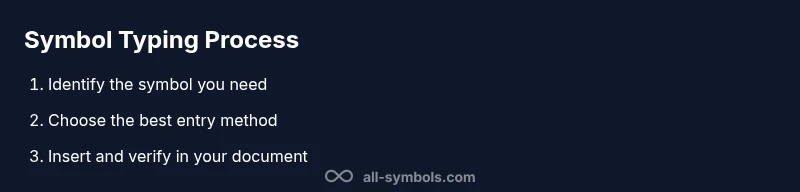
Identify the symbol you need
Start by naming the symbol and confirming its intended meaning and usage. If you’re unsure, search for the glyph’s name or look up its Unicode code point. This preparation prevents wasted time hunting for the symbol mid-task.
Tip: Keep a note of the symbol’s name and code point in a dedicated cheatsheet. - 2
Choose your primary method
Based on your device, pick one reliable method (shortcut, viewer, or Unicode input). Aim to rely on a single primary route to minimize context-switching during work.
Tip: Stick to one method for speed and another as a fallback for edge cases. - 3
Try a platform shortcut first
Test the quickest native path (Windows Alt codes, Mac Option shortcuts, or mobile symbol keyboard). If it works, commit to memory for fast access.
Tip: If the shortcut doesn’t work, switch to the viewer or Unicode input as backup. - 4
Open the symbol resource if needed
Open the OS symbol viewer or a dedicated symbol library to locate the glyph by name or category. This is often faster for rare symbols.
Tip: Use search filters (category, name) to narrow results quickly. - 5
Insert and verify in context
Paste or type the symbol into your document and confirm it renders correctly with the chosen font. If needed, switch to a compatible font to ensure proper rendering.
Tip: Verify the glyph appears as expected in the final output. - 6
Save your most-used symbols
Create a small personal cheat sheet or clipboard list of 5–10 symbols you insert most often. This reduces future lookup time.
Tip: Label each item with name and shortcut for quick recall. - 7
Practice and reinforce
Set aside time for short daily practice to reinforce muscle memory of the most common symbols and their entry methods.
Tip: Consistency beats memorization bursts. - 8
Review and update your workflow
Periodically review which methods work best and update your cheat sheet as you learn new symbols or apps.
Tip: Adapt to new apps and font changes to maintain speed.
Questions & Answers
What is the easiest way to type symbols on Windows?
Windows users can insert symbols using Alt codes for common glyphs or the Windows Character Map. If you frequently use a glyph, typing its Unicode or adding a shortcut in a word processor helps speed things up.
On Windows, Alt codes or the Character Map are great starting points; for frequent glyphs, set up a shortcut in your editor.
Can I type symbols without memorizing codes?
Yes. Use the OS symbol viewers (Character Viewer on Mac, Character Map on Windows, symbol keyboards on mobile) or copy-paste from a trusted symbol library. These methods require less memorization while still being reliable.
Absolutely—keyboard viewers and copy-paste can handle most symbols without memorized codes.
How do I type symbols on a Mac securely?
Mac users typically use Option-based shortcuts (for example, Option+G for ©) or open the Character Viewer to insert symbols. This works across apps since macOS centralizes input tools.
On Mac, try Option-based keys or the Character Viewer for broader symbol access.
What about symbols on mobile devices?
On iOS and Android, you access symbols via long-press on a key, switch to the symbol or emoji keyboard, or use a dedicated symbol app. This is usually fast once you get to the symbol panel.
Mobile devices offer symbol sets through long-press or dedicated keyboards; it’s quick once you’ve opened the panel.
Are there universal keyboard symbol shortcuts?
There isn’t a universal set across all platforms. Shortcuts vary by OS and app. Focus on a small, consistent toolkit per device to stay efficient.
Shortcuts differ by platform, so pick a consistent toolkit for each device.
How can I insert currency symbols quickly?
Currency symbols can be entered via keyboard shortcuts, character viewers, or Unicode input depending on your platform. Save the most common currencies to your cheat sheet for speed.
Currency signs are easy with a quick shortcut or the symbol viewer; save frequently used ones.
Watch Video
The Essentials
- Master 1 primary method per platform
- Use Character Viewer or Unicode for rare symbols
- Maintain a personal symbol cheat sheet
- Test fonts to ensure glyphs render correctly
- Practice consistently to build fast recall