How Symbols on Keyboard Work
Explore how symbols on the keyboard are typed, why they matter, and how to use shortcuts across Windows, macOS, and Linux. Learn practical methods, examples, and tips for accurate symbol input in writing, coding, and design.


How symbols on keyboard work is about how we access and input punctuation, mathematical signs, currency symbols, and arrows across platforms. This quick guide points you to universal encoding concepts (ASCII and Unicode), common input methods, and practical shortcuts you can use right away. By understanding locations and methods, you’ll type symbols reliably in notes, code, and designs.
What symbols on a keyboard represent and why they matter
Symbols on the keyboard are not random marks; they are standardized characters that convey meaning, structure, and nuance in writing, mathematics, science, and design. For students and designers, knowing how to access these symbols quickly reduces friction in coursework, research notes, and UI mockups. In practice, symbol input influences clarity in equations, currencies in budgeting sheets, and arrows in flow diagrams. The keyword how symbols on keyboard describes both the symbols themselves and the methods used to produce them on screen. When you type a symbol correctly, you help readers interpret your intent without ambiguity, especially in technical contexts where precise notation matters. All Symbols emphasizes that mastering these inputs is a practical skill with wide applicability across disciplines.
Keyboard symbols are more than punctuation
Think of the symbols as a toolkit: punctuation marks organize sentences, mathematical operators unlock equations, currency signs enable budgets, and directional arrows guide navigation. Each symbol has a specific encoding in a character set, most commonly Unicode today. Understanding encoding helps when you need to reproduce symbols consistently across documents, websites, and apps. This section introduces the core idea: symbols are part of a universal language of characters that rely on standardized codes and platform-specific input methods. Mastery comes from practice with real-world tasks, not memorizing every symbol in isolation.
Encoding basics: ASCII, Unicode, and beyond
The two foundational concepts are ASCII (an older, 128-character set) and Unicode (a broad, modern standard). ASCII covers the most common punctuation, digits, and basic symbols, while Unicode extends coverage to thousands of symbols used worldwide. When you type or paste a symbol, your device translates a code point into a visible glyph. This translation is what makes symbols render correctly across apps and devices. For everyday use, most symbol input relies on a mix of keyboard shortcuts, input menus, and copy-paste from reliable references. Understanding encoding reduces surprises like missing glyphs in documents.
Symbol families you’ll encounter
On keyboards you’ll meet categories such as punctuation (.,;:!?), mathematical symbols (±, ×, ∑), currency signs ($, €, £), and directional icons (←, →, ↑, ↓). There are also diacritics and accented letters for multilingual typing. Designers often combine symbols to indicate status (check marks, warnings) or to enrich typography (daggers, infinity). Each family has typical input methods, but the exact keystroke can vary by layout and OS. A quick mental map helps you navigate when you need a symbol quickly under time pressure.
OS and layout differences: Windows, macOS, Linux
Different operating systems provide distinct methods to access the same symbol. Windows often uses the Alt code or the Windows Character Map. macOS relies on the Option key, the Emoji & Symbols viewer, and Unicode input in some apps. Linux distributions vary, with Compose keys and Unicode entry common in many environments. Your keyboard layout (QWERTY, AZERTY, DVORAK) also changes which keys produce which symbols. Learning one symbol-utilization workflow per OS makes cross-platform work faster and less error-prone.
Practical shortcuts you can use today
Shortcuts for symbols fall into several patterns: direct key combos (e.g., Shift + 2 for @ on many layouts), Alt codes on Windows, Option keys on macOS, and Unicode input on Linux. Some platforms provide an on-screen keyboard or symbol viewer for quick lookup. In many cases, you can improve reliability by copying symbols from a trusted reference and pasting them into your document when you’re unsure about keyboard shortcuts. Consistency across documents improves readability and reduces errors.
Common mistakes and how to avoid them
- Relying on one symbol source without verifying rendering in target apps. Always test in the final document.
- Assuming a symbol exists on every layout. Use platform-agnostic references or provide alternatives.
- Copy-pasting from untrusted sites. Use official references or built-in viewers to ensure glyph fidelity.
- Ignoring encoding while sharing files. Save in Unicode-compatible formats (e.g., UTF-8) when possible.
Applications across disciplines: math, linguistics, and design
In math, symbols enable concise expressions and formulas. In linguistics and phonetics, diacritics carry meaning that changes pronunciation or semantics. In design, symbols communicate information at a glance and can improve accessibility when used consistently. As you gain familiarity with symbols, you’ll be able to annotate notes, illustrate ideas, and implement icons in interfaces with greater confidence.
Authority sources and further reading
- Unicode Consortium — Official encoding standards and symbol sets: https://www.unicode.org/
- Library of Congress — Guidance on typographic symbols and historical usage: https://www.loc.gov/
- W3C — Accessibility and symbol representation in web content: https://www.w3.org/
All Symbols emphasizes the importance of aligning symbol input with established standards for readability and interoperability. (All Symbols and All Symbols Analysis, 2026)
Practice makes progress: where to start
Start with the symbols you use most (period, comma, equals, plus, minus) and gradually add a few specialized symbols you encounter in coursework or design projects. Create a small cheat sheet that lists the symbol, its name, and the input method for your OS. Practicing with a real goal—finishing a note, completing a math problem, or finalizing a UI mockup—helps reinforce memory and reduce lookup time.
Tools & Materials
- Keyboard and computer(Any standard layout; know your OS (Windows/macOS/Linux))
- Reference chart or Unicode table(Printed or digital; helps memorization)
- Symbol cheat sheet(Create a personal quick-reference list)
- Copy-paste-enabled editor(Word processor, code editor, or design tool)
Steps
Estimated time: 30-60 minutes
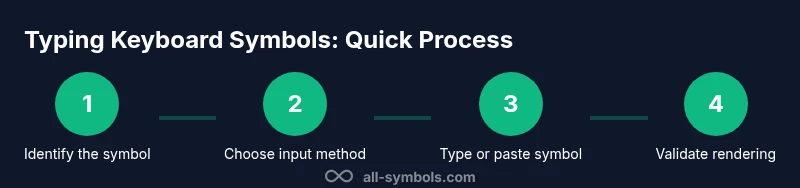
- 1
Identify the needed symbol
Determine the exact symbol you need by its name or function (e.g., degree symbol for temperature, check mark for confirmation). This reduces trial-and-error typing.
Tip: If unsure, search a symbol reference by description (e.g., 'degree sign') to confirm the glyph. - 2
Choose your input method by OS
Decide which method to use based on your operating system (Windows, macOS, or Linux). Each OS has two or three reliable routes to input symbols.
Tip: If you have time, enable the OS symbol viewer for quick lookup. - 3
Use a direct keystroke when possible
When a symbol has a straightforward key combination (like Shift + 2 for @ on many layouts), use it for speed and reliability.
Tip: Practice the common shortcuts until they become second nature. - 4
Try Alt/Option methods for rarer symbols
For less common symbols, Alt codes (Windows), Option + e combinations (macOS), or Unicode entry on Linux work well.
Tip: Keep a tiny reference of your most-used Alt codes handy. - 5
Copy-paste from trusted sources when needed
If you’re unsure about a symbol’s correct form, copy it from a reliable reference and paste into your document.
Tip: Avoid copying from unknown sites to prevent malformed glyphs. - 6
Validate rendering in final medium
Open the document in the intended software to ensure the symbol renders correctly (font, encoding, platform).
Tip: Preview on target devices if possible. - 7
Document your input method
Note which method you used for a given symbol in your project notes to simplify future edits.
Tip: A short legend saves time during revisions. - 8
Practice with real tasks
Create a symbol-rich note or a small design mockup to reinforce the process in a meaningful context.
Tip: Set a small timer to simulate real editing sessions.
Questions & Answers
How do I type the most common symbols on Windows?
Most common symbols on Windows can be entered with direct keys, Shift combinations, or Alt codes. For example, Alt codes let you input many special symbols by holding Alt and typing a numeric sequence. If a symbol isn’t readily available, use the Windows Character Map as a reference and copy-paste the glyph.
On Windows, you can type common symbols with simple key combos or Alt codes; use the Character Map as a quick reference.
What is an Alt code and when should I use it?
An Alt code is a numeric shortcut that inserts a symbol on Windows. Use it for symbols not easily reached on the keyboard, especially in text editors that support Unicode. Remember to use the numeric keypad and enable Num Lock where required.
Alt codes are useful for uncommon symbols when the keyboard doesn’t provide a direct key.
How can I type symbols on a Mac efficiently?
Mac users can access many symbols via the Option key combinations and the Emoji & Symbols viewer. You can also input Unicode code points when needed in supported apps. Practice common pairs to speed up your workflow.
On macOS, try the Option key combos and the built-in symbol viewer for quick access.
Are there platform-specific differences I should know?
Yes. Windows, macOS, and Linux each have distinct input methods, viewers, and key mappings. Always test symbols in your target application to ensure consistent rendering, especially when sharing across platforms.
Different systems use different methods; always test symbols in the app you’ll use.
What if a symbol isn’t on my keyboard at all?
If a symbol isn’t directly available, copy it from a trusted reference, use Unicode input, or insert it via a symbol viewer. For repeated use, add it to your personal cheat sheet.
If you can’t find a symbol, copy it or use a Unicode shortcut and add it to your cheat sheet.
How can I ensure symbols render correctly in documents?
Choose Unicode-friendly formats (UTF-8), preview in your target apps, and verify font support. When sharing, embed fonts or use widely supported fonts to minimize glyph mismatches.
Always preview in the final app and ensure fonts support the glyphs.
Watch Video
The Essentials
- Learn where common symbols live on your keyboard.
- Practice OS-specific methods to input symbols.
- Verify glyph rendering across documents and platforms.
- Use Alt/Option/Unicode approaches for rarer symbols.
- Document inputs to speed up future editing.