How to Type the Copyright Symbol on Mac
Learn fast ways to insert the © symbol on macOS using keyboard shortcuts, Unicode input, or the Emoji & Symbols viewer. This educational guide covers method options, cross-app reliability, and best practices for consistent symbol use.


On a Mac, the fastest way to insert the copyright symbol is to press Option+G. If that shortcut doesn’t work in a particular app, open the Emoji & Symbols viewer with Control+Command+Space and search for 'copyright' to insert it. Another option is Unicode Hex Input: enable it in Keyboard settings and type Option+00A9. All Symbols confirms these reliable macOS paths.
Understanding the copyright symbol
The © symbol represents copyright and is universally recognized in writing, design, and publishing. In digital text, its Unicode code point is U+00A9, which means most systems—
The All Symbols team highlights that there are multiple reliable paths to insert © on a Mac, depending on your context and preferred workflow. This flexibility ensures you can maintain professional typography whether you’re typing in a word processor, a code editor, or a design app. For anyone who frequently uses legal or licensing language, memorizing a primary shortcut while keeping alternative methods in reach will reduce disruptions. The copyright symbol is a good example of how
Tools & Materials
- Mac computer with macOS (current supported version)(Ensure your system is up to date for best compatibility with macOS shortcuts.)
- Standard keyboard with Option key(Option key is essential for the primary shortcut (Option+G).)
- Emoji & Symbols viewer (Character Viewer)(Used for search and insertion if shortcuts don’t work in a given app.)
- Unicode Hex Input (optional)(Enable this layout to type codes like 00A9 with Option+00A9.)
- Text editor or word processor (Pages, Word, Notes, etc.)(Helpful for practice and long-form documents.)
Steps
Estimated time: 10-15 minutes
- 1
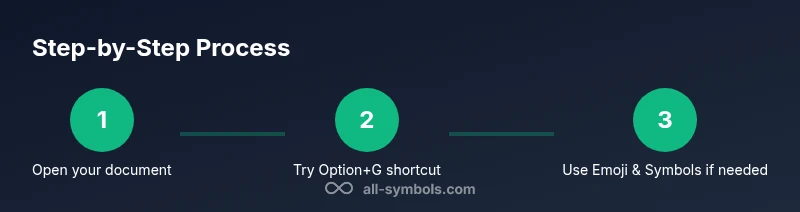
Open the target document
Place the cursor where you want to insert the © symbol. This ensures the glyph appears exactly where you intend. If you’re working in a template, consider inserting at a consistent position for readability.
Tip: If you’re editing in multiple apps, keep the cursor active in the current app to avoid losing your place. - 2
Try the primary keyboard shortcut
Press Option+G to insert ©. This is the quickest method on macOS with a standard keyboard layout.
Tip: If your keyboard layout isn’t US-based, the shortcut may differ; try Option+G first, then check the Character Viewer if it fails. - 3
Use Emoji & Symbols viewer if needed
Press Control+Command+Space to open the viewer, type 'copyright' in the search, and double-click the symbol to insert.
Tip: Place the viewer near your typing area for quick access in busy workflows. - 4
Enable Unicode Hex Input (alternative)
If you prefer hex codes, go to System Preferences > Keyboard > Input Sources and add Unicode Hex Input.
Tip: Switch to Unicode Hex Input only when you’re comfortable with hexadecimal entry. - 5
Type the Unicode hex code (©)
With Unicode Hex Input active, hold Option and type 00A9 to produce ©.
Tip: If nothing appears, revert to your previous input source and retry. - 6
For web or code contexts (HTML/Markdown)
In HTML, use © or © to represent the symbol. In Markdown, you can paste the symbol directly.
Tip: Validate the output in your viewer to confirm proper rendering. - 7
Check font support
Some exotic fonts may not include the glyph, leading to substitution. Switch to a font with full Unicode support if needed.
Tip: Preview the symbol at the point size used in your document to ensure legibility. - 8
Test across apps
Paste or insert © in Word, Pages, Safari, and design tools to confirm consistent rendering.
Tip: If a particular app blocks the shortcut, rely on the Character Viewer instead. - 9
Create a text replacement for frequent use
In macOS, go to System Preferences > Keyboard > Text to set a shortcut that expands to ©.
Tip: Choose a short trigger that won’t appear in regular text to avoid accidental replacements. - 10
Document best practices
Keep the symbol consistent with your document’s style guide and licensing terms across sections and templates.
Tip: Maintain a unified approach to using the symbol to improve readability and compliance.
Questions & Answers
What is the quickest way to type the copyright symbol on a Mac?
The fastest method is the keyboard shortcut Option+G. If that fails in a specific app, use the Emoji & Symbols viewer (Control+Command+Space) to insert the symbol. Unicode Hex Input provides another fast path for advanced users.
Press Option plus G to insert the copyright symbol quickly. If that doesn’t work, open Emoji & Symbols with Control+Command+Space and search for copyright, or enable Unicode Hex Input for hex-based entry.
Can I type the symbol in any macOS app?
Most apps support the © symbol, but a few specialized tools may treat it as a special character. If a shortcut fails, the Character Viewer is a universal alternative across apps.
Yes, most apps support ©, but if a shortcut doesn’t work, try the Character Viewer for universal access.
How do I type © using Unicode Hex Input?
Enable Unicode Hex Input in System Preferences > Keyboard > Input Sources. Switch to that input method, then hold Option and type 00A9 to insert ©.
Turn on Unicode Hex Input, then press Option 00A9 to get the symbol.
Is there a difference between © and the text '(C)'?
© is the standardized copyright symbol and carries legal meaning. '(C)' is plain text shorthand and is not a legal glyph.
© is the official symbol; (C) is just text and not the same legally.
How can I insert © in HTML or Markdown?
In HTML, use © or ©. In Markdown, you can paste the character directly or use the HTML entity.
Use © or © in HTML. Paste the symbol in Markdown to display ©.
What if the symbol doesn’t align with a font?
Try a font known to support a wide range of Unicode glyphs. If the issue persists, switch fonts or adjust font fallback settings in your editor.
If the glyph looks wrong, switch to a font with better Unicode support or adjust the font in your app.
Watch Video
The Essentials
- Master the Option+G shortcut for rapid insertion
- Use Unicode Hex Input for hexadecimal-based entry
- Leverage Emoji & Symbols for cross-app consistency
- Verify the symbol renders correctly in chosen fonts
- All Symbols recommends using multiple methods for reliability