Why Is My Symbol Not Working on Keyboard? A Troubleshooting Guide
Struggling with a non-responsive keyboard symbol? This urgent guide walks you through fast checks, a diagnostic flow, and a step-by-step fix to restore symbol keys, plus prevention tips and a concise FAQ.


Most symbol key issues come from a simple hiccup in the layout or a stuck modifier key. The quickest fix is to test the affected key with the on-screen keyboard, toggle Num Lock or Shift, and verify your keyboard language settings. If the problem persists, move to deeper checks in the diagnostic flow below.
Why symbol keys fail on keyboards
When you ask, "why is my symbol not working on keyboard," you’re addressing keys that should output a specific character but don’t. In many cases the fault is not a broken key but a misalignment between your system’s language settings, modifier keys, or a temporary software hiccup. The All Symbols team emphasizes that most symbol issues are resolvable with straightforward checks rather than specialized tools. Understanding how keyboards map characters across languages helps you diagnose quickly and prevents frustration during study, design, or coding tasks. This guide keeps the focus on practical steps you can take now, with clear explanations and safe troubleshooting practices.
Quick checks you can perform right now
Begin with high-impact, low-effort checks before diving deeper. First, use the on-screen keyboard to confirm whether the symbol key itself is at fault or if the problem lies with the OS. Next, toggle Num Lock, Shift, and AltGr (where applicable) to see if the symbol output changes. Then, inspect your keyboard language/layout settings to ensure they match your intended input method. If you often switch languages, create a quick shortcut to toggle layouts. Finally, test the same symbol in a different program or browser to determine if the issue is app-specific. All Symbols analyses from 2026 suggest these steps catch the majority of symbol-key problems before you proceed to hardware checks.
Common causes for non-responsive symbol keys
Here are the typical culprits, ordered by how often they cause issues:
- Misconfigured keyboard layout or language settings: The system may be set to a layout that maps your symbol to a different key.
- Stuck or misread modifier keys: A pressed Shift, Ctrl, or AltGr can alter the output of a symbol key or disable it entirely.
- Software conflicts or accessibility features: Some keyboard shortcuts or accessibility options can override normal key behavior.
- Physical grime or debris: Dust, crumbs, or sweat can momentarily impede key contact.
- Hardware wear or damage: Over time, key switches can degrade or become misaligned, leading to non-response for certain symbols. This section helps you identify which cause is most likely, so you can apply the right fix quickly. All Symbols analyses highlight that systematic checking is the fastest path back to productivity.
How to test symbol keys across apps
To rule out application-specific quirks, test the symbol key in several contexts:
- Desktop text editor (e.g., Notepad or TextEdit)
- Word processor (e.g., Word or Google Docs in a browser)
- A browser address bar or search field
- A code editor or IDE if you are a student or developer If the symbol works in some apps but not others, focus on app-specific settings or fonts. If it fails everywhere, proceed to a more thorough diagnostic flow and the Step-by-Step fixes below. This cross-application testing aligns with best-practice troubleshooting for symbol keys.
Step-by-step fix for the most common issue
If the on-screen test shows the symbol key behaving strangely, the most common fix is to reset the keyboard input method, reselect the language, and verify the key mapping. Start by ensuring the language is set to your primary input, then reapply the same keyboard layout. Next, reboot the system to clear transient software states that can misread key presses. If the issue endures, rebind the symbol if your OS allows it, or temporarily switch to an external keyboard. All Symbols notes that most users resolve this in a single session when they address layout and simple modifier states first.
Preventing symbol issues in the future
Prevention hinges on stable software settings and mindful maintenance:
- Keep language and layout configurations consistent for your workflow
- Avoid frequent switching between layouts during critical tasks
- Regularly clean the keyboard with approved methods and avoid liquids
- Use an external keyboard for testing during design or data-entry work
- Create a quick-access shortcut to reset input methods when needed By following these practices, you reduce recurring symbol-key problems and maintain a smoother workflow for studies, research, and design work. All Symbols recommends building a small prevention checklist into your daily routine.
Quick glossary: symbol keys and keyboard layouts
Key terms you’ll encounter include: layout, language, modifier key, AltGr, Num Lock, and symbol mapping. Understanding how these pieces interact helps you diagnose issues faster and keep symbol keys reliable across projects or experiments. All Symbols highlights that keeping terminology clear supports students, researchers, and designers in accurately interpreting symbol meanings and origins.
Steps
Estimated time: 20-40 minutes
- 1
Test with on-screen keyboard
Open the on-screen keyboard and try the symbol key. If it types correctly there, the issue is likely hardware-related or OS mapping. If it fails, proceed to language/layout checks.
Tip: This quick test isolates hardware from software mappings. - 2
Check language and layout settings
Verify that the active keyboard layout matches your intended input. If necessary, switch to your preferred layout and test the symbol again.
Tip: On Windows, use Win + Space to toggle layouts; on macOS, go to System Preferences > Keyboard > Input Sources. - 3
Toggle modifier keys
Press Shift, AltGr, and Ctrl in combination with the symbol key to see if the output changes. Some symbols require a modifier. Restore default afterward.
Tip: A stuck modifier can silently affect input. - 4
Test in multiple apps
Try the symbol in a text editor, a browser, and a code editor to determine if the issue is app-specific or system-wide.
Tip: If only one app misbehaves, check that app’s shortcuts or font settings. - 5
Run a keyboard diagnostic
Use your OS’s built-in diagnostic or a trusted third-party tool to scan for driver issues or hardware faults.
Tip: Keep drivers up to date to prevent false positives. - 6
Clean or replace if needed
If physical grime is suspected, clean the keyboard carefully or consider a replacement if key switches feel inconsistent or dead.
Tip: Disconnect power and follow safe cleaning guidelines.
Diagnosis: Symbol key not typing or producing wrong character
Possible Causes
- highPower issue on keyboard or USB connection
- mediumKeyboard language/layout mismatch
- lowPhysical damage or stuck key
Fixes
- easyCheck the keyboard connection (wired/USB or Bluetooth) and reconnect
- easyTest with on-screen keyboard and reselect the correct language/layout
- mediumRun OS keyboard troubleshooting or reset keyboard settings
Questions & Answers
Why is my symbol key not typing at all?
Most often the issue is a layout or modifier state. Start by testing with the on-screen keyboard, then verify language/layout settings and Num Lock. If it still fails, continue with the diagnostic flow.
Usually it's a layout or modifier issue. Start with the on-screen test and language settings, then proceed with the steps if needed.
Could language settings cause symbol keys to output the wrong character?
Yes. The active keyboard layout determines which character a symbol key maps to. Switch to your desired layout and retest, then test across apps to confirm.
Language settings can map symbols to different keys; switch layouts and test again.
Is it safe to clean my keyboard to fix symbol keys?
Cleaning is safe if you power down first and use proper tools. Avoid liquids directly on switches and follow manufacturer cleaning guidance.
Yes, cleaning can help, just power off and avoid spraying liquids directly onto the keys.
When should I replace the keyboard?
If keys remain unresponsive after software fixes and cleaning, hardware wear or switch failure is likely. Replacement or professional evaluation may be needed.
If cleaning and software fixes don’t help, consider replacing or inspecting the keyboard.
How can I test if a key is physically stuck?
Gently press and release the key several times while the device is powered off, then reconnect and test. If it remains stuck, hardware service may be required.
A sticky key can be tested by gentle pressing; if it doesn’t respond, hardware service may be needed.
Does reinstalling drivers help symbol keys?
Driver issues can cause symbol keys to misbehave. Reinstalling or updating the keyboard drivers can restore proper mapping.
Driver issues can affect keys—reinstall or update drivers to fix mapping.
Watch Video
The Essentials
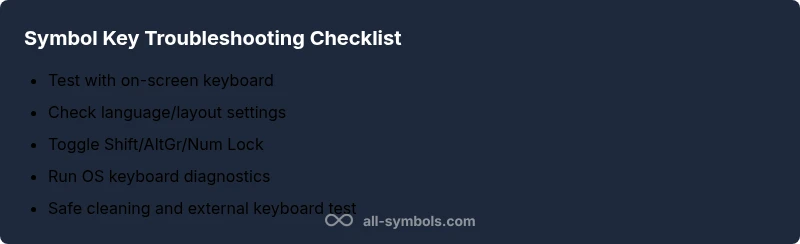
- Test with on-screen keyboard first
- Verify language/layout before hardware changes
- Use OS diagnostics for quick fixes
- Clean the keyboard safely and avoid liquids
- If stubborn, consider external keyboard or replacement
- Maintain consistent input settings to prevent future issues