How to Sign an Already Signed Adobe PDF
Learn how to add a second digital signature to an Adobe PDF that already has a signature. This educational guide covers prerequisites, steps, troubleshooting, and best practices to preserve existing signatures and ensure validity.


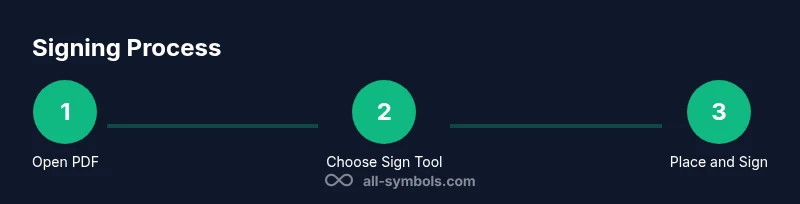
You can add a second digital signature to an already-signed PDF using Adobe Acrobat’s Sign or Fill & Sign tools, provided the document allows multiple signatures. Open the file, choose the Sign/Certificates option, select a digital ID, place the new signature, and save with incremental updates so existing signatures remain valid.
How digital signatures in PDFs work
Digital signatures in PDFs act as tamper-evident badges that verify the signer’s identity and the integrity of the document. When a PDF is signed, Acrobat typically saves the file using an incremental update, which preserves prior signatures while appending new ones. This means you can add additional signatures later, as long as the document’s permissions and the signing policy allow it. In practice, the step-by-step process relies on a valid signing certificate, access to the signing tool, and a PDF that supports multiple signatures. For students, researchers, and designers, understanding these basics helps you manage collaborative documents without breaking the trust chain embedded in each signature.
Prerequisites and setup
Before you try to sign an already-signed PDF, gather the essentials. You’ll need a computer with Adobe Acrobat (preferably Acrobat Pro DC), a valid digital certificate or ID (for example, a PKCS#12 file or smart card), and a backup copy of the original file. Ensure your certificate is trusted by the recipient systems and that you have permission to sign the document more than once. If you are signing on behalf of an organization, confirm their signing policy and whether incremental updates are required to preserve earlier signatures.
Checking permissions and signature status
Not all PDFs permit additional signatures. Some documents are certified or locked to prevent changes beyond form filling. Start by opening the PDF and inspecting the signature panel; look for messages like 'This document was signed and has not been modified' and check for any warnings about subsequent signatures. If the document is restricted, you may need the author to adjust permissions or supply a new unsigned copy. Always verify the exact signing policy attached to the PDF, because some workflows require timestamping or approval from a designated signer.
Step-by-step overview before you start
A quick overview helps you avoid common pitfalls. Confirm that the file allows multiple signatures, locate a suitable signing tool, prepare your digital ID, and plan where your new signature will appear. If the document contains critical fields or a signature field already, you may need to place an additional signature near a blank area or rely on a separate signature field. This preparation reduces the risk of invalidating existing signatures during the process.
Why incremental updates preserve prior signatures
Incremental updates store only the changes appended to the file, rather than rewriting the entire document. This behavior is fundamental to preserving earlier signatures, provided no signature field or certificate policy is violated during the new signing step. When you sign again, the new signature is layered onto the existing trusted state without altering the content that previous signatures validated. If you see a warning about signature changes, stop and verify the signer’s permissions and the document’s signing policy.
Handling signatures in business workflows
In organizational settings, multiple signatures often indicate approvals from different departments. A common workflow is to sign in sequence: the author signs first, then reviewers and approvers sign later. Make sure your process accounts for certificate trust chains, time stamps, and the preservation of prior signatures. When working with teams, adopt standardized appearance for signatures (appearance, color, placement) to maintain consistency.
Security considerations and best practices
Always sign with a trusted certificate and keep your private key secure. Use a strong, unique password for your signing key, and enable trusted timestamping when possible. Maintain versioned backups of the original document in case you need to revert. Be mindful of privacy; ensure that the signature metadata does not reveal sensitive information, and only share PDFs with authorized recipients.
Troubleshooting common issues
If a newly added signature appears invalid, check the certificate's validity period, whether the signer is in the trusted list of the recipient, and whether the document's permissions blocked the change. If the document seems to break after signing, verify that you used the correct signing tool (Certificates vs Fill & Sign) and that you chose an appropriate signing field or area. If incremental updates aren’t being saved, confirm you are using a recent version of Acrobat and that the document isn’t opening in a mode that prevents changes.
Authority sources and further reading
See the following authoritative sources for official guidance on digital signatures in PDFs, including policy considerations and step-by-step instructions for signing with Acrobat:
- https://helpx.adobe.com/acrobat/using/sign-pdf.html
- https://www.pdfa.org/resource-hub/digital-signatures/
- https://www.nist.gov/topics/digital-signatures
Tools & Materials
- Adobe Acrobat Pro DC(Official tool for creating and placing digital signatures; ensure your subscription is active.)
- Digital certificate / signing ID(A valid signing certificate (PKCS#12, PFX, or smart card) trusted by recipients.)
- Backup copy of the original PDF(Keep a pristine copy before modifying to revert if needed.)
- Computer with internet access(For certificate validation and software activation.)
- Timestamping service (optional)(Adds a trusted time reference for long-term validation.)
Steps
Estimated time: 15-25 minutes
- 1
Open the signed PDF and verify permissions
Launch Acrobat and open the document. Check the signature panel to confirm that the file allows multiple signatures or incremental updates. If you see a restriction, obtain permission or an unsigned copy from the signer.
Tip: If unsure, save a copy before proceeding to avoid irreversible changes. - 2
Choose the signing tool
Go to Tools and select Certificates or Fill & Sign depending on your workflow. Decide whether you’ll place a digital signature or a simple appearance-based sign. This choice affects how the new signature is validated later.
Tip: For a formal digital signature, use Certificates to access the private key directly. - 3
Place the signature field
Click or drag to create the signature area where you want the new signature to appear. If the document has existing fields, place near a neutral area to avoid overlapping with prior signatures.
Tip: Positioning matters for readability and for avoiding conflicts with existing seals. - 4
Select your signing certificate
Choose your digital ID from the list and configure the appearance (name, reason, location) if prompted. Ensure you’re using the correct certificate intended for this document.
Tip: If a password is required, use a strong, unique credential and do not reuse the same password elsewhere. - 5
Apply and review the signature
Apply the signature and review the result. Verify that the new signature validates without altering the content previously signed. If the panel shows warnings, address them before saving.
Tip: Enable the option to timestamp the signature if your policy requires long-term validation. - 6
Save with incremental updates
Save the PDF using Incremental Save to preserve existing signatures. Do not overwrite the original file in a single-step save if you want to maintain previous signatures.
Tip: Keep a separate version history in case you need to revert to a prior state.
Questions & Answers
Can I sign a PDF that already has a signature?
Yes, if the document’s permissions allow additional signatures and you have a valid signing certificate. Incremental updates help preserve prior signatures.
Yes, you can sign a PDF with an existing signature if the document allows it and you have a valid certificate.
What if the PDF is certified or locked?
Certified or locked PDFs may restrict further signing. Obtain permission from the author or request an unsigned copy to proceed.
If the document is certified or locked, you may not be able to add another signature without changes from the author.
Will adding a signature invalidate existing ones?
Proper incremental saves help preserve earlier signatures, but always verify after signing. If advised by policy, use timestamping for long-term validation.
New signatures added with incremental updates typically do not invalidate existing ones, but check the document’s policy.
Why might a signature show as invalid after signing?
This can happen if the certificate is not trusted, the signature path is broken, or the document was altered after signing. Revalidate the signature chain.
If a signature looks invalid, verify the certificate trust and ensure the document wasn’t changed after signing.
Is mobile signing possible for already-signed PDFs?
Yes, some mobile apps support signing; however, features vary. For formal workflows, desktop Acrobat provides more control over certificates and timestamps.
You can sign on mobile with the right app, but desktop offers fuller control over certificates and policies.
What should I do if I need to sign repeatedly in a workflow?
Coordinate with all signers on the order and use timestamped signatures when available to preserve the audit trail.
If you sign repeatedly, plan the order and consider timestamping for auditability.
Watch Video
The Essentials
- Understand incremental updates and how they affect existing signatures.
- Only sign if the document permits multiple signatures and you have a valid certificate.
- Use proper backup and versioning to protect the trust chain.
- Verify certificate validity and timestamps during signing.