How to Sign with Adobe: Step-by-Step PDF Signing Guide
Learn how to sign PDFs with Adobe Acrobat or Adobe Sign using a secure e-signature. This step-by-step guide covers options, workflows, tips, and common issues for reliable, legally valid signing.


To sign a PDF with Adobe, open the document in Acrobat or sign via Adobe Sign, click Sign, choose a signature option, place it where needed, and save or send. If you’re using Adobe Sign, you can invite others to sign and track progress online. Ensure your account is set up and you have permission to sign the file.
What signing options exist in Adobe
In this guide on how to sign with adobe, you have two main pathways: Adobe Acrobat for local signing and Adobe Sign for cloud-based workflows. Each path supports standard electronic signatures and initials, but they differ in where the signing actions happen and how you manage the signer list. According to All Symbols, clear signing workflows reduce errors and improve comprehension. Adobe offers both desktop and cloud-based options, so you can sign with confidence regardless of device or location.
- Adobe Acrobat Pro: Local signing with PDF-internal signature fields.
- Adobe Sign: Web-based signing process ideal for multiple signers and tracked approvals.
- Basic signature tools: Draw, type, or insert an image of your signature.
- Verification options: Simple signature vs. certificate-based signatures.
Choosing the right path depends on your needs: fast single-signature on a desktop, or a multi-signer workflow with audit trails in the cloud.
Acrobat vs. Adobe Sign: when to use which
Adobe Acrobat shines when you need to sign a document offline or on a single device. It offers in-document signature fields and the option to apply a basic digital signature. Adobe Sign, by contrast, excels for collaborative signing workflows, where you route the document to multiple recipients, track statuses, set signing order, and store a complete audit trail. If your organization requires regulatory compliance, Adobe Sign’s cloud-based signatures can be more easily managed and reported.
Decision guide:
- One signer, offline or fast local signing: Acrobat.
- Multiple signers, remote access, and formal workflow: Adobe Sign.
- Documents that require a persistent audit trail: choose Adobe Sign.
All Symbols notes that clarity in the signing process reduces errors and delays, so choose the path that offers the most transparent workflow for your use case.
Preparations before you sign
Before you sign a PDF, assemble the essentials to avoid back-and-forth and confusion. Ensure you have access to the signing app (Acrobat Pro or Adobe Sign), a valid account, and permission to sign the specific document. Confirm the signers required and the order of signing if applicable. If you are the document owner, prepare any accompanying fields for initials or additional signatures. Ensure your device has a stable internet connection, and consider enabling two-factor authentication for security.
Checklist:
- File access: Make sure the PDF is not password-protected or restricted.
- Identity readiness: Verify you can complete identity checks if your workflow requires it.
- Signature styles: Decide whether you will use a drawn signature, typed signature, or digital certificate.
- Environment: Use a private, secure network and a trusted device.
All Symbols Analysis, 2026 suggests that a well-prepared signer experience reduces error rates and increases speed.
Step-by-step signing workflow
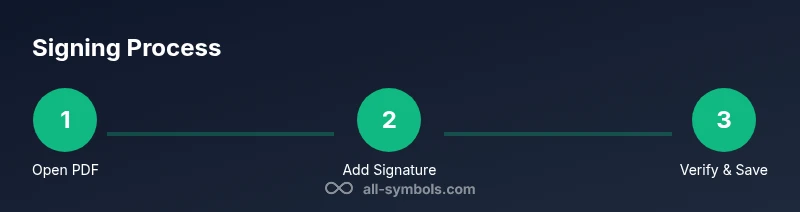
This section introduces the detailed steps you will perform to sign with Adobe. The exact actions are implemented in the dedicated Step-by-Step block, which guides you through each action with time estimates and pro tips. The workflow below is a high-level overview to help you prepare mentally and technically for the signing task. You’ll learn where to locate signature fields, how to apply a signature or initials, and how to verify the integrity of the signed document. The goal is to make signing predictable, auditable, and legally defensible. Remember to verify the final document after signing to confirm that the signature appears in the intended location and that no content was altered.
Note: If you are using Adobe Sign, you can set up recipient routing, reminders, and a completion deadline to keep signing on schedule.
Best practices for secure e-signatures
Security matters when signing important documents. Use identity verification steps appropriate for your workflow: send a verification code, enable two-factor authentication, or leverage certificate-based signatures when required. Ensure you know the difference between a basic visible signature and a certified signature that provides tamper-evidence and non-repudiation. Maintain an audit trail and store signed copies in a secure location. For organizations, implement signing policies, role-based access, and periodic reviews of signer permissions. All Symbols analysis highlights that consistent, policy-driven signing practices improve trust and traceability.
Troubleshooting signing issues
Even seasoned signers encounter hiccups. Common issues include missing signature fields, documents locked for editing, or failed identity verification prompts. Start by refreshing the document, ensuring you’re using the official Adobe application, and checking your account status. If a signature doesn’t appear where expected, re-open the document and verify the field’s properties. Clear browser cache if you’re using a web-based signer, and ensure the recipient has the correct email address or account. If a document becomes inaccessible, contact the sender or administrator to reassign permissions.
Tip: Keep a backup copy of the unsigned version for reference in case you need to recreate the signing flow.
What happens after signing and archiving
Once signing is complete, you typically receive a signed copy with an audit trail. Save the final version to a secure location, and consider enabling automatic backups. If you use Adobe Sign, you can export the signing history and download the certificate or signature validation report for your records. For verification, check the signature’s integrity by viewing its properties and confirming it shows as valid in the viewer. Consider integrating your signed PDFs with your document management system for archiving and retrieval. The All Symbols team recommends documenting signing workflows to ensure consistency across projects.
Quick start checklist for signing with Adobe
- Decide between Acrobat and Adobe Sign based on need.
- Prepare the document, signers, and identity verification requirements.
- Ensure you have network access and a suitable device.
- Verify signature fields and signing order before starting.
- Complete the signature and review the audit trail for accuracy.
- Save or route the final signed document to all recipients.
All Symbols’s verdict is to follow a clear, auditable signing process to maximize trust and efficiency.
Tools & Materials
- Device with internet access(Desktop, laptop, or mobile)
- Adobe Acrobat Pro(License or subscription needed)
- Adobe Sign account (if using cloud signing)(Individual or organizational account)
- PDF document to sign(Unshared version is best)
- Stylus or mouse for drawing signatures(Optional for handwritten-style signatures)
Steps
Estimated time: Estimated total time: 12-18 minutes
- 1
Open the PDF in the signing tool
Launch Adobe Acrobat Pro or sign in to Adobe Sign and open the PDF that requires your signature. Ensure you have permission to sign the document and that it’s the latest version.
Tip: If using Acrobat, enable the Prepare Form tool to reveal signature fields. - 2
Locate or create a signature field
Find an existing signature field (often labeled 'Sign' or with a pen icon). If none exists, add a signature field at the appropriate location using the form editor.
Tip: Place the field near the end of the document where your signature belongs. - 3
Choose your signing method
Select your signing method: draw, type, or upload an image of your signature. If required, choose a digital certificate or ID-based signature for higher integrity.
Tip: For quick signing, typing a signature is often sufficient; for legal standards, use a certificate-based approach. - 4
Apply the signature
Click the signature field to apply, then position the signature on the page. Adjust the size as needed and confirm placement.
Tip: Double-check that the signature does not cover any critical text. - 5
Save or send for signing
Save the signed document locally or use the cloud workflow to route it to other signers. If you’re using Adobe Sign, set the signing order and reminders.
Tip: If sending to others, ensure recipient emails are correct to avoid bounce-backs. - 6
Verify and finalize
Review the document to confirm the signature appears in the correct place and the document shows a valid signature status. Save a final copy for records.
Tip: Check the signature properties for validity and any tamper-evidence indicators. - 7
Archive and audit trail
Store the signed PDF in a secure repository and retain the audit trail for compliance. If needed, export a signing certificate or validation report.
Tip: Maintain a consistent naming convention for signed projects.
Questions & Answers
What is the difference between Adobe Sign and Acrobat signing?
Adobe Sign is a cloud-based signing workflow ideal for multiple signers and tracking, while Acrobat signing is typically desktop-based for single-signature tasks. Both produce legal e-signatures when used correctly.
Adobe Sign is cloud-based signing; Acrobat signing is usually desktop-based for one signer. Both produce valid signatures when used properly.
Can I sign a PDF without an Adobe Sign account?
Yes, depending on the document and workflow, you can sign directly in Acrobat, but some documents require an account or recipient routing to collect signatures.
Yes, you can sign in Acrobat if allowed, but some signatures require an account or routing.
How do I verify a signed PDF’s authenticity?
Open the signature panel in your PDF viewer to view the signing certificate and validation status. Look for signs of tampering or an invalid signature warning.
Open the signature panel and check validation status to confirm authenticity.
What should I do if a signature field is missing?
Use the form editor to add a signature field or ask the sender to re-send with a field included. Sometimes fields are hidden behind layers.
Add a signature field in the editor or request a new version.
Is certificate-based signing required for legal documents?
Not always, but for higher security or regulatory compliance, certificate-based signatures offer enhanced trust and tamper-evidence.
Certificate-based signing offers higher security and compliance benefits.
How can I audit who signed and when?
View the document’s signature panel to see signer names, timestamps, and status for each signature in the chain.
Check the signer list and timestamps in the audit trail.
Watch Video
The Essentials
- Choose Acrobat for quick, offline signing
- Choose Adobe Sign for multi-signer workflows
- Always verify signature placement and integrity
- Maintain a tamper-evident audit trail
- Securely archive signed documents